PDF

Air Filter
Introduction
This example demonstrates simulation of a turbulent flow in a geometry with an air filter. The porous material of the filter induces an abrupt pressure drop and a drastic increase of the turbulence level inside the filter. The turbulent flow field in both the clear-flow and porous domains is computed using the Turbulent Flow, k-ω interface.
Model Definition
Turbulent flows in porous media can occur in many cases of academic and practical interest: filters, catalytic converters in exhaust systems, chemical reactors, oil transport and recovery in wells, transport of contaminants in groundwater, porous river beds, plant canopies and dense urban areas, thermal power plants, heat exchangers with porous-metal inserts, and even propagation of forest fires. Here, a three-dimensional model of a turbulent duct flow with an air filter represented by a porous domain is considered.
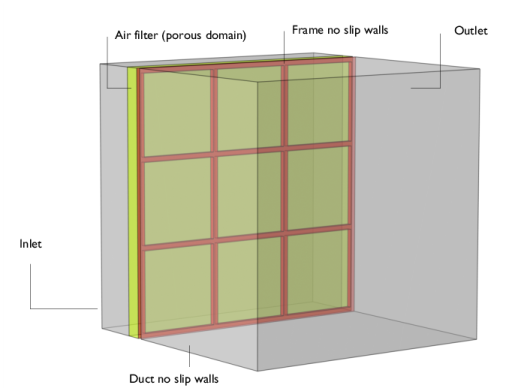
Figure 1: Duct geometry with the porous domain of the air filter (light green) and no-slip walls of the holding frame (red).
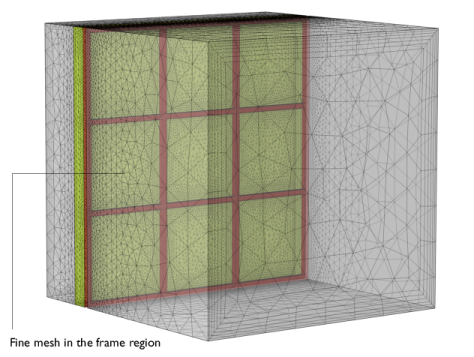
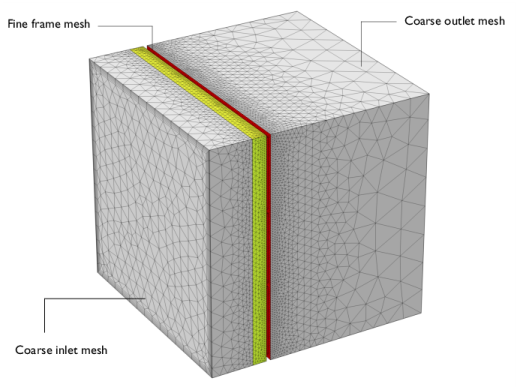
Figure 1 shows the model geometry, domain properties, and boundary conditions while Figure 2 and Figure 3 illustrate the mesh. At the Inlet, a Normal inflow velocity condition is applied. At the Outlet, a Static pressure condition is used. The air filter is modeled as a highly porous domain with cylindrical pores 0.1 mm in diameter occupying 90% of the material. The support of the air filter is represented by a frame with no-slip walls. The duct walls are also no slip. The upstream domain, relative to the air filter and its supporting frame, can be taken quite short since the porous domain homogenizes the flow very efficiently. The downstream domain must be long enough to ensure that the frame-generated wake has almost homogenized. Correspondingly, the frame walls and frame plane use a Finer mesh, while the air filter domain, the region upstream of it with thickness D_filter, and the wake region with thickness L_wake = 10 D_frame, use a Fine mesh. The remaining geometry uses the Coarser mesh level. The duct Reynolds number based on the average (bulk) velocity and the height of the duct, Re = UbH/ν, is equal to 5311, which ensures that the flow is turbulent in the clear part of the duct. The k-ω turbulence model is chosen because it consistently models situations with a lot of small no-slip walls (the frame surface). The extension of the model to porous media is described in the theory section for the Turbulent Flow interfaces in the CFD Module User’s Guide.
Figure 2: Model mesh. The focus is on the fine meshing of the frame region.
Figure 3: Model mesh.
Results and Discussion
The presence of the porous domain in the turbulent flow does not negatively influence the simulation stability of this particular model. On the contrary, the solution time is approximately twice as small compared to the case with a completely clear flow.
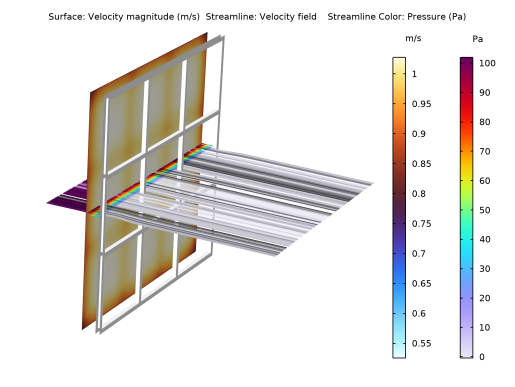
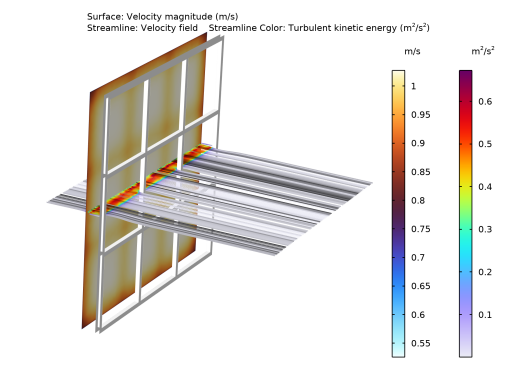
Figure 4 illustrates how the frame influences the velocity field at the inflow surface of the air filter. The velocity streamlines are shown and the abrupt pressure drop across the porous domain is plotted. Figure 5 is an analogous figure illustrating the drastic increase of the turbulence kinetic energy inside the air filter and its fast attenuation both upstream and downstream.
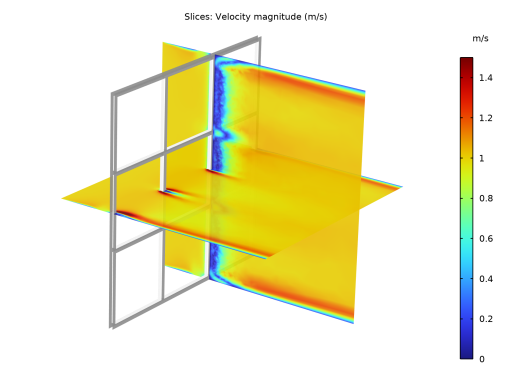
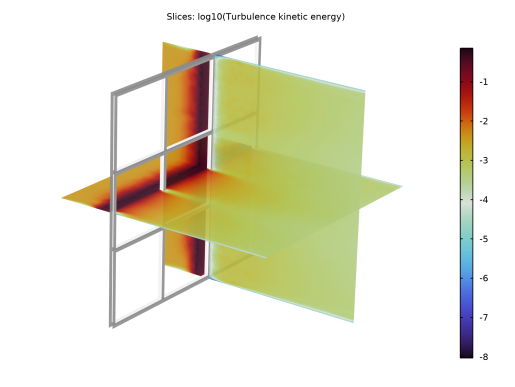
Figure 6 shows the velocity magnitude on the vertical and horizontal slices. The wakes produced by the frame and boundary layers on the duct walls are visible. Figure 7 uses the same slices and plots log10(k) to emphasize that the pore-scale turbulence production boosts the turbulence kinetic energy up to several orders of magnitude inside the porous domain, while k falls very rapidly outside.
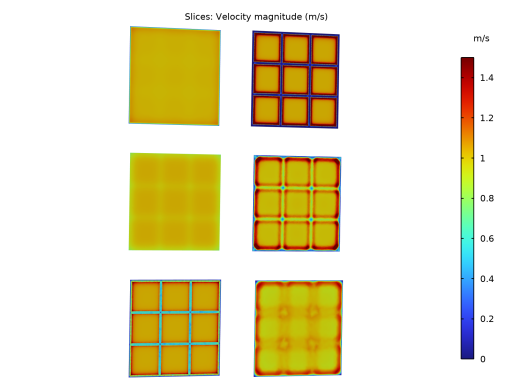
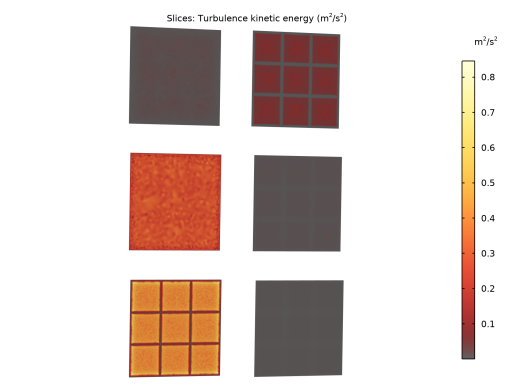
Figure 8 demonstrates how the velocity is first influenced by the porous domain and the frame, and is subsequently homogenized through the wake region. Figure 9 shows the same slices with the turbulence kinetic energy. Notice that unlike the velocity, whose evolution is apparent in the wake region, the turbulence kinetic energy has a pronounced peak in the air filter region and is insignificant outside of it.
Figure 4: Velocity magnitude at the inflow surface of the air filter; velocity streamlines are colored with the pressure magnitude.
Figure 5: Velocity magnitude at the inflow surface of the air filter; velocity streamlines are colored with the turbulence kinetic energy magnitude.
Figure 6: Horizontal and vertical slices of the velocity magnitude showing frame-produced wakes. Boundary layers on the duct walls are visible, too.
Figure 7: Horizontal and vertical slices of the decimal logarithm of the turbulence kinetic energy, illustrating that the particular porous domain produces k values several orders of magnitude higher than the values upstream and downstream.
Figure 8: Slices of the velocity magnitude. Left column, top to bottom: D_filter distance upstream of the air-filter plane, inflow surface of the air filter, outflow surface of the air filter. It is visible that the frame placed on the outflow surface makes a clear imprint on the inflow surface of the air filter. Right column, top to bottom: frame plane, plane at L_wake/2 distance from the frame, plane at L_wake distance from the frame. Here, homogenization in the frame-generated wake is apparent.
Figure 9: Slices of the turbulence kinetic energy. Left column, top to bottom: D_filter distance upstream of the air-filter plane, inflow surface of the air filter, outflow surface of the air filter. Right column, top to bottom: frame plane, plane at L_wake/2 distance from the frame, plane at L_wake distance from the frame. Apparently, the turbulence kinetic energy is high on the surfaces of the air filter only and rapidly falls in both directions.
Application Library path: CFD_Module/Single-Phase_Flow/air_filter
Modeling Instructions
From the File menu, choose New.
New
In the New window, click  Model Wizard.
Model Wizard
1
In the Model Wizard window, click  3D.
2
In the Select Physics tree, select Fluid Flow>Single-Phase Flow>Turbulent Flow>Turbulent Flow, k-ω (spf).
3
Click Add.
4
Click  Study.
5
In the Select Study tree, select General Studies>Stationary.
6
Global Definitions
Parameters 1
Start with loading predefined parameters and expressions to be used in the model.
1
In the Model Builder window, under Global Definitions click Parameters 1.
2
In the Settings window for Parameters, locate the Parameters section.
3
Click  Load from File.
4
Parameters 2
1
In the Home toolbar, click  Parameters and choose Add>Parameters.
2
In the Settings window for Parameters, locate the Parameters section.
3
Click  Load from File.
4
Geometry 1
Work Plane 1 (wp1)
1
In the Geometry toolbar, click  Work Plane.
2
In the Settings window for Work Plane, locate the Plane Definition section.
3
From the Plane list, choose yz-plane.
Work Plane 1 (wp1)>Plane Geometry
In the Model Builder window, click Plane Geometry.
Work Plane 1 (wp1)>If 1 (if1)
1
In the Work Plane toolbar, click  Programming and choose If + End If.
2
In the Settings window for If, locate the If section.
3
In the Condition text field, type cell_type==1.
Work Plane 1 (wp1)>Rectangle 1 (r1)
1
In the Work Plane toolbar, click  Rectangle.
2
In the Settings window for Rectangle, locate the Size and Shape section.
3
In the Width text field, type cL_h.
4
In the Height text field, type cL_v.
5
Locate the Position section. From the Base list, choose Center.
6
In the xw text field, type Th_h+cL_h/2.
7
In the yw text field, type Th_v+cL_v/2.
8
Locate the Selections of Resulting Entities section. Find the Cumulative selection subsection. Click New.
9
In the New Cumulative Selection dialog box, type Inner Grill in the Name text field.
10
Add alternative option for openings in the air filter frame (ellipses).
Work Plane 1 (wp1)>Else If 1 (elseif1)
1
Right-click Plane Geometry and choose Programming>Else If.
2
In the Settings window for Else If, locate the Else If section.
3
In the Condition text field, type cell_type==2.
Work Plane 1 (wp1)>Ellipse 1 (e1)
1
In the Work Plane toolbar, click  Ellipse.
2
In the Settings window for Ellipse, locate the Size and Shape section.
3
In the a-semiaxis text field, type cL_h/2.
4
In the b-semiaxis text field, type cL_v/2.
5
Locate the Position section. In the xw text field, type Th_h+cL_h/2.
6
In the yw text field, type Th_v+cL_v/2.
7
Locate the Selections of Resulting Entities section. Find the Cumulative selection subsection. From the Contribute to list, choose Inner Grill.
8
In the Work Plane toolbar, click  Build All.
Work Plane 1 (wp1)>Array 1 (arr1)
1
In the Work Plane toolbar, click  Transforms and choose Array.
2
In the Settings window for Array, locate the Input section.
3
From the Input objects list, choose Inner Grill.
4
Locate the Size section. In the xw size text field, type N_h.
5
In the yw size text field, type N_v.
6
Locate the Displacement section. In the xw text field, type cL_h+Th_h.
7
In the yw text field, type cL_v+Th_v.
Work Plane 1 (wp1)>Rectangle 2 (r2)
1
In the Work Plane toolbar, click  Rectangle.
2
In the Settings window for Rectangle, locate the Size and Shape section.
3
In the Width text field, type L_h.
4
In the Height text field, type L_v.
Work Plane 1 (wp1)>Difference 1 (dif1)
1
In the Work Plane toolbar, click  Booleans and Partitions and choose Difference.
2
3
In the Settings window for Difference, locate the Difference section.
4
From the Objects to subtract list, choose Inner Grill.
5
Locate the Selections of Resulting Entities section. Find the Cumulative selection subsection. From the Contribute to list, choose Inner Grill.
Extrude 1 (ext1)
1
In the Model Builder window, right-click Geometry 1 and choose Extrude.
2
In the Settings window for Extrude, locate the Distances section.
3
4
Locate the Selections of Resulting Entities section. Select the Resulting objects selection check box.
5
From the Show in physics list, choose Boundary selection.
6
From the Color list, choose None or — if you are running the cross-platform desktop —Custom. On the cross-platform desktop, click the Color button.
7
Click Define custom colors.
8
9
Click Add to custom colors.
10
Click Show color palette only or OK on the cross-platform desktop.
11
Find the Cumulative selection subsection. Click New.
12
In the New Cumulative Selection dialog box, type Frame in the Name text field.
13
Block 1 (blk1)
1
In the Geometry toolbar, click  Block.
2
In the Settings window for Block, locate the Size and Shape section.
3
In the Width text field, type D_filter.
4
In the Depth text field, type L_h.
5
In the Height text field, type L_v.
6
Locate the Position section. In the x text field, type -D_filter.
7
Locate the Selections of Resulting Entities section. Select the Resulting objects selection check box.
8
From the Color list, choose Color 4.
9
Find the Cumulative selection subsection. Click New.
10
In the New Cumulative Selection dialog box, type Filter in the Name text field.
11
Definitions
View 3
1
In the Model Builder window, expand the Component 1 (comp1)>Definitions node.
2
Right-click Definitions and choose View.
3
In the Settings window for View, click to expand the Transparency section.
4
Select the Transparency check box.
Geometry 1
Block 1 (blk1)
1
In the Model Builder window, under Component 1 (comp1)>Geometry 1 click Block 1 (blk1).
2
In the Settings window for Block, click  Build Selected.
Block 2 (blk2)
1
In the Geometry toolbar, click  Block.
2
In the Settings window for Block, locate the Size and Shape section.
3
In the Width text field, type L_pre+L_post.
4
In the Depth text field, type L_h.
5
In the Height text field, type L_v.
6
Locate the Position section. In the x text field, type -L_pre.
7
Locate the Selections of Resulting Entities section. Find the Cumulative selection subsection. Click New.
8
In the New Cumulative Selection dialog box, type Chamber in the Name text field.
9
Block 3 (blk3)
1
In the Geometry toolbar, click  Block.
2
In the Settings window for Block, locate the Position section.
3
In the x text field, type -2*D_filter.
4
Locate the Size and Shape section. In the Width text field, type D_filter.
5
In the Depth text field, type L_h.
6
In the Height text field, type L_v.
7
Locate the Selections of Resulting Entities section. Find the Cumulative selection subsection. Click New.
8
In the New Cumulative Selection dialog box, type MD_pre in the Name text field.
9
Block 4 (blk4)
1
In the Geometry toolbar, click  Block.
2
In the Settings window for Block, locate the Size and Shape section.
3
In the Depth text field, type L_h.
4
In the Height text field, type L_v.
5
In the Width text field, type D_frame+L_wake.
6
Locate the Selections of Resulting Entities section. Find the Cumulative selection subsection. Click New.
7
In the New Cumulative Selection dialog box, type MD_post in the Name text field.
8
Difference 1 (dif1)
1
In the Geometry toolbar, click  Booleans and Partitions and choose Difference.
2
Select the objects blk2 and blk4 only.
3
In the Settings window for Difference, locate the Difference section.
4
From the Objects to subtract list, choose Frame.
Add Mesh Control Domains to impose coarser mesh outside the regions of air filter, frame and wake.
Mesh Control Domains 1 (mcd1)
1
In the Geometry toolbar, click  Virtual Operations and choose Mesh Control Domains.
2
On the object fin, select Domains 1 and 5 only.
3
In the Geometry toolbar, click  Build All.
4
Add Material
1
In the Home toolbar, click  Add Material to open the Add Material window.
2
Go to the Add Material window.
3
4
Click Add to Component in the window toolbar.
5
In the Home toolbar, click  Add Material to close the Add Material window.
Complement air properties with porosity and permeability to be used in the porous domain of air filter.
Materials
Air (mat1)
1
In the Settings window for Material, click to expand the Material Properties section.
2
In the Material properties tree, select Basic Properties>Permeability.
3
Click  Add to Material.
4
Locate the Material Contents section. In the table, enter the following settings:
5
Locate the Material Properties section. In the Material properties tree, select Basic Properties>Porosity.
6
Click  Add to Material.
7
Locate the Material Contents section. In the table, enter the following settings:
Define selections to be used below.
Definitions
Filter front
1
In the Definitions toolbar, click  Intersection.
2
In the Settings window for Intersection, type Filter front in the Label text field.
3
Locate the Geometric Entity Level section. From the Level list, choose Boundary.
4
Locate the Input Entities section. Under Selections to intersect, click  Add.
5
In the Add dialog box, in the Selections to intersect list, choose Filter and MD_pre.
6
Filter-frame
1
In the Definitions toolbar, click  Intersection.
2
In the Settings window for Intersection, type Filter-frame in the Label text field.
3
Locate the Geometric Entity Level section. From the Level list, choose Boundary.
4
Locate the Input Entities section. Under Selections to intersect, click  Add.
5
In the Add dialog box, in the Selections to intersect list, choose Filter and MD_post.
6
Turbulent Flow, k-ω (spf)
1
In the Model Builder window, under Component 1 (comp1) click Turbulent Flow, k-ω (spf).
2
In the Settings window for Turbulent Flow, k-ω, locate the Physical Model section.
3
Select the Enable porous media domains check box.
Porous Medium 1
1
In the Physics toolbar, click  Domains and choose Porous Medium.
2
In the Settings window for Porous Medium, locate the Domain Selection section.
3
From the Selection list, choose Filter.
Porous Matrix 1
1
In the Model Builder window, click Porous Matrix 1.
2
In the Settings window for Porous Matrix, locate the Matrix Properties section.
3
In the cF text field, type cF_i.
Inlet 1
1
In the Physics toolbar, click  Boundaries and choose Inlet.
2
3
In the Settings window for Inlet, locate the Velocity section.
4
In the U0 text field, type U_in.
Outlet 1
1
In the Physics toolbar, click  Boundaries and choose Outlet.
2
Mesh should be fine in the porous filter, frame region and in the wake region, which is fulfilled by varying settings in Size features of the Meshnode.
Mesh 1
1
In the Model Builder window, under Component 1 (comp1) click Mesh 1.
2
In the Settings window for Mesh, locate the Physics-Controlled Mesh section.
3
From the Element size list, choose Coarser.
4
Locate the Sequence Type section. From the list, choose User-controlled mesh.
Size 1
1
In the Model Builder window, under Component 1 (comp1)>Mesh 1 click Size 1.
2
In the Settings window for Size, locate the Element Size section.
3
From the Predefined list, choose Finer.
4
Locate the Geometric Entity Selection section. From the Selection list, choose Frame.
5
Click  Build Selected.
Size 2
1
Right-click Component 1 (comp1)>Mesh 1>Size 1 and choose Duplicate.
2
In the Settings window for Size, locate the Geometric Entity Selection section.
3
From the Selection list, choose Filter-frame.
4
Click  Build Selected.
Size 3
1
Right-click Size 2 and choose Duplicate.
2
In the Settings window for Size, locate the Geometric Entity Selection section.
3
From the Selection list, choose Manual.
4
Click  Clear Selection.
5
6
Locate the Element Size section. From the Predefined list, choose Fine.
7
Click  Build Selected.
Size 4
1
Right-click Size 3 and choose Duplicate.
2
In the Settings window for Size, locate the Geometric Entity Selection section.
3
From the Geometric entity level list, choose Domain.
4
5
In the Model Builder window, right-click Mesh 1 and choose Build All.
6
Reproduce Figure 2.
Definitions
View 4
In the Model Builder window, under Component 1 (comp1) right-click Definitions and choose View.
Mesh 1
Adjust camera to reproduce Figure 3.
Study 1
In the Home toolbar, click  Compute.
Results
Cut Line is needed as a seed of points for the Streamline.
Cut Line 3D 1
1
In the Results toolbar, click  Cut Line 3D.
2
In the Settings window for Cut Line 3D, locate the Line Data section.
3
In row Point 2, set x to 0.
4
In row Point 2, set y to L_h.
5
In row Point 1, set z to Cut_v_cell.
6
In row Point 2, set z to Cut_v_cell.
Velocity and pressure
1
In the Results toolbar, click  3D Plot Group.
2
In the Settings window for 3D Plot Group, locate the Plot Settings section.
3
From the View list, choose New view.
4
In the Label text field, type Velocity and pressure.
5
Locate the Color Legend section. Select the Show units check box.
6
Locate the Plot Settings section. Clear the Plot dataset edges check box.
Surface 1
1
Right-click Velocity and pressure and choose Surface.
2
In the Settings window for Surface, click to expand the Title section.
3
From the Title type list, choose None.
Selection 1
1
Right-click Surface 1 and choose Selection.
2
In the Settings window for Selection, locate the Selection section.
3
From the Selection list, choose Frame.
Material Appearance 1
1
In the Model Builder window, right-click Surface 1 and choose Material Appearance.
2
In the Settings window for Material Appearance, locate the Appearance section.
3
From the Appearance list, choose Custom.
4
From the Material type list, choose Plastic (shiny).
Surface 2
1
In the Model Builder window, right-click Velocity and pressure and choose Surface.
2
In the Settings window for Surface, locate the Coloring and Style section.
3
Click  Change Color Table.
4
In the Color Table dialog box, select Thermal>ThermalWave in the tree.
5
Selection 1
1
Right-click Surface 2 and choose Selection.
2
In the Settings window for Selection, locate the Selection section.
3
From the Selection list, choose Filter front.
Streamline 1
1
In the Model Builder window, right-click Velocity and pressure and choose Streamline.
2
In the Settings window for Streamline, locate the Streamline Positioning section.
3
From the Positioning list, choose Starting-point controlled.
4
In the Points text field, type 100.
5
From the Along curve or surface list, choose Cut Line 3D 1.
6
Locate the Coloring and Style section. Find the Line style subsection. From the Type list, choose Ribbon.
7
Select the Width scale factor check box. In the associated text field, type 2E-4.
Color Expression 1
1
Right-click Streamline 1 and choose Color Expression.
2
In the Settings window for Color Expression, locate the Expression section.
3
In the Expression text field, type p.
4
Click to expand the Title section. From the Title type list, choose Automatic.
5
Locate the Coloring and Style section. Click  Change Color Table.
6
In the Color Table dialog box, select Rainbow>Prism in the tree.
7
8
Velocity and turbulence kinetic energy
1
In the Model Builder window, right-click Velocity and pressure and choose Duplicate.
2
In the Settings window for 3D Plot Group, type Velocity and turbulence kinetic energy in the Label text field.
3
In the Model Builder window, expand the Velocity and turbulence kinetic energy node.
Color Expression 1
1
In the Model Builder window, expand the Results>Velocity and turbulence kinetic energy>Streamline 1 node, then click Color Expression 1.
2
In the Settings window for Color Expression, locate the Expression section.
3
In the Expression text field, type k.
4
Reproduce Figure 5.
Velocity slices xy and xz
1
In the Model Builder window, right-click Velocity and turbulence kinetic energy and choose Duplicate.
2
In the Settings window for 3D Plot Group, type Velocity slices xy and xz in the Label text field.
3
Locate the Plot Settings section. From the View list, choose New view.
4
In the Velocity slices xy and xz toolbar, click  Plot.
View 3D 6
1
In the Model Builder window, expand the Results>Views node, then click View 3D 6.
2
In the Settings window for View 3D, click to expand the Transparency section.
3
Select the Transparency check box.
4
In the Transparency text field, type 0.1.
Velocity slices xy and xz
In the Model Builder window, expand the Results>Velocity slices xy and xz node.
Streamline 1, Surface 2
1
In the Model Builder window, under Results>Velocity slices xy and xz, Ctrl-click to select Surface 2 and Streamline 1.
2
Slice 1
1
In the Model Builder window, right-click Velocity slices xy and xz and choose Slice.
2
In the Settings window for Slice, locate the Plane Data section.
3
From the Plane list, choose xy-planes.
4
From the Entry method list, choose Coordinates.
5
In the z-coordinates text field, type Cut_v_cell.
6
Click to expand the Range section. Select the Manual color range check box.
7
In the Maximum text field, type 1.5.
8
Click to expand the Title section. From the Title type list, choose Manual.
9
In the Title text area, type Slices: Velocity magnitude (m/s).
Slice 2
1
Right-click Slice 1 and choose Duplicate.
2
In the Settings window for Slice, locate the Plane Data section.
3
From the Plane list, choose zx-planes.
4
From the Entry method list, choose Coordinates.
5
In the y-coordinates text field, type Cut_h_edge.
6
Click to expand the Inherit Style section. From the Plot list, choose Slice 1.
7
Locate the Title section. From the Title type list, choose None.
8
log10(Turbulence kinetic energy) slices xy and xz
1
In the Model Builder window, right-click Velocity slices xy and xz and choose Duplicate.
2
In the Settings window for 3D Plot Group, type log10(Turbulence kinetic energy) slices xy and xz in the Label text field.
Slice 1
1
In the Model Builder window, expand the log10(Turbulence kinetic energy) slices xy and xz node, then click Slice 1.
2
In the Settings window for Slice, locate the Range section.
3
Clear the Manual color range check box.
4
Locate the Title section. In the Title text area, type Slices: log10(Turbulence kinetic energy).
5
Locate the Expression section. In the Expression text field, type log10(k).
6
Locate the Coloring and Style section. Click  Change Color Table.
7
In the Color Table dialog box, select Rainbow>DipoleDark in the tree.
8
Slice 2
1
In the Model Builder window, click Slice 2.
2
In the Settings window for Slice, locate the Expression section.
3
In the Expression text field, type log10(k).
4
Reproduce Figure 7.
Velocity slices yz planes
1
In the Model Builder window, right-click Velocity slices xy and xz and choose Duplicate.
The following Plot group serves to illustrate how velocity field is influenced by the porous domain and, predominantly, by the frame, and then becomes gradually homogenized in the wake region.
2
In the Settings window for 3D Plot Group, locate the Plot Settings section.
3
From the View list, choose New view.
4
In the Label text field, type Velocity slices yz planes.
5
Click to expand the Plot Array section. Select the Enable check box.
6
From the Array shape list, choose Square.
7
From the Array plane list, choose yz.
8
In the Model Builder window, expand the Velocity slices yz planes node.
Slice 2, Surface 1
1
In the Model Builder window, under Results>Velocity slices yz planes, Ctrl-click to select Surface 1 and Slice 2.
2
Slice 1
1
In the Model Builder window, under Results>Velocity slices yz planes click Slice 1.
2
In the Settings window for Slice, locate the Plane Data section.
3
From the Plane list, choose yz-planes.
4
From the Entry method list, choose Coordinates.
5
In the x-coordinates text field, type -2*D_filter.
6
Click to expand the Plot Array section. Select the Manual indexing check box.
Slice 2
1
Right-click Results>Velocity slices yz planes>Slice 1 and choose Duplicate.
2
In the Settings window for Slice, locate the Plane Data section.
3
In the x-coordinates text field, type -D_filter.
4
Locate the Plot Array section. In the Row index text field, type -1.
5
Locate the Inherit Style section. From the Plot list, choose Slice 1.
6
Locate the Title section. From the Title type list, choose None.
Slice 3
1
Right-click Slice 2 and choose Duplicate.
2
In the Settings window for Slice, locate the Plane Data section.
3
In the x-coordinates text field, type 0.
4
Locate the Plot Array section. In the Row index text field, type -2.
Slice 4
1
Right-click Slice 3 and choose Duplicate.
2
In the Settings window for Slice, locate the Plane Data section.
3
In the x-coordinates text field, type D_frame.
4
Locate the Plot Array section. In the Row index text field, type 0.
5
In the Column index text field, type 1.
Slice 5
1
Right-click Slice 4 and choose Duplicate.
2
In the Settings window for Slice, locate the Plane Data section.
3
In the x-coordinates text field, type D_frame+L_wake/2.
4
Locate the Plot Array section. In the Row index text field, type -1.
Slice 6
1
Right-click Slice 5 and choose Duplicate.
2
In the Settings window for Slice, locate the Plane Data section.
3
In the x-coordinates text field, type D_frame+L_wake.
4
Locate the Plot Array section. In the Row index text field, type -2.
5
Turbulence kinetic energy yz planes
1
In the Model Builder window, right-click Velocity slices yz planes and choose Duplicate.
The following Plot group serves to illustrate how turbulence kinetic energy is drastically amplified in the porous domain and quickly becomes attenuated in both upstream and downstream directions.
2
In the Settings window for 3D Plot Group, type Turbulence kinetic energy yz planes in the Label text field.
Slice 1
1
In the Model Builder window, expand the Turbulence kinetic energy yz planes node, then click Slice 1.
2
In the Settings window for Slice, locate the Title section.
3
In the Title text area, type Slices: Turbulence kinetic energy (m<sup>2</sup>/s<sup>2</sup>).
4
Locate the Range section. Clear the Manual color range check box.
5
Locate the Expression section. In the Expression text field, type k.
6
Locate the Coloring and Style section. Click  Change Color Table.
7
In the Color Table dialog box, select Thermal>GrayBodyLight in the tree.
8
Slice 2
1
In the Model Builder window, click Slice 2.
2
In the Settings window for Slice, locate the Expression section.
3
In the Expression text field, type k.
Slice 3
1
In the Model Builder window, click Slice 3.
2
In the Settings window for Slice, locate the Expression section.
3
In the Expression text field, type k.
Slice 4
1
In the Model Builder window, click Slice 4.
2
In the Settings window for Slice, locate the Expression section.
3
In the Expression text field, type k.
Slice 5
1
In the Model Builder window, click Slice 5.
2
In the Settings window for Slice, locate the Expression section.
3
In the Expression text field, type k.
Slice 6
1
In the Model Builder window, click Slice 6.
2
In the Settings window for Slice, locate the Expression section.
3
In the Expression text field, type k.
4
Reproduce Figure 9.
Image 1
1
In the Results toolbar, click  Image.
2
In the Settings window for Image, choose Presentation and document from the Preset list.
3
Click to expand the Layout section. From the Background list, choose Transparent.
4
Click to expand the Image section. In the Width text field, type 3165.
5
In the Height text field, type 2374.
6
In the Resolution text field, type 90.
7
Locate the Scene section. In the tree, select Model (root)>Component 1 (comp1)>Mesh 1.
8
Click  Use as Source.
9
Click to expand the Output section. From the Target list, choose File.
10
Locate the Scene section. From the View list, choose View 3.
11
Locate the Output section. In the Filename text field, type air_filter_mesh_1_HiRes.png.
12
Click  Export.
Image 2
1
Right-click Image 1 and choose Duplicate.
2
In the Settings window for Image, locate the Scene section.
3
From the View list, choose View 4.
4
Click to expand the Output section. In the Filename text field, type air_filter_mesh_2_HiRes.png.
5
Click  Export.