You are viewing the documentation for an older COMSOL version. The latest version is available here.
PDF

Shape Optimization of a
Rectangular Loudspeaker Horn in 3D
Introduction
This model shows how shape optimization can be used to design an acoustic loudspeaker horn. The horn is rectangular and this property can be maintained throughout the optimization by scaling the horn differently for different values of the z-coordinate. The scaling is performed isotropically in the x and y directions using a Bernstein polynomial. The objective function is computed using the built-in exterior field optimization function evaluated on-axis. The resulting design is exported to a second component for optimization with an objective function defined as the exterior field pressure evaluated off-axis. For this second optimization, the boundary of the horn is allowed to vary freely for, while only translation and rotation is allowed for the speaker boundary.
Problem Definition
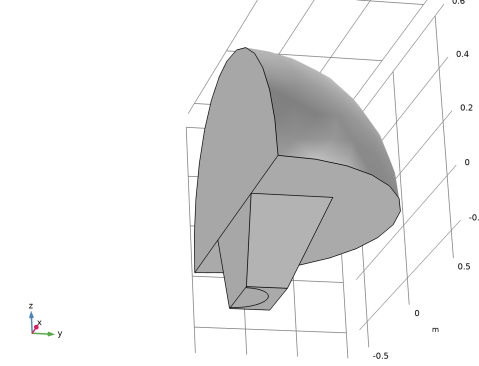
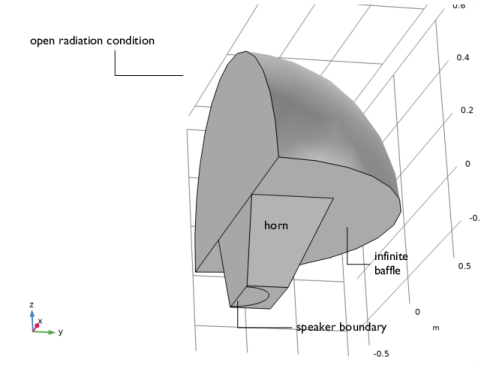
The initial geometry of the horn is a pyramid, as shown in Figure 1. The horn and speaker are placed in an infinite baffle configuration. Symmetry is exploited, so only half of the horn is modeled.
Figure 1: The initial geometry consists of a sphere outside the horn. The horn is placed in an infinite baffle and has the shape of a pyramid. A circle at the bottom of the horn is used for the idealized loudspeaker speaker driver.
Acoustic Problem
The horn and baffle boundaries are modeled as sound hard. The loudspeaker driver is represented with a simplified circular piston and a lumped model; see Lumped Loudspeaker Driver. The lumped Electrical Circuit model is coupled to the acoustic domain using the Lumped Speaker Boundary feature. The Exterior Field Calculation feature is used to compute the radiated field at a distance of 1.2 m in front of the horn. The problem is only computed for a single frequency.
First Shape Optimization
The Control Function feature is used to scale the horn based on a Bernstein polynomial. The z-coordinate is used as argument for the function, and boundary condition are applied, so that no scaling is performed for the minimum and maximum value of the argument. The function is used in a Prescribed Deformation feature to scale the horn isotropically in the x and y directions.
The dedicated built-in optimization function for the exterior-field sound pressure level is evaluated on axis and used as objective function (the expression Lp_pext_opt(0,0,R0)). To limit the effects of impedance matching a constraint is imposed on the power of the speaker (the expression acpr.lsb1.P_front). The optimization problem is solved with the MMA optimization solver with an iteration limit of 20 and a move limit of 0.1 (to limit the design change between any two iterations)
The resulting design is exported to a new component using a Filter dataset.
Second Shape Optimization
The design is now allow to change more freely in the sense that a Free Shape Boundary feature is used for the sides of the horn, while a Transformation feature is used on the speaker boundary. The latter is set up to allow translation and rotation around the y-axis.
The solver settings and objective function are recycled from the first optimization, but the objective function is changed such that the exterior field SPL is evaluated off-axis using the expression comp2.Lp_pext_opt(R0*sin(theta0),0,R0*cos(theta0)). The evaluation point is rotated by an angle theta0 in the xz-plane. There is still a constraint on the speaker power, similar to the first on-axis optimization.
Results and Discussion
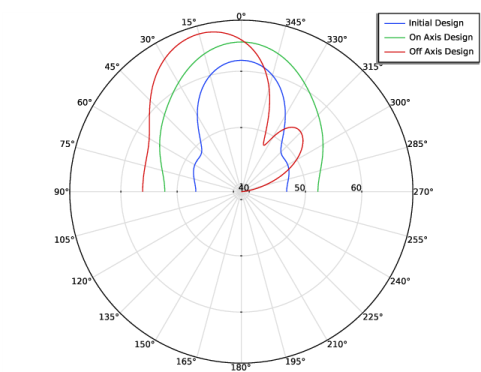
Figure 2 compares the radiation pattern for the initial design with the two optimized designs. The design optimized for off axis performance has the highest pressure both on- and off-axis, which can probably be attribute to the higher degree of design freedom.
Figure 2: The exterior-field sound pressure level is evaluated at different angles for the three designs.
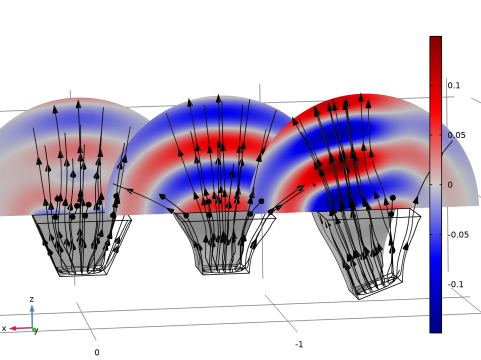
Looking at the actual designs one can see that the last optimization essentially rotates the horn, as shown in Figure 3.
Figure 3: The total acoustic pressure is evaluated in a slice for the three designs. The intensity is plotted with streamlines, while half the speaker boundary is shown in gray.
Application Library path: Acoustics_Module/Optimization/rectangular_horn_shape_optimization
Modeling Instructions
From the File menu, choose New.
New
In the New window, click  Model Wizard.
Model Wizard
1
In the Model Wizard window, click  3D.
2
In the Select Physics tree, select Acoustics>Pressure Acoustics>Pressure Acoustics, Frequency Domain (acpr).
3
Click Add.
4
In the Select Physics tree, select AC/DC>Electrical Circuit (cir).
5
Click Add.
6
Click  Study.
7
In the Select Study tree, select General Studies>Frequency Domain.
8
Global Definitions
Parameters 1
1
In the Model Builder window, under Global Definitions click Parameters 1.
2
In the Settings window for Parameters, locate the Parameters section.
3
Click  Load from File.
4
Geometry 1
Create the geometry. To simplify this step, insert a prepared geometry sequence.
1
In the Geometry toolbar, click Insert Sequence and choose Insert Sequence.
2
Browse to the model’s Application Libraries folder and double-click the file rectangular_horn_shape_optimization_geom_sequence.mph.
3
In the Geometry toolbar, click  Build All.
4
Click the  Zoom Extents button in the Graphics toolbar.
The geometry should now look like that in Figure 1. Note that the inserted geometry is parameterized and that the parameters used are automatically added to the list of global parameters in the model.
Add Material
1
In the Home toolbar, click  Add Material to open the Add Material window.
2
Go to the Add Material window.
3
4
Click Add to Component in the window toolbar.
5
In the Home toolbar, click  Add Material to close the Add Material window.
Pressure Acoustics, Frequency Domain (acpr)
Exterior Field Calculation 1
1
In the Model Builder window, under Component 1 (comp1) right-click Pressure Acoustics, Frequency Domain (acpr) and choose Exterior Field Calculation.
2
In the Settings window for Exterior Field Calculation, locate the Boundary Selection section.
3
From the Selection list, choose Exterior Field Boundary.
4
Locate the Exterior Field Calculation section. From the Condition in the y = y0 plane list, choose Symmetric/Infinite sound hard boundary.
5
From the Condition in the z = z0 plane list, choose Symmetric/Infinite sound hard boundary.
Lumped Speaker Boundary 1
1
In the Physics toolbar, click  Boundaries and choose Lumped Speaker Boundary.
2
In the Settings window for Lumped Speaker Boundary, locate the Boundary Selection section.
3
From the Selection list, choose Speaker Driver.
4
Locate the Speaker Geometry section. From the Speaker area list, choose Use symmetries.
5
In the Ascale text field, type 2.
6
7
Locate the Back Volume Correction section. In the Vback text field, type backV.
Perfectly Matched Boundary 1
1
In the Physics toolbar, click  Boundaries and choose Perfectly Matched Boundary.
2
In the Settings window for Perfectly Matched Boundary, locate the Boundary Selection section.
3
From the Selection list, choose Exterior Field Boundary.
Symmetry 1
1
In the Physics toolbar, click  Boundaries and choose Symmetry.
2
In the Settings window for Symmetry, locate the Boundary Selection section.
3
From the Selection list, choose Symmetry Boundary.
Refer to the loudspeaker_driver model for details on the lumped model for the driver.
Electrical Circuit (cir)
In the Model Builder window, under Component 1 (comp1) click Electrical Circuit (cir).
Voltage Source 1 (V1)
1
In the Electrical Circuit toolbar, click  Voltage Source.
2
In the Settings window for Voltage Source, locate the Node Connections section.
3
4
Locate the Device Parameters section. In the vsrc text field, type V0.
Resistor 1 (R1)
1
In the Electrical Circuit toolbar, click  Resistor.
2
In the Settings window for Resistor, locate the Node Connections section.
3
4
Locate the Device Parameters section. In the R text field, type 3[ohm].
Inductor 1 (L1)
1
In the Electrical Circuit toolbar, click  Inductor.
2
In the Settings window for Inductor, locate the Node Connections section.
3
4
Locate the Device Parameters section. In the L text field, type 0.25[mH].
Inductor 2 (L2)
1
Right-click Inductor 1 (L1) and choose Duplicate.
2
In the Settings window for Inductor, locate the Node Connections section.
3
4
Locate the Device Parameters section. In the L text field, type 6[g]*1[H/kg].
Current-Controlled Voltage Source 1 (H1)
1
In the Electrical Circuit toolbar, click  Current-Controlled Voltage Source.
2
In the Settings window for Current-Controlled Voltage Source, locate the Node Connections section.
3
4
Locate the Current Measurement section. From the Measure current for device list, choose Inductor 2 (L2).
5
Locate the Device Parameters section. In the Gain text field, type 5[T*m]/1[T*m/ohm].
Current-Controlled Voltage Source 2 (H2)
1
Right-click Current-Controlled Voltage Source 1 (H1) and choose Duplicate.
2
In the Settings window for Current-Controlled Voltage Source, locate the Node Connections section.
3
4
Locate the Current Measurement section. From the Measure current for device list, choose Resistor 1 (R1).
Resistor 2 (R2)
1
In the Electrical Circuit toolbar, click  Resistor.
2
In the Settings window for Resistor, locate the Node Connections section.
3
4
Locate the Device Parameters section. In the R text field, type 0.7[kg/s]*1[ohm/kg*s].
Capacitor 1 (C1)
1
In the Electrical Circuit toolbar, click  Capacitor.
2
In the Settings window for Capacitor, locate the Node Connections section.
3
4
Locate the Device Parameters section. In the C text field, type 0.4[mm/N]*1[F*N/m].
External I vs. U 1 (IvsU1)
1
In the Electrical Circuit toolbar, click  External I vs. U.
2
In the Settings window for External I vs. U, locate the Node Connections section.
3
4
Locate the External Device section. From the V list, choose Voltage from lumped speaker boundary (acpr/lsb1).
Mesh 1
Free Triangular 1
1
In the Mesh toolbar, click  Boundary and choose Free Triangular.
2
In the Settings window for Free Triangular, locate the Boundary Selection section.
3
From the Selection list, choose Speaker Boundary.
Size
1
In the Model Builder window, click Size.
2
In the Settings window for Size, click to expand the Element Size Parameters section.
3
In the Maximum element size text field, type meshsz.
Swept 1
1
In the Mesh toolbar, click  Swept.
2
In the Settings window for Swept, locate the Domain Selection section.
3
From the Geometric entity level list, choose Domain.
4
From the Selection list, choose Pyramid 1.
Free Tetrahedral 1
1
In the Mesh toolbar, click  Free Tetrahedral.
2
In the Settings window for Free Tetrahedral, locate the Domain Selection section.
3
From the Geometric entity level list, choose Domain.
4
From the Selection list, choose Sphere 1.
Boundary Layers 1
1
In the Mesh toolbar, click  Boundary Layers.
2
In the Settings window for Boundary Layers, locate the Geometric Entity Selection section.
3
From the Geometric entity level list, choose Domain.
4
From the Selection list, choose Sphere 1.
5
Click to expand the Transition section. Clear the Smooth transition to interior mesh check box.
Boundary Layer Properties
1
In the Model Builder window, click Boundary Layer Properties.
2
In the Settings window for Boundary Layer Properties, locate the Boundary Selection section.
3
From the Selection list, choose Exterior Field Boundary.
4
Locate the Layers section. In the Number of layers text field, type 1.
Study 1
Step 1: Frequency Domain
1
In the Model Builder window, under Study 1 click Step 1: Frequency Domain.
2
In the Settings window for Frequency Domain, locate the Study Settings section.
3
In the Frequencies text field, type f0.
4
In the Model Builder window, click Study 1.
5
In the Settings window for Study, type Initial Design in the Label text field.
6
In the Home toolbar, click  Compute.
Results
Acoustic Pressure (acpr), Acoustic Pressure, Isosurfaces (acpr), Exterior-Field Pressure (acpr), Exterior-Field Sound Pressure Level (acpr), Exterior-Field Sound Pressure Level xy-plane (acpr), Sound Pressure Level (acpr)
1
In the Model Builder window, under Results, Ctrl-click to select Acoustic Pressure (acpr), Sound Pressure Level (acpr), Acoustic Pressure, Isosurfaces (acpr), Exterior-Field Sound Pressure Level (acpr), Exterior-Field Pressure (acpr), and Exterior-Field Sound Pressure Level xy-plane (acpr).
2
Initial Design
In the Settings window for Group, type Initial Design in the Label text field.
Add an Evaluation Group to compute the initial radiated power as well as the objectives.
Objective Function
1
In the Results toolbar, click  Evaluation Group.
2
In the Settings window for Evaluation Group, type Objective Function in the Label text field.
Global Evaluation 1
1
Right-click Objective Function and choose Global Evaluation.
2
In the Settings window for Global Evaluation, locate the Expressions section.
3
4
Click Add Expression in the upper-right corner of the Expressions section. From the menu, choose Component 1 (comp1)>Pressure Acoustics, Frequency Domain>Lumped Speaker Boundary 1>acpr.lsb1.P_front - Radiated power (front) - W.
5
In the Objective Function toolbar, click  Evaluate.
Global Definitions
Parameters 1
Define a parameter for the initial value of the radiated power, so that this can be used in a constraint.
1
In the Model Builder window, under Global Definitions click Parameters 1.
2
In the Settings window for Parameters, locate the Parameters section.
3
Component 1 (comp1)
Maximize the on-axis pressure by scaling the x and y coordinates using a Control Function feature.
Control Function 1 (cfunc1)
1
In the Definitions toolbar, click  Optimization and choose Control Variables>Control Function.
2
In the Settings window for Control Function, locate the Input section.
3
In the n text field, type 7.
4
Locate the Output section. In the fmin text field, type -scaleMax.
5
In the fmax text field, type scaleMax.
6
Select the Start value check box.
7
Select the End value check box.
8
In the c0 text field, type 0.
9
Locate the Units section. In the Argument text field, type 1.
Component 1 (comp1)
Prescribed Deformation 1
1
In the Definitions toolbar, click  Deformed Geometry and choose Domains>Prescribed Deformation.
2
In the Settings window for Prescribed Deformation, locate the Geometric Entity Selection section.
3
From the Selection list, choose Pyramid 1.
4
Locate the Prescribed Deformation section. Specify the dx vector as
Add Study
1
In the Home toolbar, click  Add Study to open the Add Study window.
2
Go to the Add Study window.
3
Find the Studies subsection. In the Select Study tree, select General Studies>Frequency Domain.
4
Click Add Study in the window toolbar.
5
In the Home toolbar, click  Add Study to close the Add Study window.
Study 2
Step 1: Frequency Domain
1
In the Settings window for Frequency Domain, locate the Study Settings section.
2
In the Frequencies text field, type f0.
3
In the Model Builder window, click Study 2.
4
In the Settings window for Study, type Shape Optimization - On Axis in the Label text field.
Shape Optimization
1
In the Study toolbar, click  Optimization and choose Shape Optimization.
2
In the Settings window for Shape Optimization, locate the Optimization Solver section.
3
In the Maximum number of iterations text field, type 20.
Normalize the exterior-field pressure with the input power.
4
Click Add Expression in the upper-right corner of the Objective Function section. From the menu, choose Component 1 (comp1)>Pressure Acoustics, Frequency Domain>Lumped Speaker Boundary 1>comp1.acpr.lsb1.P_front - Radiated power (front) - W.
5
Locate the Objective Function section. In the table, enter the following settings:
6
From the Type list, choose Maximization.
7
From the Objective scaling list, choose Initial solution based.
8
Click Add Expression in the upper-right corner of the Constraints section. From the menu, choose Component 1 (comp1)>Pressure Acoustics, Frequency Domain>Lumped Speaker Boundary 1>comp1.acpr.lsb1.P_front - Radiated power (front) - W.
9
Locate the Constraints section. In the table, enter the following settings:
10
In the Study toolbar, click  Get Initial Value.
Results
Acoustic Pressure (acpr) 1, Acoustic Pressure, Isosurfaces (acpr) 1, Exterior-Field Pressure (acpr) 1, Exterior-Field Sound Pressure Level (acpr) 1, Exterior-Field Sound Pressure Level xy-plane (acpr) 1, Sound Pressure Level (acpr) 1
1
In the Model Builder window, under Results, Ctrl-click to select Acoustic Pressure (acpr) 1, Sound Pressure Level (acpr) 1, Acoustic Pressure, Isosurfaces (acpr) 1, Exterior-Field Sound Pressure Level (acpr) 1, Exterior-Field Pressure (acpr) 1, and Exterior-Field Sound Pressure Level xy-plane (acpr) 1.
2
Shape Optimization - On Axis
In the Settings window for Group, type Shape Optimization - On Axis in the Label text field.
Shape Optimization - On Axis
Shape Optimization
1
In the Model Builder window, under Shape Optimization - On Axis click Shape Optimization.
2
In the Settings window for Shape Optimization, locate the Output While Solving section.
3
Select the Plot check box.
4
From the Plot group list, choose Acoustic Pressure (acpr) 1.
Solver Configurations
In the Model Builder window, expand the Shape Optimization - On Axis>Solver Configurations node.
Solution 2 (sol2)
1
In the Model Builder window, expand the Shape Optimization - On Axis>Solver Configurations>Solution 2 (sol2) node, then click Optimization Solver 1.
2
In the Settings window for Optimization Solver, locate the Optimization Solver section.
3
Clear the Globally Convergent MMA check box to use the old (1987) MMA algorithm, because it often improves the objective faster - at the cost of convergence.
4
In the Study toolbar, click  Compute.
Results
Use a Filter dataset to transfer the optimization result to a new component via a Mesh Part.
Filter 1
1
In the Results toolbar, click  More Datasets and choose Filter.
2
In the Settings window for Filter, locate the Data section.
3
From the Dataset list, choose Shape Optimization - On Axis/Solution 2 (sol2).
4
Locate the Expression section. In the Expression text field, type 1.
5
Right-click Filter 1 and choose Create Mesh Part.
Add Component
In the Model Builder window, right-click the root node and choose Add Component>3D.
Geometry 2
Create the geometry. To simplify this step, recycle the prepared geometry sequence.
1
In the Geometry toolbar, click Insert Sequence and choose Insert Sequence.
2
Browse to the model’s Application Libraries folder and double-click the file rectangular_horn_shape_optimization_geom_sequence.mph.
Moving Boundaries (boxsel2), Pyramid 1 (pyr1), Speaker Boundary (boxsel1), Speaker Driver (cylsel1), Work Plane 2 (wp2)
1
In the Model Builder window, under Component 2 (comp2)>Geometry 2, Ctrl-click to select Pyramid 1 (pyr1), Work Plane 2 (wp2), Speaker Boundary (boxsel1), Speaker Driver (cylsel1), and Moving Boundaries (boxsel2).
2
Delete Entities 1 (del1)
1
In the Model Builder window, under Component 2 (comp2)>Geometry 2 click Delete Entities 1 (del1).
2
In the Settings window for Delete Entities, click  Build Selected.
Import 1 (imp1)
1
In the Geometry toolbar, click  Import.
2
In the Settings window for Import, locate the Import section.
3
From the Source list, choose Mesh or 3D printing file (STL, 3MF, PLY).
4
From the Mesh list, choose Mesh Part 1.
5
Clear the Simplify mesh check box.
Form Union (fin)
1
In the Model Builder window, click Form Union (fin).
2
In the Settings window for Form Union/Assembly, locate the Form Union/Assembly section.
3
From the Repair tolerance list, choose Relative.
4
In the Relative repair tolerance text field, type 1.0E-3.
5
Click  Build Selected.
6
Click the  Zoom Extents button in the Graphics toolbar.
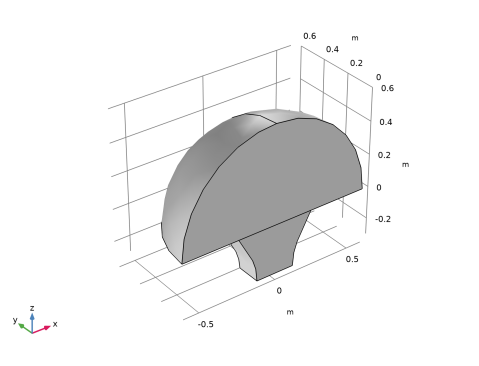
The geometry should now look like that in Figure 2.
Electrical Circuit (cir), Pressure Acoustics, Frequency Domain (acpr)
1
In the Model Builder window, under Component 1 (comp1), Ctrl-click to select Pressure Acoustics, Frequency Domain (acpr) and Electrical Circuit (cir).
2
Pressure Acoustics, Frequency Domain (acpr2)
In the Model Builder window, right-click Component 2 (comp2) and choose Paste Multiple Items.
Electrical Circuit (cir2), Pressure Acoustics, Frequency Domain (acpr2)
1
In the Model Builder window, under Component 2 (comp2), Ctrl-click to select Pressure Acoustics, Frequency Domain (acpr2) and Electrical Circuit (cir2).
2
In the Messages from Paste dialog box, click OK.
Electrical Circuit (cir2)
In the Model Builder window, expand the Component 2 (comp2)>Electrical Circuit (cir2) node.
Pressure Acoustics, Frequency Domain (acpr2)
Exterior Field Calculation 1
1
In the Model Builder window, expand the Component 2 (comp2)>Pressure Acoustics, Frequency Domain (acpr2) node, then click Exterior Field Calculation 1.
2
In the Settings window for Exterior Field Calculation, locate the Boundary Selection section.
3
From the Selection list, choose Exterior Field Boundary.
Lumped Speaker Boundary 1
1
In the Model Builder window, click Lumped Speaker Boundary 1.
2
In the Settings window for Lumped Speaker Boundary, locate the Boundary Selection section.
3
From the Selection list, choose Speaker Driver (Import 1).
4
Locate the Speaker Geometry section. Specify the vector as
Perfectly Matched Boundary 1
1
In the Model Builder window, click Perfectly Matched Boundary 1.
2
In the Settings window for Perfectly Matched Boundary, locate the Boundary Selection section.
3
From the Selection list, choose Exterior Field Boundary.
Symmetry 1
1
In the Model Builder window, click Symmetry 1.
2
In the Settings window for Symmetry, locate the Boundary Selection section.
3
From the Selection list, choose Symmetry Boundary (Import 1).
Electrical Circuit (cir2)
External I vs. U 1 (IvsU1)
1
In the Model Builder window, under Component 2 (comp2)>Electrical Circuit (cir2) click External I vs. U 1 (IvsU1).
2
In the Settings window for External I vs. U, locate the External Device section.
3
From the V list, choose Voltage from lumped speaker boundary (acpr2/lsb1).
Add Material
1
In the Home toolbar, click  Add Material to open the Add Material window.
2
Go to the Add Material window.
3
4
Click Add to Component in the window toolbar.
5
In the Home toolbar, click  Add Material to close the Add Material window.
Component 2 (comp2)
Free Shape Domain 1
1
In the Definitions toolbar, click  Optimization and choose Shape Optimization>Free Shape Domain.
2
In the Settings window for Free Shape Domain, locate the Domain Selection section.
3
From the Selection list, choose Pyramid 1 (Import 1).
Free Shape Boundary 1
1
In the Definitions toolbar, click  Optimization and choose Shape Optimization>Free Shape Boundary.
2
In the Settings window for Free Shape Boundary, locate the Boundary Selection section.
3
From the Selection list, choose Moving Boundaries (Import 1).
4
Locate the Control Variable Settings section. In the dmax text field, type 0.2.
5
Locate the Filtering section. From the Rmin list, choose Medium.
Transformation 1
1
In the Definitions toolbar, click  Optimization and choose Shape Optimization>Transformation.
2
In the Settings window for Transformation, locate the Geometric Entity Selection section.
3
From the Geometric entity level list, choose Boundary.
4
From the Selection list, choose Speaker Boundary (Import 1).
5
Locate the Translation section. In the table, enter the following settings:
6
Locate the Scaling section. From the Scaling type list, choose No scaling.
7
Locate the Rotation section. From the Rotation type list, choose Prescribed axis.
8
From the Axis list, choose y-axis.
9
Symmetry/Roller 1
1
In the Definitions toolbar, click  Optimization and choose Shape Optimization>Symmetry/Roller.
2
In the Settings window for Symmetry/Roller, locate the Geometric Entity Selection section.
3
From the Selection list, choose Symmetry Boundary (Import 1).
Mesh 2
Free Triangular 1
1
In the Mesh toolbar, click  Boundary and choose Free Triangular.
2
In the Settings window for Free Triangular, locate the Boundary Selection section.
3
From the Selection list, choose Speaker Boundary (Import 1).
Size
1
In the Model Builder window, click Size.
2
In the Settings window for Size, locate the Element Size Parameters section.
3
In the Maximum element size text field, type meshsz.
Swept 1
1
In the Mesh toolbar, click  Swept.
2
In the Settings window for Swept, locate the Domain Selection section.
3
From the Geometric entity level list, choose Domain.
4
From the Selection list, choose Pyramid 1 (Import 1).
Free Tetrahedral 1
1
In the Mesh toolbar, click  Free Tetrahedral.
2
In the Settings window for Free Tetrahedral, locate the Domain Selection section.
3
From the Geometric entity level list, choose Domain.
4
From the Selection list, choose Sphere 1.
Boundary Layers 1
1
In the Mesh toolbar, click  Boundary Layers.
2
In the Settings window for Boundary Layers, locate the Geometric Entity Selection section.
3
From the Geometric entity level list, choose Domain.
4
From the Selection list, choose Sphere 1.
5
Click to expand the Transition section. Clear the Smooth transition to interior mesh check box.
Boundary Layer Properties
1
In the Model Builder window, click Boundary Layer Properties.
2
In the Settings window for Boundary Layer Properties, locate the Boundary Selection section.
3
From the Selection list, choose Exterior Field Boundary.
4
Locate the Layers section. In the Number of layers text field, type 1.
Add Study
1
In the Home toolbar, click  Add Study to open the Add Study window.
2
Go to the Add Study window.
3
Find the Physics interfaces in study subsection. In the table, clear the Solve check boxes for Pressure Acoustics, Frequency Domain (acpr) and Electrical Circuit (cir).
4
Find the Studies subsection. In the Select Study tree, select General Studies>Frequency Domain.
5
Click Add Study in the window toolbar.
6
In the Model Builder window, click the root node.
7
In the Home toolbar, click  Add Study to close the Add Study window.
Study 3
Step 1: Frequency Domain
1
In the Settings window for Frequency Domain, locate the Study Settings section.
2
In the Frequencies text field, type f0.
Shape Optimization - On Axis
Shape Optimization
1
In the Model Builder window, under Shape Optimization - On Axis click Shape Optimization.
2
In the Settings window for Shape Optimization, locate the Control Variables section.
3
4
Right-click Shape Optimization - On Axis>Shape Optimization and choose Copy.
Study 3
In the Model Builder window, right-click Study 3 and choose Paste Shape Optimization.
Shape Optimization
1
In the Settings window for Shape Optimization, locate the Objective Function section.
2
3
Locate the Control Variables section. In the table, enter the following settings:
4
Locate the Constraints section. In the table, enter the following settings:
5
Locate the Output While Solving section. From the Output table list, choose New.
6
In the Model Builder window, click Study 3.
7
In the Settings window for Study, type Shape Optimization - Off Axis in the Label text field.
8
In the Study toolbar, click  Get Initial Value.
Results
Acoustic Pressure (acpr2), Acoustic Pressure, Isosurfaces (acpr2), Exterior-Field Pressure (acpr2), Exterior-Field Sound Pressure Level (acpr2), Exterior-Field Sound Pressure Level xy-plane (acpr2), Shape Optimization, Sound Pressure Level (acpr2)
1
In the Model Builder window, under Results, Ctrl-click to select Acoustic Pressure (acpr2), Sound Pressure Level (acpr2), Acoustic Pressure, Isosurfaces (acpr2), Exterior-Field Sound Pressure Level (acpr2), Exterior-Field Pressure (acpr2), Exterior-Field Sound Pressure Level xy-plane (acpr2), and Shape Optimization.
2
Shape Optimization - Off Axis
In the Settings window for Group, type Shape Optimization - Off Axis in the Label text field.
Shape Optimization - On Axis
Step 1: Frequency Domain
1
In the Model Builder window, under Shape Optimization - On Axis click Step 1: Frequency Domain.
2
In the Settings window for Frequency Domain, locate the Physics and Variables Selection section.
3
Initial Design
Step 1: Frequency Domain
1
In the Model Builder window, under Initial Design click Step 1: Frequency Domain.
2
In the Settings window for Frequency Domain, locate the Physics and Variables Selection section.
3
Shape Optimization - Off Axis
Shape Optimization
1
In the Model Builder window, under Shape Optimization - Off Axis click Shape Optimization.
2
In the Settings window for Shape Optimization, locate the Output While Solving section.
3
From the Plot group list, choose Shape Optimization.
Solver Configurations
In the Model Builder window, expand the Shape Optimization - Off Axis>Solver Configurations node.
Solution 3 (sol3)
1
In the Model Builder window, expand the Shape Optimization - Off Axis>Solver Configurations>Solution 3 (sol3) node, then click Optimization Solver 1.
2
In the Settings window for Optimization Solver, locate the Optimization Solver section.
3
Clear the Globally Convergent MMA check box.
4
In the Model Builder window, expand the Shape Optimization - Off Axis>Solver Configurations>Solution 3 (sol3)>Optimization Solver 1>Stationary 1>Segregated 1 node.
5
Right-click Optimization and choose Move Up to reduce the computational time.
6
In the Study toolbar, click  Compute.
Results
Global Evaluation 2
1
In the Model Builder window, under Results>Objective Function right-click Global Evaluation 1 and choose Duplicate, so the objectives can be compared.
2
In the Settings window for Global Evaluation, locate the Data section.
3
From the Dataset list, choose Shape Optimization - On Axis/Solution 2 (sol2).
Global Evaluation 3
1
Right-click Global Evaluation 2 and choose Duplicate.
2
In the Settings window for Global Evaluation, locate the Data section.
3
From the Dataset list, choose Shape Optimization - Off Axis/Solution 3 (4) (sol3).
4
Locate the Expressions section. In the table, enter the following settings:
5
In the Objective Function toolbar, click  Evaluate.
Use a Polar Plot Group to compare the radiation pattern of the designs.
Radiation Comparison
1
In the Home toolbar, click  Add Plot Group and choose Polar Plot Group.
2
In the Settings window for Polar Plot Group, type Radiation Comparison in the Label text field.
3
Click to expand the Title section. From the Title type list, choose None.
4
Locate the Axis section. From the Zero angle list, choose Up.
Radiation Pattern 1
In the Radiation Comparison toolbar, click  More Plots and choose Radiation Pattern.
Radiation Pattern 1
1
In the Model Builder window, expand the Results>Initial Design node, then click Results>Radiation Comparison>Radiation Pattern 1.
2
In the Settings window for Radiation Pattern, locate the Evaluation section.
3
Find the Angles subsection. In the Number of angles text field, type 500.
4
From the Restriction list, choose Manual.
5
In the φ start text field, type -90.
6
In the φ range text field, type 180.
7
Find the Normal vector subsection. In the y text field, type 1.
8
In the z text field, type 0.
9
Find the Reference direction subsection. In the x text field, type 0.
10
In the z text field, type 1.
The other Radiation Pattern plots should be updated in the same way.
11
Click to expand the Legends section. Select the Show legends check box.
12
From the Legends list, choose Manual.
13
Radiation Pattern 2
Right-click Results>Radiation Comparison>Radiation Pattern 1 and choose Duplicate.
Radiation Pattern 2
1
In the Model Builder window, expand the Results>Initial Design>Exterior-Field Sound Pressure Level xy-plane (acpr) node, then click Results>Radiation Comparison>Radiation Pattern 2.
2
In the Settings window for Radiation Pattern, locate the Data section.
3
From the Dataset list, choose Shape Optimization - On Axis/Solution 2 (sol2).
4
Locate the Legends section. In the table, enter the following settings:
Radiation Pattern 3
1
Right-click Results>Radiation Comparison>Radiation Pattern 2 and choose Duplicate.
2
In the Settings window for Radiation Pattern, locate the Data section.
3
From the Dataset list, choose Shape Optimization - Off Axis/Solution 3 (4) (sol3).
4
Click Replace Expression in the upper-right corner of the Expression section. From the menu, choose Component 2 (comp2)>Pressure Acoustics, Frequency Domain>Exterior field>acpr2.efc1.Lp_pext - Exterior-field sound pressure level - dB.
5
Locate the Legends section. In the table, enter the following settings:
6
In the Radiation Comparison toolbar, click  Plot.
7
Click the  Zoom Extents button in the Graphics toolbar.
The off-axis optimization does not lose any on-axis performance. Note that this would not be possible, if the on-axis optimization had the same amount of design freedom as the off-axis optimization.
Use Mirror> 3D datasets and a 3D Plot Group to compare the designs.
Mirror 3D 1
1
In the Results toolbar, click  More Datasets and choose Mirror 3D.
2
In the Settings window for Mirror 3D, locate the Plane Data section.
3
From the Plane list, choose zx-planes.
4
Click to expand the Advanced section. Select the Define variables check box.
Mirror 3D 2
1
Right-click Mirror 3D 1 and choose Duplicate.
2
In the Settings window for Mirror 3D, locate the Data section.
3
From the Dataset list, choose Shape Optimization - On Axis/Solution 2 (sol2).
Mirror 3D 3
1
Right-click Mirror 3D 2 and choose Duplicate.
2
In the Settings window for Mirror 3D, locate the Data section.
3
From the Dataset list, choose Shape Optimization - Off Axis/Solution 3 (4) (sol3).
Design Comparison
1
In the Results toolbar, click  3D Plot Group.
2
In the Settings window for 3D Plot Group, type Design Comparison in the Label text field.
3
Locate the Data section. From the Dataset list, choose Mirror 3D 1.
4
Click to expand the Title section. From the Title type list, choose None.
5
Locate the Plot Settings section. Clear the Plot dataset edges check box.
Line 1
1
Right-click Design Comparison and choose Line.
2
In the Settings window for Line, locate the Expression section.
3
In the Expression text field, type 1.
4
Locate the Coloring and Style section. From the Line type list, choose Tube.
5
In the Tube radius expression text field, type 2e-3.
6
Select the Radius scale factor check box.
7
From the Coloring list, choose Uniform.
8
From the Color list, choose Black.
Filter 1
1
Right-click Line 1 and choose Filter.
2
In the Settings window for Filter, locate the Element Selection section.
3
In the Logical expression for inclusion text field, type mir1z<eps && abs(mir1x)<L0*1.01 && abs(mir1y)<w0*1.01.
Slice 1
1
In the Model Builder window, right-click Design Comparison and choose Slice.
2
In the Settings window for Slice, locate the Plane Data section.
3
From the Plane list, choose zx-planes.
4
In the Planes text field, type 1.
5
Locate the Coloring and Style section. Click  Change Color Table.
6
In the Color Table dialog box, select Wave>WaveClassic in the tree.
7
8
In the Settings window for Slice, locate the Coloring and Style section.
9
From the Scale list, choose Linear symmetric.
Filter 1
1
Right-click Slice 1 and choose Filter.
2
In the Settings window for Filter, locate the Element Selection section.
3
In the Logical expression for inclusion text field, type 0<mir1z.
Surface 1
1
In the Model Builder window, right-click Design Comparison and choose Surface.
2
In the Settings window for Surface, locate the Expression section.
3
In the Expression text field, type 1.
4
Locate the Coloring and Style section. From the Coloring list, choose Uniform.
5
From the Color list, choose Gray.
Filter 1
1
Right-click Surface 1 and choose Filter.
2
In the Settings window for Filter, locate the Element Selection section.
3
In the Logical expression for inclusion text field, type mir1y*L0/w0<mir1x && mir1z < 0 && eps<abs(mir1y).
Streamline 1
1
In the Model Builder window, right-click Design Comparison and choose Streamline.
2
In the Settings window for Streamline, locate the Data section.
3
From the Dataset list, choose Initial Design/Solution 1 (sol1).
4
Click Replace Expression in the upper-right corner of the Expression section. From the menu, choose Component 1 (comp1)>Pressure Acoustics, Frequency Domain>Intensity>acpr.Ix,acpr.Iy,acpr.Iz - Intensity.
5
Locate the Streamline Positioning section. From the Positioning list, choose On selected boundaries.
6
Locate the Selection section. From the Selection list, choose Speaker Driver.
7
Locate the Coloring and Style section. Find the Line style subsection. From the Type list, choose Tube.
8
In the Tube radius expression text field, type 2e-3.
9
Select the Radius scale factor check box.
10
Find the Point style subsection. From the Type list, choose Arrow.
11
From the Color list, choose Black.
Line 2
1
In the Model Builder window, under Results>Design Comparison right-click Line 1 and choose Duplicate.
2
In the Settings window for Line, locate the Data section.
3
From the Dataset list, choose Mirror 3D 2.
Translation 1
1
Right-click Line 2 and choose Translation.
2
In the Settings window for Translation, locate the Translation section.
3
In the x text field, type -1.2*Rair.
4
In the y text field, type 0.2*Rair.
Slice 2
1
In the Model Builder window, under Results>Design Comparison right-click Slice 1 and choose Duplicate.
2
In the Settings window for Slice, locate the Data section.
3
From the Dataset list, choose Mirror 3D 2.
Translation 1
In the Model Builder window, under Results>Design Comparison>Line 2 right-click Translation 1 and choose Copy.
Slice 2
1
In the Model Builder window, under Results>Design Comparison click Slice 2.
2
In the Settings window for Slice, click to expand the Inherit Style section.
3
From the Plot list, choose Slice 1.
Translation 1
Right-click Slice 2 and choose Paste Translation.
Surface 2
1
In the Model Builder window, under Results>Design Comparison right-click Surface 1 and choose Duplicate.
2
In the Settings window for Surface, locate the Data section.
3
From the Dataset list, choose Mirror 3D 2.
Translation 1
Right-click Surface 2 and choose Paste Translation.
Streamline 2
1
In the Model Builder window, under Results>Design Comparison right-click Streamline 1 and choose Duplicate.
2
In the Settings window for Streamline, locate the Data section.
3
From the Dataset list, choose Shape Optimization - On Axis/Solution 2 (sol2).
Translation 1
Right-click Streamline 2 and choose Paste Translation.
Line 3
1
In the Model Builder window, under Results>Design Comparison right-click Line 2 and choose Duplicate.
2
In the Settings window for Line, locate the Data section.
3
From the Dataset list, choose Mirror 3D 3.
Translation 1
1
In the Model Builder window, expand the Line 3 node, then click Translation 1.
2
In the Settings window for Translation, locate the Translation section.
3
In the x text field, type -2.4*Rair.
4
In the y text field, type 0.4*Rair.
Slice 3
1
In the Model Builder window, under Results>Design Comparison right-click Slice 2 and choose Duplicate.
2
In the Settings window for Slice, locate the Data section.
3
From the Dataset list, choose Mirror 3D 3.
4
Click Replace Expression in the upper-right corner of the Expression section. From the menu, choose Component 2 (comp2)>Pressure Acoustics, Frequency Domain>Pressure and sound pressure level>acpr2.p_t - Total acoustic pressure - Pa.
Translation 1
1
In the Model Builder window, expand the Slice 3 node, then click Translation 1.
2
In the Settings window for Translation, locate the Translation section.
3
In the x text field, type -2.4*Rair.
4
In the y text field, type 0.4*Rair.
Surface 3
1
In the Model Builder window, under Results>Design Comparison right-click Surface 2 and choose Duplicate.
2
In the Model Builder window, click Surface 3.
3
In the Settings window for Surface, locate the Data section.
4
From the Dataset list, choose Mirror 3D 3.
Translation 1
1
In the Model Builder window, expand the Surface 3 node, then click Translation 1.
2
In the Settings window for Translation, locate the Translation section.
3
In the x text field, type -2.4*Rair.
4
In the y text field, type 0.4*Rair.
Streamline 3
1
In the Model Builder window, under Results>Design Comparison right-click Streamline 2 and choose Duplicate.
2
In the Settings window for Streamline, locate the Data section.
3
From the Dataset list, choose Shape Optimization - Off Axis/Solution 3 (4) (sol3).
4
Click Replace Expression in the upper-right corner of the Expression section. From the menu, choose Component 2 (comp2)>Pressure Acoustics, Frequency Domain>Intensity>acpr2.Ix,...,acpr2.Iz - Intensity (spatial and material frames).
5
Locate the Selection section. From the Selection list, choose Speaker Driver (Import 1).
Translation 1
1
In the Model Builder window, expand the Streamline 3 node, then click Translation 1.
2
In the Settings window for Translation, locate the Translation section.
3
In the x text field, type -2.4*Rair.
4
In the y text field, type 0.4*Rair.
5
In the Design Comparison toolbar, click  Plot.
6
Click the  Zoom Extents button in the Graphics toolbar.
Geometry Modeling Instructions
If you want to create the geometry yourself, follow these steps.
Global Definitions
Parameters 1
1
In the Model Builder window, under Global Definitions click Parameters 1.
2
In the Settings window for Parameters, locate the Parameters section.
3
Click  Load from File.
4
Add Component
In the Home toolbar, click  Add Component and choose 3D.
Geometry 1
Sphere 1 (sph1)
1
In the Geometry toolbar, click  Sphere.
2
In the Settings window for Sphere, locate the Size section.
3
In the Radius text field, type Rair.
4
Locate the Selections of Resulting Entities section. Select the Resulting objects selection check box.
Work Plane 1 (wp1)
In the Geometry toolbar, click  Work Plane.
Partition Objects 1 (par1)
1
In the Geometry toolbar, click  Booleans and Partitions and choose Partition Objects.
2
In the Settings window for Partition Objects, locate the Partition Objects section.
3
From the Objects to partition list, choose Sphere 1.
4
From the Partition with list, choose Work plane.
Delete Entities 1 (del1)
1
In the Model Builder window, right-click Geometry 1 and choose Delete Entities.
2
In the Settings window for Delete Entities, locate the Entities or Objects to Delete section.
3
From the Geometric entity level list, choose Domain.
4
Find the Selection subsection. Click to select the  Activate Selection toggle button.
5
On the object par1, select Domain 1 only.
Pyramid 1 (pyr1)
1
In the Geometry toolbar, click  More Primitives and choose Pyramid.
2
In the Settings window for Pyramid, locate the Size and Shape section.
3
In the Base length 1 text field, type L0.
4
In the Base length 2 text field, type w0.
5
In the Height text field, type h0.
6
In the Ratio text field, type 2.
7
Locate the Position section. In the z text field, type -h0.
8
Locate the Selections of Resulting Entities section. Select the Resulting objects selection check box.
Sphere and Pyramid
1
In the Geometry toolbar, click  Selections and choose Union Selection.
2
In the Settings window for Union Selection, type Sphere and Pyramid in the Label text field.
3
Locate the Geometric Entity Level section. From the Level list, choose Object.
4
Locate the Input Entities section. Click  Add.
5
In the Add dialog box, in the Selections to add list, choose Sphere 1 and Pyramid 1.
6
Work Plane 2 (wp2)
1
In the Geometry toolbar, click  Work Plane.
2
In the Settings window for Work Plane, locate the Plane Definition section.
3
In the z-coordinate text field, type -h0.
Work Plane 2 (wp2)>Plane Geometry
In the Model Builder window, click Plane Geometry.
Work Plane 2 (wp2)>Circle 1 (c1)
1
In the Work Plane toolbar, click  Circle.
2
In the Settings window for Circle, locate the Size and Shape section.
3
In the Radius text field, type rSpeaker.
4
In the Sector angle text field, type 180.
Box to Subtract
1
In the Model Builder window, right-click Geometry 1 and choose Block.
2
In the Settings window for Block, type Box to Subtract in the Label text field.
3
Locate the Size and Shape section. In the Width text field, type 2*Rair.
4
In the Depth text field, type Rair.
5
In the Height text field, type Rair+h0.
6
Locate the Position section. In the x text field, type -Rair.
7
In the y text field, type -Rair.
8
In the z text field, type -h0.
9
Locate the Selections of Resulting Entities section. Select the Resulting objects selection check box.
Difference 1 (dif1)
1
In the Geometry toolbar, click  Booleans and Partitions and choose Difference.
2
In the Settings window for Difference, locate the Difference section.
3
From the Objects to add list, choose Sphere and Pyramid.
4
From the Objects to subtract list, choose Box to Subtract.
Form Union (fin)
1
In the Model Builder window, click Form Union (fin).
2
In the Settings window for Form Union/Assembly, click  Build Selected.
Exterior Field Boundary
1
In the Geometry toolbar, click  Selections and choose Ball Selection.
2
In the Settings window for Ball Selection, type Exterior Field Boundary in the Label text field.
3
Locate the Geometric Entity Level section. From the Level list, choose Boundary.
4
Locate the Ball Center section. In the y text field, type Rair*0.02.
5
In the z text field, type Rair.
6
Locate the Ball Radius section. In the Radius text field, type Rair*0.01.
Speaker Boundary
1
In the Geometry toolbar, click  Selections and choose Box Selection.
2
In the Settings window for Box Selection, type Speaker Boundary in the Label text field.
3
Locate the Geometric Entity Level section. From the Level list, choose Boundary.
4
Locate the Box Limits section. In the z maximum text field, type -h0*0.9.
5
Locate the Output Entities section. From the Include entity if list, choose Entity inside box.
Speaker Driver
1
In the Geometry toolbar, click  Selections and choose Cylinder Selection.
2
In the Settings window for Cylinder Selection, type Speaker Driver in the Label text field.
3
Locate the Geometric Entity Level section. From the Level list, choose Boundary.
4
Locate the Size and Shape section. In the Outer radius text field, type rSpeaker*1.01.
5
Locate the Output Entities section. From the Include entity if list, choose Entity inside cylinder.
Moving Boundaries
1
In the Geometry toolbar, click  Selections and choose Box Selection.
2
In the Settings window for Box Selection, type Moving Boundaries in the Label text field.
3
Locate the Geometric Entity Level section. From the Level list, choose Boundary.
4
Locate the Box Limits section. In the z minimum text field, type -h0*0.9.
5
In the z maximum text field, type -h0*0.8.
Symmetry Boundary
1
In the Geometry toolbar, click  Selections and choose Box Selection.
2
In the Settings window for Box Selection, type Symmetry Boundary in the Label text field.
3
Locate the Geometric Entity Level section. From the Level list, choose Boundary.
4
Locate the Box Limits section. In the y maximum text field, type eps.
5
Locate the Output Entities section. From the Include entity if list, choose Entity inside box.
6
In the Geometry toolbar, click  Build All.
The model geometry is now complete.