
You are viewing the documentation for an older COMSOL version. The latest version is available here.
PDF

Headphone on an Artificial Ear
Introduction
In this tutorial a headphone is simulated in a typical measurement setup. As headphones are closely coupled to the ear, it is not representative to measure their sensitivity in an acoustic free-field in the classical setup used for loudspeakers. The measurement requires the use of artificial heads and ears to accurately represent the usage conditions. This model shows the coupling of a circumaural headphone to a generic artificial ear.
To model all components in a headphone, this tutorial uses several physics and features. The foam is modeled with the Poroelastic Waves interface and coupled to Pressure Acoustics, Frequency Domain interface for the air domains. The Interior Perforated Plate condition is used to model the perforated plates and meshes in the headphone casing. The artificial ear is coupled to a simplified ear canal and the impedance of the ear drum is specifically considered in the model. The dynamic speaker driver is modeled through a lumped approach following Ref. 1.
Lumped representations of drivers are well known and widely used in the industry. The parameters that characterize the low-frequency performance of a loudspeaker, commonly known as the Thiele-Small or the small-signal parameters, are obtained from Ref. 2. This lumped model is coupled to the 3D pressure acoustics model describing the surrounding air domain using the Interior Lumped Speaker Boundary condition.
Note: Many of the working principles of the lumped speaker model are described in the Lumped Loudspeaker Driver model. Application Library path Acoustics_Module/Electroacoustic_Transducers/lumped_loudspeaker_driver.
Model Definition
Geometry
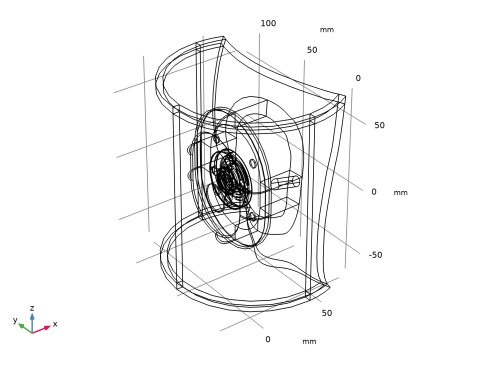
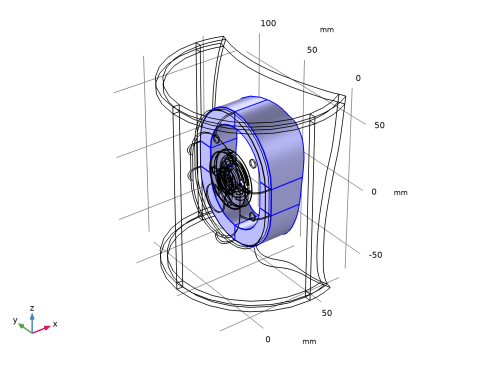
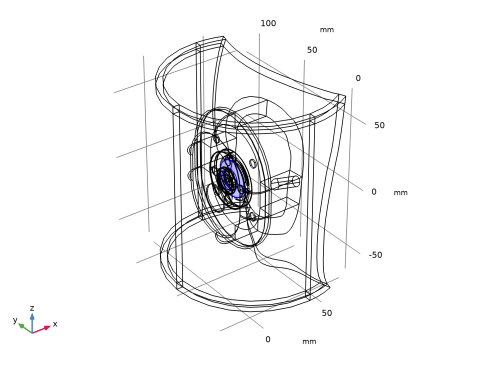
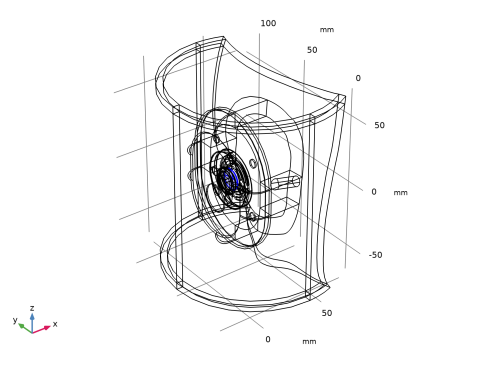
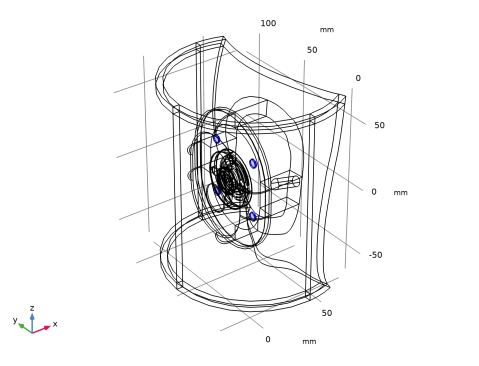
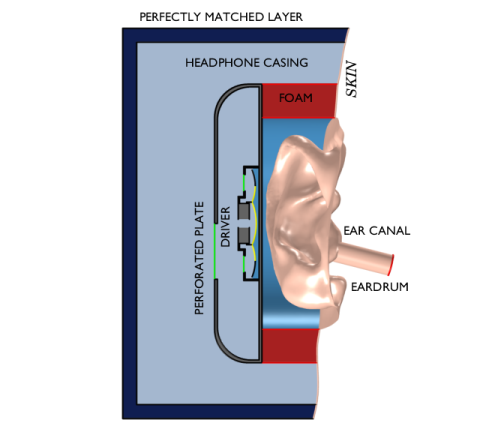
A schematic section of the model is shown in Figure 2. The pinna (peach color) is obtained from a 3D scan of an actual human ear. The ear canal has been idealized as a cylinder of 7.5 mm diameter and 19.8 mm length. The pinna and ear canal have been rotated to maintain the headphone oriented in global coordinates. The acoustic domain is shown in three regions; the pressure chamber (blue) the external domain (light blue) and the perfectly matched layer domain (dark blue). The driver is included in the model as its lumped equivalent (Electrical Circuit interface) enforcing a velocity on the diaphragm (yellow line). The pressure drop across the diaphragm is coupled back to the circuit. The different chambers of the acoustic domain are connected through perforated plates (green lines). The headphone casing (gray) is considered as rigid (the model can be extended to model the casing as an elastic structure). The foam (red) is a Poroelastic Waves domain completely fixed on the boundaries attached to the skin and the headphone casing.
Figure 1: Schematic representation of the model.
Parameters
The model parameters are given in the table below. The speeds defined in the table are used exclusively for the definition of the mesh size in the different domains. The value of 272 m/s is the speed of the fast pressure waves in the poroelastic waves (PELW) domain. The maximum mesh size hmax is in general given by
where ci represents all the wave speed present in a model and f is the frequency. In a pure fluid there is just one speed of sound. By using the speed of the fast pressure waves in the PELW domain, we will be under-resolving the slow pressure waves and the shear waves in the PELW domain. This is done here to reduce the model size when solving the tutorial model. Ideally, the mesh should consider the minimum of the of the pressure waves speeds (variables pelw.cp_fast and pelw.cp_slow) and shear waves (variable pelw.cs_poro) in the PELW domain.
fmax
cair
cporo
The model includes the driver of the headphone through a lumped equivalent. Thiele-Small parameters obtained from Ref. 2 are used in this model and listed in the table below.
Rg
ne
RE
CMS
2.51·10-3 m/N
RMS
12.9·10-3 N·s/m
MMD
BL
V0
The model includes a set of perforated plates connecting the different chambers of the headset. The perforated plate parameters used in the model are shown in the table below.
Radp1
n1
dh1
tp1
Nh1
Radp2
n2
dh2
tp2
Nh2
Radp3
n3
dh3
tp3
Nh3
Each of the Interior Perforated Plate condition uses an area porosity derived from the parameters listed previously.
The porous material parameters used are those for a generic foam with parameters taken from Ref. 3. The model does not include any compression or prestressing of the foam. Getting a general constitutive model, that predict how all porous properties change with local compression or deformation, is extremely difficult. To include the effects of prestress will typically rely on measuring the porous properties under various compression/deformation states to get local material values. This can, for example, be achieved in impedance tube measurements as shown in Ref. 4, where an optimization is used to fit the material parameters to the test data. In general it should be noticed that good material data is important for the quality of numerical simulations.
Boundary Conditions
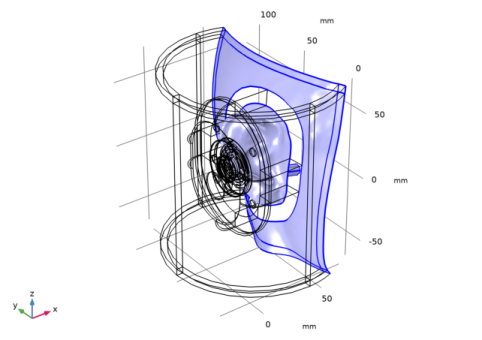
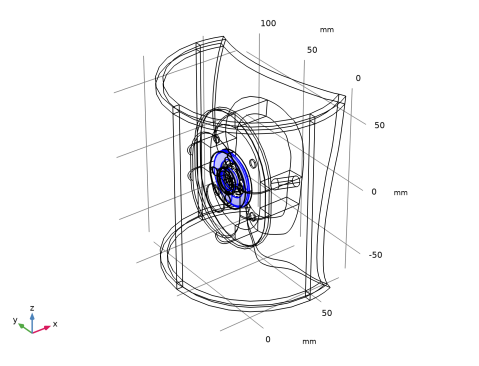
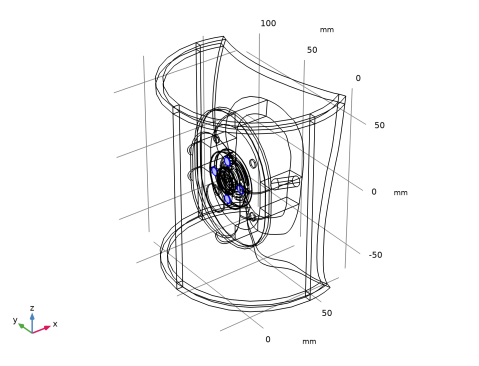
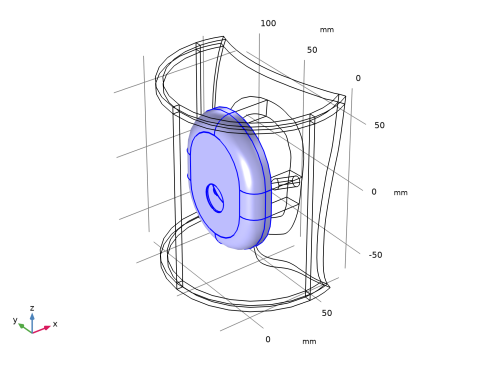
The model makes use of two of the Physiological impedance models, described in the Acoustics Module User’s Guide, to accurately represent the skin (Human skin) and the eardrum (Human ear drum).The boundaries of the model that included the skin impedance condition are shown in Figure 2.
Figure 2: Boundaries of the acoustic domain with skin impedance.
Details about the lumped driver approach used in this model are found in the Lumped Loudspeaker Driver model and in the Modeling Instructions below. The perforated plates of the headset modeled through the Interior Perforated Plate condition, is described in detail in the Acoustics Module User’s Guide in the Theory For The Interior Impedance Models section.
Results and Discussion
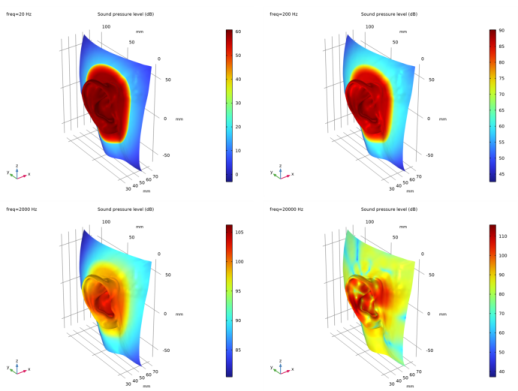
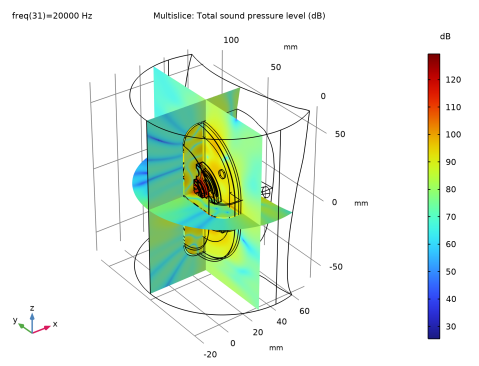
The sound pressure level on the skin (on and around the ear) at four different frequencies is shown in Figure 3. At the lowest frequencies the effect of the foam is clearly visible, where the large transition in SPL is seen.
Figure 3: Sound pressure level at the skin at different frequencies.
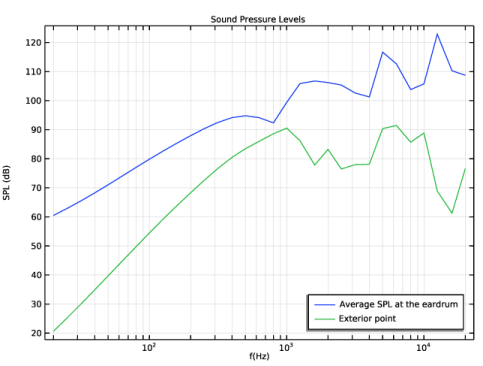
The average sound pressure level at the eardrum is shown in Figure 4. This model has been solved on a high performance computer (HPC) with a finer mesh to capture the slow pressure waves and the shear waves. These results are imported and compared to the current model. The results of this finer meshed model show good agreement at low frequency (as all pressure waves are correctly resolved at low frequency in both models) but show significant differences as the frequency increases. The model requires about 28 GB of RAM to solve with the coarse mesh (used in the model) while it requires about 100 GB to solve with the default solver on the HPC system (single node). The model setup and the mesh can easily be modified to resolve all wave speed by modifying the parameter cporo from 272[m/s] (fast pressure wave speed) to 96[m/s] (shear wave speed, the slowest wave).
Although it is not shown in this tutorial, it is possible to explore the effect the perforates/meshes have on the on the sound pressure level by modifying the Interior Perforated Plate parameters.
Figure 4: Sound pressure level at the eardrum.
Notes About the COMSOL Implementation
As described previously, and in the Modeling Instructions below, only the fast pressure waves have been considered while choosing the mesh size in the PELW domain. This has been done to limit the size of the model and make sure that the model can run on a computer with 32 GB of RAM. The solver setup in the model uses an iterative solver while the fine mesh model has been solved using a direct solver. It is very important to use a tight relative tolerance in the stationary solver (for this model 2e-7 is a good choice) when working with iterative solvers. It is good practice to do a convergence analysis on the relative tolerance until the results remain unaltered.
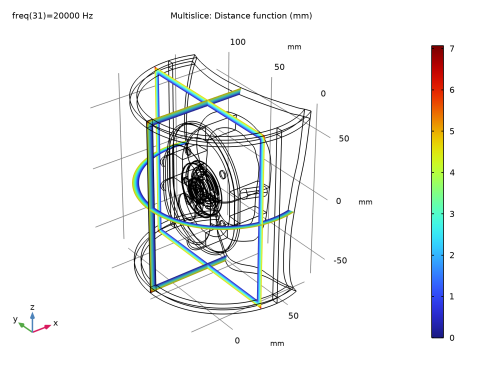
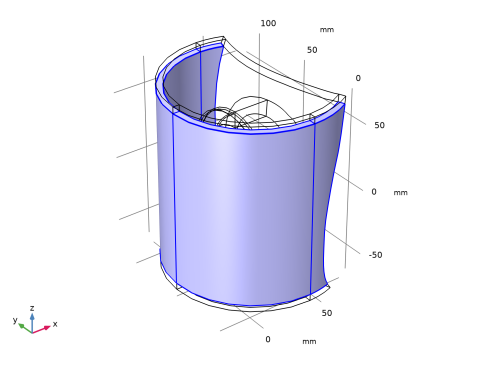
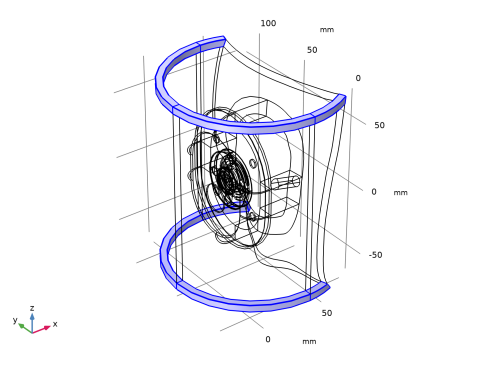
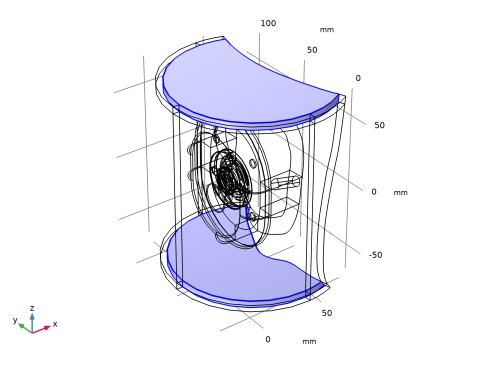
The PML in the model is set up using the User defined option for the Geometry Type. This is the case as the automatic detection fails when the PML is only part of a cylindrical layer (and is cut using a complex surface). Three PML region have been defined with different expressions for the Distance function. One definition for the top, one for the sides, and one for the corners. The distance function is a mathematical expression that describes the distance from the inner PML boundary to the outer boundary. The distance function variable, pml1.dDist, is shown on Figure 5.
.
Figure 5: PML distance function.
References
1. Lumped Loudspeaker Driver Model Documentation, from the COMSOL Application Library.
2. C. A. Poldy, “Headphones,” in J. Borwick, Loudspeaker and Headphone Handbook, 3rd ed. Focal Press, 2001.
3. J. F. Allard and N. Atalla, Propagation of Sound in Porous Media, Modeling Sound Absorbing Materials, 2nd Edition, Wiley, 2009.
4. Impedance Tube Parameter Estimation with Data Generation, from the COMSOL Application Library.
Application Library path: Acoustics_Module/Electroacoustic_Transducers/headphone_artificial_ear
Modeling Instructions
From the File menu, choose New.
New
In the New window, click  Model Wizard.
Model Wizard
1
In the Model Wizard window, click  3D.
2
Global Definitions
Model parameters
1
In the Model Builder window, under Global Definitions click Parameters 1.
2
In the Settings window for Parameters, type Model parameters in the Label text field.
3
Locate the Parameters section. Click  Load from File.
4
Perforated plates parameters
1
In the Home toolbar, click  Parameters and choose Add>Parameters.
2
In the Settings window for Parameters, type Perforated plates parameters in the Label text field.
3
Locate the Parameters section. Click  Load from File.
4
Thiele-Small Parameters
1
In the Home toolbar, click  Parameters and choose Add>Parameters.
2
In the Settings window for Parameters, type Thiele-Small Parameters in the Label text field.
3
Locate the Parameters section. Click  Load from File.
4
Geometry 1
1
In the Model Builder window, under Component 1 (comp1) click Geometry 1.
2
In the Settings window for Geometry, locate the Units section.
3
From the Length unit list, choose mm.
Import the model geometry from file by following these steps.
Import 1 (imp1)
1
In the Home toolbar, click  Import.
2
In the Settings window for Import, locate the Import section.
3
Click  Browse.
4
5
Click  Import.
6
Click the  Zoom Extents button in the Graphics toolbar.
7
Click the  Wireframe Rendering button in the Graphics toolbar.
The figure below shows the model geometry.
In the following steps we will create the selections that will be used to define the model.
Definitions
Foam
1
In the Definitions toolbar, click  Explicit.
2
In the Settings window for Explicit, type Foam in the Label text field.
3
The selection should look like this.
Moving membrane positive
1
In the Definitions toolbar, click  Explicit.
2
In the Settings window for Explicit, type Moving membrane positive in the Label text field.
3
Locate the Input Entities section. From the Geometric entity level list, choose Boundary.
4
The selection should look like this.
Moving membrane negative
1
In the Definitions toolbar, click  Explicit.
2
In the Settings window for Explicit, type Moving membrane negative in the Label text field.
3
Locate the Input Entities section. From the Geometric entity level list, choose Boundary.
4
The selection should look like this.
Interior sound hard boundary
1
In the Definitions toolbar, click  Explicit.
2
In the Settings window for Explicit, type Interior sound hard boundary in the Label text field.
3
Locate the Input Entities section. From the Geometric entity level list, choose Boundary.
4
The selection should look like this.
Eardrum
1
In the Definitions toolbar, click  Explicit.
2
In the Settings window for Explicit, type Eardrum in the Label text field.
3
Locate the Input Entities section. From the Geometric entity level list, choose Boundary.
4
The selection should look like this.
Skin with PML
1
In the Definitions toolbar, click  Explicit.
2
In the Settings window for Explicit, locate the Input Entities section.
3
From the Geometric entity level list, choose Boundary.
4
In the Label text field, type Skin with PML.
5
The selection should look like this.
Skin without PML
1
In the Definitions toolbar, click  Explicit.
2
In the Settings window for Explicit, type Skin without PML in the Label text field.
3
Locate the Input Entities section. From the Geometric entity level list, choose Boundary.
4
The selection should look like this.
PML sides
1
In the Definitions toolbar, click  Explicit.
2
In the Settings window for Explicit, type PML sides in the Label text field.
3
The selection should look like this.
PML corners
1
In the Definitions toolbar, click  Explicit.
2
In the Settings window for Explicit, type PML corners in the Label text field.
3
The selection should look like this.
PML caps
1
In the Definitions toolbar, click  Explicit.
2
In the Settings window for Explicit, type PML caps in the Label text field.
3
The selection should look like this.
Perforated plate 1
1
In the Definitions toolbar, click  Explicit.
2
In the Settings window for Explicit, type Perforated plate 1 in the Label text field.
3
Locate the Input Entities section. From the Geometric entity level list, choose Boundary.
4
The selection should look like this.
Perforated plate 2
1
In the Definitions toolbar, click  Explicit.
2
In the Settings window for Explicit, type Perforated plate 2 in the Label text field.
3
Locate the Input Entities section. From the Geometric entity level list, choose Boundary.
4
The selection should look like this.
Perforated plate 3
1
In the Definitions toolbar, click  Explicit.
2
In the Settings window for Explicit, type Perforated plate 3 in the Label text field.
3
Locate the Input Entities section. From the Geometric entity level list, choose Boundary.
4
The selection should look like this.
All Domains
1
In the Definitions toolbar, click  Explicit.
2
In the Settings window for Explicit, type All Domains in the Label text field.
3
Locate the Input Entities section. Select the All domains check box.
Plastic casing
1
In the Definitions toolbar, click  Explicit.
2
In the Settings window for Explicit, type Plastic casing in the Label text field.
3
The selection should look like this.
Air with PML
1
In the Definitions toolbar, click  Difference.
2
In the Settings window for Difference, type Air with PML in the Label text field.
3
Locate the Input Entities section. Under Selections to add, click  Add.
4
In the Add dialog box, select All Domains in the Selections to add list.
5
6
In the Settings window for Difference, locate the Input Entities section.
7
Under Selections to subtract, click  Add.
8
In the Add dialog box, in the Selections to subtract list, choose Foam and Plastic casing.
9
Air without PML
1
In the Definitions toolbar, click  Difference.
2
In the Settings window for Difference, type Air without PML in the Label text field.
3
Locate the Input Entities section. Under Selections to add, click  Add.
4
In the Add dialog box, select Air with PML in the Selections to add list.
5
6
In the Settings window for Difference, locate the Input Entities section.
7
Under Selections to subtract, click  Add.
8
In the Add dialog box, in the Selections to subtract list, choose PML sides, PML corners, and PML caps.
9
Air boundaries
1
In the Definitions toolbar, click  Union.
2
In the Settings window for Union, type Air boundaries in the Label text field.
3
Locate the Geometric Entity Level section. From the Level list, choose Boundary.
4
Locate the Input Entities section. Under Selections to add, click  Add.
5
In the Add dialog box, in the Selections to add list, choose Eardrum, Skin with PML, Perforated plate 1, Perforated plate 2, and Perforated plate 3.
6
Moving membrane
1
In the Definitions toolbar, click  Union.
2
In the Settings window for Union, type Moving membrane in the Label text field.
3
Locate the Geometric Entity Level section. From the Level list, choose Boundary.
4
Locate the Input Entities section. Under Selections to add, click  Add.
5
In the Add dialog box, in the Selections to add list, choose Moving membrane positive and Moving membrane negative.
6
Meshed domains without PML and foam
1
In the Definitions toolbar, click  Difference.
2
In the Settings window for Difference, type Meshed domains without PML and foam in the Label text field.
3
Locate the Input Entities section. Under Selections to add, click  Add.
4
In the Add dialog box, select All Domains in the Selections to add list.
5
6
In the Settings window for Difference, locate the Input Entities section.
7
Under Selections to subtract, click  Add.
8
In the Add dialog box, in the Selections to subtract list, choose Foam, PML sides, PML corners, PML caps, and Plastic casing.
9
PML
1
In the Definitions toolbar, click  Union.
2
In the Settings window for Union, type PML in the Label text field.
3
Locate the Input Entities section. Under Selections to add, click  Add.
4
In the Add dialog box, in the Selections to add list, choose PML sides, PML corners, and PML caps.
5
Model variables
1
In the Model Builder window, right-click Definitions and choose Variables.
2
In the Settings window for Variables, type Model variables in the Label text field.
3
Locate the Variables section. Click  Load from File.
4
Add Physics
1
In the Home toolbar, click  Add Physics to open the Add Physics window.
2
Go to the Add Physics window.
3
In the tree, select AC/DC>Electrical Circuit (cir).
4
Click Add to Selection in the window toolbar.
5
In the Home toolbar, click  Add Physics to close the Add Physics window.
Electrical Circuit (cir)
Voltage Source 1 (V1)
1
Right-click Component 1 (comp1)>Electrical Circuit (cir) and choose Voltage Source.
2
In the Settings window for Voltage Source, locate the Node Connections section.
3
4
Locate the Device Parameters section. In the vsrc text field, type V0.
Resistor 1 (R1)
1
In the Electrical Circuit toolbar, click  Resistor.
2
In the Settings window for Resistor, locate the Node Connections section.
3
4
Locate the Device Parameters section. In the R text field, type R_g.
Resistor 2 (R2)
1
In the Electrical Circuit toolbar, click  Resistor.
2
In the Settings window for Resistor, locate the Node Connections section.
3
4
Locate the Device Parameters section. In the R text field, type R_E.
Inductor 1 (L1)
1
In the Electrical Circuit toolbar, click  Inductor.
2
In the Settings window for Inductor, locate the Node Connections section.
3
4
Locate the Device Parameters section. In the L text field, type L_E.
Resistor 3 (R3)
1
In the Electrical Circuit toolbar, click  Resistor.
2
In the Settings window for Resistor, locate the Node Connections section.
3
4
Locate the Device Parameters section. In the R text field, type Rp_E.
Inductor 2 (L2)
1
In the Electrical Circuit toolbar, click  Inductor.
2
In the Settings window for Inductor, locate the Node Connections section.
3
4
Locate the Device Parameters section. In the L text field, type M_MD[H/kg].
Current-Controlled Voltage Source 1 (H1)
1
In the Electrical Circuit toolbar, click  Current-Controlled Voltage Source.
2
In the Settings window for Current-Controlled Voltage Source, locate the Node Connections section.
3
4
Locate the Current Measurement section. From the Measure current for device list, choose Inductor 2 (L2).
5
Locate the Device Parameters section. In the Gain text field, type BL[m/Wb*ohm].
Current-Controlled Voltage Source 2 (H2)
1
In the Electrical Circuit toolbar, click  Current-Controlled Voltage Source.
2
In the Settings window for Current-Controlled Voltage Source, locate the Node Connections section.
3
4
Locate the Device Parameters section. In the Gain text field, type BL[m/Wb*ohm].
5
Locate the Current Measurement section. From the Measure current for device list, choose Resistor 2 (R2).
Resistor 4 (R4)
1
In the Electrical Circuit toolbar, click  Resistor.
2
In the Settings window for Resistor, locate the Node Connections section.
3
4
Locate the Device Parameters section. In the R text field, type R_MS[ohm/kg*s].
Capacitor 1 (C1)
1
In the Electrical Circuit toolbar, click  Capacitor.
2
In the Settings window for Capacitor, locate the Node Connections section.
3
4
Locate the Device Parameters section. In the C text field, type C_MS[F*N/m].
External I vs. U 1 (IvsU1)
1
In the Electrical Circuit toolbar, click  External I vs. U.
2
In the Settings window for External I vs. U, locate the Node Connections section.
3
The Electric potential selection is done once the Interior Lumped Speaker Boundary has been added in pressure acoustics. The coupling between the circuit and the acoustics domain will then be automatic.
Add Physics
1
In the Electrical Circuit toolbar, click  Add Physics to open the Add Physics window.
2
Go to the Add Physics window.
3
In the tree, select Acoustics>Pressure Acoustics>Pressure Acoustics, Frequency Domain (acpr).
4
Click Add to Selection in the window toolbar.
5
In the Home toolbar, click  Add Physics to close the Add Physics window.
Pressure Acoustics, Frequency Domain (acpr)
1
In the Settings window for Pressure Acoustics, Frequency Domain, locate the Domain Selection section.
2
From the Selection list, choose Air with PML.
Eardrum Impedance
1
Right-click Component 1 (comp1)>Pressure Acoustics, Frequency Domain (acpr) and choose Impedance.
2
In the Settings window for Impedance, type Eardrum Impedance in the Label text field.
3
Locate the Boundary Selection section. From the Selection list, choose Eardrum.
4
Locate the Impedance section. From the Impedance model list, choose Physiological.
5
From the list, choose Human ear drum.
Skin impedance
1
In the Physics toolbar, click  Boundaries and choose Impedance.
2
In the Settings window for Impedance, type Skin impedance in the Label text field.
3
Locate the Boundary Selection section. From the Selection list, choose Skin with PML.
4
Locate the Impedance section. From the Impedance model list, choose Physiological.
The selection should look like Figure 2.
Interior Sound Hard Boundary (Wall) 1
1
In the Physics toolbar, click  Boundaries and choose Interior Sound Hard Boundary (Wall).
2
In the Settings window for Interior Sound Hard Boundary (Wall), locate the Boundary Selection section.
3
From the Selection list, choose Interior sound hard boundary.
Interior Perforated Plate 1
1
In the Physics toolbar, click  Boundaries and choose Interior Perforated Plate.
2
In the Settings window for Interior Perforated Plate, locate the Boundary Selection section.
3
From the Selection list, choose Perforated plate 1.
4
Locate the Interior Perforated Plate section. In the dh text field, type dh1.
5
In the tp text field, type tp1.
6
In the σ text field, type sigma1.
Interior Perforated Plate 2
1
In the Physics toolbar, click  Boundaries and choose Interior Perforated Plate.
2
In the Settings window for Interior Perforated Plate, locate the Boundary Selection section.
3
From the Selection list, choose Perforated plate 2.
4
Locate the Interior Perforated Plate section. In the dh text field, type dh2.
5
In the tp text field, type tp2.
6
In the σ text field, type sigma2.
Interior Perforated Plate 3
1
In the Physics toolbar, click  Boundaries and choose Interior Perforated Plate.
2
In the Settings window for Interior Perforated Plate, locate the Boundary Selection section.
3
From the Selection list, choose Perforated plate 3.
4
Locate the Interior Perforated Plate section. In the dh text field, type dh3.
5
In the tp text field, type tp3.
6
In the σ text field, type sigma3.
Interior Lumped Speaker Boundary 1
1
In the Physics toolbar, click  Boundaries and choose Interior Lumped Speaker Boundary.
2
In the Settings window for Interior Lumped Speaker Boundary, locate the Boundary Selection section.
3
From the Selection list, choose Moving membrane.
4
Locate the Speaker Geometry section. From the eax list, choose User defined.
Electrical Circuit (cir)
External I vs. U 1 (IvsU1)
1
In the Model Builder window, under Component 1 (comp1)>Electrical Circuit (cir) click External I vs. U 1 (IvsU1).
2
In the Settings window for External I vs. U, locate the External Device section.
3
From the V list, choose Voltage from lumped speaker boundary (acpr/ilsb1).
Add Physics
1
In the Home toolbar, click  Add Physics to open the Add Physics window.
2
Go to the Add Physics window.
3
In the tree, select Acoustics>Elastic Waves>Poroelastic Waves (pelw).
4
Click Add to Selection in the window toolbar.
5
In the Home toolbar, click  Add Physics to close the Add Physics window.
Poroelastic Waves (pelw)
1
In the Settings window for Poroelastic Waves, locate the Domain Selection section.
2
From the Selection list, choose Foam.
Fixed Constraint 1
1
Right-click Component 1 (comp1)>Poroelastic Waves (pelw) and choose Fixed Constraint.
2
Poroelastic Material 1
1
In the Model Builder window, click Poroelastic Material 1.
2
In the Settings window for Poroelastic Material, locate the Poroelastic Model section.
3
From the Model list, choose Biot-Allard (thermal and viscous losses).
Multiphysics
Acoustic-Porous Boundary 1 (apb1)
1
In the Physics toolbar, click  Multiphysics Couplings and choose Boundary>Acoustic-Porous Boundary.
2
In the Settings window for Acoustic-Porous Boundary, locate the Boundary Selection section.
3
From the Selection list, choose All boundaries.
The following steps define the PML used in the model. The number of stretching directions and the distance function are defined manually to make sure that the PML works as intended.
Definitions
Perfectly Matched Layer 1 (pml1)
1
In the Definitions toolbar, click  Perfectly Matched Layer.
2
In the Settings window for Perfectly Matched Layer, locate the Domain Selection section.
3
From the Selection list, choose PML sides.
4
Locate the Geometry section. From the Type list, choose User defined.
5
6
Locate the Scaling section. In the PML scaling curvature parameter text field, type 3.
Perfectly Matched Layer 2 (pml2)
1
In the Definitions toolbar, click  Perfectly Matched Layer.
2
In the Settings window for Perfectly Matched Layer, locate the Domain Selection section.
3
From the Selection list, choose PML caps.
4
Locate the Geometry section. From the Type list, choose User defined.
5
6
Locate the Scaling section. In the PML scaling curvature parameter text field, type 3.
Perfectly Matched Layer 3 (pml3)
1
In the Definitions toolbar, click  Perfectly Matched Layer.
2
In the Settings window for Perfectly Matched Layer, locate the Domain Selection section.
3
From the Selection list, choose PML corners.
4
Locate the Geometry section. From the Type list, choose User defined.
5
From the Number of stretching directions list, choose 2.
6
7
Locate the Scaling section. In the PML scaling curvature parameter text field, type 3.
Add Material
1
In the Home toolbar, click  Add Material to open the Add Material window.
2
Go to the Add Material window.
3
4
Click Add to Component in the window toolbar.
Materials
Air - Domains
1
In the Settings window for Material, type Air - Domains in the Label text field.
2
Locate the Geometric Entity Selection section. From the Selection list, choose Air with PML.
Poroelastic Waves (pelw)
Poroelastic Material 1
1
In the Model Builder window, under Component 1 (comp1)>Poroelastic Waves (pelw) click Poroelastic Material 1.
2
In the Settings window for Poroelastic Material, locate the Fluid Properties section.
3
From the Fluid material list, choose Air - Domains (mat1).
Add Material
1
Go to the Add Material window.
2
3
Click Add to Component in the window toolbar.
4
In the Home toolbar, click  Add Material to close the Add Material window.
Materials
Air - Boundaries
1
In the Settings window for Material, type Air - Boundaries in the Label text field.
2
Locate the Geometric Entity Selection section. From the Geometric entity level list, choose Boundary.
3
From the Selection list, choose Air boundaries.
Foam
1
In the Model Builder window, right-click Materials and choose Blank Material.
2
In the Settings window for Material, type Foam in the Label text field.
3
Locate the Geometric Entity Selection section. From the Selection list, choose Foam.
4
Locate the Material Contents section. In the table, enter the following settings:
In this model the mesh is set up manually. Proceed by directly adding the desired mesh component. Make sure that the model is correctly resolved in the frequency range.
Mesh 1
Free Tetrahedral 1
In the Mesh toolbar, click  Free Tetrahedral.
Size
1
In the Model Builder window, click Size.
2
In the Settings window for Size, locate the Element Size section.
3
Click the Custom button.
4
Locate the Element Size Parameters section. In the Maximum element size text field, type lambda_air/5.
5
In the Minimum element size text field, type 1 [mm].
6
In the Maximum element growth rate text field, type 1.4.
7
In the Curvature factor text field, type 0.5.
8
In the Resolution of narrow regions text field, type 1.
9
Click  Build Selected.
Mapped 1
1
In the Mesh toolbar, click  Boundary and choose Mapped.
2
Size 1
1
Right-click Mapped 1 and choose Size.
2
In the Settings window for Size, locate the Element Size section.
3
Click the Custom button.
4
Locate the Element Size Parameters section.
5
Select the Maximum element size check box. In the associated text field, type lambda_poro/7.5.
All the waves propagating in the poroelastic waves (PELW) domain should be considered for the determination of the mesh size. The parameter cporo uses the slowest wave speed in the PELW, in this case the shear waves. We will use 7.5 elements per wavelength to make sure that the shear waves are correctly resolved.
Swept 1
1
In the Mesh toolbar, click  Swept.
2
In the Settings window for Swept, locate the Domain Selection section.
3
From the Geometric entity level list, choose Domain.
4
From the Selection list, choose Foam.
Size 1
1
Right-click Swept 1 and choose Size.
2
In the Settings window for Size, locate the Element Size section.
3
Click the Custom button.
4
Locate the Element Size Parameters section.
5
Select the Maximum element size check box. In the associated text field, type lambda_poro/7.5.
Free Tetrahedral 1
1
In the Model Builder window, under Component 1 (comp1)>Mesh 1 click Free Tetrahedral 1.
2
In the Settings window for Free Tetrahedral, locate the Domain Selection section.
3
From the Geometric entity level list, choose Domain.
4
From the Selection list, choose Meshed domains without PML and foam.
Size 1
1
Right-click Free Tetrahedral 1 and choose Size.
2
In the Settings window for Size, locate the Geometric Entity Selection section.
3
From the Geometric entity level list, choose Boundary.
4
From the Selection list, choose Interior sound hard boundary.
5
Locate the Element Size section. Click the Custom button.
6
Locate the Element Size Parameters section.
7
Select the Maximum element size check box. In the associated text field, type 2.0[mm].
8
Click  Build All.
Swept 2
1
In the Mesh toolbar, click  Swept.
2
In the Settings window for Swept, locate the Domain Selection section.
3
From the Geometric entity level list, choose Domain.
4
From the Selection list, choose PML.
Distribution 1
1
Right-click Swept 2 and choose Distribution.
2
In the Settings window for Distribution, locate the Distribution section.
3
In the Number of elements text field, type 10.
4
Click  Build All.
Add Study
1
In the Home toolbar, click  Add Study to open the Add Study window.
2
Go to the Add Study window.
3
Find the Studies subsection. In the Select Study tree, select General Studies>Frequency Domain.
4
Click Add Study in the window toolbar.
5
In the Home toolbar, click  Add Study to close the Add Study window.
Study 1
Step 1: Frequency Domain
1
In the Settings window for Frequency Domain, locate the Study Settings section.
2
Click  Range.
3
In the Range dialog box, choose ISO preferred frequencies from the Entry method list.
4
In the Start frequency text field, type 20.
5
In the Stop frequency text field, type 20000.
6
From the Interval list, choose 1/3 octave.
7
Click Replace.
8
In the Settings window for Frequency Domain, locate the Study Settings section.
9
From the Reuse solution from previous step list, choose No.
You will next proceed to select a predefined iterative solver suggestion. In this case, it is good practice (for frequency domain modeling) to set the Reuse solution from previous step option to No.
Solution 1 (sol1)
1
In the Study toolbar, click  Show Default Solver.
2
In the Model Builder window, expand the Solution 1 (sol1) node.
Enable the suggested iterative solver and compute.
3
In the Model Builder window, expand the Study 1>Solver Configurations>Solution 1 (sol1)>Stationary Solver 1 node.
4
Right-click Study 1>Solver Configurations>Solution 1 (sol1)>Stationary Solver 1>Suggested Iterative Solver (GMRES with GMG and Direct Precond.) (apb1) and choose Enable.
5
In the Study toolbar, click  Compute.
Results
Acoustic Pressure (acpr)
Click the  Go to Default View button in the Graphics toolbar.
Cut Point 3D 1
1
In the Results toolbar, click  Cut Point 3D.
2
In the Settings window for Cut Point 3D, locate the Point Data section.
3
In the x text field, type -10[mm].
4
In the y text field, type 50[mm].
5
In the z text field, type 0.
6
Surface 1
1
In the Model Builder window, expand the Acoustic Pressure (acpr) node.
2
Right-click Results>Acoustic Pressure (acpr)>Surface 1 and choose Delete.
Acoustic Pressure (acpr)
1
In the Model Builder window, under Results click Acoustic Pressure (acpr).
2
In the Settings window for 3D Plot Group, click to expand the Selection section.
3
From the Geometric entity level list, choose Domain.
4
5
Select the Apply to dataset edges check box.
Multislice 1
1
In the Acoustic Pressure (acpr) toolbar, click  More Plots and choose Multislice.
2
In the Settings window for Multislice, locate the Expression section.
3
In the Expression text field, type if(isnan(acpr.p_t),pelw.p_t,acpr.p_t).
4
Select the Description check box. In the associated text field, type Total acoustic pressure.
5
Locate the Coloring and Style section. Click  Change Color Table.
6
In the Color Table dialog box, select Wave>Wave in the tree.
7
8
In the Settings window for Multislice, locate the Coloring and Style section.
9
From the Scale list, choose Linear symmetric.
10
In the Acoustic Pressure (acpr) toolbar, click  Plot.
The plot should look like this.
Surface 1
1
In the Model Builder window, expand the Sound Pressure Level (acpr) node.
2
Right-click Results>Sound Pressure Level (acpr)>Surface 1 and choose Delete.
Sound Pressure Level (acpr)
1
In the Model Builder window, under Results click Sound Pressure Level (acpr).
2
In the Settings window for 3D Plot Group, locate the Selection section.
3
From the Geometric entity level list, choose Domain.
4
5
Select the Apply to dataset edges check box.
Multislice 1
1
In the Sound Pressure Level (acpr) toolbar, click  More Plots and choose Multislice.
2
In the Settings window for Multislice, locate the Expression section.
3
In the Expression text field, type if(isnan(acpr.Lp),pelw.Lp_t,acpr.Lp).
4
Select the Description check box. In the associated text field, type Total sound pressure level.
5
Click to expand the Quality section. From the Resolution list, choose Finer.
6
In the Sound Pressure Level (acpr) toolbar, click  Plot.
Sound Pressure Level on Manikin Surface
1
In the Home toolbar, click  Add Plot Group and choose 3D Plot Group.
2
In the Settings window for 3D Plot Group, type Sound Pressure Level on Manikin Surface in the Label text field.
3
Click to expand the Title section. From the Title type list, choose Manual.
4
In the Title text area, type Sound pressure level (dB).
5
In the Parameter indicator text field, type freq=eval(freq) Hz.
6
Locate the Plot Settings section. Clear the Plot dataset edges check box.
Surface 1
1
Right-click Sound Pressure Level on Manikin Surface and choose Surface.
2
In the Settings window for Surface, locate the Expression section.
3
In the Expression text field, type acpr.Lp_t.
Selection 1
1
Right-click Surface 1 and choose Selection.
2
In the Settings window for Selection, locate the Selection section.
3
From the Selection list, choose Skin without PML.
Surface 2
1
In the Model Builder window, right-click Sound Pressure Level on Manikin Surface and choose Surface.
2
In the Settings window for Surface, locate the Expression section.
3
In the Expression text field, type pelw.Lp.
4
Click to expand the Inherit Style section. From the Plot list, choose Surface 1.
Selection 1
1
Right-click Surface 2 and choose Selection.
2
In the Settings window for Selection, locate the Selection section.
3
From the Selection list, choose Skin without PML.
4
In the Sound Pressure Level on Manikin Surface toolbar, click  Plot.
The image should look like Figure 3.
Sound Pressure Levels
1
In the Home toolbar, click  Add Plot Group and choose 1D Plot Group.
2
In the Settings window for 1D Plot Group, type Sound Pressure Levels in the Label text field.
3
Click to expand the Title section. From the Title type list, choose Label.
4
Locate the Plot Settings section.
5
Select the x-axis label check box. In the associated text field, type f(Hz).
6
Select the y-axis label check box. In the associated text field, type SPL (dB).
7
Locate the Legend section. From the Position list, choose Lower right.
Average SPL at the eardrum
1
In the Sound Pressure Levels toolbar, click  More Plots and choose Octave Band.
2
In the Settings window for Octave Band, type Average SPL at the eardrum in the Label text field.
3
Locate the Selection section. From the Geometric entity level list, choose Boundary.
4
From the Selection list, choose Eardrum.
5
Locate the Plot section. From the Quantity list, choose Continuous power spectral density.
6
In the Sound Pressure Levels toolbar, click  Plot.
7
Click to expand the Legends section. Select the Show legends check box.
8
From the Legends list, choose Manual.
9
Point Graph 1
1
In the Model Builder window, right-click Sound Pressure Levels and choose Point Graph.
2
In the Settings window for Point Graph, locate the Data section.
3
From the Dataset list, choose Cut Point 3D 1.
4
Locate the y-Axis Data section. In the Expression text field, type acpr.Lp.
5
In the Sound Pressure Levels toolbar, click  Plot.
6
Click to expand the Legends section. Select the Show legends check box.
7
From the Legends list, choose Manual.
8
9
In the Sound Pressure Levels toolbar, click  Plot.
The image should look like Figure 4.
Perfectly Matched Layer Distance Function
1
In the Home toolbar, click  Add Plot Group and choose 3D Plot Group.
2
In the Settings window for 3D Plot Group, type Perfectly Matched Layer Distance Function in the Label text field.
Multislice 1
1
In the Perfectly Matched Layer Distance Function toolbar, click  More Plots and choose Multislice.
2
In the Settings window for Multislice, locate the Expression section.
3
In the Expression text field, type pml1.dDist.
4
In the Perfectly Matched Layer Distance Function toolbar, click  Plot.
Multislice 2
1
Right-click Multislice 1 and choose Duplicate.
2
In the Settings window for Multislice, locate the Expression section.
3
In the Expression text field, type pml2.dDist.
4
Click to expand the Title section. From the Title type list, choose None.
5
Click to expand the Inherit Style section. From the Plot list, choose Multislice 1.
Multislice 3
1
Right-click Multislice 2 and choose Duplicate.
2
In the Settings window for Multislice, locate the Expression section.
3
In the Expression text field, type sqrt(pml3.dDist1^2+pml3.dDist2^2).
4
In the Perfectly Matched Layer Distance Function toolbar, click  Plot.
The image should look like Figure 5.