
You are viewing the documentation for an older COMSOL version. The latest version is available here.
PDF

Integrated Square-Shaped Spiral Inductor
Introduction
This example presents a model of a microscale square inductor, used for LC bandpass filters in microelectromechanical systems (MEMS).
The purpose of the application is to calculate the self-inductance of the microinductor. Given the magnetic field, you can compute the self-inductance, L, from the relation
where Wm is the magnetic energy and I is the current. The application uses the Terminal boundary condition, which sets the current to 1 A and automatically computes the self-inductance. The self-inductance L becomes available as the L11 component of the inductance matrix.
Model Definition
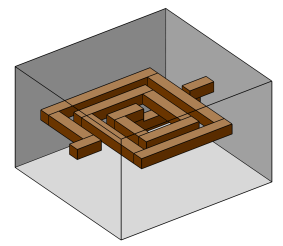
The model geometry consists of the spiral-shaped inductor and the air surrounding it. Figure 1 shows the inductor and air domains used in the model. The outer dimensions of the model geometry are around 0.3 mm.
Figure 1: Inductor geometry and the surrounding air domain.
The model equations are the following:
In the equations above, σ denotes the electrical conductivity, A the magnetic vector potential, V the electric scalar potential, Je the externally generated current density vector, μ0 the permeability in vacuum, and μr the relative permeability.
The electrical conductivity in the coil is set to 106 S/m, and in the air it is set to 1 S/m. The conductivity of air is set to a small nonzero value in order to avoid singularities in the model. The resulting error is negligible as long as the value of the conductivity in the air is small compared to the other conductivities in the model.
The constitutive relation is given by the expression
where H denotes the magnetic field.
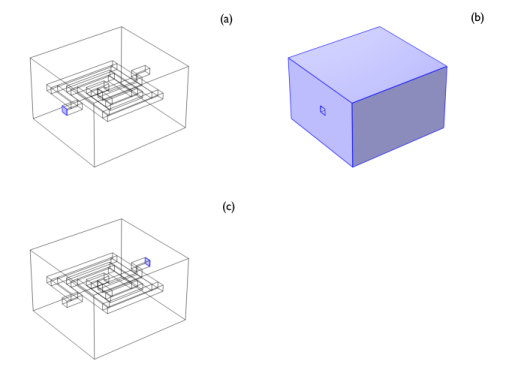
The boundary conditions are of three different types corresponding to the three different boundary groups; see Figure 2 (a), (b), and (c).
Figure 2: Boundaries with the same type of boundary conditions.
The boundary condition for the boundary highlighted in Figure 2 (a) is a magnetic insulation boundary with a terminal boundary condition. For the boundaries in Figure 2 (b), both magnetic and electric insulation prevail. The condition for the last boundary, Figure 2 (c), is magnetic insulation set to a constant electric potential of 0 V (ground).
Results
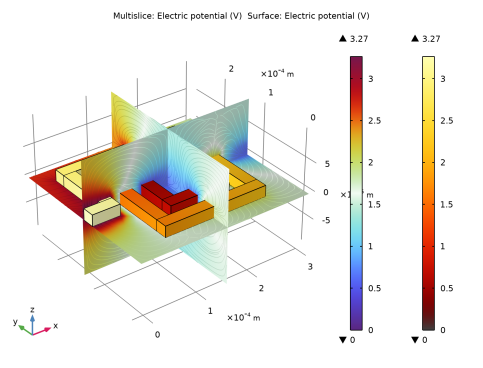
Figure 3 shows the electric potential in the inductor and the electric field lines.
Figure 3: Electric potential in the device and electric field lines around the device.
The computed self-inductance is 0.75 nH.
Application Library path: ACDC_Module/Introductory_Electromagnetics/spiral_inductor
Modeling Instructions
From the File menu, choose New.
New
In the New window, click  Model Wizard.
Model Wizard
1
In the Model Wizard window, click  3D.
2
In the Select Physics tree, select AC/DC>Electromagnetic Fields>Vector Formulations>Magnetic and Electric Fields (mef).
3
Click Add.
4
Click  Study.
5
In the Select Study tree, select General Studies>Stationary.
6
Geometry 1
Import 1 (imp1)
1
In the Home toolbar, click  Import.
2
In the Settings window for Import, locate the Import section.
3
Click  Browse.
4
5
Click  Import.
6
Click the  Wireframe Rendering button in the Graphics toolbar.
This geometry would be relatively straightforward to create from scratch; here it is imported for convenience.
Materials
Conductor
1
In the Model Builder window, under Component 1 (comp1) right-click Materials and choose Blank Material.
2
In the Settings window for Material, type Conductor in the Label text field.
3
4
Locate the Material Contents section. In the table, enter the following settings:
Air
1
Right-click Materials and choose Blank Material.
2
In the Settings window for Material, type Air in the Label text field.
3
4
Locate the Material Contents section. In the table, enter the following settings:
Setting the conductivity to zero in the air would lead to a numerically singular problem. You can avoid this problem by using a small nonzero value. As 1 S/m is much less than the electric conductivity in the inductor, the fields will only be marginally affected.
Magnetic and Electric Fields (mef)
Magnetic Insulation 1
In the Model Builder window, under Component 1 (comp1)>Magnetic and Electric Fields (mef) click Magnetic Insulation 1.
Terminal 1
1
In the Physics toolbar, click  Attributes and choose Terminal.
2
3
In the Settings window for Terminal, locate the Terminal section.
4
In the I0 text field, type 1.
Magnetic Insulation 1
In the Model Builder window, click Magnetic Insulation 1.
Electric Insulation 1
1
In the Physics toolbar, click  Attributes and choose Electric Insulation.
2
This concludes the boundary settings. Note that the boundaries that you have not assigned are electrically grounded and magnetically insulated by default.
Mesh 1
1
In the Model Builder window, under Component 1 (comp1) click Mesh 1.
2
In the Settings window for Mesh, locate the Physics-Controlled Mesh section.
3
From the Element size list, choose Coarser.
4
In the Home toolbar, click  Build Mesh.
Study 1
Click  Compute.
One of the default plots shows the electric potential distribution in three cross sections. There are plenty of other ways of visualizing the solution. The following instructions detail how to also show the potential distribution inside the coil.
Results
Surface 1
1
In the Model Builder window, right-click Electric Potential (mef) and choose Surface.
2
In the Settings window for Surface, locate the Coloring and Style section.
3
Click  Change Color Table.
4
In the Color Table dialog box, select Thermal>GrayBody in the tree.
5
Study 1/Solution 1 (sol1)
In the Model Builder window, expand the Results>Datasets node, then click Study 1/Solution 1 (sol1).
Selection
1
In the Results toolbar, click  Attributes and choose Selection.
Selecting the boundaries of the inductor is most effectively done by first selecting all boundaries, then removing the exterior boundaries of the air box from the selection.
2
In the Settings window for Selection, locate the Geometric Entity Selection section.
3
From the Geometric entity level list, choose Boundary.
4
From the Selection list, choose All boundaries.
5
Electric Potential (mef)
1
In the Model Builder window, under Results click Electric Potential (mef).
2
In the Electric Potential (mef) toolbar, click  Plot.
Global Evaluation 1
1
In the Results toolbar, click  Global Evaluation.
2
In the Settings window for Global Evaluation, click Replace Expression in the upper-right corner of the Expressions section. From the menu, choose Component 1 (comp1)>Magnetic and Electric Fields>Terminals>mef.L11 - Inductance - H.
3
Click  Evaluate.
Table
1
Go to the Table window.
The inductance evaluates to 0.75 nH.