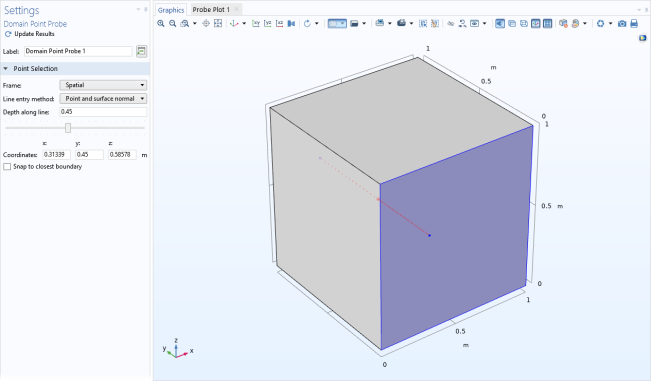
Use a Domain Point Probe (

) to monitor the development of a real or complex-valued number from a dynamic simulation (a time-dependent, frequency-domain, or parametric study). By default, a
Point Probe Expression subnode is added, or right-click
Domain Point Probe to add additional nodes.
When working with multiple frames, select a Frame —
Spatial,
Material,
Geometry, or
Mesh — followed by the coordinate names, typically
(x, y, z) or
(X, Y, Z) in 3D depending on the physics.
For 3D models, select a Line entry method:
Point and surface normal (the default),
Point and direction,
Two points, or
None to define a location for the point where you want to add a probe.
For Point and surface normal,
Point and direction, or
Two points, enter a
Depth along line or use the slider to select a value between 0 and 1 to determine the probe location along the line anywhere from the starting point (0) to the ending point (1).
In 3D and for the line entry method None in 3D, enter
Coordinates: enter
x and
y coordinates (2D) or
x,
y, and
z coordinates (3D). You can also adjust the computed coordinates when you use any of the other line entry methods in 3D.
Select the Snap to closest boundary check box to snap the point to the boundary of the geometry closest to that point when the probe is evaluated.