


You are viewing the documentation for an older COMSOL version. The latest version is available here.
PDF

Arterial Wall Mechanics
Introduction
Arteries are blood vessels that carry freshly oxygenated blood from the heart throughout the rest of the body. They are layered structures with the intima inside, followed by the media, and the adventitia. The two outer layers are predominantly responsible for the mechanical behavior of healthy arteries. Both layers are made of collagenous soft tissues that show prominent strain stiffening. Families of collagen fibers give each layer anisotropic properties. These fiber reinforced structures enable blood vessels to sustain large elastic deformation.
The Holzapfel-Gasser-Ogden (HGO) constitutive model described in Ref. 1 captures the anisotropic nonlinear mechanical response observed in experiments on excised arteries.
This model demonstrates how this hyperelastic material is implemented in COMSOL Multiphysics, and the results are compared to those reported in Ref. 1.
Model Definition
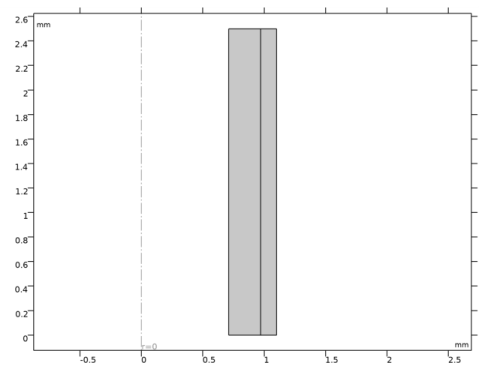
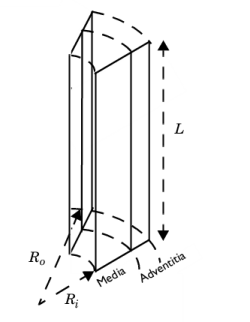
The model geometry represents a sector of a carotid artery from a rabbit. Following Ref. 1, the media and adventitia are modeled as a layered cylindrical tube. Model symmetry allows the use of 2D axisymmetric model. Main dimensions are reported in Figure 1.
Figure 1: Carotid artery section of L = 2.5 mm in length. The inner radius Ri is 0.71 mm, the outer radius Ro is 1.1 mm, the media thickness is 0.26 mm, and the adventitia thickness is 0.13 mm.
Typical mechanical experiments measure the response of arterial sections subject to combined axial stretch and internal blood pressure. The set of boundary conditions replicate these experiments.
The symmetry boundary condition allows the bottom end of the artery to freely expand in the radial direction. On the top surface, prescribed displacements in the axial direction account for the axial stretching. Internal pressure is applied with a pressure boundary load on the inner surface.
This model considers axial stretches between 1.5 and 1.9, and internal pressures between 0 and 160 mmHg. The mechanical response in this range is highly nonlinear, resulting in large elastic deformations, and it is mathematically described within the theory of hyperelasticity.
The HGO model is an incompressible anisotropic hyperelastic material model defined by an isochoric strain energy density.
The incompressibility condition implies adding a volumetric stress Svol.
The auxiliary pressure pw ensures the incompressibility with the weak equation:
The isochoric strain energy density is defined by a function of the form
(1)
The three terms on the right-hand side of Equation 1 depend on invariants of the right Cauchy-Green tensor.
The first term describes the mechanical behavior of the elastic ground substance. The isotropic function W1 depends on one material parameter and the first isochoric invariant , defined in the same fashion as for a neo-Hookean material (see Ref. 3 for more details on this invariant)


(2)
The second and third terms on the right-hand side of Equation 1 describe the mechanical contribution of the collagen fiber network. Following Ref. 1, these expressions are written as
(3)
(4)
here, the fiber network is reduced to two families of fibers with material properties k1 and k2.
The deformation of each fiber family is measured by the invariants I4 and I6. You can find a detailed background for this formulation in Ref. 1 and Ref. 2.
Briefly, a family i of fibers is defined by a vector field a0i in the undeformed direction. The fibers deform under the action of the isochoric deformation gradient, so that is the deformed fiber configuration. The length of is the fiber stretch, to be used for the constitutive equations.


The HGO model uses the square of the fiber stretches computed according to the invariants I4 and I6
(5)
(6)
Also, the angle β is the relative angle between a01 and a02.
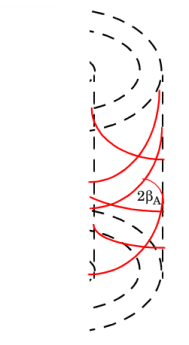
The mechanical properties of both the media and adventitia are governed by these expressions. Each layer has a distinct set of material parameters c, k1, k2, and the initial fiber directions a01 and a02 are aligned at different angles, as shown in Figure 2.
Figure 2: Angle between the two fiber families in the adventitia.
Material
The material parameters for the media and the adventitia are given in the following table.
k1
k2
β
Results and Discussion
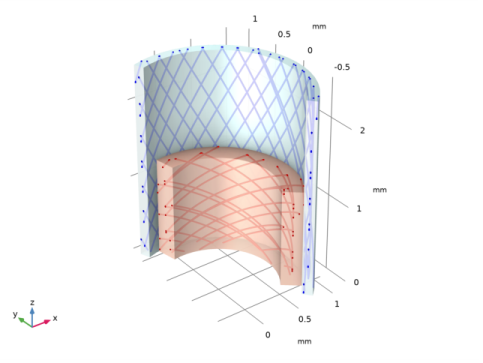
The model computes the static response to the applied boundary conditions. Figure 3 displays the fiber layout of both the media and the adventitia fiber families.
.
Figure 3: Fiber layout in the undeformed configuration of the media (inner, red) and the adventitia (outer, blue). Note the different angles between fiber families.
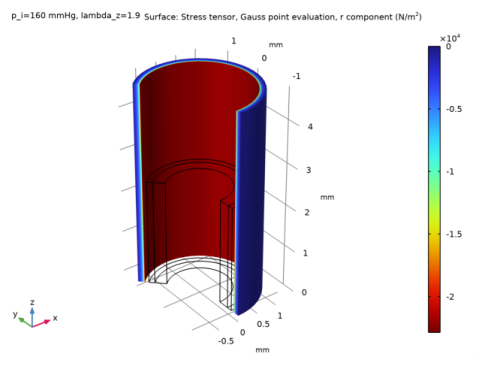
Figure 4 shows the radial stress distribution through the thickness of the wall at an axial stretch of 1.9 and an internal pressure of 160 mmHg.
Figure 4: Radial stress distribution in the artery wall at an axial stretch of 1.9 and 160 mmHg internal pressure.
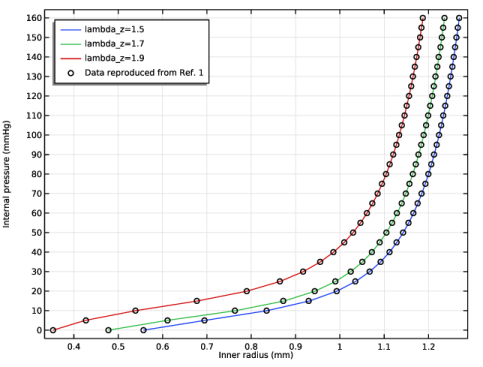
Figure 5 plots the internal pressure against the expansion of the inner radius for the entire load range. The results are in good agreements with the data reproduced from Ref. 1.
Figure 5: Plot of internal pressure vs. inner radius for three different axial stretches. Data reproduced from Ref. 1 (circles) coincides well with the model results.
References
1. G. Holzapfel, T. Gasser, and R. Ogden, “A New Constitutive Framework for Arterial Wall Mechanics and a Comparative Study of Material Models,” J. Elasticity, vol. 61, pp. 1–48, 2000.
2. G. Holzapfel, Nonlinear Solid Mechanics: A Continuum Approach for Engineering, John Wiley & Sons, 2000.
3. Nonlinear Structural Materials Module User’s Guide, COMSOL Multiphysics.
Notes About the COMSOL Implementation
The most important aspect in this model is the implementation of the HGO material model with the Fiber feature.
There are two fiber families in each arterial layer. The mathematical expressions in the HGO model are the same for the media (M) as for the adventitia (A), except for the different material parameters.
The initial fiber directions are identified with the use of user defined rotated coordinate systems. Four coordinate systems are necessary, one for each fiber family. They are oriented in such a way that their second axis are aligned with the fiber directions (a01M, a02M, a01A, a02A).
The mechanical behavior of the elastic ground substance is defined in the Hypereleastic node (one for the media and one for the adventitia) with the use of an incompressible Neo-Hookean model to define the isotropic function W1 as in Equation 2.
The mechanical contribution of the collagen fiber network is accounted for with an anisotropic contribution to the isochoric strain energy (W4+W6). The Fiber features are used to computed such strain energy densities. Add a Fiber feature for each family of fiber, two for the media and two for the adventitia. Only the operation for the first family of fibers in the media is discussed below. Similar operations are performed for all other fiber families.
In the settings for the Fiber feature, select the appropriate rotated reference system as a reference coordinate system. Then in the Orientation section select the orientation of the fiber (a01M) to be aligned with the x2-axis.
The Fiber feature automatically compute the corresponding invariants (I4M) as in Equation 5 in order to compute the strain energy function W4 as in Equation 3.
The option Stiffness in tension only is already activated for the HGO model and it evaluates the fibers strain energy to zero if the fiber stretch is smaller than one. This means that the fibers only contribute to tensile stress.
Activate the option Contribute to total stress to add the fibers strain energy directly to the total energy. This option allows to consider the fibers and the ground substance as a single anisotropic material and the resulting stress will account for all contributions.
This model also shows how to use the fiber direction variables to plot the configuration of the fiber families. The interface takes care of the mapping from the global coordinate system in 2D axisymmetric component to the cylindrical coordinates system used in the revolved result plots.
Application Library path: Nonlinear_Structural_Materials_Module/Hyperelasticity/arterial_wall_mechanics
Modeling Instructions
From the File menu, choose New.
New
In the New window, click  Model Wizard.
Model Wizard
1
In the Model Wizard window, click  2D Axisymmetric.
2
In the Select Physics tree, select Structural Mechanics>Solid Mechanics (solid).
3
Click Add.
4
Click  Study.
5
In the Select Study tree, select General Studies>Stationary.
6
Global Definitions
Load all model parameters from a file containing parameters for the geometry, the material properties and the boundary conditions.
Parameters 1
1
In the Model Builder window, under Global Definitions click Parameters 1.
2
In the Settings window for Parameters, locate the Parameters section.
3
Click  Load from File.
4
Now add an interpolation function for importing the pressure versus radius data reproduced from Ref. 1. Use it for comparison.
Interpolation 1 (int1)
1
In the Home toolbar, click  Functions and choose Global>Interpolation.
2
In the Settings window for Interpolation, locate the Definition section.
3
From the Data source list, choose File.
4
Click  Browse.
5
This file contains the data adapted from Ref. 1.
6
In the Number of arguments text field, type 1.
7
Click  Import.
8
Find the Functions subsection. In the table, enter the following settings:
9
Locate the Units section. In the Argument table, enter the following settings:
10
In the Function table, enter the following settings:
Geometry 1
Construct the model geometry by first drawing two circular sections on a work plane. Then, form a difference between them and extrude it.
1
In the Model Builder window, under Component 1 (comp1) click Geometry 1.
2
In the Settings window for Geometry, locate the Units section.
3
From the Length unit list, choose mm.
Rectangle 1 (r1)
1
In the Geometry toolbar, click  Rectangle.
2
In the Settings window for Rectangle, locate the Size and Shape section.
3
In the Width text field, type Ro-Ri.
4
In the Height text field, type L.
5
Locate the Position section. In the r text field, type Ri.
6
Click to expand the Layers section. In the table, enter the following settings:
7
Clear the Layers on bottom check box.
8
Select the Layers to the right check box.
9
In the Geometry toolbar, click  Build All.
Definitions
Define coordinate systems. These are used to define the initial directions of all fiber families.
Rotated System Media Fiber Family 1
1
In the Definitions toolbar, click  Coordinate Systems and choose Rotated System.
2
In the Settings window for Rotated System, type Rotated System Media Fiber Family 1 in the Label text field.
3
Locate the Rotation section. From the Input method list, choose General rotation.
4
Find the Euler angles (Z-X-Z) subsection. In the β text field, type betaM.
5
Locate the Origin section. From the Frame list, choose Material  (R, PHI, Z).
Rotated System Media Fiber Family 2
1
Right-click Rotated System Media Fiber Family 1 and choose Duplicate.
2
In the Settings window for Rotated System, type Rotated System Media Fiber Family 2 in the Label text field.
3
Locate the Rotation section. Find the Euler angles (Z-X-Z) subsection. In the β text field, type -betaM.
Rotated System Adventitia Fiber Family 1
1
Right-click Rotated System Media Fiber Family 2 and choose Duplicate.
2
In the Settings window for Rotated System, type Rotated System Adventitia Fiber Family 1 in the Label text field.
3
Locate the Rotation section. Find the Euler angles (Z-X-Z) subsection. In the β text field, type betaA.
Rotated System Adventitia Fiber Family 2
1
Right-click Rotated System Adventitia Fiber Family 1 and choose Duplicate.
2
In the Settings window for Rotated System, type Rotated System Adventitia Fiber Family 2 in the Label text field.
3
Locate the Rotation section. Find the Euler angles (Z-X-Z) subsection. In the β text field, type -betaA.
Materials
Create the materials for the media and the adventitia.
Material (Media)
1
In the Model Builder window, under Component 1 (comp1) right-click Materials and choose Blank Material.
2
In the Settings window for Material, locate the Geometric Entity Selection section.
3
4
Click  Remove from Selection.
5
6
In the Label text field, type Material (Media).
Material (Adventitia)
1
Right-click Materials and choose Blank Material.
2
In the Settings window for Material, type Material (Adventitia) in the Label text field.
3
Solid Mechanics (solid)
1
In the Model Builder window, under Component 1 (comp1) click Solid Mechanics (solid).
2
In the Settings window for Solid Mechanics, locate the Structural Transient Behavior section.
3
Hyperelastic Material (Media)
1
In the Physics toolbar, click  Domains and choose Hyperelastic Material.
2
In the Settings window for Hyperelastic Material, type Hyperelastic Material (Media) in the Label text field.
3
Hyperelastic Material (Adventita)
1
In the Physics toolbar, click  Domains and choose Hyperelastic Material.
2
In the Settings window for Hyperelastic Material, type Hyperelastic Material (Adventita) in the Label text field.
3
4
Locate the Hyperelastic Material section. From the Compressibility list, choose Incompressible material.
Hyperelastic Material (Media)
1
In the Model Builder window, click Hyperelastic Material (Media).
2
In the Settings window for Hyperelastic Material, locate the Hyperelastic Material section.
3
From the Compressibility list, choose Incompressible material.
Fiber Family 1
1
In the Physics toolbar, click  Attributes and choose Fiber.
2
In the Settings window for Fiber, type Fiber Family 1 in the Label text field.
3
Locate the Coordinate System Selection section. From the Coordinate system list, choose Rotated System Media Fiber Family 1 (sys2).
4
Locate the Orientation section. From the a list, choose Second axis.
5
Locate the Fiber Model section. Select the Contribute to total stress check box.
Fiber Family 2
1
Right-click Fiber Family 1 and choose Duplicate.
2
In the Settings window for Fiber, type Fiber Family 2 in the Label text field.
3
Locate the Coordinate System Selection section. From the Coordinate system list, choose Rotated System Media Fiber Family 2 (sys3).
Hyperelastic Material (Adventita)
In the Model Builder window, under Component 1 (comp1)>Solid Mechanics (solid) click Hyperelastic Material (Adventita).
Fiber Family 1
1
In the Physics toolbar, click  Attributes and choose Fiber.
2
In the Settings window for Fiber, type Fiber Family 1 in the Label text field.
3
Locate the Coordinate System Selection section. From the Coordinate system list, choose Rotated System Adventitia Fiber Family 1 (sys4).
4
Locate the Fiber Model section. Select the Contribute to total stress check box.
5
Locate the Orientation section. From the a list, choose Second axis.
Fiber Family 2
1
Right-click Fiber Family 1 and choose Duplicate.
2
In the Settings window for Fiber, type Fiber Family 2 in the Label text field.
3
Locate the Coordinate System Selection section. From the Coordinate system list, choose Rotated System Adventitia Fiber Family 2 (sys5).
Symmetry Plane 1
1
In the Physics toolbar, click  Boundaries and choose Symmetry Plane.
2
Prescribed Displacement 1
1
In the Physics toolbar, click  Boundaries and choose Prescribed Displacement.
2
3
In the Settings window for Prescribed Displacement, locate the Prescribed Displacement section.
4
Select the Prescribed in z direction check box.
5
In the u0z text field, type (lambda_z-1)*L.
Boundary Load 1
1
In the Physics toolbar, click  Boundaries and choose Boundary Load.
2
3
In the Settings window for Boundary Load, locate the Force section.
4
From the Load type list, choose Pressure.
5
In the p text field, type p_i.
Mesh 1
Mapped 1
In the Mesh toolbar, click  Mapped.
Distribution 1
1
Right-click Mapped 1 and choose Distribution.
2
3
In the Settings window for Distribution, locate the Distribution section.
4
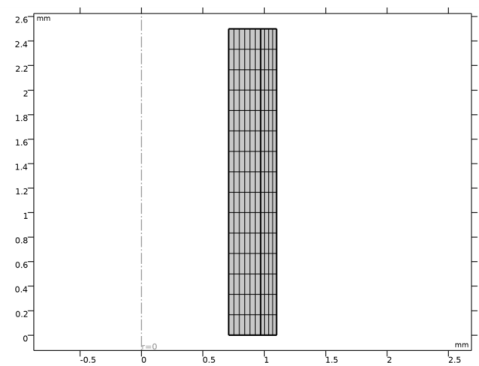
In the Number of elements text field, type 6.
Distribution 2
1
In the Model Builder window, right-click Mapped 1 and choose Distribution.
2
3
In the Settings window for Distribution, locate the Distribution section.
4
In the Number of elements text field, type 4.
5
In the Model Builder window, right-click Mesh 1 and choose Build All.
Materials
Material (Media) (mat1)
Before solving all necessary materials properties should be defined using the loaded model parameters.
1
In the Model Builder window, under Component 1 (comp1)>Materials click Material (Media) (mat1).
2
In the Settings window for Material, locate the Material Contents section.
3
Material (Adventitia) (mat2)
1
In the Model Builder window, click Material (Adventitia) (mat2).
2
In the Settings window for Material, locate the Material Contents section.
3
Study 1
Now set up a study to compute the static response of the artery segment subject to combined axial stretch and internal pressure.
1
In the Model Builder window, click Study 1.
2
In the Settings window for Study, locate the Study Settings section.
3
Clear the Generate default plots check box.
You will not need the default plots in this model.
Step 1: Stationary
1
In the Model Builder window, under Study 1 click Step 1: Stationary.
2
In the Settings window for Stationary, click to expand the Study Extensions section.
3
Select the Auxiliary sweep check box.
4
5
The parameter lambda_z controls the axial stretch.
6
7
Use p_i to vary the internal pressure from 0 to 160 mmHg with steps of 5 mmHg.
8
From the Sweep type list, choose All combinations.
9
From the Reuse solution from previous step list, choose Auto.
Using the Auto option for Reuse solution for previous step is suitable for this kind of multiparameter sweep with continuation.
Solution 1 (sol1)
1
In the Study toolbar, click  Show Default Solver.
Using constant prediction for the continuation sweep improves convergence when the solution is very nonlinear in the swept parameter.
2
In the Model Builder window, expand the Solution 1 (sol1) node.
3
In the Model Builder window, expand the Study 1>Solver Configurations>Solution 1 (sol1)>Stationary Solver 1 node, then click Parametric 1.
4
In the Settings window for Parametric, click to expand the Continuation section.
5
From the Predictor list, choose Constant.
6
In the Study toolbar, click  Compute.
Results
1
In the Model Builder window, expand the Results node.
Before you examine the results, create Revolution 2D datasets. Those datasets create the cylindrical geometry from the 2D axisymmetric plane that was used for the computation.
Sector Revolution
1
In the Model Builder window, expand the Results>Datasets node.
2
Right-click Results>Datasets and choose Revolution 2D.
3
In the Settings window for Revolution 2D, type Sector Revolution in the Label text field.
4
Click to expand the Revolution Layers section. In the Start angle text field, type -90.
5
In the Revolution angle text field, type 225.
Full Revolution
1
In the Results toolbar, click  More Datasets and choose Revolution 2D.
2
In the Settings window for Revolution 2D, type Full Revolution in the Label text field.
Now duplicate the datasets and add a selection for the media. Use these in one of the plots below.
Media
1
In the Model Builder window, under Results>Datasets right-click Study 1/Solution 1 (sol1) and choose Duplicate.
2
In the Settings window for Solution, type Media in the Label text field.
Selection
1
In the Results toolbar, click  Attributes and choose Selection.
2
In the Settings window for Selection, locate the Geometric Entity Selection section.
3
From the Geometric entity level list, choose Domain.
4
Media Sector Revolution
1
In the Results toolbar, click  More Datasets and choose Revolution 2D.
2
In the Settings window for Revolution 2D, type Media Sector Revolution in the Label text field.
3
Locate the Data section. From the Dataset list, choose Media (sol1).
4
Locate the Revolution Layers section. In the Start angle text field, type -40.
5
In the Revolution angle text field, type 140.
6
Click to expand the Advanced section.
Now duplicate the datasets and add a selection for the adventitia. Use these in one of the plots below.
Adventitia
1
Right-click Study 1/Solution 1 (sol1) and choose Duplicate.
2
In the Settings window for Solution, type Adventitia in the Label text field.
Selection
1
In the Results toolbar, click  Attributes and choose Selection.
2
In the Settings window for Selection, locate the Geometric Entity Selection section.
3
From the Geometric entity level list, choose Domain.
4
Adventitia Sector Revolution
1
In the Results toolbar, click  More Datasets and choose Revolution 2D.
2
In the Settings window for Revolution 2D, type Adventitia Sector Revolution in the Label text field.
3
Locate the Data section. From the Dataset list, choose Adventitia (sol1).
4
Locate the Revolution Layers section. In the Start angle text field, type -50.
5
In the Revolution angle text field, type 160.
Create a 3D plot group for the radial stress distribution.
Radial Stress
1
In the Results toolbar, click  3D Plot Group.
2
In the Settings window for 3D Plot Group, type Radial Stress in the Label text field.
Surface 1
1
In the Radial Stress toolbar, click  Surface.
2
In the Settings window for Surface, click Replace Expression in the upper-right corner of the Expression section. From the menu, choose Component 1 (comp1)>Solid Mechanics>Stress (Gauss points)>Stress tensor, Gauss point evaluation (spatial frame) - N/m²>solid.sGpr - Stress tensor, Gauss point evaluation, r component.
3
Locate the Coloring and Style section. From the Color table list, choose Prism.
Deformation 1
1
In the Radial Stress toolbar, click  Deformation.
2
In the Settings window for Deformation, locate the Scale section.
3
Select the Scale factor check box.
4
5
In the Radial Stress toolbar, click  Plot.
6
Click the  Go to Default View button in the Graphics toolbar.
Create a 1D plot group to compare the pressure versus radius relationship to the data reproduced from Ref. 1.
Pressure vs. Radius
1
In the Home toolbar, click  Add Plot Group and choose 1D Plot Group.
2
In the Settings window for 1D Plot Group, type Pressure vs. Radius in the Label text field.
3
Click to expand the Title section. From the Title type list, choose None.
4
Locate the Plot Settings section. Select the x-axis label check box.
5
6
Select the y-axis label check box.
7
In the associated text field, type Internal pressure (mmHg).
8
Locate the Legend section. From the Position list, choose Upper left.
Point Graph 1
1
Right-click Pressure vs. Radius and choose Point Graph.
2
3
In the Settings window for Point Graph, locate the y-Axis Data section.
4
In the Expression text field, type p_i.
5
In the Unit field, type mmHg.
6
Click Replace Expression in the upper-right corner of the x-Axis Data section. From the menu, choose Component 1 (comp1)>Geometry>Coordinate (spatial frame)>r - r-coordinate.
7
In the Pressure vs. Radius toolbar, click  Plot.
8
Click to expand the Legends section. Select the Show legends check box.
9
Find the Include subsection. Clear the Point check box.
Global 1
1
In the Model Builder window, right-click Pressure vs. Radius and choose Global.
2
In the Settings window for Global, locate the Data section.
3
From the Dataset list, choose Study 1/Solution 1 (sol1).
4
From the Parameter selection (lambda_z) list, choose Last.
5
Locate the y-Axis Data section. In the table, enter the following settings:
6
Locate the x-Axis Data section. From the Parameter list, choose Expression.
7
In the Expression text field, type hgo_pr_1_5(p_i).
This is the interpolation function with data reproduced from Ref. 1. It returns the inner radius as a function of internal pressure at an axial stretch of 1.5.
8
Click to expand the Coloring and Style section. Find the Line style subsection. From the Line list, choose None.
9
From the Color list, choose From theme.
10
Find the Line markers subsection. From the Marker list, choose Circle.
11
From the Positioning list, choose In data points.
12
Click to expand the Legends section. From the Legends list, choose Manual.
13
Global 2
1
Right-click Global 1 and choose Duplicate.
2
In the Settings window for Global, locate the x-Axis Data section.
3
In the Expression text field, type hgo_pr_1_7(p_i).
This is the inner radius as a function of internal pressure at an axial stretch of 1.7.
4
Locate the Legends section. Clear the Show legends check box.
Global 3
1
Right-click Global 2 and choose Duplicate.
2
In the Settings window for Global, locate the x-Axis Data section.
3
In the Expression text field, type hgo_pr_1_9(p_i).
This is the inner radius as a function of internal pressure at an axial stretch of 1.9.
4
In the Pressure vs. Radius toolbar, click  Plot.
Create a 3D plot group to display the fiber path.
Fiber Direction
1
In the Home toolbar, click  Add Plot Group and choose 3D Plot Group.
2
In the Settings window for 3D Plot Group, type Fiber Direction in the Label text field.
3
Locate the Plot Settings section. Clear the Plot dataset edges check box.
4
Click to expand the Title section. From the Title type list, choose None.
Adventitia
1
Right-click Fiber Direction and choose Volume.
2
In the Settings window for Volume, type Adventitia in the Label text field.
3
Locate the Data section. From the Dataset list, choose Adventitia Sector Revolution.
4
Locate the Expression section. In the Expression text field, type 1.
5
Locate the Coloring and Style section. From the Coloring list, choose Uniform.
6
From the Color list, choose Custom.
7
8
Click Define custom colors.
9
10
Click Add to custom colors.
11
Click Show color palette only or OK on the cross-platform desktop.
Transparency 1
1
Right-click Adventitia and choose Transparency.
2
In the Settings window for Transparency, locate the Transparency section.
3
Set the Transparency value to 0.2.
Media
1
In the Model Builder window, right-click Adventitia and choose Duplicate.
2
In the Settings window for Volume, type Media in the Label text field.
3
Locate the Data section. From the Dataset list, choose Media Sector Revolution.
4
Locate the Coloring and Style section. Click Define custom colors.
5
6
Click Add to custom colors.
7
Click Show color palette only or OK on the cross-platform desktop.
Filter 1
1
Right-click Media and choose Filter.
2
In the Settings window for Filter, locate the Element Selection section.
3
In the Logical expression for inclusion text field, type Z<L/2 && R<(Ri+HM*0.99).
Fiber Family Adventitia 1
1
In the Model Builder window, right-click Fiber Direction and choose Streamline.
2
In the Settings window for Streamline, type Fiber Family Adventitia 1 in the Label text field.
3
Locate the Expression section. In the R component text field, type solid.hmm2.fib1.a0R.
4
In the PHI component text field, type solid.hmm2.fib1.a0PHI.
5
In the Z component text field, type solid.hmm2.fib1.a0Z.
6
Locate the Data section. From the Dataset list, choose Adventitia Sector Revolution.
7
Locate the Streamline Positioning section. From the Positioning list, choose Uniform density.
8
In the Separating distance text field, type 0.06.
9
Locate the Coloring and Style section. Find the Point style subsection. From the Color list, choose Blue.
10
Find the Line style subsection. From the Type list, choose Tube.
Fiber Family Adventitia 2
1
Right-click Fiber Family Adventitia 1 and choose Duplicate.
2
In the Settings window for Streamline, type Fiber Family Adventitia 2 in the Label text field.
3
Locate the Expression section. In the R component text field, type solid.hmm2.fib2.a0R.
4
In the PHI component text field, type solid.hmm2.fib2.a0PHI.
5
In the Z component text field, type solid.hmm2.fib2.a0Z.
6
Click to expand the Inherit Style section. From the Plot list, choose Fiber Family Adventitia 1.
Fiber Family Media 1
1
In the Model Builder window, right-click Fiber Family Adventitia 1 and choose Duplicate.
2
In the Settings window for Streamline, type Fiber Family Media 1 in the Label text field.
3
Locate the Data section. From the Dataset list, choose Media Sector Revolution.
4
Locate the Expression section. In the R component text field, type solid.hmm1.fib1.a0R.
5
In the PHI component text field, type solid.hmm1.fib1.a0PHI.
6
In the Z component text field, type solid.hmm1.fib1.a0Z.
7
Locate the Streamline Positioning section. In the Separating distance text field, type 0.1.
8
Locate the Coloring and Style section. Find the Point style subsection. From the Color list, choose Red.
Filter 1
1
Right-click Fiber Family Media 1 and choose Filter.
2
In the Settings window for Filter, locate the Element Selection section.
3
In the Logical expression for inclusion text field, type Z<L/2 && R<(Ri+HM*0.99).
Fiber Family Media 2
1
In the Model Builder window, right-click Fiber Family Media 1 and choose Duplicate.
2
In the Settings window for Streamline, type Fiber Family Media 2 in the Label text field.
3
Locate the Expression section. In the R component text field, type solid.hmm1.fib2.a0R.
4
In the PHI component text field, type solid.hmm1.fib2.a0PHI.
5
In the Z component text field, type solid.hmm1.fib2.a0Z.
6
Locate the Inherit Style section. From the Plot list, choose Fiber Family Media 1.
7
In the Fiber Direction toolbar, click  Plot.
8
In the Graphics window toolbar, clicknext to  Scene Light, then choose Ambient Occlusion.