


You are viewing the documentation for an older COMSOL version. The latest version is available here.
PDF

Terminal Falling Velocity of a Sand Grain
Introduction
The first stop for polluted water entering a water work is normally a large tank, where large particles are left to settle. More generally, gravity settling is an economical method of separating particles. If the fluid in the tank is moving at a controlled low velocity, the particles can be sorted in separate containers according to the time it takes for them to reach the bottom.
This application simulates a spherical sand grain falling in water. The grain accelerates from standstill and rapidly reaches its terminal velocity. The results agree with experimental studies. The model is an axially symmetric fluid-flow simulation in a moving coordinate system, coupled to an ordinary differential equation (ODE) describing the grain’s motion.
Model Definition
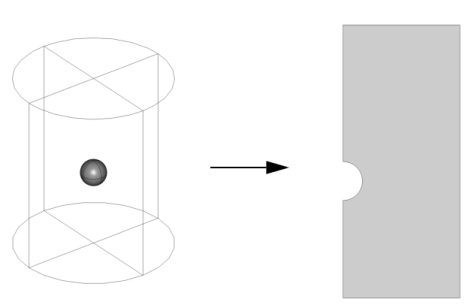
The model couples the flow simulation in cylindrical coordinates with an ODE for the force balance of the particle. Due to axial symmetry, you can model the flow in 2D instead of 3D. The figure below shows the modeling domain.
Domain Equations
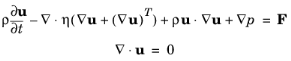
The fluid flow is described by the Navier–Stokes equations
where ρ denotes the density (kg/m3), u the velocity (m/s), η the viscosity (Ns/m2), and p the pressure (Pa). The fluid is water with a viscosity of 1.51·103 Ns/m2 and a density of 1000 kg/m3. The model uses the accelerating reference system of the sand grain. This means that the volume force density F is given by:
where a (m/s2) is the acceleration of the grain and g = 9.81 m/s2 is the acceleration due to gravity. The ODE that describes the force balance is:
where m (kg) denotes the mass of the particle, x (m) the position of the particle, Fg (N) the gravitational force, and Fz the z-component of the force that the water exerts on the sand grain. The gravitational force is given by:
where Vgrain (m3) is the volume of the sand grain and ρgrain (kg/m3) its density. The force that the water exerts on the grain is calculated by integrating the normal component of the stress tensor over the surface of the particle. Because the model is axially symmetric, only the force’s  z-component is nonzero:
where r (m) is the radial coordinate and n is the normal vector on the surface of the grain.
The initial values for position and velocities are . 
Boundary Conditions
At the sphere’s surface, the fluid velocity relative the sphere is zero, that is u = 0 — a situation described by the no slip wall condition. At the inlet of the fluid domain the velocity equals the falling velocity: . At the outer boundary of the water domain, the normal velocity and the tangential shear stress both vanish, which means that a symmetry condition applies. Furthermore, a neutral  condition, n · [pI + η(∇u + (∇u)T)] = 0, describes the outlet, and an axial symmetry condition models the symmetry axis at r = 0.
Results
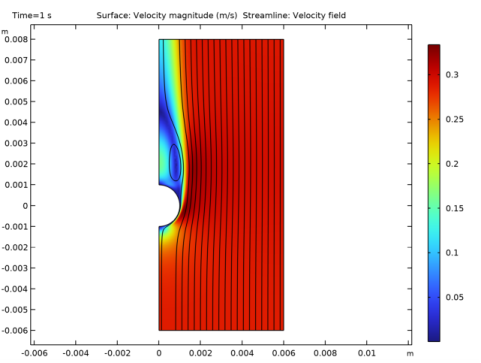
Figure 1 shows the velocity field at the final simulation time, t = 1 s, when the particle has reached steady state.
Figure 1: The velocity field at steady state. Note that the velocities are plotted in the reference system of the sand grain.
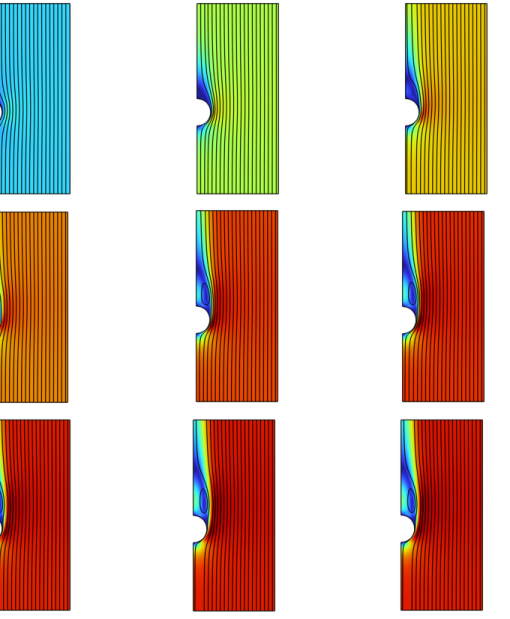
The following series of snapshots (Figure 2) displays velocity field from a moment just after the sand grain is released until it is approaching steady state. Notice the recirculation forming above the grain.
Figure 2: The velocity field around the sand grain at a series of times (t = 0.025 s, 0.05 s, 0.075 s, 0.1 s, 0.15 s, 0.2 s, 0.3 s, 0.5 s, and 0.75 s). For a color legend, see Figure 1.
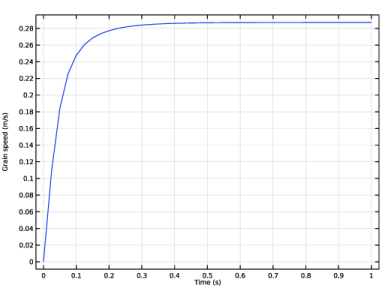
Figure 3 shows the falling velocity of the grain as a function of time.
Figure 3: Falling velocity (m/s) of the grain versus time. After the solution time of 1 s, the velocity approaches the terminal velocity.
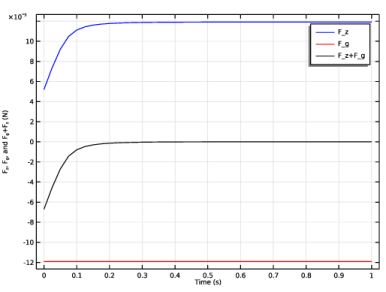
The terminal velocity equals 0.288 m/s. When this state is reached, the gravity and the forces from the water cancel out. Figure 4 shows the forces on the sand grain.
Figure 4: The forces on the sand grain. The force that the water exerts on the sphere (blue line) increases as the grain gains speed. The gravity force (red line) remains the same, and the total force (black line) tends toward zero as the solution approaches steady state.
Several approximate equations have been proposed for the terminal velocity of a sphere falling in a fluid. Ref. 1 cites the following expression for the total force that the fluid exerts on the sphere, as a function of the velocity:
Here d (m) is the diameter of the sphere, ρ (kg/m3) is the fluid density, v (m/s) is the velocity, and Re = (ρvd)/μ is the Reynolds number, with μ (Ns/m2) being the viscosity of the fluid. The gravity force is given analytically as Fg = πd3(ρ − ρs)g/6, where ρs (kg/m3) is the density of the sphere. Equating the two forces and introducing the values used in the simulation gives an approximate terminal velocity of 0.284 m/s.
The same reference discusses correction factors for nonspherical particles. You can easily adapt the model to hold for a general axially symmetric object (by redrawing the geometry) or even an arbitrarily shaped object (by modeling in 3D).
Reference
1. J.M. Coulson and J.F. Richardson, Chemical Engineering vol. 2, 4th ed., 1993.
Application Library path: COMSOL_Multiphysics/Fluid_Dynamics/falling_sand
Modeling Instructions
From the File menu, choose New.
New
In the New window, click  Model Wizard.
Model Wizard
1
In the Model Wizard window, click  2D Axisymmetric.
2
In the Select Physics tree, select Fluid Flow>Single-Phase Flow>Laminar Flow (spf).
3
Click Add.
4
Click  Study.
5
In the Select Study tree, select General Studies>Time Dependent.
6
Global Definitions
A set of global parameters is provided in a text file.
Parameters 1
1
In the Model Builder window, under Global Definitions click Parameters 1.
2
In the Settings window for Parameters, locate the Parameters section.
3
Click  Load from File.
4
Geometry 1
Rectangle 1 (r1)
1
In the Geometry toolbar, click  Rectangle.
2
In the Settings window for Rectangle, locate the Size and Shape section.
3
In the Width text field, type 6e-3.
4
In the Height text field, type 14e-3.
5
Locate the Position section. In the z text field, type -6e-3.
6
Click  Build Selected.
Circle 1 (c1)
1
In the Geometry toolbar, click  Circle.
2
In the Settings window for Circle, locate the Size and Shape section.
3
In the Radius text field, type 1e-3.
4
Click  Build Selected.
Difference 1 (dif1)
1
In the Geometry toolbar, click  Booleans and Partitions and choose Difference.
2
3
In the Settings window for Difference, locate the Difference section.
4
Find the Objects to subtract subsection. Click to select the  Activate Selection toggle button.
5
6
Click  Build Selected.
This completes the model geometry.
Definitions
Define a nonlocal integration coupling and a variable using this coupling. Later, you will use this variable to calculate the drag force.
Integration 1 (intop1)
1
In the Definitions toolbar, click  Nonlocal Couplings and choose Integration.
2
In the Settings window for Integration, locate the Source Selection section.
3
From the Geometric entity level list, choose Boundary.
4
Variables 1
1
In the Definitions toolbar, click  Local Variables.
2
In the Settings window for Variables, locate the Variables section.
3
Here, w_lm is a Lagrange multiplier and represents the reaction flux when imposing the z-component of the fluid velocity at the wall by means of weak constraints.
Laminar Flow (spf)
Fluid Properties 1
1
In the Model Builder window, under Component 1 (comp1)>Laminar Flow (spf) click Fluid Properties 1.
2
In the Settings window for Fluid Properties, locate the Fluid Properties section.
3
From the ρ list, choose User defined. In the associated text field, type rho_water.
4
From the μ list, choose User defined. In the associated text field, type mu_water.
Volume Force 1
1
In the Physics toolbar, click  Domains and choose Volume Force.
2
In the Settings window for Volume Force, locate the Domain Selection section.
3
From the Selection list, choose All domains.
4
Locate the Volume Force section. Specify the F vector as
Next, use weak constraints to impose the wall boundary condition on the grain. Add a Global Equations node for the equation of motion for the falling grain, and constraint the Lagrange multiplier corresponding to the horizontal component of the flux at the extreme points of the wall so that it respects the symmetry of the problem. By default, these feature are not visible.
5
Click the  Show More Options button in the Model Builder toolbar.
6
In the Show More Options dialog box, in the tree, select the check box for the node Physics>Equation-Based Contributions.
7
In the tree, select the check box for the node Physics>Advanced Physics Options.
8
Wall 1
1
In the Model Builder window, click Wall 1.
2
In the Settings window for Wall, click to expand the Constraint Settings section.
3
From the Constraints list, choose Use weak constraints.
Pointwise Constraint 1
1
In the Physics toolbar, click  Points and choose Pointwise Constraint.
2
3
In the Settings window for Pointwise Constraint, locate the Pointwise Constraint section.
4
In the Constraint expression text field, type u_lm.
5
Click to expand the Discretization section. Find the Base geometry subsection. From the Element order list, choose Linear.
Enter the second-order ODE as a system of two coupled first-order ODEs:
Global Equations 1
1
In the Physics toolbar, click  Global and choose Global Equations.
2
In the Settings window for Global Equations, locate the Global Equations section.
3
4
Locate the Units section. Click  Select Dependent Variable Quantity.
5
In the Physical Quantity dialog box, type displacement in the text field.
6
Click  Filter.
7
In the tree, select General>Displacement (m).
8
9
In the Settings window for Global Equations, locate the Units section.
10
Click  Select Source Term Quantity.
11
In the Physical Quantity dialog box, type velocity in the text field.
12
Click  Filter.
13
In the tree, select General>Velocity (m/s).
14
Global Equations 2
1
In the Physics toolbar, click  Global and choose Global Equations.
2
In the Settings window for Global Equations, locate the Global Equations section.
3
4
Locate the Units section. Click  Select Dependent Variable Quantity.
5
In the Physical Quantity dialog box, select General>Velocity (m/s) in the tree.
6
7
In the Settings window for Global Equations, locate the Units section.
8
Click  Select Source Term Quantity.
9
In the Physical Quantity dialog box, select General>Acceleration (m/s^2) in the tree.
10
Inlet 1
1
In the Physics toolbar, click  Boundaries and choose Inlet.
2
3
In the Settings window for Inlet, locate the Velocity section.
4
In the U0 text field, type -Xdot.
Open Boundary 1
1
In the Physics toolbar, click  Boundaries and choose Open Boundary.
2
Wall 2
1
In the Physics toolbar, click  Boundaries and choose Wall.
2
In the Settings window for Wall, locate the Boundary Condition section.
3
From the Wall condition list, choose Slip.
4
Mesh 1
Free Triangular 1
In the Mesh toolbar, click  Free Triangular.
Size 1
1
Right-click Free Triangular 1 and choose Size.
2
In the Settings window for Size, locate the Geometric Entity Selection section.
3
From the Geometric entity level list, choose Boundary.
4
5
Locate the Element Size section. Click the Custom button.
6
Locate the Element Size Parameters section. Select the Maximum element size check box.
7
Size 2
1
In the Model Builder window, right-click Free Triangular 1 and choose Size.
2
In the Settings window for Size, locate the Geometric Entity Selection section.
3
From the Geometric entity level list, choose Boundary.
4
5
Locate the Element Size section. Click the Custom button.
6
Locate the Element Size Parameters section. Select the Maximum element size check box.
7
Size
1
In the Model Builder window, under Component 1 (comp1)>Mesh 1 click Size.
2
In the Settings window for Size, locate the Element Size section.
3
From the Predefined list, choose Finer.
4
Click the Custom button.
5
Locate the Element Size Parameters section. In the Maximum element growth rate text field, type 1.05.
6
Click  Build All.
Study 1
Step 1: Time Dependent
1
In the Model Builder window, under Study 1 click Step 1: Time Dependent.
2
In the Settings window for Time Dependent, locate the Study Settings section.
3
In the Output times text field, type range(0,0.025,1).
4
From the Tolerance list, choose User controlled.
5
In the Relative tolerance text field, type 0.001.
Solution 1 (sol1)
1
In the Study toolbar, click  Show Default Solver.
2
In the Model Builder window, expand the Solution 1 (sol1) node, then click Time-Dependent Solver 1.
3
In the Settings window for Time-Dependent Solver, click to expand the Time Stepping section.
4
From the Steps taken by solver list, choose Intermediate.
This setting forces the solver to take at least one step in each of the time intervals you specified.
5
In the Study toolbar, click  Compute.
Results
Velocity (spf)
The default plot shows the velocity magnitude as a surface plot. Add a streamline plot of the velocity field by following the steps below.
Streamline 1
1
Right-click Velocity (spf) and choose Streamline.
2
In the Settings window for Streamline, locate the Streamline Positioning section.
3
From the Positioning list, choose Magnitude controlled.
4
In the Velocity (spf) toolbar, click  Plot.
5
Click the  Zoom Extents button in the Graphics toolbar.
Visualize the approach to this steady state by creating the series of snapshots of the velocity field (Figure 2).First, fix the color range for the surface plot to get the same color-to-velocity mapping for all time steps.
Surface
1
In the Model Builder window, click Surface.
2
In the Settings window for Surface, click to expand the Range section.
3
Select the Manual color range check box.
4
Locate the Coloring and Style section. Clear the Color legend check box.
5
In the Velocity (spf) toolbar, click  Plot.
Velocity (spf)
1
In the Model Builder window, click Velocity (spf).
2
In the Settings window for 2D Plot Group, locate the Data section.
3
From the Time (s) list, choose 0.025.
4
In the Velocity (spf) toolbar, click  Plot.
To reproduce the remaining plots, plot the solution for the time values 0.05 s, 0.075 s, 0.1 s, 0.15 s, 0.2 s, 0.3 s, 0.5 s, and 0.75 s.
Finally, generate a movie.
Animation 1
1
In the Velocity (spf) toolbar, click  Animation and choose Player.
COMSOL Multiphysics generates a movie and then plays it. To replay the movie, click the Play button in the Graphics toolbar.
If you want to export a movie in GIF, Flash, or AVI format, right-click Export and create an Animation feature.
Next, visualize the grain’s downward velocity as a function of time.
1D Plot Group 4
1
In the Home toolbar, click  Add Plot Group and choose 1D Plot Group.
2
In the Settings window for 1D Plot Group, click to expand the Title section.
3
From the Title type list, choose None.
4
Locate the Plot Settings section. Select the x-axis label check box.
5
6
Select the y-axis label check box.
7
Point Graph 1
1
Right-click 1D Plot Group 4 and choose Point Graph.
2
3
In the Settings window for Point Graph, locate the y-Axis Data section.
4
In the Expression text field, type -Xdot.
5
In the 1D Plot Group 4 toolbar, click  Plot.
To view all the forces in the same figure, follow the steps given below.
1D Plot Group 5
1
In the Home toolbar, click  Add Plot Group and choose 1D Plot Group.
2
In the Settings window for 1D Plot Group, locate the Title section.
3
From the Title type list, choose None.
4
Locate the Plot Settings section. Select the x-axis label check box.
5
6
Select the y-axis label check box.
7
In the associated text field, type F<sub>z</sub>, F<sub>g</sub>, and F<sub>g</sub>+F<sub>z</sub> (N).
The HTML tags ’sub’ and ’sup’ give subscripts and superscripts, respectively.
Point Graph 1
1
Right-click 1D Plot Group 5 and choose Point Graph.
2
3
In the Settings window for Point Graph, click Replace Expression in the upper-right corner of the y-Axis Data section. From the menu, choose Component 1 (comp1)>Definitions>Variables>F_z - Drag force - N.
4
Click to expand the Coloring and Style section. From the Color list, choose Blue.
5
Click to expand the Legends section. Select the Show legends check box.
6
From the Legends list, choose Manual.
7
8
In the 1D Plot Group 5 toolbar, click  Plot.
Point Graph 2
1
In the Model Builder window, right-click 1D Plot Group 5 and choose Point Graph.
2
3
In the Settings window for Point Graph, locate the y-Axis Data section.
4
In the Expression text field, type F_g.
5
Locate the Coloring and Style section. From the Color list, choose Red.
6
Locate the Legends section. Select the Show legends check box.
7
From the Legends list, choose Manual.
8
9
In the 1D Plot Group 5 toolbar, click  Plot.
Point Graph 3
1
Right-click 1D Plot Group 5 and choose Point Graph.
2
3
In the Settings window for Point Graph, locate the y-Axis Data section.
4
In the Expression text field, type F_z+F_g.
5
Locate the Coloring and Style section. From the Color list, choose Black.
6
Locate the Legends section. Select the Show legends check box.
7
From the Legends list, choose Manual.
8
9
In the 1D Plot Group 5 toolbar, click  Plot.