|
|
|


|
1
|
In PTC Creo Parametric open the file tuning_fork.prt located in the model’s Application Library folder.
|
|
1
|
|
2
|
|
3
|
Click Add.
|
|
4
|
Click
 Study. Study. |
|
5
|
|
6
|
Click
 Done. Done. |
|
1
|
|
2
|
|
3
|
|
1
|
|
2
|
|
3
|
Click Synchronize.
|
|
4
|
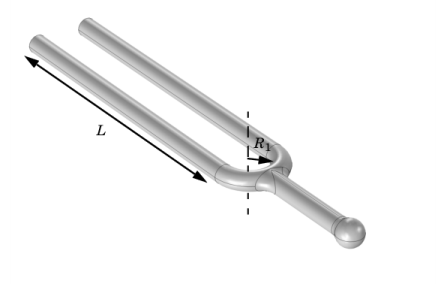
Click to expand the Parameters in CAD Package section. The dimensional parameter for the prong length, d1 in the PTC Creo Parametric file, has been linked to COMSOL Multiphysics and is therefore synchronized with the geometry. To manage linked parameters, you can click Parameter Selection on the COMSOL Multiphysics tab in PTC Creo Parametric. The global parameter, LL_d1, is automatically generated in the COMSOL Multiphysics model during synchronization to enable parametric sweeps and optimization of the geometry.
|
|
1
|
|
2
|
|
1
|
In the Model Builder window, under Component 1 (comp1)>Geometry 1 click LiveLink for PTC Creo Parametric 1 (cad1).
|
|
2
|
|
3
|
Click Synchronize.
|
|
1
|
|
2
|
|
3
|
|
4
|
|
5
|
|
6
|
|
1
|
|
2
|
|
3
|
|
4
|
|
5
|
|
1
|
|
2
|
|
3
|
|
5
|
|
6
|
|
1
|
|
2
|
|
3
|
|
4
|
|
5
|
|
7
|
|
1
|
|
2
|
In the Settings window for Global Evaluation, click Replace Expression in the upper-right corner of the Expressions section. From the menu, choose Solver>Control parameters>LL_d1 - Control parameter LL_d1 - m.
|
|
3
|
Click
 Evaluate. Evaluate. |
|
1
|
In the Model Builder window, under Component 1 (comp1)>Geometry 1 click LiveLink for PTC Creo Parametric 1 (cad1).
|
|
2
|
In the Settings window for LiveLink for PTC Creo Parametric, locate the Parameters in CAD Package section.
|
|
3
|