You are viewing the documentation for an older COMSOL version. The latest version is available here.
PDF

Modeling a Conical Dielectric Probe for Skin Cancer Diagnosis
Introduction
The response of a millimeter wave with frequencies of 35 GHz and 95 GHz is known to be very sensitive to water content. This model utilizes a low-power 35 GHz Ka-band millimeter wave and its reflectivity to moisture for non-invasive cancer diagnosis. Since skin tumors contain more moisture than healthy skin, it leads to stronger reflections on this frequency band. Hence the probe detects abnormalities in terms of S-parameters at the tumor locations. A circular waveguide at the dominant mode and a conically tapered dielectric probe are quickly analyzed, along with the probe’s radiation characteristics, using a 2D axisymmetric model. Temperature variation of the skin and the fraction of necrotic tissue analysis are also performed as well.
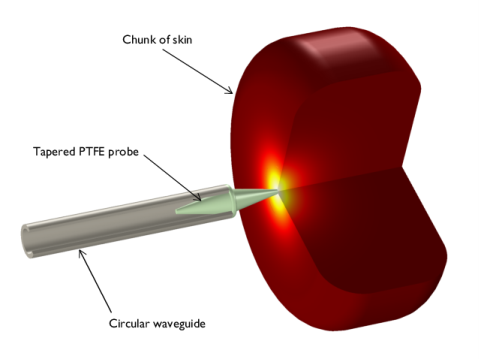
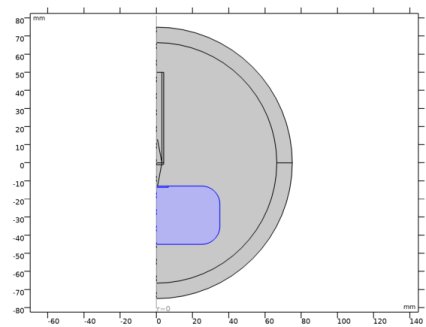
Figure 1: 3D visualization of the 2D axisymmetric model. The probe consists of a circular waveguide and a tapered dielectric rod.
Model Definition
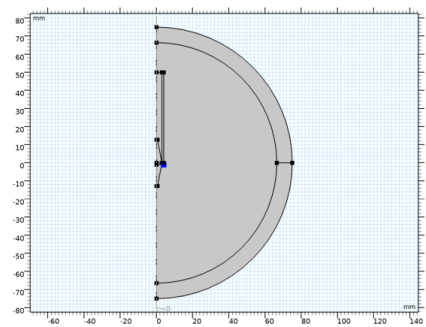
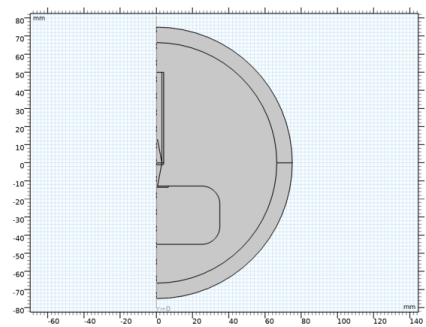
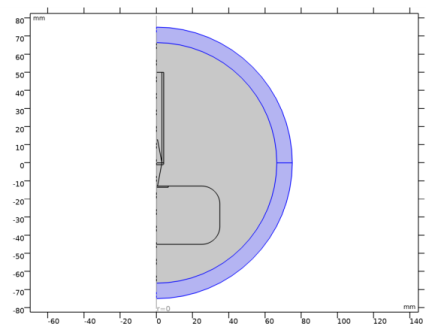
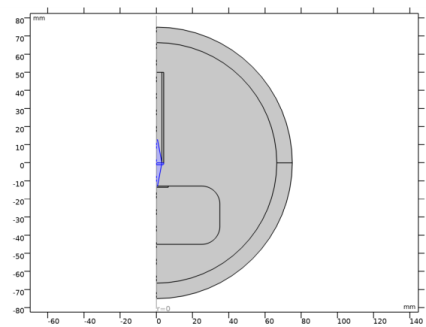
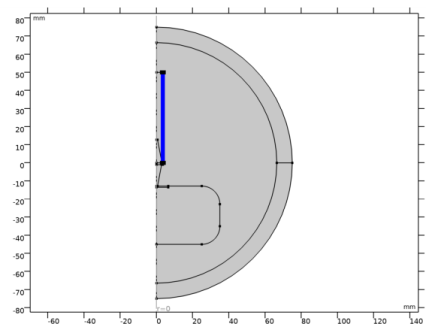
The model consists of a metallic circular waveguide, a tapered PTFE dielectric rod, and a phantom of skin chunk shown in Figure 1. The entire model is enclosed by an air domain which is truncated at its outermost shell with perfectly matched layers (PML) to absorb any radiation directly from the rod or reflected from the skin phantom. One end of the waveguide is terminated with a circular port and excited using the dominant TE1m mode, where m is the azimuthal mode number of this 2D axisymmetric model defined as 1 in the Electromagnetic Waves, Frequency Domain physics interface settings. The other end is connected to a tapered conical PTFE dielectric (εr 2.1) rod. The shape of the rod is symmetrically tapered so the radius is increasing from the inside to the outside of the waveguide, then it is decreasing gradually for the impedance matching between the waveguide and the air domain. There is a ring structure in the middle to support the rod on the rim of the waveguide. The tip of the rod is touching the skin phantom.
The conductivity of the metallic waveguide is assumed to be high enough to neglect any loss and is modeled as perfect electric conductor (PEC). With the given radius of the waveguide and excited TE mode, the cutoff frequency is around 29.3 GHz, which is calculated by
where c0 is the speed of light, pnm are the roots of the derivative of the Bessel functions Jn(x), m and n are the mode indices, and a is the radius of the waveguide. The value of p11 is approximately 1.841. The operating frequency of the probe, 35 GHz, is higher than the waveguide cutoff frequency. The excited wave is propagating along the waveguide.
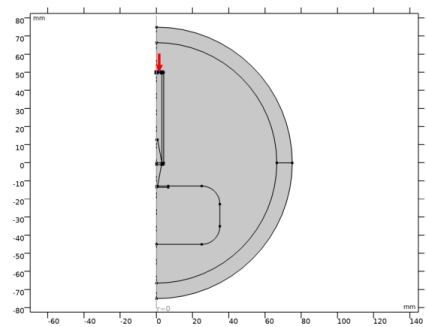
The circular port boundary condition is placed on the interior boundary where the reflection and transmission characteristics are computed automatically in terms of S-parameters. The interior port boundary with PEC backing for one-way excitation requires the slit condition. The port orientation is specified to define the inward direction for the S-parameter calculation.
First, the electromagnetic properties of the model are analyzed without a phantom to check the design validity of the waveguide and dielectric rod. Then, complexity is added, first with a healthy phantom, then a phantom with a skin tumor. See Table 1.
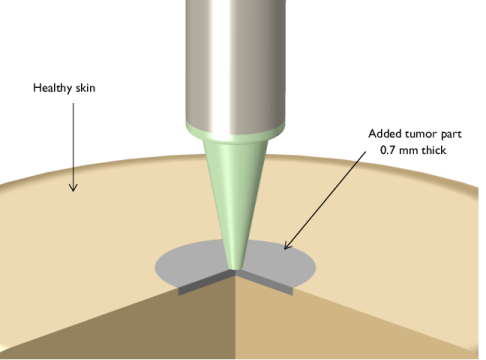
Figure 2: Zoomed 3D visualization of the skin tumor area. The entire probe model is simulated in a 2D axisymmetric space dimension. The measured S-parameters vary due to the different moisture content in each skin phantom.
Though the waveguide excited by low power is expected to be harmless, its effect on necrotic tissue is reviewed by studying Bioheat Transfer as well as temperature, over a 10 minute period.
Results and Discussion
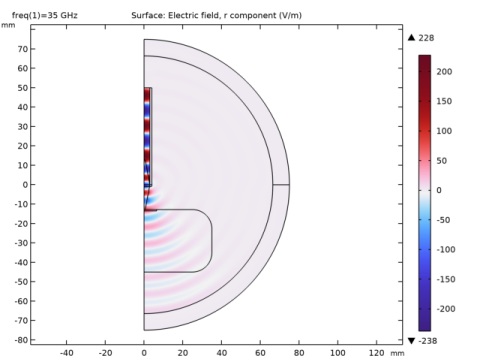
Figure 3 shows the real part of the electric field Er excited from one end of the waveguide without a phantom. Its radiation pattern is visualized in the Modeling Instructions section.
Figure 3: Wave propagation from the dielectric rod plotted with the Er component of the E-field (probe-only case without a phantom).
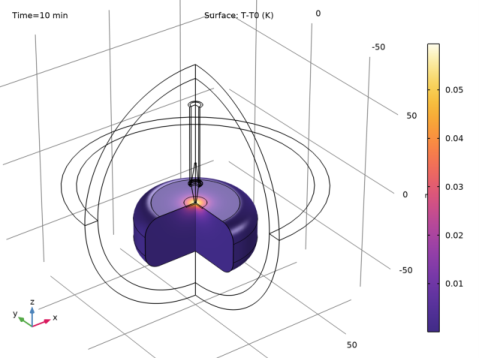
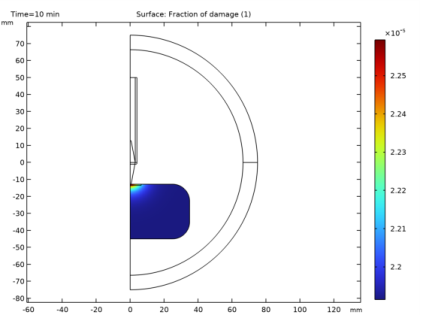
Temperature change on the surface of the phantom with the tumor is plotted in Figure 4. Since the input power from the waveguide port is low, 1 mW, the temperature change is within 0.06 K even after 10 minutes of millimeter wave exposure. The color difference shows the relatively hotter spot where the temperature is still very close to the initial temperature, 34°C. Though the temperature analysis for the healthy phantom case is not included, it is easily expected that the temperature variation is less than the case with the tumor because the resistive loss should be lower due to the smaller imaginary part of the permittivity of the healthy skin. So the visualized temperature profile is the worst-case scenario of temperature increase among all three cases. The damaged tissue ratio is visualized in Figure 5. It shows that the effect of the low-power millimeter wave is negligible.
The computed S-parameters indicate more reflection when touching the skin with the tumor due to its higher moisture content, and they are approximately summarized below:
S11
Figure 4: The temperature after 10 minutes. The variation compared to the initial temperature is negligible in the case where the tumor is added at the center of the center top of skin surface.
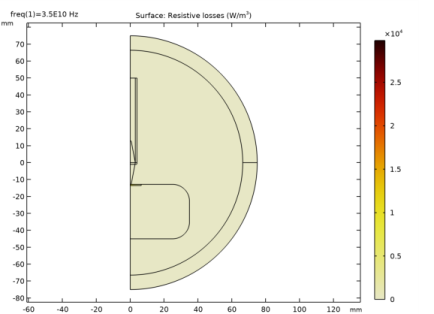
The modeling instructions show how to access the data plotted in Figure 6 which is not the dependent variable of the Electromagnetic Waves, Frequency Domain, by tweaking the solver settings.
Figure 5: Fraction of necrotic (damaged) tissue is extremely low even after 10 minutes of millimeter wave exposure in the case where the tumor is added in contact with the probe, at the surface of the skin.
Figure 6: The resistive losses in the case where the tumor is added in contact with the probe, at the surface of the skin.
Notes About the COMSOL Implementation
The electromagnetic material properties of skin and tumor at 35 GHz are approximated to show the feasibility of the S-parameter method by detecting the areas with higher moisture content. For any further research, extracting accurate data in the given frequency range is recommended.
Application Library path: Heat_Transfer_Module/Medical_Technology/conical_dielectric_probe
Modeling Instructions
From the File menu, choose New.
New
In the New window, click  Model Wizard.
Model Wizard
1
In the Model Wizard window, click  2D Axisymmetric.
2
In the Select Physics tree, select Radio Frequency>Electromagnetic Waves, Frequency Domain (emw).
3
Click Add.
4
Click  Study.
5
In the Select Study tree, select General Studies>Frequency Domain.
6
Global Definitions
Parameters 1
1
In the Model Builder window, under Global Definitions click Parameters 1.
2
In the Settings window for Parameters, locate the Parameters section.
3
Study 1
Step 1: Frequency Domain
1
In the Model Builder window, under Study 1 click Step 1: Frequency Domain.
2
In the Settings window for Frequency Domain, locate the Study Settings section.
3
In the Frequencies text field, type f0.
Geometry 1
1
In the Model Builder window, under Component 1 (comp1) click Geometry 1.
2
In the Settings window for Geometry, locate the Units section.
3
From the Length unit list, choose mm.
Circle 1 (c1)
1
In the Geometry toolbar, click  Circle.
2
In the Settings window for Circle, locate the Size and Shape section.
3
In the Radius text field, type 75.
4
In the Sector angle text field, type 180.
5
Locate the Rotation Angle section. In the Rotation text field, type 270.
6
Click to expand the Layers section. In the table, enter the following settings:
Rectangle 1 (r1)
1
In the Geometry toolbar, click  Rectangle.
2
In the Settings window for Rectangle, locate the Size and Shape section.
3
In the Width text field, type r1.
4
In the Height text field, type 50.
Rectangle 2 (r2)
1
In the Geometry toolbar, click  Rectangle.
2
In the Settings window for Rectangle, locate the Size and Shape section.
3
In the Height text field, type 50.
4
Locate the Position section. In the r text field, type 3.
Polygon 1 (pol1)
1
In the Geometry toolbar, click  Polygon.
2
In the Settings window for Polygon, locate the Coordinates section.
3
From the Data source list, choose Vectors.
4
In the r text field, type 0 w2_probe w2_probe w1_probe w1_probe 0 0 0.
5
In the z text field, type -l_probe -l_probe -l_probe 0 0 0 0 -l_probe.
6
Click  Build Selected.
Mirror 1 (mir1)
1
In the Geometry toolbar, click  Transforms and choose Mirror.
2
3
In the Settings window for Mirror, locate the Input section.
4
Select the Keep input objects check box.
5
Locate the Normal Vector to Line of Reflection section. In the r text field, type 0.
6
In the z text field, type 1.
7
Click  Build Selected.
Rectangle 3 (r3)
1
In the Geometry toolbar, click  Rectangle.
2
In the Settings window for Rectangle, locate the Size and Shape section.
3
In the Width text field, type 4.
4
Locate the Position section. In the z text field, type -1.
Fillet 1 (fil1)
1
In the Geometry toolbar, click  Fillet.
2
On the object r3, select Point 2 only.
It might be easier to select the correct point by using the Selection List window. To open this window, in the Home toolbar click Windows and choose Selection List. (If you are running the cross-platform desktop, you find Windows in the main menu.)
3
In the Settings window for Fillet, locate the Radius section.
4
In the Radius text field, type 0.5.
Rectangle 4 (r4)
1
In the Geometry toolbar, click  Rectangle.
2
In the Settings window for Rectangle, locate the Size and Shape section.
3
In the Width text field, type 35.
4
In the Height text field, type 32.2.
5
Locate the Position section. In the z text field, type -45.
Fillet 2 (fil2)
1
In the Geometry toolbar, click  Fillet.
2
On the object r4, select Points 2 and 3 only.
3
In the Settings window for Fillet, locate the Radius section.
4
In the Radius text field, type 10.
Rectangle 5 (r5)
1
In the Geometry toolbar, click  Rectangle.
2
In the Settings window for Rectangle, locate the Size and Shape section.
3
In the Width text field, type 6.5.
4
In the Height text field, type 0.7.
5
Locate the Position section. In the z text field, type -13.5.
6
Click  Build All Objects.
Definitions
Perfectly Matched Layer 1 (pml1)
1
In the Definitions toolbar, click  Perfectly Matched Layer.
2
Add Material
1
In the Home toolbar, click  Add Material to open the Add Material window.
2
Go to the Add Material window.
3
4
Click Add to Component in the window toolbar.
5
In the Home toolbar, click  Add Material to close the Add Material window.
Materials
PTFE
1
In the Materials toolbar, click  Blank Material.
2
In the Settings window for Material, type PTFE in the Label text field.
3
4
Locate the Material Contents section. In the table, enter the following settings:
Electromagnetic Waves, Frequency Domain (emw)
1
In the Model Builder window, under Component 1 (comp1) click Electromagnetic Waves, Frequency Domain (emw).
2
In the Settings window for Electromagnetic Waves, Frequency Domain, locate the Out-of-Plane Wave Number section.
3
In the m text field, type 1.
Perfect Electric Conductor 2
1
In the Physics toolbar, click  Boundaries and choose Perfect Electric Conductor.
2
Port 1
1
In the Physics toolbar, click  Boundaries and choose Port.
2
3
In the Settings window for Port, locate the Port Properties section.
4
From the Type of port list, choose Circular.
5
In the Pin text field, type 1[mW].
The input power is 0 dBm.
6
Select the Activate slit condition on interior port check box.
7
Click Toggle Power Flow Direction.
Far-Field Domain 1
In the Physics toolbar, click  Domains and choose Far-Field Domain.
Mesh 1
In the Model Builder window, under Component 1 (comp1) right-click Mesh 1 and choose Build All.
Study 1
Step 1: Frequency Domain
In the Home toolbar, click  Compute.
Results
Surface
1
In the Model Builder window, expand the Electric Field (emw) node, then click Surface.
2
In the Settings window for Surface, locate the Expression section.
3
In the Expression text field, type emw.Er.
4
Locate the Coloring and Style section. From the Color table list, choose Wave.
5
In the Electric Field (emw) toolbar, click  Plot.
See Figure 3 for the plot of the real part of Er, showing wave propagation from the input port to the air domain via the tapered dielectric probe.
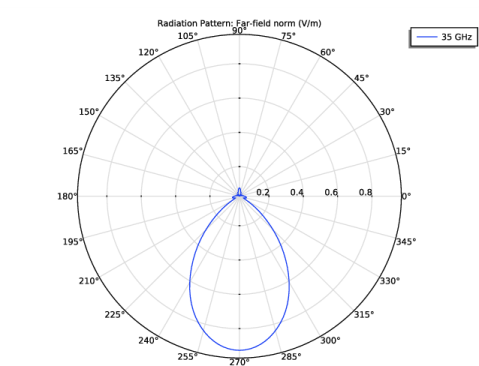
Radiation Pattern, Polar
1
In the Model Builder window, expand the Results>2D Far Field (emw) node, then click 2D Far Field (emw).
2
In the Settings window for Polar Plot Group, type Radiation Pattern, Polar in the Label text field.
Radiation Pattern 1
1
In the Model Builder window, click Radiation Pattern 1.
2
In the Settings window for Radiation Pattern, locate the Evaluation section.
3
Find the Reference direction subsection. In the y text field, type 1.
4
In the z text field, type 0.
5
Find the Normal vector subsection. In the x text field, type 1.
6
In the y text field, type 0.
7
In the Radiation Pattern, Polar toolbar, click  Plot.
The Far-field pattern on the yz-plane shows the radiation from the tapered probe toward the bottom side.
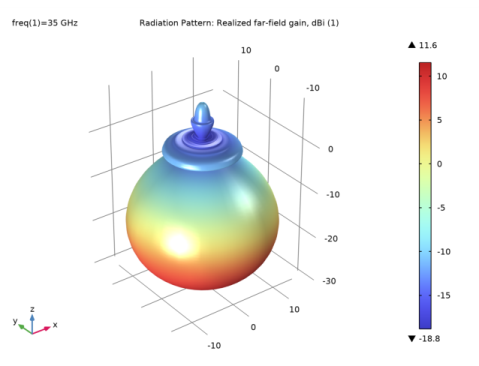
Radiation Pattern, 3D
1
In the Model Builder window, expand the Results>3D Far Field, Gain (emw) node, then click 3D Far Field, Gain (emw).
2
In the Settings window for 3D Plot Group, type Radiation Pattern, 3D in the Label text field.
The 3D far-field pattern is directed along the z-axis.
S-parameter (emw)
1
In the Model Builder window, expand the Results>Derived Values node, then click S-parameter (emw).
2
In the Settings window for Global Evaluation, click  Evaluate.
The evaluated S-parameter is the input matching property of the circular waveguide without a human body phantom when the dominant mode is excited.
Electromagnetic Waves, Frequency Domain (emw)
Add another Wave Equation which describe the human body phantom in term of dielectric loss using a complex permittivity.
Wave Equation, Electric 2
1
In the Physics toolbar, click  Domains and choose Wave Equation, Electric.
2
3
In the Settings window for Wave Equation, Electric, locate the Electric Displacement Field section.
4
From the Electric displacement field model list, choose Dielectric loss.
Add Material
1
In the Home toolbar, click  Add Material to open the Add Material window.
2
Go to the Add Material window.
3
4
Click Add to Component in the window toolbar.
5
In the Home toolbar, click  Add Material to close the Add Material window.
Materials
Skin (mat3)
1
2
In the Settings window for Material, locate the Material Contents section.
3
4
In the Home toolbar, click  Compute.
Results
S-parameter (emw)
Evaluate the S-parameter assuming the probe is touching a phantom representing a healthy body.
1
In the Model Builder window, under Results>Derived Values click S-parameter (emw).
2
In the Settings window for Global Evaluation, click  Evaluate.
Radiation Pattern, 3D
1
Click the  Zoom Extents button in the Graphics toolbar.
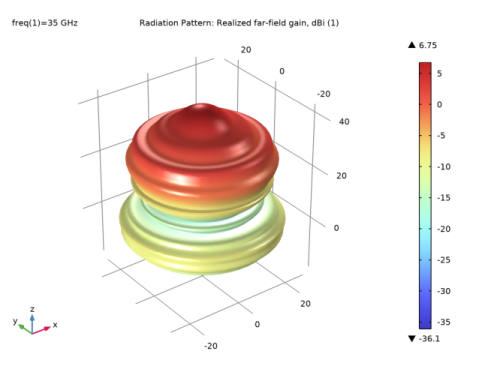
Due to the body, the radiation is reflected back.
Materials
Skin (mat3)
Now, add a tip of tumor skin.
Skin Tumor
1
In the Model Builder window, under Component 1 (comp1)>Materials right-click Skin (mat3) and choose Duplicate.
2
In the Settings window for Material, type Skin Tumor in the Label text field.
3
Locate the Geometric Entity Selection section. Click  Clear Selection.
4
5
Locate the Material Contents section. In the table, enter the following settings:
The effect of millimeter wave radiation on a human body will be investigated using the Bioheat Transfer physics interface.
Add Physics
1
In the Home toolbar, click  Add Physics to open the Add Physics window.
2
Go to the Add Physics window.
3
In the tree, select Heat Transfer>Bioheat Transfer (ht).
4
Click Add to Component 1 in the window toolbar.
5
In the Home toolbar, click  Add Physics to close the Add Physics window.
Bioheat Transfer (ht)
1
In the Settings window for Bioheat Transfer, locate the Domain Selection section.
2
Click  Clear Selection.
3
Biological Tissue 1
In the Model Builder window, under Component 1 (comp1)>Bioheat Transfer (ht) click Biological Tissue 1.
Thermal Damage 1
1
In the Physics toolbar, click  Attributes and choose Thermal Damage.
2
In the Settings window for Thermal Damage, locate the Damaged Tissue section.
3
From the Transformation model list, choose Arrhenius kinetics.
Initial Values 1
1
In the Model Builder window, under Component 1 (comp1)>Bioheat Transfer (ht) click Initial Values 1.
2
In the Settings window for Initial Values, locate the Initial Values section.
3
In the T text field, type T0.
Multiphysics
Electromagnetic Heating 1 (emh1)
In the Physics toolbar, click  Multiphysics Couplings and choose Domain>Electromagnetic Heating.
Add Study
1
In the Home toolbar, click  Add Study to open the Add Study window.
2
Go to the Add Study window.
3
Find the Studies subsection. In the Select Study tree, select Preset Studies for Selected Multiphysics>Frequency-Transient, One-Way Electromagnetic Heating.
4
Click Add Study in the window toolbar.
5
In the Home toolbar, click  Add Study to close the Add Study window.
Study 2
Step 1: Frequency Domain
1
In the Settings window for Frequency Domain, locate the Study Settings section.
2
In the Frequencies text field, type f0.
Step 2: Time Dependent
1
In the Model Builder window, click Step 2: Time Dependent.
2
In the Settings window for Time Dependent, locate the Study Settings section.
3
From the Time unit list, choose min.
4
In the Output times text field, type range(0,15[s],10).
5
In the Model Builder window, click Study 2.
6
In the Settings window for Study, locate the Study Settings section.
7
Clear the Generate default plots check box.
8
Select the Store solution for all intermediate study steps check box.
Solution 2 (sol2)
In the Study toolbar, click  Show Default Solver.
Results
Revolution 2D 2
1
In the Results toolbar, click  More Datasets and choose Revolution 2D.
2
In the Settings window for Revolution 2D, locate the Data section.
3
From the Dataset list, choose Study 2/Solution 2 (sol2).
4
Click to expand the Revolution Layers section. In the Start angle text field, type -90.
5
In the Revolution angle text field, type 270.
6
In the Home toolbar, click  Compute.
S-parameter (emw)
1
In the Model Builder window, under Results>Derived Values click S-parameter (emw).
2
In the Settings window for Global Evaluation, locate the Data section.
3
From the Dataset list, choose Study 2/Solution Store 1 (sol3).
4
Click  Evaluate.
The computed S-parameter shows more reflection on the probe due to the skin tumor.
Temperature
1
In the Home toolbar, click  Add Plot Group and choose 3D Plot Group.
2
In the Settings window for 3D Plot Group, type Temperature in the Label text field.
3
Locate the Data section. From the Dataset list, choose Revolution 2D 2.
4
From the Time (min) list, choose 10.
Surface 1
1
In the Temperature toolbar, click  Surface.
2
In the Settings window for Surface, locate the Expression section.
3
In the Expression text field, type T-T0.
4
In the Temperature toolbar, click  Plot.
5
Click the  Zoom Extents button in the Graphics toolbar.
6
Click the  Zoom In button in the Graphics toolbar.
7
Locate the Coloring and Style section. From the Color table list, choose HeatCameraLight.
The temperature variation in the skin is shown in Figure 4.
Fraction of Necrotic Tissue
1
In the Home toolbar, click  Add Plot Group and choose 2D Plot Group.
2
In the Settings window for 2D Plot Group, type Fraction of Necrotic Tissue in the Label text field.
3
Locate the Data section. From the Dataset list, choose Study 2/Solution 2 (sol2).
4
From the Time (min) list, choose 10.
Surface 1
1
In the Fraction of Necrotic Tissue toolbar, click  Surface.
2
In the Settings window for Surface, click Replace Expression in the upper-right corner of the Expression section. From the menu, choose Component 1 (comp1)>Bioheat Transfer>Irreversible transformation>ht.theta_d - Fraction of damage.
3
In the Fraction of Necrotic Tissue toolbar, click  Plot.
4
Click the  Zoom In button in the Graphics toolbar.
The reproduced plot addresses the fraction of necrotic tissue as shown in Figure 5.
Resistive Losses
1
In the Home toolbar, click  Add Plot Group and choose 2D Plot Group.
2
In the Settings window for 2D Plot Group, type Resistive Losses in the Label text field.
Surface 1
In the Resistive Losses toolbar, click  Surface.
Resistive Losses
1
In the Model Builder window, click Resistive Losses.
2
Locate the Data section. From the Dataset list, choose Study 2/Solution Store 1 (sol3).
Surface 1
1
In the Model Builder window, click Surface 1.
2
In the Settings window for Surface, click Replace Expression in the upper-right corner of the Expression section. From the menu, choose Component 1 (comp1)>Electromagnetic Waves, Frequency Domain>Heating and losses>emw.Qrh - Resistive losses - W/m³.
3
Locate the Coloring and Style section. From the Color table list, choose ThermalDark.
4
From the Color table transformation list, choose Reverse.
5
In the Resistive Losses toolbar, click  Plot.
Finish the result analysis by regenerating Figure 6, the resistive losses plot.