






You are viewing the documentation for an older COMSOL version. The latest version is available here.
PDF

Oxide Jacking of Reinforced Concrete
Introduction
Oxide jacking is the process by which reinforced concrete cracks, due to the corrosion of the reinforcement bars. The corrosion process causes growth of an oxide layer on the rebar, which in turn causes internal stresses in the concrete. If the corrosion process is allowed to continue, the concrete will eventually crack, compromising the structure.
This tutorial investigates the oxide jacking of reinforced concrete. The corrosion process is driven by oxygen reduction, forming an oxide layer. Charge and oxygen transport are modeled in the concrete domain, where the electrolyte conductivity and oxygen diffusivity depend on the moisture content.
The rebar and concrete are modeled as linear elastic materials, where the volumetric strain or the rebar in each time-step is based on the thickness of the oxide layer. Cracking in the concrete caused by the volumetric expansion due to oxide formation is accounted for using a scalar damage model.
Model Definition
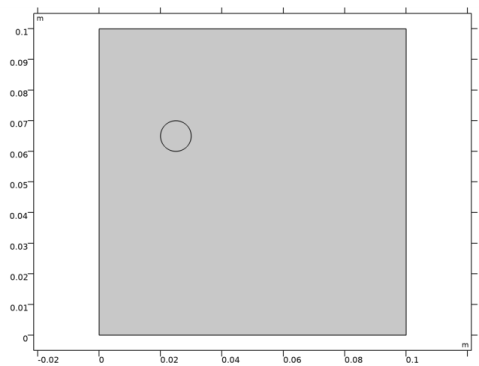
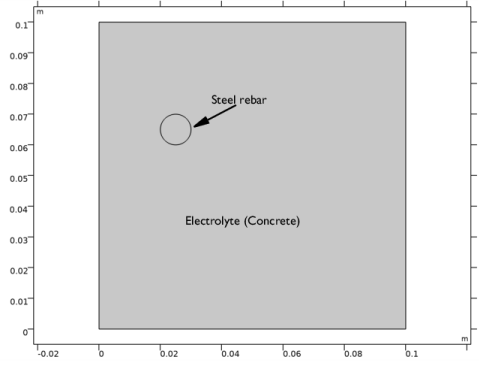
Figure 1 shows the model geometry, defining concrete as an electrolyte domain and a circular steel rebar. The geometry is defined in 2D.
Figure 1: Model geometry.
Oxygen diffuses from one side of the concrete block, which is assumed to have a water pore saturation of 60%. The model is defined using the Tertary Current Distribution, Nernst-Planck interface, solving for the electrolyte phase potential and the oxygen concentration, assuming a supporting electrolyte charge conservation model, defined in a similar way as in the Cathodic Protection of Steel in Reinforced Concrete tutorial.
The oxygen concentrations at the left most boundary is set to a reference concentration value of 8.6 mol/m3.
The following three different electrode reactions on the steel rebar boundary are considered: oxygen reduction, hydrogen evolution and the net iron oxidation.
Oxygen reduction reaction:
(1)
Hydrogen evolution reaction:
(2)
The net iron oxidation reaction is considered to follow the following reaction scheme.
Iron oxidizes and dissolves:
(3)
Dissolved iron ions then react with water and oxygen:
(4)
The final corrosion product iron oxide is the formed according to:
(5)
Thus, the net iron oxidation reaction considered in the model is:
(6)
The iron oxide layer thickness, sb,tot (m) along the rebar-concrete interface is computed using the Dissolving-Depositing Species functionality of the Electrode Surface node.
The Solid Mechanics interface is used for structural analysis using two Linear Elastic Material nodes to model the steel rebar and concrete domains. A scalar damage model is used to describe cracking of the concrete domain, using a Damage subnode.
The average areal strain of the rebar is computed based on the oxide thickness layer obtained from the Tertary Current Distribution, Nernst-Planck interface according to
(7)
The Initial Strain and Strain node of the Linear Elastic Material node defining the rebar domain is used to define the strain in the x and y directions according to
(8)
The model is solved in a time-dependent solver, simulating the oxide jacking during 1500 days.
Results and Discussion
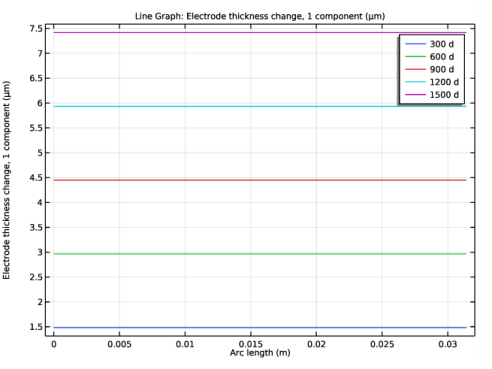
Figure 2 shows the line plot of iron oxide corrosion product layer thickness along the rebar surface for different times. It can be seen that the iron oxide layer continuously grows with time.
Figure 2: Iron oxide layer thickness at different times.
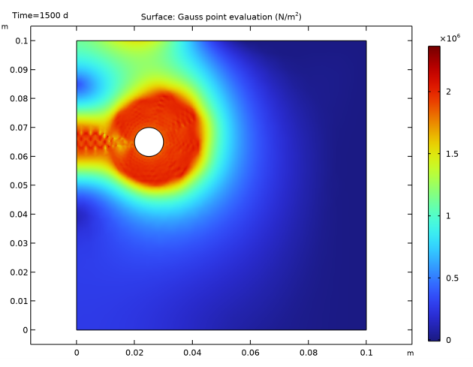
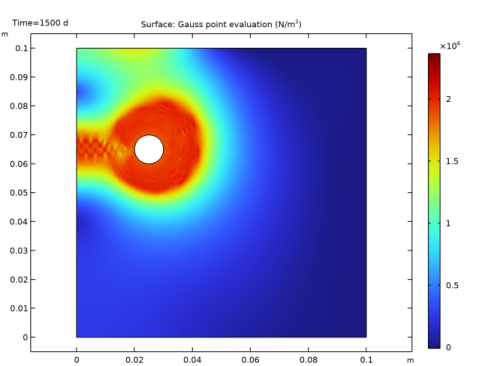
Figure 3 shows the surface plot of first principal stress in the concrete domain after 1500 days.
Figure 3: First principal stress distribution in the concrete domain after 1500 days.
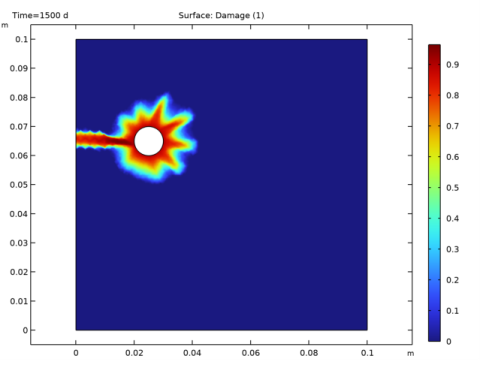
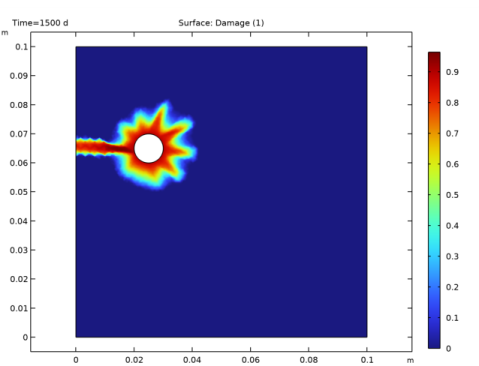
Figure 4 shows the surface plot of damage over the concrete domain after 1500 days, clearly showing the detrimental effect of corrosion on the surrounding concrete.
Figure 4: Damage distribution over concrete domain after 1500 days.
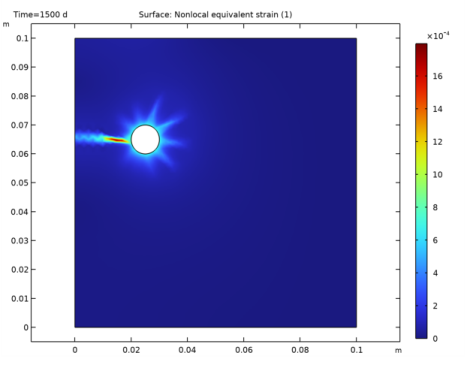
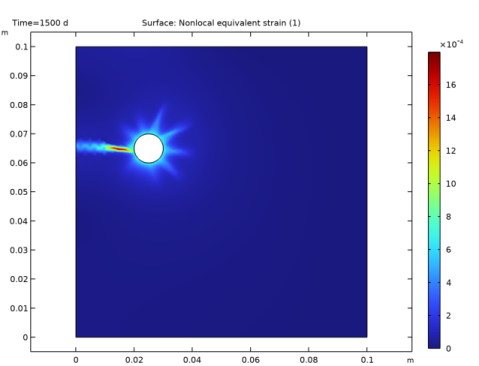
Figure 5 shows the surface plot of nonlocal equivalent strain over the concrete domain after 1500 days. It can be seen that a crack is formed at the rebar surface as the stiffness of concrete degrades. The crack is seen to be propagating towards the outer surface of concrete.
Figure 5: Nonlocal equivalent strain distribution indicating crack propagation over concrete domain after 1500 days.
Application Library path: Corrosion_Module/General_Corrosion/oxide_jacking
Modeling Instructions
From the File menu, choose New.
New
In the New window, click  Model Wizard.
Model Wizard
1
In the Model Wizard window, click  2D.
2
In the Select Physics tree, select Electrochemistry>Tertiary Current Distribution, Nernst-Planck>Tertiary, Supporting Electrolyte (tcd).
3
Click Add.
4
In the Number of species text field, type 1.
5
In the Concentrations table, enter the following settings:
6
In the Select Physics tree, select Structural Mechanics>Solid Mechanics (solid).
7
Click Add.
8
Click  Study.
9
In the Select Study tree, select General Studies>Time Dependent.
10
Global Definitions
Parameters 1
Load the model parameters.
1
In the Model Builder window, under Global Definitions click Parameters 1.
2
In the Settings window for Parameters, locate the Parameters section.
3
Click  Load from File.
4
Geometry 1
Draw the model geometry.
Square 1 (sq1)
1
In the Geometry toolbar, click  Square.
2
In the Settings window for Square, locate the Size section.
3
In the Side length text field, type 10[cm].
4
Click to expand the Layers section. In the table, enter the following settings:
5
Select the Layers to the left check box.
6
Click  Build Selected.
Circle 1 (c1)
1
In the Geometry toolbar, click  Circle.
2
In the Settings window for Circle, locate the Size and Shape section.
3
In the Radius text field, type r_rebar.
4
Locate the Position section. In the x text field, type 2.5[cm].
5
In the y text field, type 6.5[cm].
6
Click  Build All Objects.
Mesh Control Domains 1 (mcd1)
1
In the Geometry toolbar, click  Virtual Operations and choose Mesh Control Domains.
2
On the object fin, select Domains 1, 3, and 4 only.
3
In the Geometry toolbar, click  Build All.
The model geometry should look like this.
Definitions
Next add an integration operator, variables and interpolation functions for electrolyte conductivity and diffusivity.
Rebar boundary integration
1
In the Definitions toolbar, click  Nonlocal Couplings and choose Integration.
2
In the Settings window for Integration, type Rebar boundary integration in the Label text field.
3
Locate the Source Selection section. From the Geometric entity level list, choose Boundary.
4
Click  Paste Selection.
5
In the Paste Selection dialog box, type 5-8 in the Selection text field.
6
Variables 1
Next, load some variables from a text file.
1
In the Definitions toolbar, click  Local Variables.
2
In the Settings window for Variables, locate the Variables section.
3
Click  Load from File.
4
Interpolation 1 (int1)
Add an interpolation function for the electrolyte conductivity.
1
In the Definitions toolbar, click  Interpolation.
2
In the Settings window for Interpolation, locate the Definition section.
3
In the Function name text field, type sigma.
4
Click  Load from File.
5
6
Locate the Units section. In the Function table, enter the following settings:
Interpolation 2 (int2)
Add an interpolation function also for the oxygen diffusivity.
1
In the Definitions toolbar, click  Interpolation.
2
In the Settings window for Interpolation, locate the Definition section.
3
In the Function name text field, type D_O2.
4
Click  Load from File.
5
6
Locate the Units section. In the Function table, enter the following settings:
Materials
Next, add some materials from Material Library for the structural analysis.
Add Material
1
In the Home toolbar, click  Add Material to open the Add Material window.
2
Go to the Add Material window.
3
In the tree, select Built-in>Steel AISI 4340.
4
Click Add to Component in the window toolbar.
Materials
Steel AISI 4340 (mat1)
1
In the Settings window for Material, locate the Geometric Entity Selection section.
2
3
Click  Remove from Selection.
4
Add Material
1
Go to the Add Material window.
2
In the tree, select Built-in>Concrete.
3
Click Add to Component in the window toolbar.
Materials
Concrete (mat2)
1
In the Settings window for Material, locate the Geometric Entity Selection section.
2
Click  Paste Selection.
3
In the Paste Selection dialog box, type 1 in the Selection text field.
4
5
6
In the Home toolbar, click  Add Material to close the Add Material window.
Add Material
1
In the Home toolbar, click  Add Material to open the Add Material window.
2
Go to the Add Material window.
3
In the Home toolbar, click  Add Material to close the Add Material window.
Tertiary Current Distribution, Nernst-Planck (tcd)
Start setting up the physics for the electrochemistry.
Select Domain 1 only.
Electrolyte 1
1
In the Model Builder window, under Component 1 (comp1)>Tertiary Current Distribution, Nernst-Planck (tcd) click Electrolyte 1.
2
In the Settings window for Electrolyte, locate the Diffusion section.
3
In the Dc text field, type D_O2(PS).
4
Locate the Electrolyte Current Conduction section. From the σl list, choose User defined. In the associated text field, type sigma(PS).
Concentration 1
Set the concentration at the leftmost boundaries of the domain.
1
In the Physics toolbar, click  Boundaries and choose Concentration.
2
3
In the Settings window for Concentration, locate the Concentration section.
4
Select the Species c check box.
5
In the c0,c text field, type C_O2_ref.
Electrode Surface 1
Set the boundary conditions at the rebar surface.
1
In the Physics toolbar, click  Boundaries and choose Electrode Surface.
2
3
In the Settings window for Electrode Surface, click to expand the Dissolving-Depositing Species section.
4
5
6
7
Oxygen reduction
1
In the Model Builder window, under Component 1 (comp1)>Tertiary Current Distribution, Nernst-Planck (tcd)>Electrode Surface 1 click Electrode Reaction 1.
2
In the Settings window for Electrode Reaction, type Oxygen reduction in the Label text field.
3
Locate the Stoichiometric Coefficients section. In the n text field, type 4.
4
In the νc text field, type -1.
5
Locate the Equilibrium Potential section. From the Eeq list, choose User defined. In the associated text field, type Eeq_O2.
6
Locate the Electrode Kinetics section. From the Kinetics expression type list, choose Cathodic Tafel equation.
7
In the i0 text field, type c/C_O2_ref*i0_O2.
8
In the Ac text field, type A_O2.
Electrode Surface 1
In the Model Builder window, click Electrode Surface 1.
Iron oxidation
1
In the Physics toolbar, click  Attributes and choose Electrode Reaction.
2
In the Settings window for Electrode Reaction, type Iron oxidation in the Label text field.
3
Locate the Stoichiometric Coefficients section. In the n text field, type 4.
4
In the νc text field, type 0.5.
5
In the Stoichiometric coefficients for dissolving-depositing species: table, enter the following settings:
6
Locate the Equilibrium Potential section. From the Eeq list, choose User defined. In the associated text field, type Eeq_Fe.
7
Locate the Electrode Kinetics section. From the Kinetics expression type list, choose Anodic Tafel equation.
8
In the i0 text field, type i0_Fe.
9
In the Aa text field, type A_Fe.
Electrode Surface 1
In the Model Builder window, click Electrode Surface 1.
Hydrogen evolution
1
In the Physics toolbar, click  Attributes and choose Electrode Reaction.
2
In the Settings window for Electrode Reaction, type Hydrogen evolution in the Label text field.
3
Locate the Equilibrium Potential section. From the Eeq list, choose User defined. In the associated text field, type Eeq_H2.
4
Locate the Electrode Kinetics section. From the Kinetics expression type list, choose Cathodic Tafel equation.
5
In the i0 text field, type i0_H2.
6
In the Ac text field, type A_H2.
Initial Values 1
Set the initial value for oxygen concentration.
1
In the Model Builder window, under Component 1 (comp1)>Tertiary Current Distribution, Nernst-Planck (tcd) click Initial Values 1.
2
In the Settings window for Initial Values, locate the Initial Values section.
3
In the c text field, type C_O2_ref.
Solid Mechanics (solid)
Next, set up the physics for the structural analysis.
Linear Elastic Material 1
In the Model Builder window, expand the Component 1 (comp1)>Solid Mechanics (solid)>Linear Elastic Material 1 node, then click Linear Elastic Material 1.
Initial Stress and Strain 1
1
In the Physics toolbar, click  Attributes and choose Initial Stress and Strain.
2
In the Settings window for Initial Stress and Strain, locate the Initial Stress and Strain section.
3
In the ε0 table, enter the following settings:
Linear Elastic Material 2
Next, set a Damage condition for concrete domain.
1
In the Physics toolbar, click  Domains and choose Linear Elastic Material.
2
Damage 1
1
In the Physics toolbar, click  Attributes and choose Damage.
2
In the Settings window for Damage, locate the Damage section.
3
Find the Damage evolution subsection. From the σts list, choose User defined. In the associated text field, type sigmap.
4
In the Gf text field, type Gf.
5
Find the Spatial regularization method subsection. From the list, choose Implicit gradient.
6
In the lint text field, type lint.
7
In the hdmg text field, type hdmg.
Roller 1
Set a Roller condition at left- and bottom-most boundaries.
1
In the Physics toolbar, click  Boundaries and choose Roller.
2
Mesh 1
Set the finer mesh near the rebar region.
Size 1
1
In the Model Builder window, under Component 1 (comp1) right-click Mesh 1 and choose Size.
2
In the Settings window for Size, locate the Geometric Entity Selection section.
3
From the Geometric entity level list, choose Domain.
4
5
Locate the Element Size section. From the Predefined list, choose Extra fine.
Free Triangular 1
1
In the Mesh toolbar, click  Free Triangular.
2
In the Settings window for Free Triangular, click  Build All.
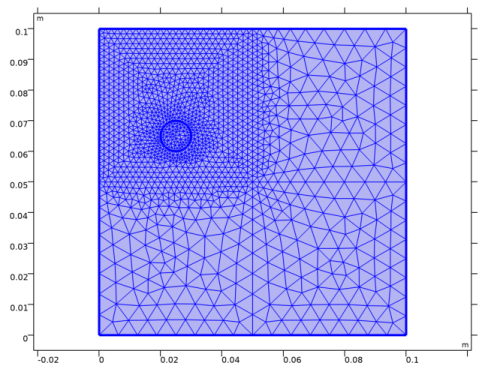
The mesh should look like this:
Study 1
Set the Output times of the time-dependent solver.
Step 1: Time Dependent
1
In the Model Builder window, under Study 1 click Step 1: Time Dependent.
2
In the Settings window for Time Dependent, locate the Study Settings section.
3
From the Time unit list, choose d.
4
In the Output times text field, type range(0,25,1500).
Solution 1 (sol1)
1
In the Study toolbar, click  Show Default Solver.
2
In the Model Builder window, expand the Solution 1 (sol1) node, then click Time-Dependent Solver 1.
3
In the Settings window for Time-Dependent Solver, click to expand the Time Stepping section.
4
From the Steps taken by solver list, choose Strict.
5
From the Maximum step constraint list, choose Constant.
6
In the Maximum step text field, type 10.
7
In the Model Builder window, expand the Study 1>Solver Configurations>Solution 1 (sol1)>Time-Dependent Solver 1 node, then click Fully Coupled 1.
8
In the Settings window for Fully Coupled, click to expand the Method and Termination section.
9
From the Nonlinear method list, choose Constant (Newton).
10
From the Jacobian update list, choose On every iteration.
11
In the Maximum number of iterations text field, type 12.
12
In the Study toolbar, click  Compute.
Results
Several plots are added by default. Now, first add a line plot for the corrosion product layer thickness along the rebar.
Corrosion Product Layer Thickness
1
In the Home toolbar, click  Add Plot Group and choose 1D Plot Group.
2
In the Settings window for 1D Plot Group, type Corrosion Product Layer Thickness in the Label text field.
3
Locate the Data section. From the Time selection list, choose From list.
4
In the Times (d) list, choose 300, 600, 900, 1200, and 1500.
Line Graph 1
1
In the Corrosion Product Layer Thickness toolbar, click  Line Graph.
2
3
In the Settings window for Line Graph, click Replace Expression in the upper-right corner of the y-Axis Data section. From the menu, choose Component 1 (comp1)>Tertiary Current Distribution, Nernst-Planck>Dissolving-depositing species>Electrode thickness change - m>tcd.sb_oxide - Electrode thickness change, 1 component.
4
Locate the y-Axis Data section. From the Unit list, choose µm.
5
Click to expand the Legends section. Select the Show legends check box.
6
In the Corrosion Product Layer Thickness toolbar, click  Plot.
First Principal Stress Analysis
Next, plot the first principal stress.
1
In the Model Builder window, under Results click Stress (solid).
2
In the Settings window for 2D Plot Group, type First Principal Stress Analysis in the Label text field.
Surface 1
1
In the Model Builder window, expand the First Principal Stress Analysis node, then click Surface 1.
2
In the Settings window for Surface, locate the Expression section.
3
In the Expression text field, type solid.gpeval(solid.sdp1).
4
Locate the Coloring and Style section. From the Color table list, choose Rainbow.
Deformation
1
In the Model Builder window, expand the Surface 1 node.
2
Right-click Deformation and choose Disable.
Damage (solid)
Next, plot the Damage.
In the Model Builder window, expand the Results>Damage (solid) node, then click Damage (solid).
Surface 1
1
In the Damage (solid) toolbar, click  Surface.
2
In the Settings window for Surface, click Replace Expression in the upper-right corner of the Expression section. From the menu, choose Component 1 (comp1)>Solid Mechanics>Damage>solid.dmg - Damage.
Contour 1
In the Model Builder window, right-click Contour 1 and choose Disable.
Crack
Next, plot the Crack.
1
In the Home toolbar, click  Add Plot Group and choose 2D Plot Group.
2
In the Settings window for 2D Plot Group, type Crack in the Label text field.
Surface 1
1
In the Crack toolbar, click  Surface.
2
In the Settings window for Surface, click Replace Expression in the upper-right corner of the Expression section. From the menu, choose Component 1 (comp1)>Solid Mechanics>Damage>solid.eeqnl - Nonlocal equivalent strain.
3
In the Crack toolbar, click  Plot.