


You are viewing the documentation for an older COMSOL version. The latest version is available here.
PDF

Parasitic Reactions in an Electrochemical Capacitor
Introduction
This model demonstrates how to set up side reactions in an electrochemical supercapacitor using the Tertiary Current Distribution, Nernst–Planck (tcd) interface.
The 1D isothermal model includes the following processes:
The model is based on the theoretical framework of Newman (Ref. 1) and White (Ref. 2). In the model presented, the effect of the parasitic reactions in an aqueous electrolyte-based supercapacitor on the performance during charge discharge behavior is studied.
See also the Electrochemical Capacitor with Porous Electrodes tutorial for an introduction to electrochemical capacitor modeling using the Tertiary Current Distribution interface.
Model Definition
This example models the electrochemical capacitor cross section in 1D, which implies that edge effects in the length and height of the capacitor cell are neglected. The example uses the following domains:
Domain Conditions
The model solves for the potentials in the electrode and aqueous electrolyte phases, in combination with four concentration dependent variables for the cation, the anion and the dissolved concentrations of hydrogen and oxygen.
Due to the aqueous electrolyte, proton and hydroxide transport are also included in the model. Using two algebraic equations: electroneutrality and the water-autoprotolysis to be in equilibrium, the proton and hydroxide concentrations do not need to be solved for as dependent variables.
The electric potential in the electron conducting phase, , is calculated using a charge balance based on Ohm’s law. The migrative and diffusive charge and species transport in the electrolyte is modeled using the Nernst–Planck equations.
The double layer charging is defined as a source term in the porous electrodes based on the time derivative of the potential jump over the double layer according to
(1)
where av,dl (m2/m3) is the active specific surface area for double layer charging, and Cdl is the double layer capacitance (F/m2).
Due to the aqueous electrolyte, oxygen and hydrogen may start evolving in the electrodes. In the positive porous electrode, oxygen evolution, or reduction, occurs according to
(2)
In the negative porous electrode, hydrogen evolution, or oxidation, occurs according to
(3)
The porous electrode reactions are modeled using concentration-dependent Butler–Volmer reactions.
Boundary Conditions
For the electronic current balance, a potential of 0 V is set on the left electrode’s current collector/feeder boundary.
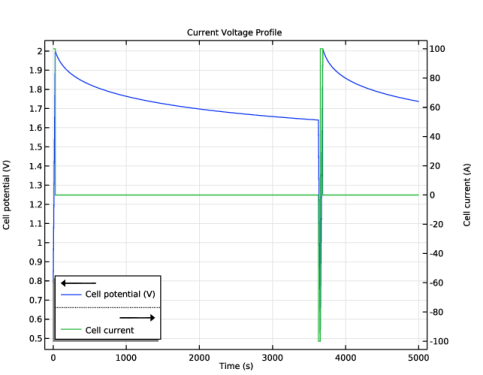
At the right electrode current collector/feeder, an event-based charge-discharge condition is used. First the capacitor is charged at 100 A until a voltage of 2 V is reached, then the capacitor rests for 1 h, followed by a discharge at 100 A until a voltage of 0.5 V is reached. The cycle is then repeated.
At the separator-negative electrode boundary, it is assumed that the electrode potential is so low that oxygen, produced at the positive electrode and diffusing over the separator, will be immediately reduced at this point. Similarly, at the separator-positive electrode boundary, it is assumed that any hydrogen reaching this point will be immediately reduced.
The above conditions are modeled by setting the respective hydrogen or oxygen concentration to 0 at the electrode-separator boundaries, and by adding the corresponding electrode current density (based on the species flux and Faraday’s law) to the charge balance equations. This is achieved using an Internal Electrode Surface boundary node.
Results and Discussion
Figure 1 shows the current-voltage response versus time for a 5000 simulation. Each charge pulse is followed by a 1 h during which the voltage relaxes due to the parasitic oxygen reduction and hydrogen oxidation at the electrode-separator boundaries.
Figure 1: Voltage and current profiles for the capacitor.
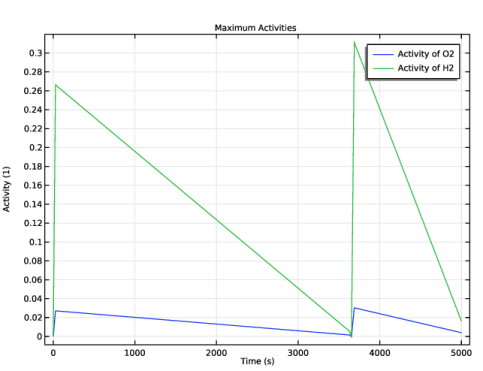
Figure 2 shows the maximum activities (the concentration divided by the respective solubility limit) in the cell for the oxygen and hydrogen species versus time. The activities increase during the charge pulses, and relax linearly vs time during the rest period.
Figure 2: Maximum cell activity for O2 and H2 vs. time.
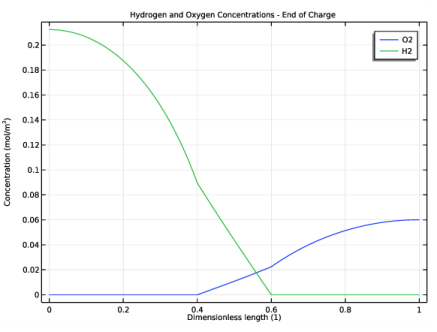
Figure 3, finally, shows oxygen and hydrogen concentrations in the cell at the end of a charge period. The maximum values are found at the separator-current collector boundaries.
Figure 3: Concentrations of O2 and H2 at the end of charge.
References
1. M.B. Pillay and J. Newman, “The Influence of Side Reactions on the Performance of Electrochemical Double-Layer Capacitance,” J. Electrochem. Soc., vol. 143, no. 6, pp. 1806–1814, 1996.
2. C.Lin, J.A. Ritter, B.N. Popov, and R.E. White, “A Mathematical Model of an Electrochemical Capacitor with Double Layer and Faradaic Processes,” J. Electrochem. Soc., vol. 146, no. 9, pp. 3168–3175, 1999.
Application Library path: Battery_Design_Module/Electrochemical_Capacitors/electrochemical_capacitor_side_reactions
Modeling Instructions
From the File menu, choose New.
New
In the New window, click  Model Wizard.
Model Wizard
1
In the Model Wizard window, click  1D.
2
In the Select Physics tree, select Electrochemistry>Tertiary Current Distribution, Nernst-Planck>Tertiary, Water-Based with Electroneutrality (tcd).
3
Click Add.
4
Click  Study.
5
In the Select Study tree, select General Studies>Time Dependent.
6
Global Definitions
Parameters : Electrochemical Cell
Import the parameter file for the electrochemical cell, the load profile and for the parasitic electrode reactions.
1
In the Model Builder window, under Global Definitions click Parameters 1.
2
In the Settings window for Parameters, locate the Parameters section.
3
Click  Load from File.
4
Browse to the model’s Application Libraries folder and double-click the file electrochemical_capacitor_side_reactions_electrochemical_cell.txt.
5
In the Label text field, type Parameters : Electrochemical Cell.
Parameters : Load Profile
1
In the Home toolbar, click  Parameters and choose Add>Parameters.
2
In the Settings window for Parameters, type Parameters : Load Profile in the Label text field.
3
Locate the Parameters section. Click  Load from File.
4
Browse to the model’s Application Libraries folder and double-click the file electrochemical_capacitor_side_reactions_load_profile.txt.
Parameters : Electrode Reactions
1
In the Home toolbar, click  Parameters and choose Add>Parameters.
2
In the Settings window for Parameters, type Parameters : Electrode Reactions in the Label text field.
3
Locate the Parameters section. Click  Load from File.
4
Browse to the model’s Application Libraries folder and double-click the file electrochemical_capacitor_side_reactions_electrode_reactions.txt.
Geometry 1
Interval 1 (i1)
1
In the Model Builder window, expand the Component 1 (comp1)>Geometry 1 node.
2
Right-click Geometry 1 and choose Interval.
Geometry 1
Interval 1 (i1)
1
In the Model Builder window, expand the Component 1 (comp1)>Geometry 1>Interval 1 (i1) node, then click Interval 1 (i1).
2
In the Settings window for Interval, locate the Interval section.
3
From the Specify list, choose Interval lengths.
4
Form Union (fin)
In the Home toolbar, click  Build All.
Tertiary Current Distribution, Nernst-Planck (tcd)
Add the dependent variables for the concentration of the different electroactive species.
1
In the Model Builder window, under Component 1 (comp1) click Tertiary Current Distribution, Nernst-Planck (tcd).
2
In the Settings window for Tertiary Current Distribution, Nernst-Planck, click to expand the Dependent Variables section.
3
In the Number of species text field, type 4.
4
In the Concentrations table, enter the following settings:
Electrolyte 1
Define the diffusion and the migration parameters in the electrolyte.
1
In the Model Builder window, under Component 1 (comp1)>Tertiary Current Distribution, Nernst-Planck (tcd) click Electrolyte 1.
2
In the Settings window for Electrolyte, locate the Diffusion section.
3
In the DcCat text field, type D.
4
In the DcAn text field, type D.
5
In the DcO2 text field, type D_O2.
6
In the DcH2 text field, type D_H2.
7
Locate the Migration in Electric Field section. In the zcCat text field, type 1.
8
In the zcAn text field, type -1.
Initial Values - H2 side
Set the initial values for the different domains of the electrochemical cell.
1
In the Model Builder window, under Component 1 (comp1)>Tertiary Current Distribution, Nernst-Planck (tcd) click Initial Values 1.
2
In the Settings window for Initial Values, type Initial Values - H2 side in the Label text field.
3
Locate the Initial Values section. In the cCat text field, type c_bulk.
4
In the cAn text field, type c_bulk.
5
In the cH2 text field, type cH2_init.
Initial Values - O2 side
1
In the Physics toolbar, click  Domains and choose Initial Values.
2
In the Settings window for Initial Values, locate the Domain Selection section.
3
Click  Paste Selection.
4
In the Paste Selection dialog box, type 3 in the Selection text field.
5
6
In the Settings window for Initial Values, type Initial Values - O2 side in the Label text field.
7
Locate the Initial Values section. In the cCat text field, type c_bulk.
8
In the cAn text field, type c_bulk.
9
In the cO2 text field, type cO2_init.
10
In the phis text field, type E_cell_init.
Initial Values - Separator
1
In the Physics toolbar, click  Domains and choose Initial Values.
2
In the Settings window for Initial Values, type Initial Values - Separator in the Label text field.
3
Locate the Domain Selection section. Click  Paste Selection.
4
In the Paste Selection dialog box, type 2 in the Selection text field.
5
6
In the Settings window for Initial Values, locate the Initial Values section.
7
In the cCat text field, type c_bulk.
8
In the cAn text field, type c_bulk.
9
In the cO2 text field, type cO2_init*(x-L_elec)/L_sep.
10
In the cH2 text field, type cH2_init*(L_elec+L_sep-x)/L_sep.
11
In the phis text field, type E_cell_init.
Porous Electrode - H2 side
Set the properties of the porous electrode and the electrode reactions at the respective electrode domains.
1
In the Physics toolbar, click  Domains and choose Porous Electrode.
2
In the Settings window for Porous Electrode, type Porous Electrode - H2 side in the Label text field.
3
Locate the Domain Selection section. Click  Paste Selection.
4
In the Paste Selection dialog box, type 1 in the Selection text field.
5
6
In the Settings window for Porous Electrode, locate the Diffusion section.
7
In the DcCat text field, type D.
8
In the DcAn text field, type D.
9
In the DcO2 text field, type D_O2.
10
In the DcH2 text field, type D_H2.
11
Locate the Migration in Electric Field section. In the zcCat text field, type 1.
12
In the zcAn text field, type -1.
13
Locate the Electrode Current Conduction section. From the σs list, choose User defined. In the associated text field, type sigma_s.
14
Locate the Porous Matrix Properties section. In the εs text field, type 1-eps_el.
15
In the εl text field, type eps_el.
Porous Electrode Reaction - HER
1
In the Model Builder window, under Component 1 (comp1)>Tertiary Current Distribution, Nernst-Planck (tcd)>Porous Electrode - H2 side click Porous Electrode Reaction 1.
2
In the Settings window for Porous Electrode Reaction, type Porous Electrode Reaction - HER in the Label text field.
3
Locate the Stoichiometric Coefficients section. In the νcH2 text field, type 1.
4
In the n text field, type 2.
5
Locate the Equilibrium Potential section. In the Eeq,ref(T) text field, type Eeq_ref_H2.
6
Locate the Electrode Kinetics section. In the i0,ref(T) text field, type i0_ref_H2.
7
Locate the Active Specific Surface Area section. In the av text field, type Av.
Porous Electrode - H2 side
In the Model Builder window, click Porous Electrode - H2 side.
Porous Matrix Double Layer Capacitance 1
1
In the Physics toolbar, click  Attributes and choose Porous Matrix Double Layer Capacitance.
2
In the Settings window for Porous Matrix Double Layer Capacitance, locate the Porous Matrix Double Layer Capacitance section.
3
In the Cdl text field, type aC.
4
In the av,dl text field, type Av.
5
Locate the Stoichiometric Coefficients section. In the νcCat text field, type -0.5.
6
In the νcAn text field, type 0.5.
Porous Electrode - O2 side
1
Right-click Porous Electrode - H2 side and choose Duplicate.
2
In the Settings window for Porous Electrode, type Porous Electrode - O2 side in the Label text field.
3
Locate the Domain Selection section. Click  Clear Selection.
4
Click  Paste Selection.
5
In the Paste Selection dialog box, type 3 in the Selection text field.
6
Porous Electrode Reaction - OER
1
In the Model Builder window, expand the Porous Electrode - O2 side node, then click Porous Electrode Reaction - HER.
2
In the Settings window for Porous Electrode Reaction, type Porous Electrode Reaction - OER in the Label text field.
3
Locate the Stoichiometric Coefficients section. In the n text field, type 4.
4
In the νcO2 text field, type -1.
5
In the νcH2 text field, type 0.
6
Locate the Equilibrium Potential section. In the Eeq,ref(T) text field, type Eeq_ref_O2.
7
Locate the Electrode Kinetics section. In the i0,ref(T) text field, type i0_ref_O2.
Define the recombination reaction on the internal boundaries.
Internal Electrode Surface -ORR
1
In the Physics toolbar, click  Boundaries and choose Internal Electrode Surface.
2
In the Settings window for Internal Electrode Surface, type Internal Electrode Surface -ORR in the Label text field.
3
Locate the Boundary Selection section. Click  Paste Selection.
4
In the Paste Selection dialog box, type 2 in the Selection text field.
5
Electrode Reaction 1
1
In the Model Builder window, click Electrode Reaction 1.
2
In the Settings window for Electrode Reaction, locate the Stoichiometric Coefficients section.
3
In the n text field, type 4.
4
In the νcO2 text field, type -1.
5
Locate the Equilibrium Potential section. From the Eeq list, choose User defined. Locate the Electrode Kinetics section. From the Kinetics expression type list, choose Fast irreversible electrode reaction.
6
From the clim list, choose cO2.
Internal Electrode Surface -HOR
1
In the Model Builder window, right-click Internal Electrode Surface -ORR and choose Duplicate.
2
In the Settings window for Internal Electrode Surface, locate the Boundary Selection section.
3
4
Click  Remove from Selection.
5
6
In the Label text field, type Internal Electrode Surface -HOR.
Electrode Reaction 1
1
In the Model Builder window, expand the Internal Electrode Surface -HOR node, then click Electrode Reaction 1.
2
In the Settings window for Electrode Reaction, locate the Stoichiometric Coefficients section.
3
In the n text field, type 2.
4
In the νcO2 text field, type 0.
5
In the νcH2 text field, type 1.
6
Locate the Electrode Kinetics section. From the clim list, choose cH2.
Electric Ground 1
1
In the Physics toolbar, click  Boundaries and choose Electric Ground.
2
In the Settings window for Electric Ground, locate the Boundary Selection section.
3
Click  Paste Selection.
4
In the Paste Selection dialog box, type 1 in the Selection text field.
5
Charge-Discharge Cycling 1
Set up the load cycle using the charge-discharge cycle boundary condition.
1
In the Physics toolbar, click  Boundaries and choose Charge-Discharge Cycling.
2
In the Settings window for Charge-Discharge Cycling, locate the Boundary Selection section.
3
Click  Paste Selection.
4
In the Paste Selection dialog box, type 4 in the Selection text field.
5
6
In the Settings window for Charge-Discharge Cycling, locate the Discharge Settings section.
7
In the Idch text field, type -I_app.
8
In the Vmin text field, type V_min.
9
Locate the Charge Settings section. In the Ich text field, type I_app.
10
In the Vmax text field, type V_max.
11
Select the Include rest period check box.
12
In the trest,ch text field, type t_rest.
13
Click to expand the Start Mode section. From the Start with list, choose Charge first.
14
In the φs,bnd,init text field, type E_cell_init.
Definitions
Add probes using the definitions node in the model builder for the activities of H2 and O2, and the cell potential.
Domain Probe 1 (dom1)
1
In the Definitions toolbar, click  Probes and choose Domain Probe.
2
In the Settings window for Domain Probe, type aH2 in the Variable name text field.
3
Locate the Probe Type section. From the Type list, choose Maximum.
4
Locate the Expression section. In the Expression text field, type comp1.cH2/cH2_sol.
5
Select the Description check box.
6
Domain Probe 2 (dom2)
1
Right-click Domain Probe 1 (dom1) and choose Duplicate.
2
In the Settings window for Domain Probe, type aO2 in the Variable name text field.
3
Locate the Expression section. In the Expression text field, type comp1.cO2/cO2_sol.
4
In the Description text field, type aO2.
Global Variable Probe 1 (var1)
1
In the Definitions toolbar, click  Probes and choose Global Variable Probe.
2
In the Settings window for Global Variable Probe, click Replace Expression in the upper-right corner of the Expression section. From the menu, choose Component 1 (comp1)>Tertiary Current Distribution, Nernst-Planck>Charge-Discharge Cycling 1>tcd.cdc1.phis0 - Cell potential - V.
3
In the Variable name text field, type E_cell.
Maximum 1 (maxop1)
1
In the Definitions toolbar, click  Nonlocal Couplings and choose Maximum.
2
In the Settings window for Maximum, locate the Source Selection section.
3
From the Selection list, choose All domains.
Global Definitions
Set the temperature for the model using common model inputs.
Default Model Inputs
1
In the Model Builder window, under Global Definitions click Default Model Inputs.
2
In the Settings window for Default Model Inputs, locate the Browse Model Inputs section.
3
In the tree, select General>Temperature (K) - minput.T.
4
Find the Expression for remaining selection subsection. In the Temperature text field, type T.
Mesh 1
1
In the Model Builder window, under Component 1 (comp1) right-click Mesh 1 and choose Build All.
2
Click the  Zoom Extents button in the Graphics toolbar.
Study 1 : CC Charge with Rest Period
1
In the Model Builder window, click Study 1.
2
In the Settings window for Study, type Study 1 : CC Charge with Rest Period in the Label text field.
3
Locate the Study Settings section. Clear the Generate default plots check box.
Step 1: Time Dependent
1
In the Model Builder window, expand the Study 1 : CC Charge with Rest Period node, then click Step 1: Time Dependent.
2
In the Settings window for Time Dependent, locate the Study Settings section.
3
In the Output times text field, type 0 5000.
Solution 1 (sol1)
1
In the Study toolbar, click  Show Default Solver.
2
In the Model Builder window, expand the Solution 1 (sol1) node.
3
Right-click Study 1 : CC Charge with Rest Period>Solver Configurations>Solution 1 (sol1)>Time-Dependent Solver 1 and choose Compute.
Results
Plot the current voltage profile for the capacitor.
Current Voltage Profile
1
In the Home toolbar, click  Add Plot Group and choose 1D Plot Group.
2
In the Settings window for 1D Plot Group, type Current Voltage Profile in the Label text field.
3
Click to expand the Title section. From the Title type list, choose Label.
4
Locate the Legend section. From the Position list, choose Lower left.
Cell Potential
1
Right-click Current Voltage Profile and choose Table Graph.
2
In the Settings window for Table Graph, type Cell Potential in the Label text field.
3
Locate the Data section. From the Plot columns list, choose Manual.
4
In the Columns list, select Cell potential (V).
5
Click to expand the Legends section. Select the Show legends check box.
6
In the Current Voltage Profile toolbar, click  Plot.
Cell Current
1
In the Model Builder window, right-click Current Voltage Profile and choose Global.
2
In the Settings window for Global, click Replace Expression in the upper-right corner of the y-Axis Data section. From the menu, choose Component 1 (comp1)>Tertiary Current Distribution, Nernst-Planck>Charge-Discharge Cycling 1>tcd.cdc1.Icell - Cell current - A.
3
In the Label text field, type Cell Current.
Current Voltage Profile
1
In the Model Builder window, click Current Voltage Profile.
2
In the Settings window for 1D Plot Group, locate the Plot Settings section.
3
Select the Two y-axes check box.
4
In the table, select the Plot on secondary y-axis check box for Cell Current.
5
In the Current Voltage Profile toolbar, click  Plot.
6
Click the  Zoom Extents button in the Graphics toolbar.
Maximum Activities
Plot the maximum and minimum activities for O2 and H2.
1
In the Home toolbar, click  Add Plot Group and choose 1D Plot Group.
2
In the Settings window for 1D Plot Group, type Maximum Activities in the Label text field.
3
Click to expand the Title section. From the Title type list, choose Label.
4
Locate the Plot Settings section. Select the y-axis label check box.
5
Activity of O2
1
Right-click Maximum Activities and choose Global.
2
In the Settings window for Global, type Activity of O2 in the Label text field.
3
Locate the y-Axis Data section. In the table, enter the following settings:
Activity of H2
1
Right-click Activity of O2 and choose Duplicate.
2
In the Settings window for Global, type Activity of H2 in the Label text field.
3
Locate the y-Axis Data section. In the table, enter the following settings:
4
In the Maximum Activities toolbar, click  Plot.
5
Click the  Zoom Extents button in the Graphics toolbar.
Hydrogen and Oxygen Concentrations - End of Charge
1
In the Home toolbar, click  Add Plot Group and choose 1D Plot Group.
2
In the Settings window for 1D Plot Group, type Hydrogen and Oxygen Concentrations - End of Charge in the Label text field.
3
Locate the Data section. From the Time selection list, choose From list.
4
In the Times (s) list, select 27.388.
5
Click to expand the Title section. From the Title type list, choose Label.
6
Locate the Plot Settings section. Select the x-axis label check box.
7
In the associated text field, type Dimensionless length (1).
8
Select the y-axis label check box.
9
In the associated text field, type Concentration (mol/m<sup>3</sup>).
Oxygen Concentration
1
Right-click Hydrogen and Oxygen Concentrations - End of Charge and choose Line Graph.
2
In the Settings window for Line Graph, type Oxygen Concentration in the Label text field.
3
Locate the Selection section. From the Selection list, choose All domains.
4
Locate the y-Axis Data section. In the Expression text field, type cO2.
5
Select the Description check box.
6
7
In the Hydrogen and Oxygen Concentrations - End of Charge toolbar, click  Plot.
8
Locate the x-Axis Data section. From the Parameter list, choose Expression.
9
In the Expression text field, type x/(2*L_elec+L_sep).
10
Click to expand the Legends section. Select the Show legends check box.
11
Find the Include subsection. Clear the Solution check box.
12
Select the Description check box.
13
In the Hydrogen and Oxygen Concentrations - End of Charge toolbar, click  Plot.
Oxygen Concentration 1
Right-click Oxygen Concentration and choose Duplicate.
Hydrogen Concentration
1
In the Model Builder window, expand the Results>Hydrogen and Oxygen Concentrations - End of Charge>Oxygen Concentration node, then click Results>Hydrogen and Oxygen Concentrations - End of Charge>Oxygen Concentration 1.
2
In the Settings window for Line Graph, type Hydrogen Concentration in the Label text field.
3
Locate the y-Axis Data section. In the Expression text field, type cH2.
4
Select the Description check box.
5
6
In the Hydrogen and Oxygen Concentrations - End of Charge toolbar, click  Plot.
7
Click the  Zoom Extents button in the Graphics toolbar.