
You are viewing the documentation for an older COMSOL version. The latest version is available here.
PDF

Tunable MEMS Capacitor
Introduction
In an electrostatically tunable parallel plate capacitor you can modify the distance between the two plates when the applied voltage changes. For tuning of the distance between the plates, the capacitor includes a spring that attaches to one of the plates. If you know the characteristics of the spring and the voltage between the plates, you can compute the distance between the plates. This application shows an electrostatic simulation for a given distance. A postprocessing step then computes the capacitance.
The capacitor in this example is a typical component in various microelectromechanical systems (MEMS) for electromagnetic fields in the radio frequency range 300 MHz to 300 GHz.
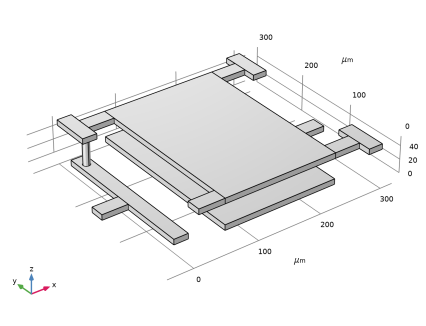
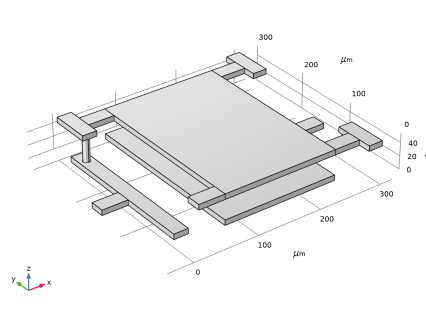
Figure 1: The tunable MEMS capacitor consists of two metal plates. The distance between the plates is tuned via a spring connected to one of the plates.
Model Definition
To solve the problem, use the 3D Electrostatics, Boundary Elements interface in the AC/DC Module. The capacitance is available directly as a variable for postprocessing.
The electric scalar potential, V, satisfies Poisson’s equation,
where ε0 is the permittivity of free space, εr is the relative permittivity, and ρ is the space charge density. The electric field and the displacement are obtained from the gradient of  V:
The capacitor plates and bars are assumed to be conductive and therefore have a uniform electric potential under electrostatic conditions.
In the Electrostatics, Boundary Elements interface, this phenomenon can be modeled by applying a Terminal condition to the external boundaries of the conductive regions. The boundaries will then behave like an equipotential. As the potential inside the conductors will have a uniform, predefined value, the model will only have to solve for the Infinite void surrounding the conductors.
Results and Discussion
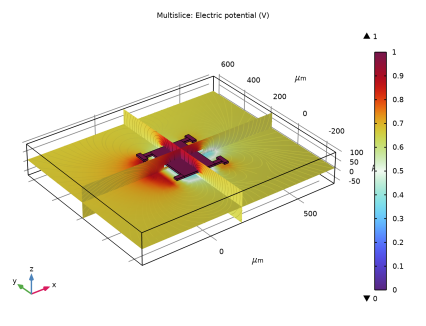
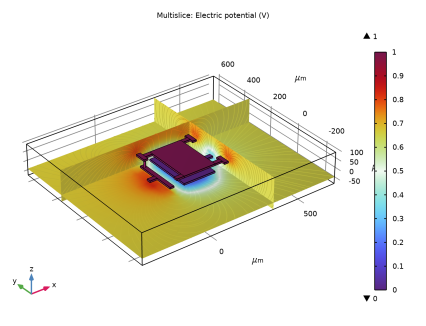
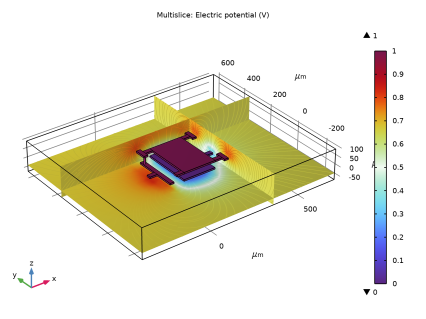
Figure 2 shows the computed electric potential distribution near the capacitor plates. The potential on each capacitor plate is constant, as dictated by the applied conditions.
Figure 2: The electric potential distribution near the capacitor plates.
The capacitance, C, obtained from the simulation is approximately 0.1 pF.
Application Library path: ACDC_Module/Capacitive_Devices/capacitor_tunable
Modeling Instructions
From the File menu, choose New.
New
In the New window, click  Model Wizard.
Model Wizard
1
In the Model Wizard window, click  3D.
2
In the Select Physics tree, select AC/DC>Electric Fields and Currents>Electrostatics, Boundary Elements (esbe).
3
Click Add.
4
Click  Study.
5
In the Select Study tree, select General Studies>Stationary.
6
Geometry 1
Insert the geometry sequence from the capacitor_tunable_geom_sequence.mph file.
1
In the Geometry toolbar, click Insert Sequence and choose Insert Sequence.
2
3
In the Geometry toolbar, click  Build All.
4
Click the  Go to Default View button in the Graphics toolbar.
Definitions
Ground Plane
1
In the Definitions toolbar, click  Explicit.
2
In the Settings window for Explicit, type Ground Plane in the Label text field.
3
4
Locate the Output Entities section. From the Output entities list, choose Adjacent boundaries.
Terminal
1
In the Definitions toolbar, click  Explicit.
2
In the Settings window for Explicit, type Terminal in the Label text field.
3
4
Locate the Output Entities section. From the Output entities list, choose Adjacent boundaries.
Materials
Dielectric
1
In the Model Builder window, under Component 1 (comp1) right-click Materials and choose Blank Material.
2
In the Settings window for Material, type Dielectric in the Label text field.
3
Locate the Geometric Entity Selection section. From the Selection list, choose All voids.
4
Locate the Material Contents section. In the table, enter the following settings:
Electrostatics, Boundary Elements (esbe)
1
In the Model Builder window, under Component 1 (comp1) click Electrostatics, Boundary Elements (esbe).
2
In the Settings window for Electrostatics, Boundary Elements, locate the Domain Selection section.
3
From the Selection list, choose All voids.
Ground 1
1
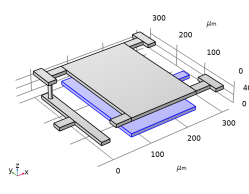
In the Physics toolbar, click  Boundaries and choose Ground.
2
In the Settings window for Ground, locate the Boundary Selection section.
3
From the Selection list, choose Ground Plane.
Terminal 1
The Terminal condition allows for feeding the system more easily. It automatically computes the lumped parameters of the system. In this model the capacitance is determined.
1
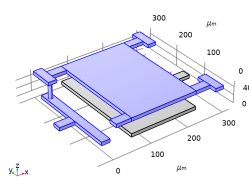
In the Physics toolbar, click  Boundaries and choose Terminal.
2
In the Settings window for Terminal, locate the Boundary Selection section.
3
From the Selection list, choose Terminal.
4
Locate the Terminal section. From the Terminal type list, choose Voltage.
Mesh 1
1
In the Model Builder window, under Component 1 (comp1) click Mesh 1.
2
In the Settings window for Mesh, locate the Physics-Controlled Mesh section.
3
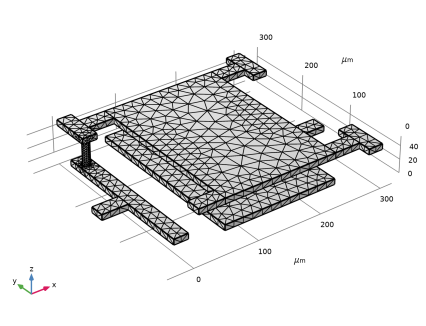
From the Element size list, choose Fine.
4
Click  Build All.
Study 1
This particular model solves better when using the Suggested Direct Solver. Adjust the solver settings accordingly.
Solution 1 (sol1)
1
In the Study toolbar, click  Show Default Solver.
2
In the Model Builder window, expand the Solution 1 (sol1) node.
3
In the Model Builder window, expand the Study 1>Solver Configurations>Solution 1 (sol1)>Stationary Solver 1 node.
4
Right-click Study 1>Solver Configurations>Solution 1 (sol1)>Stationary Solver 1>Suggested Direct Solver (esbe) and choose Enable.
5
In the Study toolbar, click  Compute.
Results
Electric Potential (esbe)
The first default plot shows the electric potential. Move the slices aside, to make the plot more insightful.
Multislice 1
1
In the Model Builder window, expand the Electric Potential (esbe) node, then click Multislice 1.
2
In the Settings window for Multislice, locate the Multiplane Data section.
3
Find the x-planes subsection. From the Entry method list, choose Coordinates.
4
In the Coordinates text field, type 320.
5
Find the y-planes subsection. From the Entry method list, choose Coordinates.
6
In the Coordinates text field, type 320.
7
Find the z-planes subsection. From the Entry method list, choose Coordinates.
8
In the Coordinates text field, type -20.
Streamline Multislice 1
1
In the Model Builder window, click Streamline Multislice 1.
2
In the Settings window for Streamline Multislice, locate the Multiplane Data section.
3
Find the x-planes subsection. From the Entry method list, choose Coordinates.
4
In the Coordinates text field, type 320.
5
Find the y-planes subsection. From the Entry method list, choose Coordinates.
6
In the Coordinates text field, type 320.
7
Find the z-planes subsection. From the Entry method list, choose Coordinates.
8
In the Coordinates text field, type -20.
9
In the Electric Potential (esbe) toolbar, click  Plot.
Multislice 1
1
In the Model Builder window, expand the Results>Electric Field Norm (esbe) node, then click Multislice 1.
2
In the Settings window for Multislice, locate the Multiplane Data section.
3
Find the x-planes subsection. From the Entry method list, choose Coordinates.
4
In the Coordinates text field, type 350.
5
Find the y-planes subsection. From the Entry method list, choose Coordinates.
6
In the Coordinates text field, type 350.
Streamline Multislice 1
1
In the Model Builder window, click Streamline Multislice 1.
2
In the Settings window for Streamline Multislice, locate the Multiplane Data section.
3
Find the x-planes subsection. From the Entry method list, choose Coordinates.
4
In the Coordinates text field, type 350.
5
Find the y-planes subsection. From the Entry method list, choose Coordinates.
6
In the Coordinates text field, type 350.
7
In the Electric Field Norm (esbe) toolbar, click  Plot.
8
Click the  Zoom In button in the Graphics toolbar.
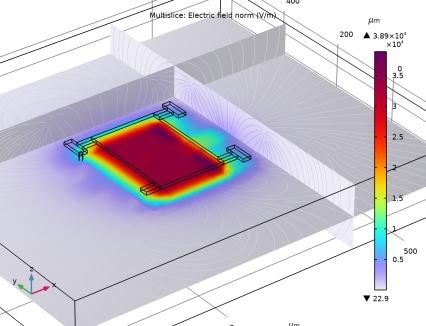
The second plot shows the electric field norm. The field is strongest in between the capacitor plates.
Global Evaluation 1
Having solved the model, you can now extract the capacitance.
1
In the Results toolbar, click  Global Evaluation.
2
In the Settings window for Global Evaluation, click Replace Expression in the upper-right corner of the Expressions section. From the menu, choose Component 1 (comp1)>Electrostatics, Boundary Elements>Terminals>esbe.C11 - Maxwell capacitance - F.
3
Locate the Expressions section. In the table, enter the following settings:
4
Click  Evaluate.
Table
1
Go to the Table window.
The capacitance evaluates to 0.1 pF.