You are viewing the documentation for an older COMSOL version. The latest version is available here.
PDF

Reservoir with Horizontal Wells
Introduction
This example models a thin oil reservoir with two horizontal wells, as described in the Seventh SPE Comparative Solution Projects, case 1a, see Ref. 1. The reservoir contains two phases, water and oil. The oil is recovered by injecting water through the bottom well. The model is used to compute the oil production rate and the water-oil production ratio over time.
Model Definition
The reservoir measures 2700 ft by 2700 ft by 160 ft, and consist of 6 horizontal layers with different initial oil saturations. The thickness of each layer and the initial oil saturation is given in Table 1. The porosity of the reservoir is 0.2 and the horizontal and vertical permeabilities are 300 mD and 30 mD, respectively. The density and the viscosity of both phases are given in Table 2, while the relative permeabilities and capillary pressure (as functions of the water saturation) are given in Table 3.
In the bottom layer water is injected into the reservoir through a horizontal well with a length of 2700 ft. The water pressure at this well is maintained at 3700 psi. The injection well is located at the following coordinates: x = 1350 ft, 0 ft < y < 2700 ft, z = 25 ft.
In the top layer a horizontal well, with a length of 900 ft, produces the fluids at a constant mass flow rate of 5.4181 kg/s, which is the equivalent of 3000 STB of water per day (1 STB, or stock tank barrel, is 0.159 m3). This production well is located at the coordinates x = 1350 ft, 300 ft < y < 1200 ft, z = 150 ft.
The simulation time is 1500 days.
0.96·10-3 Pa·s
0.954·10-3 Pa·s
Results and Discussion
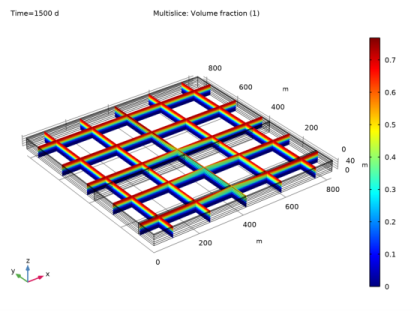
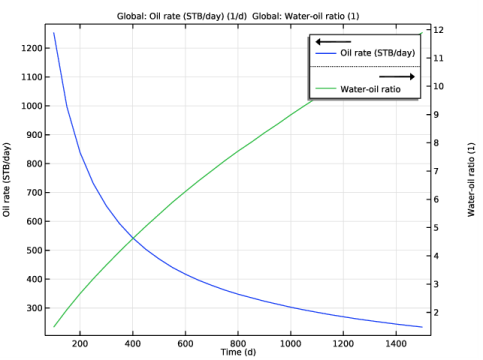
As water is injected through the bottom well, water will start to infiltrate the higher, more oil saturated reservoir layers. This happens especially near the two horizontal wells, as can be seen in Figure 1, where the oil saturation is plotted after the production period of 1500 days: the water table is much higher in between the two wells. This phenomenon is known as coning, and it usually causes a reduction of the oil production rate and an increase in the water-oil production ratio over time. Figure 2 illustrates this and clearly shows these trends in the present simulation. The results for the oil production and the water-oil ratio agree nicely with the simulation results reported in Ref. 1.
Notes About the COMSOL Implementation
The prescribed production rate at the production well of 3000 STB/day constitutes a boundary condition for the total mass flow rate, but to solve the model also a boundary condition for the mass flow rate of the oil phase is needed. In the COMSOL model, the oil mass flow rate is determined by requiring that the oil saturation at the production well equals the residual oil saturation (which is equal to 0.2, see Table 3). This condition is implemented using an Edge ODEs and DAEs interface.
Figure 1: Oil saturation at the end of the 1500 day production period. Note the elevated water table near the production well.
Figure 2: The oil production rate (left y-axis), and the water-oil production ratio (right y-axis) over time.
Reference
1. L.S. Nghiem, D.A. Collins, and R. Sharma (1991), Seventh SPE Comparative Solution Project: Modelling of Horizontal Wells in Reservoir Simulation, SPE 21221, The 11th SPE Symposium on Reservoir Simulation, Anaheim, CA.
Application Library path: Subsurface_Flow_Module/Fluid_Flow/reservoir_horizontal_wells
Modeling Instructions
From the File menu, choose New.
New
In the New window, click  Model Wizard.
Model Wizard
1
In the Model Wizard window, click  3D.
2
In the Select Physics tree, select Fluid Flow>Porous Media and Subsurface Flow>Multiphase Flow in Porous Media.
3
Click Add.
4
In the Select Physics tree, select Mathematics>ODE and DAE Interfaces>Edge ODEs and DAEs (eode).
5
Click Add.
6
In the Added physics interfaces tree, select Phase Transport in Porous Media (phtr).
7
In the Volume fractions table, enter the following settings:
8
In the Added physics interfaces tree, select Darcy’s Law (dl).
9
In the Pressure text field, type pw.
10
In the Added physics interfaces tree, select Edge ODEs and DAEs (eode).
11
In the Field name text field, type massflowoil.
12
In the Dependent variables table, enter the following settings:
13
Click  Study.
14
In the Select Study tree, select General Studies>Time Dependent.
15
Geometry 1
Block 1 (blk1)
1
In the Geometry toolbar, click  Block.
2
In the Settings window for Block, locate the Size and Shape section.
3
In the Width text field, type 2700[ft].
4
In the Depth text field, type 2700[ft].
5
In the Height text field, type 160[ft].
6
Click to expand the Layers section. Find the Layer position subsection. Clear the Bottom check box.
7
Select the Top check box.
8
Work Plane 1 (wp1)
1
In the Geometry toolbar, click  Work Plane.
2
In the Settings window for Work Plane, locate the Plane Definition section.
3
From the Plane list, choose xz-plane.
4
In the y-coordinate text field, type 300[ft].
Work Plane 1 (wp1)>Plane Geometry
In the Model Builder window, click Plane Geometry.
Work Plane 1 (wp1)>Cross Section 1 (cro1)
In the Work Plane toolbar, click  Cross Section.
Work Plane 2 (wp2)
1
In the Model Builder window, right-click Geometry 1 and choose Work Plane.
2
In the Settings window for Work Plane, locate the Plane Definition section.
3
From the Plane list, choose zy-plane.
4
In the x-coordinate text field, type 1350[ft].
Work Plane 2 (wp2)>Plane Geometry
In the Model Builder window, click Plane Geometry.
Work Plane 2 (wp2)>Cross Section 1 (cro1)
In the Work Plane toolbar, click  Cross Section.
Work Plane 3 (wp3)
1
In the Model Builder window, right-click Geometry 1 and choose Work Plane.
2
In the Settings window for Work Plane, locate the Plane Definition section.
3
From the Plane list, choose xz-plane.
4
In the y-coordinate text field, type 1200[ft].
Work Plane 3 (wp3)>Plane Geometry
In the Model Builder window, click Plane Geometry.
Work Plane 3 (wp3)>Cross Section 1 (cro1)
1
In the Work Plane toolbar, click  Cross Section.
2
Right-click Cross Section 1 (cro1) and choose Build All Objects.
Global Definitions
Parameters 1
1
In the Model Builder window, under Global Definitions click Parameters 1.
2
In the Settings window for Parameters, locate the Parameters section.
3
Click  Load from File.
4
Interpolation 1 (int1)
1
In the Home toolbar, click  Functions and choose Global>Interpolation.
2
In the Settings window for Interpolation, locate the Definition section.
3
Click  Load from File.
4
5
In the Function name text field, type krw.
6
Locate the Interpolation and Extrapolation section. From the Interpolation list, choose Piecewise cubic.
Interpolation 2 (int2)
1
In the Home toolbar, click  Functions and choose Global>Interpolation.
2
In the Settings window for Interpolation, locate the Definition section.
3
Click  Load from File.
4
5
In the Function name text field, type krn.
6
Locate the Interpolation and Extrapolation section. From the Interpolation list, choose Piecewise cubic.
Interpolation 3 (int3)
1
In the Home toolbar, click  Functions and choose Global>Interpolation.
2
In the Settings window for Interpolation, locate the Definition section.
3
Click  Load from File.
4
5
In the Function name text field, type pc.
6
Locate the Interpolation and Extrapolation section. From the Interpolation list, choose Piecewise cubic.
Definitions
Integration 1 (intop1)
1
In the Model Builder window, expand the Component 1 (comp1)>Definitions node.
2
Right-click Definitions and choose Nonlocal Couplings>Integration.
3
In the Settings window for Integration, locate the Source Selection section.
4
From the Geometric entity level list, choose Edge.
5
Phase Transport in Porous Media (phtr)
1
In the Model Builder window, under Component 1 (comp1) click Phase Transport in Porous Media (phtr).
2
In the Settings window for Phase Transport in Porous Media, locate the Gravity Effects section.
3
Select the Include gravity check box.
Phase and Porous Media Transport Properties 1
1
In the Model Builder window, under Component 1 (comp1)>Phase Transport in Porous Media (phtr) click Phase and Porous Media Transport Properties 1.
2
In the Settings window for Phase and Porous Media Transport Properties, locate the Capillary Pressure section.
3
In the pcsn text field, type pc(sw)[psi].
4
Locate the Phase 1 Properties section. From the ρsw list, choose User defined. In the associated text field, type rhow.
5
From the μsw list, choose User defined. In the associated text field, type muw.
6
In the κrsw text field, type krw(sw).
7
Locate the Phase 2 Properties section. From the ρsn list, choose User defined. In the associated text field, type rhoo.
8
From the μsn list, choose User defined. In the associated text field, type muo.
9
In the κrsn text field, type krn(sw).
Initial Values 2
1
In the Physics toolbar, click  Domains and choose Initial Values.
2
3
In the Settings window for Initial Values, locate the Initial Values section.
4
In the s0,sn text field, type 0.711.
Initial Values 3
1
In the Physics toolbar, click  Domains and choose Initial Values.
2
3
In the Settings window for Initial Values, locate the Initial Values section.
4
In the s0,sn text field, type 0.652.
Initial Values 4
1
In the Physics toolbar, click  Domains and choose Initial Values.
2
3
In the Settings window for Initial Values, locate the Initial Values section.
4
In the s0,sn text field, type 0.527.
Initial Values 5
1
In the Physics toolbar, click  Domains and choose Initial Values.
2
3
In the Settings window for Initial Values, locate the Initial Values section.
4
In the s0,sn text field, type 0.351.
Initial Values 6
1
In the Physics toolbar, click  Domains and choose Initial Values.
2
3
In the Settings window for Initial Values, locate the Initial Values section.
4
In the s0,sn text field, type 0.131.
Line Mass Source 1
1
In the Physics toolbar, click  Edges and choose Line Mass Source.
2
3
In the Settings window for Line Mass Source, locate the Mass Flux section.
4
Select the Phase sn check box.
5
In the q0,sn text field, type -massflowoil.
Darcy’s Law (dl)
1
In the Model Builder window, under Component 1 (comp1) click Darcy’s Law (dl).
2
In the Settings window for Darcy’s Law, click to expand the Discretization section.
3
From the Pressure list, choose Linear.
Fluid and Matrix Properties 1
1
In the Model Builder window, under Component 1 (comp1)>Darcy’s Law (dl) click Fluid and Matrix Properties 1.
2
In the Settings window for Fluid and Matrix Properties, locate the Matrix Properties section.
3
From the εp list, choose User defined. In the associated text field, type 0.2.
4
From the κ list, choose User defined. From the list, choose Diagonal.
5
In the κ table, enter the following settings:
Initial Values 1
1
In the Model Builder window, click Initial Values 1.
2
In the Settings window for Initial Values, locate the Initial Values section.
3
In the pw text field, type 3700[psi].
Well 1
1
In the Physics toolbar, click  Edges and choose Well.
2
3
In the Settings window for Well, locate the Pressure section.
4
In the p0 text field, type 3700[psi].
Line Mass Source 1
1
In the Physics toolbar, click  Edges and choose Line Mass Source.
2
3
In the Settings window for Line Mass Source, locate the Line Mass Source section.
4
In the N0 text field, type -massflow.
Edge ODEs and DAEs (eode)
1
In the Model Builder window, under Component 1 (comp1) click Edge ODEs and DAEs (eode).
2
In the Settings window for Edge ODEs and DAEs, locate the Edge Selection section.
3
Click  Clear Selection.
4
5
Locate the Units section. Click  Define Dependent Variable Unit.
6
In the Dependent variable quantity table, enter the following settings:
7
In the Source term quantity table, enter the following settings:
8
Click to expand the Discretization section. From the Shape function type list, choose Lagrange.
9
From the Element order list, choose Linear.
Distributed ODE 1
1
In the Model Builder window, under Component 1 (comp1)>Edge ODEs and DAEs (eode) click Distributed ODE 1.
2
In the Settings window for Distributed ODE, locate the Source Term section.
3
In the f text field, type sn-0.2.
4
Locate the Damping or Mass Coefficient section. In the da text field, type 0.
Mesh 1
Free Triangular 1
1
In the Mesh toolbar, click  Boundary and choose Free Triangular.
2
In the Settings window for Free Triangular, click to expand the Scale Geometry section.
3
In the z-direction scale text field, type 10.
4
Size
1
In the Model Builder window, click Size.
2
In the Settings window for Size, locate the Element Size section.
3
From the Predefined list, choose Finer.
Size 1
1
In the Model Builder window, right-click Free Triangular 1 and choose Size.
2
In the Settings window for Size, locate the Geometric Entity Selection section.
3
From the Geometric entity level list, choose Point.
4
Click  Paste Selection.
5
In the Paste Selection dialog box, type 44 in the Selection text field.
6
7
In the Settings window for Size, locate the Element Size section.
8
Click the Custom button.
9
Locate the Element Size Parameters section. Select the Maximum element size check box.
10
11
Select the Minimum element size check box.
12
13
Select the Maximum element growth rate check box.
14
Swept 1
In the Mesh toolbar, click  Swept.
Distribution 1
1
Right-click Swept 1 and choose Distribution.
2
In the Settings window for Distribution, locate the Domain Selection section.
3
Click  Clear Selection.
4
Click  Paste Selection.
5
In the Paste Selection dialog box, type 1-8, 25-32 in the Selection text field.
6
7
In the Settings window for Distribution, locate the Distribution section.
8
In the Number of elements text field, type 2.
Distribution 2
1
In the Model Builder window, right-click Swept 1 and choose Distribution.
2
In the Settings window for Distribution, locate the Domain Selection section.
3
Click  Clear Selection.
4
Click  Paste Selection.
5
In the Paste Selection dialog box, type 9-24, 33-48 in the Selection text field.
6
7
In the Settings window for Distribution, locate the Distribution section.
8
In the Number of elements text field, type 8.
9
Click  Build All.
Study 1
Step 1: Time Dependent
1
In the Model Builder window, under Study 1 click Step 1: Time Dependent.
2
In the Settings window for Time Dependent, locate the Study Settings section.
3
From the Time unit list, choose d.
4
In the Output times text field, type range(0,50,1500).
Solution 1 (sol1)
1
In the Study toolbar, click  Show Default Solver.
2
In the Model Builder window, expand the Solution 1 (sol1) node, then click Dependent Variables 1.
3
In the Settings window for Dependent Variables, locate the Scaling section.
4
From the Method list, choose Initial value based.
5
In the Model Builder window, expand the Study 1>Solver Configurations>Solution 1 (sol1)>Time-Dependent Solver 1 node.
6
Right-click Time-Dependent Solver 1 and choose Fully Coupled.
7
In the Settings window for Fully Coupled, click to expand the Method and Termination section.
8
From the Nonlinear method list, choose Automatic (Newton).
9
Click  Compute.
Results
Slice
1
In the Model Builder window, expand the Volume Fraction (phtr) node.
2
Right-click Slice and choose Disable.
Volume Fraction (phtr)
In the Model Builder window, click Volume Fraction (phtr).
Multislice 1
1
In the Volume Fraction (phtr) toolbar, click  More Plots and choose Multislice.
2
In the Settings window for Multislice, locate the Expression section.
3
In the Expression text field, type sn.
4
Locate the Multiplane Data section. Find the x-planes subsection. In the Planes text field, type 5.
5
Find the y-planes subsection. In the Planes text field, type 5.
6
Find the z-planes subsection. In the Planes text field, type 0.
7
In the Volume Fraction (phtr) toolbar, click  Plot.
1D Plot Group 6
1
In the Home toolbar, click  Add Plot Group and choose 1D Plot Group.
2
In the Settings window for 1D Plot Group, locate the Data section.
3
From the Time selection list, choose Interpolated.
4
In the Times (d) text field, type range(100,50,1500).
Global 1
1
Right-click 1D Plot Group 6 and choose Global.
2
In the Settings window for Global, locate the y-Axis Data section.
3
Global 2
1
In the Model Builder window, right-click 1D Plot Group 6 and choose Global.
2
In the Settings window for Global, locate the y-Axis Data section.
3
1D Plot Group 6
1
In the Model Builder window, click 1D Plot Group 6.
2
In the Settings window for 1D Plot Group, locate the Plot Settings section.
3
Select the Two y-axes check box.
4
In the table, select the Plot on secondary y-axis check box for Global 2.
5
Select the y-axis label check box.
6
7
In the 1D Plot Group 6 toolbar, click  Plot.