You are viewing the documentation for an older COMSOL version. The latest version is available here.
PDF

Linear Buckling Analysis of a Truss Tower
Introduction
Trusses are commonly used to create light structures that can support heavy loads. When designing such a structure, it is important to ensure its safety. For a tower made of bars, buckling can cause the structure to collapse. This example shows how to compute the critical buckling load using a linear buckling analysis. The solution is compared with an analytical expression for critical load estimation for Euler buckling.
Model Definition
The model geometry consists of a 19 m tall truss tower with a rectangular section. The critical buckling load is computed using the linear buckling analysis available in the Truss interface.
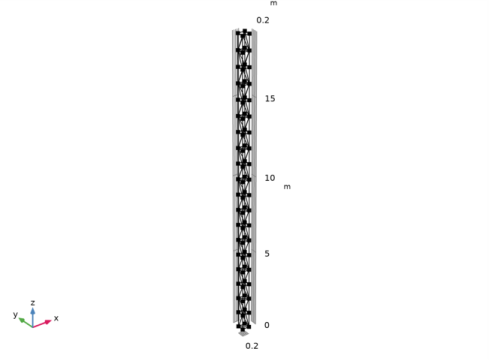
The geometry is the periodic structure represented in Figure 1 below. It consists of 19 blocks of trusses. Each block has a width of 0.45 m, a depth of 0.40 m and a height of 1.0 m. The trusses that are perpendicular to the ground are thicker and have an outer radius of 15 cm and an inner radius of 10 cm. The remaining trusses have an outer radius of 10 cm and an inner radius of 7 cm. The tower is made out of structural steel, which is one of the predefined materials in the material library.
Figure 1: Geometry of the truss tower.
The tower is fixed at the ground level and a vertical load is applied at the top.
One fourth of the unit load is applied at each point of the tower top so that the critical load factor returned by the linear buckling analysis corresponds to the load that would cause the collapse of the structure.
Results and Discussion
For a simple column the critical buckling load is given by the Euler buckling formula
where E is the Young’s modulus, I is the area moment of inertia, L is the unsupported length of the column and K is the column effective length factor.
For a column with one end fixed and the other end free to move laterally, K = 2.
For a tower like the one in this example with 4 main bars in the axial direction, the area of moment of inertia of the section can be computed as:
where h is the distance between the vertical bars, and S the cross section area of the bars.
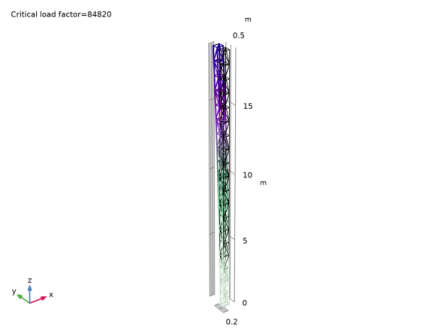
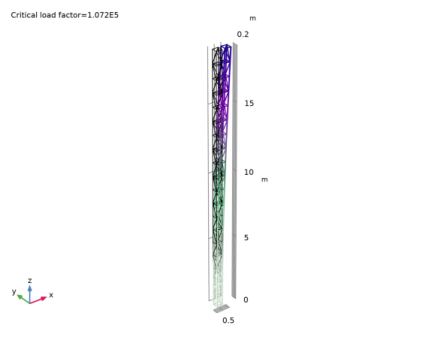
As the section is rectangular with different depth and width values, the tower has one weak direction. Here the depth is 40 cm and the width is 45 cm. This means that the first critical buckling load is expected to be about 8.6e4N in the depth direction (y direction). In the width direction, which is expected to be stiffer, the critical buckling load is estimated to be about 1.1e5N.
The results obtained with the linear buckling analysis agree well with these values. Note that the approximation given for the Euler buckling critical load is suitable for a tower structure when the height is significantly larger than the width or the depth.
Figure 2 shows the value of the first critical buckling load and the deformation shape.
Figure 2: Deformation shape at the first critical buckling load
Figure 3 shows the value of the second critical buckling load and the deformation shape.
Figure 3: Deformation shape at the second critical buckling load
Application Library path: Structural_Mechanics_Module/Buckling/truss_tower_buckling
Modeling Instructions
From the File menu, choose New.
New
In the New window, click  Model Wizard.
Model Wizard
1
In the Model Wizard window, click  3D.
2
In the Select Physics tree, select Structural Mechanics>Truss (truss).
3
Click Add.
4
Click  Study.
5
In the Select Study tree, select Preset Studies for Selected Physics Interfaces>Linear Buckling.
6
Global Definitions
Parameters 1
1
In the Model Builder window, under Global Definitions click Parameters 1.
2
In the Settings window for Parameters, locate the Parameters section.
3
Geometry 1
Block 1 (blk1)
1
In the Geometry toolbar, click  Block.
2
In the Settings window for Block, locate the Size and Shape section.
3
In the Width text field, type width.
4
In the Depth text field, type depth.
5
In the Height text field, type height.
Polygon 1 (pol1)
1
In the Geometry toolbar, click  More Primitives and choose Polygon.
2
In the Settings window for Polygon, locate the Coordinates section.
3
From the Data source list, choose Vectors.
4
In the x text field, type 0 0 0 width width width width 0.
5
In the y text field, type depth 0 0 0 0 depth depth depth.
6
In the z text field, type 0 height height 0 0 height height 0.
Line Segment 1 (ls1)
1
In the Geometry toolbar, click  More Primitives and choose Line Segment.
2
In the Settings window for Line Segment, locate the Starting Point section.
3
From the Specify list, choose Coordinates.
4
Locate the Endpoint section. From the Specify list, choose Coordinates.
5
Locate the Starting Point section. In the y text field, type depth.
6
Locate the Endpoint section. In the x text field, type width.
Line Segment 2 (ls2)
1
In the Geometry toolbar, click  More Primitives and choose Line Segment.
2
In the Settings window for Line Segment, locate the Starting Point section.
3
From the Specify list, choose Coordinates.
4
Locate the Endpoint section. From the Specify list, choose Coordinates.
5
Locate the Starting Point section. In the z text field, type height.
6
Locate the Endpoint section. In the x text field, type width, y to depth, and z to height.
Convert to Curve 1 (ccur1)
1
In the Geometry toolbar, click  Conversions and choose Convert to Curve.
2
Click in the Graphics window and then press Ctrl+A to select all objects.
Mirror 1 (mir1)
1
In the Geometry toolbar, click  Transforms and choose Mirror.
2
3
In the Settings window for Mirror, locate the Input section.
4
Select the Keep input objects check box.
5
Locate the Point on Plane of Reflection section. In the z text field, type height.
Array 1 (arr1)
1
In the Geometry toolbar, click  Transforms and choose Array.
2
3
In the Settings window for Array, locate the Size section.
4
In the z size text field, type n.
5
Locate the Displacement section. In the z text field, type 2*height.
Array 2 (arr2)
1
In the Geometry toolbar, click  Transforms and choose Array.
2
3
In the Settings window for Array, locate the Size section.
4
In the z size text field, type n-1.
5
Locate the Displacement section. In the z text field, type 2*height.
6
In the Geometry toolbar, click  Build All.
Add Material
1
In the Home toolbar, click  Add Material to open the Add Material window.
2
Go to the Add Material window.
3
In the tree, select Built-in>Structural steel.
4
Click Add to Component in the window toolbar.
5
In the Home toolbar, click  Add Material to close the Add Material window.
Truss (truss)
Cross-Section Data 1
1
In the Model Builder window, under Component 1 (comp1)>Truss (truss) click Cross-Section Data 1.
2
In the Settings window for Cross-Section Data, locate the Cross-Section Data section.
3
In the A text field, type A2.
Cross-Section Data 2
1
In the Physics toolbar, click  Edges and choose Cross-Section Data.
2
3
In the Settings window for Cross-Section Data, locate the Cross-Section Data section.
4
In the A text field, type A1.
Pinned 1
1
In the Physics toolbar, click  Points and choose Pinned.
2
In the Settings window for Pinned, locate the Point Selection section.
3
Click  Paste Selection.
4
In the Paste Selection dialog box, type 1 21 41 61 in the Selection text field.
5
Point Load 1
1
In the Physics toolbar, click  Points and choose Point Load.
2
In the Settings window for Point Load, locate the Point Selection section.
3
Click  Paste Selection.
4
In the Paste Selection dialog box, type 20 40 60 80 in the Selection text field.
5
6
In the Settings window for Point Load, locate the Force section.
7
Specify the FP vector as
Study 1
Step 2: Linear Buckling
1
In the Model Builder window, under Study 1 click Step 2: Linear Buckling.
2
In the Settings window for Linear Buckling, locate the Study Settings section.
3
In the Desired number of buckling modes text field, type 2.
4
In the Home toolbar, click  Compute.
Results
Line 1
1
In the Model Builder window, expand the Mode Shape (truss) node, then click Line 1.
2
In the Settings window for Line, click to expand the Title section.
3
From the Title type list, choose None.
4
Locate the Coloring and Style section. In the Radius scale factor text field, type 4.
5
In the Mode Shape (truss) toolbar, click  Plot.