You are viewing the documentation for an older COMSOL version. The latest version is available here.
PDF

MEMS Pressure Sensor Drift Due to Hygroscopic Swelling
Introduction
For their integration in microelectronic circuits, MEMS and other devices are often overmolded with an epoxy mold compound (EMC) to protect the devices and their interconnects with the board. The epoxy polymers used for such applications are subject to moisture absorption and hygroscopic swelling, which can lead to delamination between the EMC and the board or to incorrect behavior of MEMS components. This example studies how the moisture absorption of an EMC affects the response of a MEMS pressure sensor over a one-year time period.
Model Definition
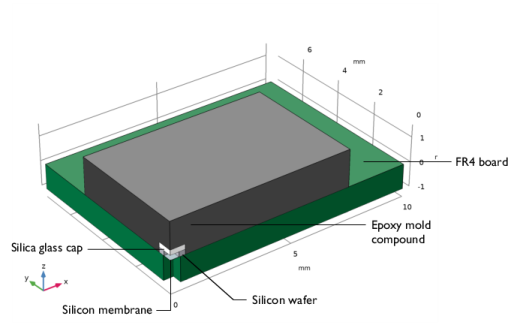
Figure 1: Component geometry.
It is sufficient to model a quarter of the whole structure due to the symmetry (Figure 1). The geometry is composed of:
-
-
When external pressure is applied on the bottom face of the membrane, the membrane deforms, and the strain is measured by means of a Wheatstone bridge made of piezoresistors. The measure of strain on the X- and Y-axes makes it possible to calculate the pressure. The membrane is modeled with a shell interface that is connected to the silicon domains via a shell-solid connection.
The moisture transport in the EMC is governed by the diffusion equation:
The moisture diffusion coefficient is temperature dependent:
Here U is the activation energy and k is the Boltzmann’s constant. For a typical EMC, D0 = 7.35·10-6 m2/s, U = 0.43 eV, and the diffusion coefficient at 25°C is approximately 4·1013 m2/s.
The boundary conditions on the exterior faces of the EMC should be a flux of moisture concentration. However, given the long simulation time (one year) a concentration constraint can be assumed. The concentration applied on the boundaries is the saturation concentration of the material at a given temperature and humidity conditions:
where S is the solubility on the water in the material a given condition, Psat is the vapor saturation pressure of water, and is the relative humidity. The product of solubility and saturation pressure is supposed to be temperature-independent, thus the saturation concentration in the material depends only on the relative humidity. At 60% humidity, the saturation concentration is 140 mol/m3.
The initial moisture concentration after molding is set to 40 mol/m3. This value can be also taken as reference for hygroscopic swelling because all the stresses are assumed relaxed just after molding.
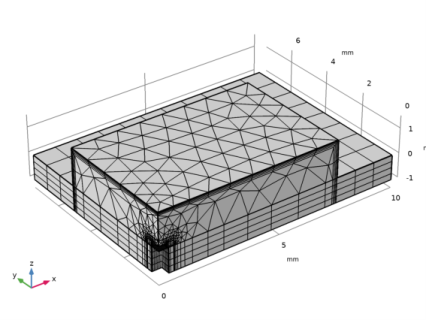
In order to avoid problems that can be caused by the discontinuity of concentration at initial state, the concentration boundary condition is applied smoothly, and a boundary layer type mesh is used near those boundaries (Figure 2).
Figure 2: Mesh of the device.
As hygroscopic swelling induces a unidirectional dependence between concentration and mechanics, the concentration is calculated in a first time-dependent study, and then the structural domains are computed in a stationary study. This sequential approach reduces the computation time compared to a single solution including all physical interfaces.
Results and Discussion
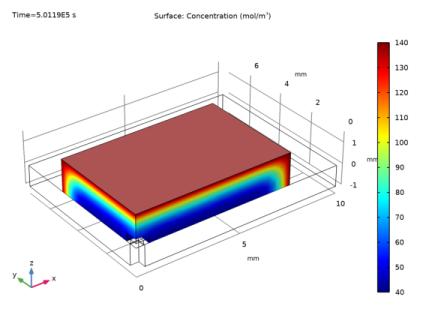
The moisture diffuses progressively in the EMC. After 6 days, the moisture has already partially reached the top face of the die (Figure 3).
Figure 4 shows that the concentration at the die location starts to increase after 2 days until approximately 100 days. This is confirmed by the mass uptake shown in Figure 5, where the maximum value is reached after the same period of time.
Figure 3: Moisture concentration in the EMC after 6 days.
Figure 4: Moisture concentration at die location over time.
Figure 5: Total mass uptake in the EMC.
The progressive moisture diffusion is also noticed on displacement plots after hygroscopic swelling calculation: the EMC swells only on its boundaries during the first days (Figure 6), and it swells everywhere after one year (Figure 7). During the first time, the expansion on the exterior boundaries implies a stretching on the membrane and thus an increase of the measured strain. Then, the expansion of the center implies compression on the die and a decrease of the strain along the axes; see Figure 8.
The moisture absorption and hygroscopic swelling have significant effect on the sensor sensibility, which have to be taken in account during the measurements, or when designing the sensor.
Figure 6: Displacement after 6 days.
Figure 7: Displacement after 1 year.
Figure 8: Evolution of measured strain on membrane axes.
Application Library path: Structural_Mechanics_Module/Hygroscopic_Swelling/pressure_sensor_hygroscopic_swelling
Modeling Instructions
From the File menu, choose New.
New
In the New window, click  Model Wizard.
Model Wizard
1
In the Model Wizard window, click  3D.
2
In the Select Physics tree, select Structural Mechanics>Solid Mechanics (solid).
3
Click Add.
4
In the Select Physics tree, select Structural Mechanics>Shell (shell).
5
Click Add.
6
In the Select Physics tree, select Chemical Species Transport>Transport of Diluted Species (tds).
7
Click Add.
8
Click  Study.
9
In the Select Study tree, select General Studies>Time Dependent.
10
Global Definitions
Parameters 1
1
In the Model Builder window, under Global Definitions click Parameters 1.
2
In the Settings window for Parameters, locate the Parameters section.
3
Geometry 1
1
In the Model Builder window, expand the Component 1 (comp1)>Geometry 1 node, then click Geometry 1.
2
In the Settings window for Geometry, locate the Units section.
3
From the Length unit list, choose mm.
Create a block for the silicon wafer and the glass cap.
Block 1 (blk1)
1
In the Geometry toolbar, click  Block.
2
In the Settings window for Block, locate the Size and Shape section.
3
In the Width text field, type l_die/2.
4
In the Depth text field, type l_die/2.
5
In the Height text field, type t_Si+t_glass.
6
Click to expand the Layers section. In the table, enter the following settings:
Create a block for the EMC.
Block 2 (blk2)
1
In the Geometry toolbar, click  Block.
2
In the Settings window for Block, locate the Size and Shape section.
3
In the Width text field, type l_MC/2.
4
In the Depth text field, type w_MC/2.
5
In the Height text field, type t_MC.
Create a block and substract it to make the cavity in the wafer.
Block 3 (blk3)
1
In the Geometry toolbar, click  Block.
2
In the Settings window for Block, locate the Size and Shape section.
3
In the Width text field, type l_memb/2.
4
In the Depth text field, type l_memb/2.
5
In the Height text field, type t_Si.
Difference 1 (dif1)
1
In the Geometry toolbar, click  Booleans and Partitions and choose Difference.
2
Select the objects blk1 and blk2 only.
3
In the Settings window for Difference, locate the Difference section.
4
Find the Objects to subtract subsection. Select the  Activate Selection toggle button.
5
6
Click  Build All Objects.
Create a block for the board.
Block 4 (blk4)
1
In the Geometry toolbar, click  Block.
2
In the Settings window for Block, locate the Size and Shape section.
3
In the Width text field, type l/2.
4
In the Depth text field, type w/2.
5
In the Height text field, type t_FR4.
6
Locate the Position section. In the z text field, type -t_FR4.
Create a block and substract it to make a hole in the board.
Block 5 (blk5)
1
In the Geometry toolbar, click  Block.
2
In the Settings window for Block, locate the Size and Shape section.
3
In the Width text field, type l_hole/2.
4
In the Depth text field, type l_hole/2.
5
In the Height text field, type t_FR4.
6
Locate the Position section. In the z text field, type -t_FR4.
Difference 2 (dif2)
1
In the Geometry toolbar, click  Booleans and Partitions and choose Difference.
2
3
In the Settings window for Difference, locate the Difference section.
4
Find the Objects to subtract subsection. Select the  Activate Selection toggle button.
5
6
Click  Build All Objects.
Create a rectangle in a work plane to build the membrane.
Work Plane 1 (wp1)
1
In the Geometry toolbar, click  Work Plane.
2
In the Settings window for Work Plane, click  Show Work Plane.
Work Plane 1 (wp1)>Plane Geometry
In the Model Builder window, click Plane Geometry.
Work Plane 1 (wp1)>Rectangle 1 (r1)
1
In the Work Plane toolbar, click  Rectangle.
2
In the Settings window for Rectangle, locate the Size and Shape section.
3
In the Width text field, type l_memb/2.
4
In the Height text field, type l_memb/2.
5
Click  Build Selected.
6
In the Model Builder window, right-click Geometry 1 and choose Build All.
7
Click the  Go to Default View button in the Graphics toolbar.
Definitions
Create selections to select domains easily in the following steps.
FR4
1
In the Definitions toolbar, click  Explicit.
2
In the Settings window for Explicit, type FR4 in the Label text field.
3
Silicon
1
In the Definitions toolbar, click  Explicit.
2
In the Settings window for Explicit, type Silicon in the Label text field.
3
Glass
1
In the Definitions toolbar, click  Explicit.
2
In the Settings window for Explicit, type Glass in the Label text field.
3
Mold Compound
1
In the Definitions toolbar, click  Explicit.
2
In the Settings window for Explicit, type Mold Compound in the Label text field.
3
Membrane
1
In the Definitions toolbar, click  Explicit.
2
In the Settings window for Explicit, type Membrane in the Label text field.
3
Locate the Input Entities section. From the Geometric entity level list, choose Boundary.
4
Shell (shell)
1
In the Model Builder window, under Component 1 (comp1) click Shell (shell).
2
In the Settings window for Shell, locate the Boundary Selection section.
3
From the Selection list, choose Membrane.
4
Click to expand the Default Through-Thickness Result Location section. In the z text field, type -1.
Thickness and Offset 1
Set the shell thickness and the offset so that the bottom face is at z = 0, and set the height of evaluation so that the results are calculated on the bottom face.
1
In the Model Builder window, under Component 1 (comp1)>Shell (shell) click Thickness and Offset 1.
2
In the Settings window for Thickness and Offset, locate the Thickness and Offset section.
3
In the d text field, type t_memb.
4
From the Offset definition list, choose Relative offset.
5
In the zreloffset text field, type 1.
Use symmetry on the shell edges. The normal of the symmetry plane is the second axis of the local edge system, which is orthogonal to the edge and to the shell normal.
Symmetry 1
1
In the Physics toolbar, click  Edges and choose Symmetry.
2
Face Load 1
1
In the Physics toolbar, click  Boundaries and choose Face Load.
2
In the Settings window for Face Load, locate the Boundary Selection section.
3
From the Selection list, choose Membrane.
4
Locate the Force section. From the Load type list, choose Pressure.
5
In the p text field, type -pext.
Solid Mechanics (solid)
First, set the discretization to Quadratic in Solid Mechanics in order to fit the discretization of Shell.
1
In the Model Builder window, under Component 1 (comp1) click Solid Mechanics (solid).
2
In the Settings window for Solid Mechanics, click to expand the Discretization section.
3
From the Displacement field list, choose Quadratic Lagrange.
Fixed Constraint 1
1
In the Physics toolbar, click  Boundaries and choose Fixed Constraint.
2
Symmetry 1
1
In the Physics toolbar, click  Boundaries and choose Symmetry.
2
Definitions
Create a step function in order to apply the concentration boundary condition progressively.
Step 1 (step1)
1
In the Home toolbar, click  Functions and choose Global>Step.
2
In the Settings window for Step, locate the Parameters section.
3
In the Location text field, type 0.5.
4
Click to expand the Smoothing section. In the Size of transition zone text field, type 1.
5
Transport of Diluted Species (tds)
1
In the Model Builder window, under Component 1 (comp1) click Transport of Diluted Species (tds).
2
In the Settings window for Transport of Diluted Species, locate the Domain Selection section.
3
From the Selection list, choose Mold Compound.
4
Locate the Transport Mechanisms section. Clear the Convection check box.
5
Click to expand the Discretization section. From the Concentration list, choose Quadratic.
Transport Properties 1
1
In the Model Builder window, under Component 1 (comp1)>Transport of Diluted Species (tds) click Transport Properties 1.
2
In the Settings window for Transport Properties, locate the Diffusion section.
3
In the Dc text field, type 4e-13[m^2/s].
Initial Values 1
1
In the Model Builder window, click Initial Values 1.
2
In the Settings window for Initial Values, locate the Initial Values section.
3
In the c text field, type cini.
Symmetry 1
1
In the Physics toolbar, click  Boundaries and choose Symmetry.
2
Concentration 1
1
In the Physics toolbar, click  Boundaries and choose Concentration.
2
3
In the Settings window for Concentration, locate the Concentration section.
4
Select the Species c check box.
5
In the c0,c text field, type cini+(cmax-cini)*step1(t[1/s]/3600).
Multiphysics
Add a multiphysics node to model hygroscopic swelling.
Hygroscopic Swelling 1 (hs1)
1
In the Physics toolbar, click  Multiphysics Couplings and choose Domain>Hygroscopic Swelling.
2
In the Settings window for Hygroscopic Swelling, locate the Domain Selection section.
3
From the Selection list, choose Mold Compound.
4
Locate the Hygroscopic Swelling Properties section. In the cmo,ref text field, type cini.
Connect the shells and solids.
Solid-Thin Structure Connection 1 (sshc1)
1
In the Physics toolbar, click  Multiphysics Couplings and choose Global>Solid-Thin Structure Connection.
2
In the Settings window for Solid-Thin Structure Connection, locate the Connection Settings section.
3
Select the Manual control of selections check box.
4
Locate the Boundary Selection, Solid section. In the list, select 11.
5
Click  Remove from Selection.
6
Definitions
1
Click the  Show More Options button in the Model Builder toolbar.
2
In the Show More Options dialog box, in the tree, select the check box for the node General>Variable Utilities.
3
Mass Properties 1 (mass1)
1
In the Model Builder window, under Component 1 (comp1) right-click Definitions and choose Variable Utilities>Mass Properties.
2
In the Settings window for Mass Properties, locate the Source Selection section.
3
From the Selection list, choose Mold Compound.
4
Locate the Density section. From the Density source list, choose From physics interface.
Materials
Add a material for each domain and for the membrane.
Add Material
1
In the Home toolbar, click  Add Material to open the Add Material window.
2
Go to the Add Material window.
3
In the tree, select Built-in>FR4 (Circuit Board).
4
Click Add to Component in the window toolbar.
5
In the tree, select Built-in>Silicon.
6
Click Add to Component in the window toolbar.
7
Click Add to Component in the window toolbar.
8
In the tree, select Built-in>Silica glass.
9
Click Add to Component in the window toolbar.
10
In the Home toolbar, click  Add Material to close the Add Material window.
Materials
FR4 (Circuit Board) (mat1)
1
In the Model Builder window, under Component 1 (comp1)>Materials click FR4 (Circuit Board) (mat1).
2
In the Settings window for Material, locate the Geometric Entity Selection section.
3
From the Selection list, choose FR4.
Silicon (mat2)
1
In the Model Builder window, click Silicon (mat2).
2
In the Settings window for Material, locate the Geometric Entity Selection section.
3
From the Selection list, choose Silicon.
Silicon (membrane)
1
In the Model Builder window, under Component 1 (comp1)>Materials click Silicon 1 (mat3).
2
In the Settings window for Material, type Silicon (membrane) in the Label text field.
3
Locate the Geometric Entity Selection section. From the Geometric entity level list, choose Boundary.
4
From the Selection list, choose Membrane.
Silica glass (mat4)
1
In the Model Builder window, click Silica glass (mat4).
2
In the Settings window for Material, locate the Geometric Entity Selection section.
3
From the Selection list, choose Glass.
Mold Compound
1
In the Model Builder window, right-click Materials and choose Blank Material.
2
In the Settings window for Material, type Mold Compound in the Label text field.
3
Locate the Geometric Entity Selection section. From the Selection list, choose Mold Compound.
4
Locate the Material Contents section. In the table, enter the following settings:
5
Click to expand the Appearance section. From the Color list, choose Black.
6
Click the Show Material Color and Texture button in the Graphics toolbar to reproduce Figure 1.
Mesh 1
Mesh the membrane using a 2D mapped mesh.
Mapped 1
1
In the Mesh toolbar, click  Boundary and choose Mapped.
2
In the Settings window for Mapped, locate the Boundary Selection section.
3
From the Selection list, choose Membrane.
Distribution 1
1
Right-click Mapped 1 and choose Distribution.
2
In the Settings window for Distribution, locate the Distribution section.
3
In the Number of elements text field, type 10.
4
Locate the Edge Selection section. From the Selection list, choose All edges.
Free Triangular 1
1
In the Mesh toolbar, click  Boundary and choose Free Triangular.
2
Use a swept mesh in the wafer domain to avoid stress singularities near the solid-shell connection.
Swept 1
1
In the Mesh toolbar, click  Swept.
2
In the Settings window for Swept, locate the Domain Selection section.
3
From the Geometric entity level list, choose Domain.
4
From the Selection list, choose Silicon.
Distribution 1
1
Right-click Swept 1 and choose Distribution.
2
In the Settings window for Distribution, locate the Distribution section.
3
From the Distribution type list, choose Predefined.
4
In the Element ratio text field, type 5.
Free Tetrahedral 1
1
In the Mesh toolbar, click  Free Tetrahedral.
2
In the Settings window for Free Tetrahedral, locate the Domain Selection section.
3
From the Geometric entity level list, choose Domain.
4
From the Selection list, choose Glass.
Add boundary layer meshing on the exterior faces in order to smooth the initial concentration discontinuity.
Boundary Layers 1
1
In the Mesh toolbar, click  Boundary Layers.
2
In the Settings window for Boundary Layers, locate the Geometric Entity Selection section.
3
From the Geometric entity level list, choose Domain.
4
From the Selection list, choose Mold Compound.
Boundary Layer Properties
1
In the Model Builder window, click Boundary Layer Properties.
2
3
In the Settings window for Boundary Layer Properties, locate the Boundary Layer Properties section.
4
In the Number of boundary layers text field, type 4.
Swept 2
1
In the Mesh toolbar, click  Swept.
2
In the Settings window for Swept, locate the Domain Selection section.
3
From the Geometric entity level list, choose Domain.
4
From the Selection list, choose FR4.
Distribution 1
1
Right-click Swept 2 and choose Distribution.
2
In the Settings window for Distribution, locate the Distribution section.
3
In the Number of elements text field, type 4.
4
Click  Build All.
5
Click the  Go to Default View button in the Graphics toolbar.
Study 1
Step 1: Time Dependent
Since the moisture diffusion is independent of the structural behavior, compute only the transport of diluted species in the time dependent analysis.
1
In the Model Builder window, under Study 1 click Step 1: Time Dependent.
2
In the Settings window for Time Dependent, locate the Study Settings section.
3
In the Output times text field, type 0 10^range(2,0.1,7.5).
4
Locate the Physics and Variables Selection section. In the table, clear the Solve for check boxes for Solid Mechanics (solid) and Shell (shell).
Prepare a plot to visualize the concentration during the computation.
Solution 1 (sol1)
In the Study toolbar, click  Show Default Solver.
Results
Concentration
1
In the Model Builder window, expand the Results node.
2
Right-click Results and choose 3D Plot Group.
3
In the Settings window for 3D Plot Group, type Concentration in the Label text field.
Surface 1
1
Right-click Concentration and choose Surface.
2
In the Settings window for Surface, click Replace Expression in the upper-right corner of the Expression section. From the menu, choose Component 1 (comp1)>Transport of Diluted Species>Species c>c - Concentration - mol/m³.
3
Click to expand the Range section. Select the Manual color range check box.
4
In the Minimum text field, type 40.
5
In the Maximum text field, type 140.
Study 1
Step 1: Time Dependent
1
In the Model Builder window, under Study 1 click Step 1: Time Dependent.
2
In the Settings window for Time Dependent, click to expand the Results While Solving section.
3
Select the Plot check box.
4
In the Model Builder window, click Study 1.
5
In the Settings window for Study, locate the Study Settings section.
6
Clear the Generate default plots check box.
7
In the Home toolbar, click  Compute.
Results
Concentration
1
In the Settings window for 3D Plot Group, locate the Data section.
2
From the Time (s) list, choose 5.0119E5.
3
In the Concentration toolbar, click  Plot.
4
Click the  Go to Default View button in the Graphics toolbar.
Concentration at Die Location
1
In the Home toolbar, click  Add Plot Group and choose 1D Plot Group.
2
In the Settings window for 1D Plot Group, type Concentration at Die Location in the Label text field.
Point Graph 1
1
Right-click Concentration at Die Location and choose Point Graph.
2
3
In the Settings window for Point Graph, click Replace Expression in the upper-right corner of the y-Axis Data section. From the menu, choose Component 1 (comp1)>Transport of Diluted Species>Species c>c - Concentration - mol/m³.
4
Locate the x-Axis Data section. From the Unit list, choose d.
Concentration at Die Location
1
In the Model Builder window, click Concentration at Die Location.
2
In the Settings window for 1D Plot Group, locate the Axis section.
3
Select the x-axis log scale check box.
4
In the Concentration at Die Location toolbar, click  Plot.
5
Locate the Plot Settings section. Select the x-axis label check box.
6
7
Click the  Zoom Extents button in the Graphics toolbar.
Mass Uptake
1
In the Home toolbar, click  Add Plot Group and choose 1D Plot Group.
2
In the Settings window for 1D Plot Group, type Mass Uptake in the Label text field.
3
Locate the Legend section. Clear the Show legends check box.
Global 1
1
Right-click Mass Uptake and choose Global.
2
In the Settings window for Global, locate the y-Axis Data section.
3
4
Locate the x-Axis Data section. From the Parameter list, choose Expression.
5
In the Expression text field, type sqrt(t[1/d]).
6
Select the Description check box.
7
Mass Uptake
1
In the Model Builder window, click Mass Uptake.
2
In the Settings window for 1D Plot Group, locate the Plot Settings section.
3
Select the x-axis label check box.
4
In the associated text field, type Square Root of Time (days^1/2).
5
Locate the Axis section. Select the Manual axis limits check box.
6
In the x minimum text field, type 0.
7
In the x maximum text field, type 15.
8
In the Mass Uptake toolbar, click  Plot.
9
Click the  Zoom Extents button in the Graphics toolbar.
Add a stationary study with a parametric sweep to compute the mechanical behavior.
Add Study
1
In the Home toolbar, click  Add Study to open the Add Study window.
2
Go to the Add Study window.
3
Find the Studies subsection. In the Select Study tree, select General Studies>Stationary.
4
Click Add Study in the window toolbar.
5
In the Home toolbar, click  Add Study to close the Add Study window.
Study 2
Step 1: Stationary
1
In the Settings window for Stationary, locate the Physics and Variables Selection section.
2
In the table, clear the Solve for check box for Transport of Diluted Species (tds).
3
Click to expand the Values of Dependent Variables section. Find the Values of variables not solved for subsection. From the Settings list, choose User controlled.
4
From the Method list, choose Solution.
5
From the Study list, choose Study 1, Time Dependent.
6
From the Time (s) list, choose All.
7
Click to expand the Study Extensions section. Select the Auxiliary sweep check box.
8
9
Solution 2 (sol2)
1
In the Study toolbar, click  Show Default Solver.
2
In the Model Builder window, expand the Solution 2 (sol2) node.
3
In the Model Builder window, expand the Study 2>Solver Configurations>Solution 2 (sol2)>Stationary Solver 1 node.
4
Right-click Stationary Solver 1 and choose Fully Coupled.
5
In the Study toolbar, click  Compute.
Plot stress of solid and shell in the same plot group.
Results
Surface 1
1
In the Model Builder window, expand the Results>Stress (shell) node.
2
Right-click Surface 1 and choose Copy.
Stress
1
In the Model Builder window, under Results click Stress (solid).
2
In the Settings window for 3D Plot Group, type Stress in the Label text field.
Surface 2
1
Right-click Stress and choose Paste Surface.
2
In the Settings window for Surface, click to expand the Title section.
3
From the Title type list, choose None.
4
Click to expand the Inherit Style section. From the Plot list, choose Surface 1.
Deformation
1
In the Model Builder window, expand the Results>Stress>Surface 1 node, then click Deformation.
2
In the Settings window for Deformation, locate the Scale section.
3
Select the Scale factor check box.
4
5
In the Stress toolbar, click  Plot.
Stress (shell)
In the Model Builder window, right-click Stress (shell) and choose Delete.
Shell Geometry (shell)
1
In the Model Builder window, expand the Results>Shell Geometry (shell) node.
2
Right-click Shell Geometry (shell) and choose Delete.
Thickness and Orientation (shell)
1
In the Model Builder window, expand the Results>Thickness and Orientation (shell) node.
2
Right-click Thickness and Orientation (shell) and choose Delete.
Plot displacement of solid and shell in the same plot group.
Displacement
1
In the Model Builder window, right-click Stress and choose Duplicate.
2
In the Settings window for 3D Plot Group, type Displacement in the Label text field.
Surface 1
1
In the Model Builder window, expand the Displacement node, then click Surface 1.
2
In the Settings window for Surface, click Replace Expression in the upper-right corner of the Expression section. From the menu, choose Component 1 (comp1)>Solid Mechanics>Displacement>solid.disp - Displacement magnitude - m.
3
Locate the Expression section. From the Unit list, choose µm.
Surface 2
1
In the Model Builder window, click Surface 2.
2
In the Settings window for Surface, click Replace Expression in the upper-right corner of the Expression section. From the menu, choose Component 1 (comp1)>Shell>Displacement>shell.disp - Displacement magnitude - m.
3
Locate the Expression section. From the Unit list, choose µm.
4
In the Displacement toolbar, click  Plot.
5
Click the  Go to Default View button in the Graphics toolbar.
Displacement
1
In the Model Builder window, click Displacement.
2
In the Settings window for 3D Plot Group, locate the Data section.
3
From the Parameter value (t (s)) list, choose 5.0119E5.
4
In the Displacement toolbar, click  Plot.
Plot the strain on the bottom face of the membrane. To do so, add 3D cut points on the x- and y-axes.
Strain
1
In the Home toolbar, click  Add Plot Group and choose 1D Plot Group.
2
In the Settings window for 1D Plot Group, type Strain in the Label text field.
Cut Point 3D 1
1
In the Model Builder window, expand the Results>Datasets node.
2
Right-click Datasets and choose Cut Point 3D.
3
In the Settings window for Cut Point 3D, locate the Data section.
4
From the Dataset list, choose Study 2/Solution 2 (sol2).
5
Locate the Point Data section. In the X text field, type l_memb/2-30[µm].
6
In the Y text field, type 0.
7
In the Z text field, type 0.
8
Select the Snap to closest boundary check box.
Cut Point 3D 2
1
In the Results toolbar, click  Cut Point 3D.
2
In the Settings window for Cut Point 3D, locate the Data section.
3
From the Dataset list, choose Study 2/Solution 2 (sol2).
4
Locate the Point Data section. In the X text field, type 0.
5
In the Y text field, type l_memb/2-30[µm].
6
In the Z text field, type 0.
7
Select the Snap to closest boundary check box.
8
Point Graph 1
1
In the Model Builder window, right-click Strain and choose Point Graph.
2
In the Settings window for Point Graph, locate the Data section.
3
From the Dataset list, choose Cut Point 3D 1.
4
Locate the y-Axis Data section. In the Expression text field, type shell.eXX.
5
Locate the x-Axis Data section. From the Parameter list, choose Expression.
6
In the Expression text field, type t.
7
From the Unit list, choose d.
8
Click to expand the Legends section. Select the Show legends check box.
9
From the Legends list, choose Manual.
10
Point Graph 2
1
Right-click Strain and choose Point Graph.
2
In the Settings window for Point Graph, locate the Data section.
3
From the Dataset list, choose Cut Point 3D 2.
4
Locate the y-Axis Data section. In the Expression text field, type shell.eYY.
5
Locate the x-Axis Data section. From the Parameter list, choose Expression.
6
In the Expression text field, type t.
7
From the Unit list, choose d.
8
Locate the Legends section. Select the Show legends check box.
9
From the Legends list, choose Manual.
10
Strain
1
In the Model Builder window, click Strain.
2
In the Settings window for 1D Plot Group, locate the Axis section.
3
Select the x-axis log scale check box.
4
Locate the Plot Settings section. Select the x-axis label check box.
5
6
Locate the Legend section. From the Position list, choose Upper left.
7
In the Strain toolbar, click  Plot.