You are viewing the documentation for an older COMSOL version. The latest version is available here.
PDF

Bracket — Parametric Analysis
Introduction
The various examples based on a bracket geometry form a suite of tutorials which summarizes the fundamentals when modeling structural mechanics problems in COMSOL Multiphysics and the Structural Mechanics Module.
This example includes computing the solution to a case where the direction of the load is changed using a parametric sweep over a set of angles.
It is recommended you review the Introduction to the Structural Mechanics Module, which includes background information.
Model Definition
This model is an extension of the example described in the section “The Fundamentals: A Static Linear Analysis” in the Introduction to the Structural Mechanics Module. The same model is also available as a standalone model in the Application Libraries as Bracket - Static Analysis.
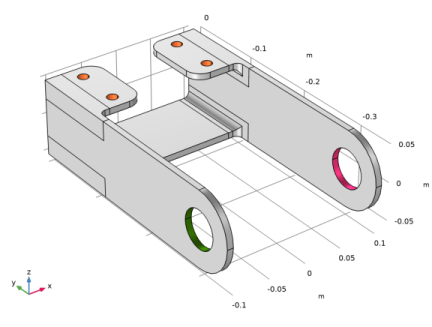
The geometry is shown in Figure 1.
Figure 1: Bracket geometry.
In this analysis, the mounting bolts are assumed to be fixed and securely bonded to the bracket. To model the external load from the pin, you specify a surface load p with a trigonometric distribution on the inner surfaces of the two holes:
where P0 is the peak load intensity. The main direction of the load is defined by θ0, the angle from the y-axis. The load on the two holes acts in opposite directions. The orientation of the load is controlled by a local coordinate system with axis directions generated using the sweep parameter theta0.
Results
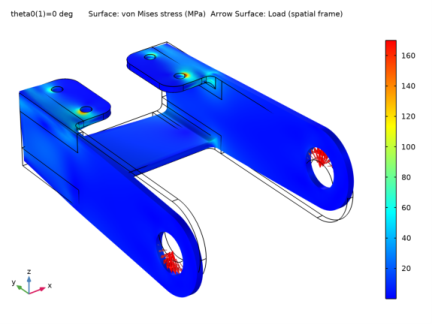
Figure 2 shows the von Mises stress distribution corresponding to a bending load case, where the load acts in the positive z direction in the left arm and in the negative z direction in the right arm.
Figure 2: Von Mises stress in a bending load case (parameter theta0 = 0°).
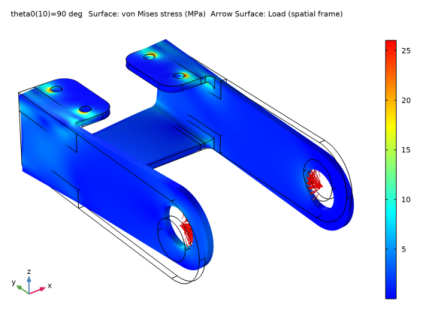
Figure 3 shows the von Mises stress distribution corresponding of a tensile load in the right arm and a compressive load in the left arm. The maximum von Mises stress value is lower in this case. A stress concentration can be seen also around the hole in the arm which is in tension.
Figure 3: Von Mises stress in a tensile and compressive load case (parameter theta0 = 90°).
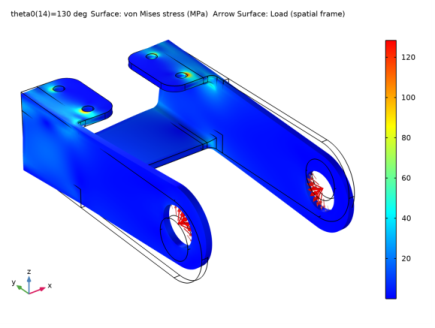
Figure 4 shows the von Mises stress distribution corresponding to a load orientation of 130°.
Figure 4: Von Mises stress for parameter theta0 = 130°.
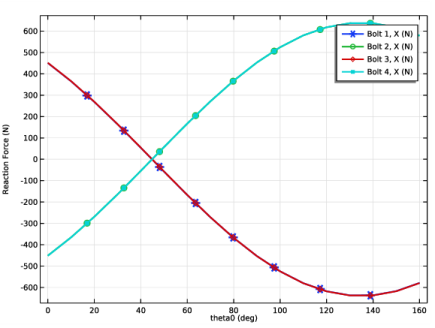
Figure 5 shows that the x-component of the reaction force in all bolts for all load cases.
Figure 5: Reaction forces (x-component) as a function of angle.
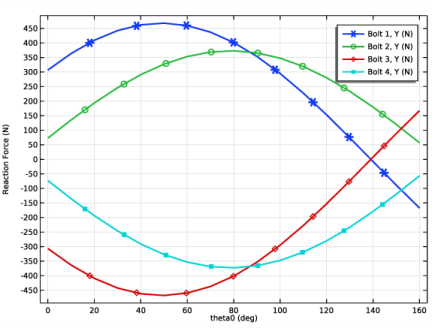
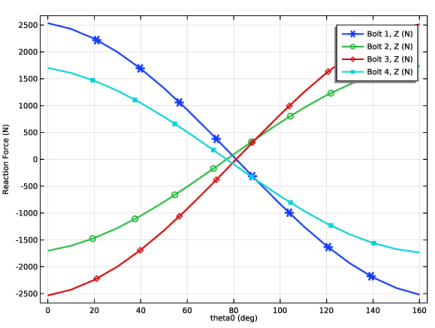
Figure 6 shows the y-component and Figure 7 shows the z-component of the reaction force in all bolts for all load cases.
Figure 6: Reaction forces (y-component) as a function of angle.
Figure 7: Reaction forces (z-component) as a function of load angle.
Notes About the COMSOL Implementation
COMSOL Multiphysics has two ways to perform parametric studies — using either a Parametric Sweep node or the Auxiliary sweep from the Stationary Solver node. In this example, either method can be used. An Auxiliary sweep is used here, but the continuation solver is not used. The continuation solver uses the solution from the previous parameter as an initial guess to calculate the current parameter value, which is the preferred option for nonlinear problems. Using the Parametric Sweep node is necessary for applications requiring, for example, geometric parameterization.
Application Library path: Structural_Mechanics_Module/Tutorials/bracket_parametric
Parametric studies can be set up from scratch or, as in this example, added to an existing study.
From the File menu, choose Open.
Browse to the model’s Application Libraries folder and double-click the file bracket_static.mph.
Results
Stress (solid)
Click the  Zoom Extents button in the Graphics toolbar.
Global Definitions
In this model, the stress in the bracket is computed for different load orientations. First add a parameter to set the load direction angle.
Parameters 1
1
In the Model Builder window, under Global Definitions click Parameters 1.
2
In the Settings window for Parameters, locate the Parameters section.
3
Definitions
You will now create a local coordinate system that will rotate with the load orientation.
Cylindrical System 2 (sys2)
1
In the Model Builder window, expand the Component 1 (comp1) node.
2
Right-click Component 1 (comp1)>Definitions and choose Coordinate Systems>Cylindrical System.
3
In the Settings window for Cylindrical System, locate the Settings section.
4
Find the Origin subsection. In the table, enter the following settings:
5
Find the Longitudinal axis subsection. In the table, enter the following settings:
6
Find the Direction of axis φ=0 subsection. In the table, enter the following settings:
Analytic 1 (load)
Change the expression for the load distribution.
1
In the Model Builder window, click Analytic 1 (load).
2
In the Settings window for Analytic, locate the Definition section.
3
In the Expression text field, type F*cos(p).
4
In the Arguments text field, type F, p.
5
Locate the Units section. In the Arguments text field, type Pa, rad.
Solid Mechanics (solid)
Change the boundary loads to consider the parameterized direction.
Boundary Load 1
1
In the Model Builder window, expand the Component 1 (comp1)>Solid Mechanics (solid) node, then click Boundary Load 1.
2
In the Settings window for Boundary Load, locate the Coordinate System Selection section.
3
From the Coordinate system list, choose Cylindrical System 2 (sys2).
4
Locate the Force section. Specify the FA vector as
Study 1
Add an auxiliary sweep parameter, and compute the results.
Step 1: Stationary
1
In the Model Builder window, expand the Study 1 node, then click Step 1: Stationary.
2
In the Settings window for Stationary, click to expand the Study Extensions section.
3
Select the Auxiliary sweep check box.
4
5
6
From the Run continuation for list, choose No parameter.
7
In the Home toolbar, click  Compute.
Results
Stress (solid)
The default plot shows the solution for the last parameter value (160[deg]). You can easily change the parameter value to display the plot and then compare solutions for different load cases.
The following instructions reproduce Figure 2 to Figure 4.
1
In the Settings window for 3D Plot Group, click  Plot First.
2
Locate the Data section. From the Parameter value (theta0 (deg)) list, choose 90.
3
In the Stress (solid) toolbar, click  Plot.
4
From the Parameter value (theta0 (deg)) list, choose 130.
5
In the Stress (solid) toolbar, click  Plot.
6
Click the  Zoom Extents button in the Graphics toolbar.
Evaluation Group: Reactions
You will now create a plot showing how the reaction forces vary with the load angle.
1
In the Model Builder window, click Evaluation Group: Reactions.
2
In the Evaluation Group: Reactions toolbar, click  Evaluate.
Table
1
Go to the Table window.
2
Click Table Graph in the window toolbar.
Results
Reaction Force, X-component
1
In the Model Builder window, under Results click 1D Plot Group 5.
2
In the Settings window for 1D Plot Group, type Reaction Force, X-component in the Label text field.
3
Locate the Plot Settings section. Select the y-axis label check box.
4
Table Graph 1
1
In the Model Builder window, click Table Graph 1.
2
In the Settings window for Table Graph, locate the Data section.
3
From the Plot columns list, choose Manual.
4
In the Columns list, choose Bolt 1, X (N), Bolt 2, X (N), Bolt 3, X (N), and Bolt 4, X (N).
5
Locate the Coloring and Style section. In the Width text field, type 2.
6
Find the Line markers subsection. From the Marker list, choose Cycle.
7
Click to expand the Legends section. Select the Show legends check box.
8
In the Reaction Force, X-component toolbar, click  Plot to show Figure 5.
Reaction Force, Y-component
1
In the Model Builder window, right-click Reaction Force, X-component and choose Duplicate.
2
In the Model Builder window, click Reaction Force, X-component 1.
3
In the Settings window for 1D Plot Group, type Reaction Force, Y-component in the Label text field.
Table Graph 1
1
In the Model Builder window, click Table Graph 1.
2
In the Settings window for Table Graph, locate the Data section.
3
In the Columns list, choose Bolt 1, Y (N), Bolt 2, Y (N), Bolt 3, Y (N), and Bolt 4, Y (N).
4
In the Reaction Force, Y-component toolbar, click  Plot to show Figure 6.
Reaction Force, Z-component
1
In the Model Builder window, right-click Reaction Force, Y-component and choose Duplicate.
2
In the Model Builder window, click Reaction Force, Y-component 1.
3
In the Settings window for 1D Plot Group, type Reaction Force, Z-component in the Label text field.
Table Graph 1
1
In the Model Builder window, click Table Graph 1.
2
In the Settings window for Table Graph, locate the Data section.
3
In the Columns list, choose Bolt 1, Z (N), Bolt 2, Z (N), Bolt 3, Z (N), and Bolt 4, Z (N).
4
In the Reaction Force, Z-component toolbar, click  Plot to show Figure 7.