You are viewing the documentation for an older COMSOL version. The latest version is available here.
PDF

Block Pressing on Arch
Introduction
This conceptual example shows how to calculate critical points in models with contact. The model consists of a block modeled with the Solid Mechanics interface pressing on an arch modeled with the Shell interface and also exemplifies how to model the contact between a shell and a solid. During loading, the arch exhibits a snap-through behavior. The definition of the problem is based on a benchmark example from Ref. 1.
Model Definition
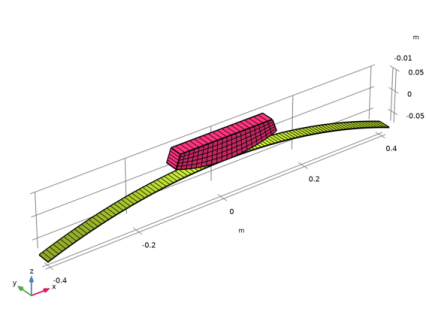
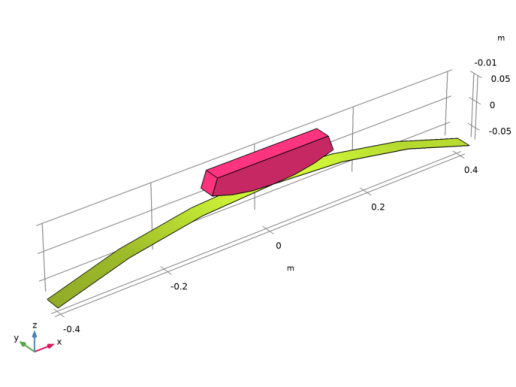
The model geometry consists of an arch and a block as shown in Figure 1. Since the arch is modeled with the Shell interface, a 3D geometry is used. However, a 2D plane strain behavior is intended, and consequently symmetry conditions are applied to all boundaries and edges in the y direction to suppress any out-of-plane deformation.
Figure 1: Model geometry
Only contact without friction is considered and the augmented Lagrangian contact method is used.
A boundary load is applied the top surface of the block. Its magnitude is controlled by the monotonically increasing deflection of the arch, which makes it possible to track the entire load path, even though the force does not increase monotonically. The ends of the arch are fixed and the displacement of the block is constrained in the x direction.
Results and Discussion
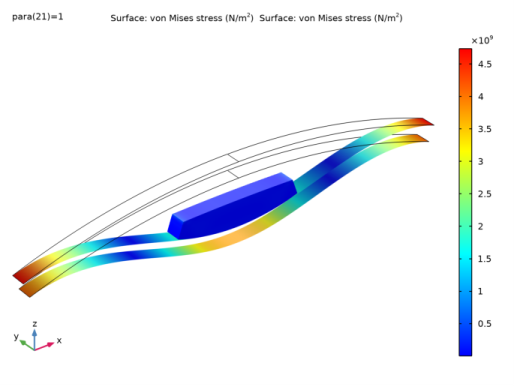
Figure 2 depicts the deformed shape and the von Mises stress distribution at the last step of the simulation. The snap-through of the arch is clearly observed. The arch is represented by a shell dataset that shows both its top and bottom surface.
Figure 2: Deformation and von Mises stress at the final step.
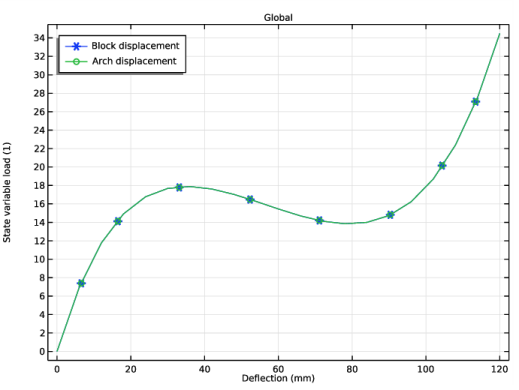
The load versus deflection curve is shown in Figure 3. The load is in the figure represented by a dimensionless load factor. Two limit points can be observed, the first occurs for a load factor equal to 18 and a deflection of 36 mm. At this point the arch becomes unstable and a snap-through occurs. When the deflection of the arch reaches 80 mm, the load factor has decreased to 14. At this point the second limit point is reached, and the arch finds a new stable configuration. After this point the load factor increases with increasing deflection.
Figure 3: Load versus deflection curve.
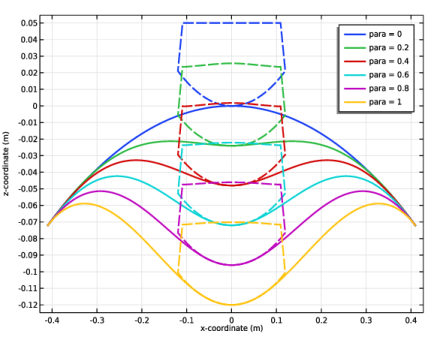
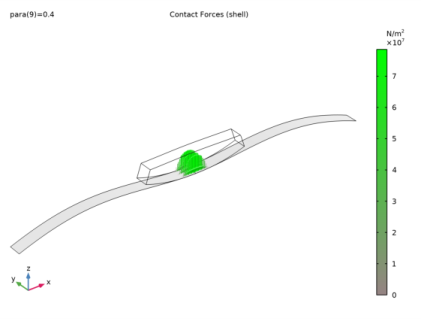
The progressive deformation of the block and the arch, including the snap-through of the arch, is shown in Figure 4 for six values of the continuation parameter. Figure 5 shows the contact pressure exerted by the block on the arch during the snap-through.
Figure 4: Deformation of the model for six different parameter values.
Figure 5: Contact pressure acting on the arch.
Notes About the COMSOL Implementation
When a Shell interface is used in a contact simulation, it is recommended that the destination boundary always belongs to the shell. Moreover, the contact definition should be made in the Shell interface. In this example, the block modeled with a Solid Mechanics interface is thus, in the Contact node, considered as external to the current physics.
Contact problems are often unstable in their initial configuration. To help the solver find an initial solution, a Spring Foundation is added to the otherwise unconstrained block during the first parameter step.
Modeling the post-critical behavior of a system is not possible by incrementally increasing the boundary load. The unstable behavior is even more pronounced when contact is present. To be able to find all limit points and to track the full load versus deflection curve, a displacement controlled load scheme is used by adding a Global Equation. Here, the magnitude of the boundary load is controlled through the monotonically increasing deflection of the arch. Alternatively, the vertical displacement could be prescribed on the top surface of the block, but this is a less general technique that fails for some cases. Also, a prescribed displacement would not give an evenly distributed load.
Reference
1. P. Wriggers, Computational Contact Mechanics, Springer-Verlag, 2006
Application Library path: Structural_Mechanics_Module/Verification_Examples/block_on_arch
Modeling Instructions
From the File menu, choose New.
New
In the New window, click  Model Wizard.
Model Wizard
1
In the Model Wizard window, click  3D.
2
In the Select Physics tree, select Structural Mechanics>Shell (shell).
3
Click Add.
4
In the Select Physics tree, select Structural Mechanics>Solid Mechanics (solid).
5
Click Add.
6
In the Displacement field text field, type u.
7
Click  Study.
8
In the Select Study tree, select General Studies>Stationary.
9
Global Definitions
Parameters 1
1
In the Model Builder window, under Global Definitions click Parameters 1.
2
In the Settings window for Parameters, locate the Parameters section.
3
Click  Load from File.
4
Geometry 1
Work Plane 1 (wp1)
1
In the Geometry toolbar, click  Work Plane.
2
In the Settings window for Work Plane, locate the Plane Definition section.
3
From the Plane list, choose xz-plane.
4
Click  Show Work Plane.
Work Plane 1 (wp1)>Circle 1 (c1)
1
In the Work Plane toolbar, click  Circle.
2
In the Settings window for Circle, locate the Object Type section.
3
From the Type list, choose Curve.
4
Locate the Size and Shape section. In the Radius text field, type R_arch.
5
In the Sector angle text field, type seg_arch.
6
Locate the Position section. In the yw text field, type -R_arch.
7
Locate the Rotation Angle section. In the Rotation text field, type 90-seg_arch/2.
8
Click  Build Selected.
9
Click the  Zoom Extents button in the Graphics toolbar.
Work Plane 1 (wp1)>Delete Entities 1 (del1)
1
In the Model Builder window, right-click Plane Geometry and choose Delete Entities.
2
On the object c1, select Boundaries 2 and 3 only.
Work Plane 1 (wp1)>Partition Edges 1 (pare1)
1
In the Work Plane toolbar, click  Booleans and Partitions and choose Partition Edges.
2
On the object del1, select Boundary 1 only.
Work Plane 1 (wp1)>Circle 2 (c2)
1
In the Work Plane toolbar, click  Circle.
2
In the Settings window for Circle, locate the Size and Shape section.
3
In the Radius text field, type R_block.
4
In the Sector angle text field, type seg_block.
5
Locate the Position section. In the yw text field, type R_block.
6
Locate the Rotation Angle section. In the Rotation text field, type -90-seg_block/2.
7
Click  Build Selected.
8
Click the  Zoom Extents button in the Graphics toolbar.
Work Plane 1 (wp1)>Rectangle 1 (r1)
1
In the Work Plane toolbar, click  Rectangle.
2
In the Settings window for Rectangle, locate the Size and Shape section.
3
In the Width text field, type R_block.
4
In the Height text field, type height_block.
5
Locate the Position section. In the xw text field, type -R_block/2.
6
Click  Build Selected.
Work Plane 1 (wp1)>Intersection 1 (int1)
1
In the Work Plane toolbar, click  Booleans and Partitions and choose Intersection.
2
Select the objects c2 and r1 only.
Work Plane 1 (wp1)
1
In the Model Builder window, click Work Plane 1 (wp1).
2
In the Settings window for Work Plane, locate the Unite Objects section.
3
Clear the Unite objects check box.
Extrude 1 (ext1)
1
In the Geometry toolbar, click  Extrude.
2
In the Settings window for Extrude, locate the Distances section.
3
4
Click  Build Selected.
5
Click the  Zoom Extents button in the Graphics toolbar.
Arch
1
In the Geometry toolbar, click  Selections and choose Explicit Selection.
2
In the Settings window for Explicit Selection, type Arch in the Label text field.
3
Locate the Entities to Select section. From the Geometric entity level list, choose Object.
4
Select the object ext1(1) only.
5
Locate the Color section. From the Color list, choose Color 4.
6
Click  Build Selected.
Block
1
Right-click Arch and choose Duplicate.
2
In the Settings window for Explicit Selection, type Block in the Label text field.
3
Locate the Entities to Select section. In the list, select ext1(1).
4
Select the object ext1(2) only.
5
Locate the Color section. From the Color list, choose Color 12.
Form Union (fin)
1
In the Model Builder window, under Component 1 (comp1)>Geometry 1 click Form Union (fin).
2
In the Settings window for Form Union/Assembly, locate the Form Union/Assembly section.
3
From the Action list, choose Form an assembly.
4
Click  Build Selected.
5
Click the  Zoom Extents button in the Graphics toolbar.
Materials
Material 1 (mat1)
1
In the Model Builder window, under Component 1 (comp1) right-click Materials and choose Blank Material.
2
In the Settings window for Material, locate the Material Contents section.
3
Material 2 (mat2)
1
Right-click Materials and choose Blank Material.
2
In the Settings window for Material, locate the Geometric Entity Selection section.
3
From the Geometric entity level list, choose Boundary.
4
From the Selection list, choose Arch.
5
Locate the Material Contents section. In the table, enter the following settings:
Definitions
Average 1 (aveop1)
1
In the Definitions toolbar, click  Nonlocal Couplings and choose Average.
2
In the Settings window for Average, locate the Source Selection section.
3
From the Geometric entity level list, choose Point.
4
Average 2 (aveop2)
1
Right-click Average 1 (aveop1) and choose Duplicate.
2
In the Settings window for Average, locate the Source Selection section.
3
Click  Clear Selection.
4
Variables 1
1
In the Model Builder window, right-click Definitions and choose Variables.
2
In the Settings window for Variables, locate the Variables section.
3
Contact Pair 1 (p1)
1
In the Definitions toolbar, click  Pairs and choose Contact Pair.
2
3
Click the  Go to Default View button in the Graphics toolbar.
4
In the Settings window for Pair, locate the Destination Boundaries section.
5
From the Selection list, choose Arch.
The destination boundary should be on a boundary modeled with the Shell interface.
Shell (shell)
1
In the Model Builder window, under Component 1 (comp1) click Shell (shell).
2
In the Settings window for Shell, locate the Boundary Selection section.
3
From the Selection list, choose Arch.
Thickness and Offset 1
1
In the Model Builder window, under Component 1 (comp1)>Shell (shell) click Thickness and Offset 1.
2
In the Settings window for Thickness and Offset, locate the Thickness and Offset section.
3
In the d text field, type d.
4
From the Offset definition list, choose Relative offset.
5
In the zreloffset text field, type -1.
Prescribed Displacement/Rotation 1
1
In the Physics toolbar, click  Edges and choose Prescribed Displacement/Rotation.
2
3
In the Settings window for Prescribed Displacement/Rotation, locate the Prescribed Displacement section.
4
Select the Prescribed in x direction check box.
5
Select the Prescribed in z direction check box.
6
Locate the Prescribed Rotation section. From the By list, choose Rotation.
Symmetry 1
1
In the Physics toolbar, click  Edges and choose Symmetry.
2
Contact 1
1
In the Physics toolbar, click  Pairs and choose Contact.
2
In the Settings window for Contact, locate the Pair Selection section.
3
Under Pairs, click  Add.
4
In the Add dialog box, select Contact Pair 1 (p1) in the Pairs list.
5
6
In the Settings window for Contact, locate the Contact Method section.
7
From the Formulation list, choose Augmented Lagrangian.
8
Locate the Contact Surface section. Select the Source external to current physics check box.
The source boundary is in the Solid Mechanics interface.
Solid Mechanics (solid)
In the Model Builder window, under Component 1 (comp1) click Solid Mechanics (solid).
Prescribed Displacement 1
1
In the Physics toolbar, click  Edges and choose Prescribed Displacement.
2
3
In the Settings window for Prescribed Displacement, locate the Prescribed Displacement section.
4
Select the Prescribed in x direction check box.
Symmetry 1
1
In the Physics toolbar, click  Boundaries and choose Symmetry.
2
Boundary Load 1
1
In the Physics toolbar, click  Boundaries and choose Boundary Load.
2
3
In the Settings window for Boundary Load, locate the Force section.
4
Specify the FA vector as
The dependent variable load will be created in the next step using a global equation.
5
Click the  Show More Options button in the Model Builder toolbar.
6
In the Show More Options dialog box, in the tree, select the check box for the node Physics>Equation-Based Contributions.
7
Global Equations 1
1
In the Physics toolbar, click  Global and choose Global Equations.
2
In the Settings window for Global Equations, locate the Global Equations section.
3
4
Locate the Units section. Click  Select Source Term Quantity.
5
In the Physical Quantity dialog box, type displacement in the text field.
6
Click  Filter.
7
In the tree, select General>Displacement (m).
8
Add a small spring stiffness to the block to stabilize the model during the initial step.
Spring Foundation 1
1
In the Physics toolbar, click  Domains and choose Spring Foundation.
2
In the Settings window for Spring Foundation, locate the Domain Selection section.
3
From the Selection list, choose Block.
4
Locate the Spring section. In the kV text field, type 1e3*(para<0.01).
Mesh 1
Mapped 1
1
In the Mesh toolbar, click  Boundary and choose Mapped.
2
In the Settings window for Mapped, locate the Boundary Selection section.
3
From the Selection list, choose Arch.
Distribution 1
1
Right-click Mapped 1 and choose Distribution.
2
3
In the Settings window for Distribution, locate the Distribution section.
4
In the Number of elements text field, type n_elem_arch.
Mapped 2
1
In the Mesh toolbar, click  Boundary and choose Mapped.
2
Distribution 1
1
Right-click Mapped 2 and choose Distribution.
2
3
In the Settings window for Distribution, locate the Distribution section.
4
In the Number of elements text field, type n_elem_block.
Distribution 2
1
In the Model Builder window, right-click Mapped 2 and choose Distribution.
2
Swept 1
1
In the Mesh toolbar, click  Swept.
2
In the Model Builder window, right-click Mesh 1 and choose Build All.
3
Click the  Zoom Extents button in the Graphics toolbar.
Study 1
Step 1: Stationary
1
In the Model Builder window, under Study 1 click Step 1: Stationary.
2
In the Settings window for Stationary, click to expand the Study Extensions section.
3
Select the Auxiliary sweep check box.
4
5
Solution 1 (sol1)
1
In the Study toolbar, click  Show Default Solver.
2
In the Model Builder window, expand the Solution 1 (sol1) node, then click Stationary Solver 1.
3
In the Settings window for Stationary Solver, locate the General section.
4
In the Relative tolerance text field, type 0.0005.
5
In the Model Builder window, expand the Study 1>Solver Configurations>Solution 1 (sol1)>Dependent Variables 1 node, then click State variable load (comp1.ODE1).
6
In the Settings window for State, locate the Scaling section.
7
From the Method list, choose Manual.
8
In the Model Builder window, expand the Study 1>Solver Configurations>Solution 1 (sol1)>Stationary Solver 1>Segregated 1 node, then click Shell.
9
In the Settings window for Segregated Step, locate the General section.
10
Under Variables, click  Add.
11
In the Add dialog box, select State variable load (comp1.ODE1) in the Variables list.
12
13
In the Model Builder window, under Study 1>Solver Configurations>Solution 1 (sol1)>Stationary Solver 1>Segregated 1 right-click Solid Mechanics and choose Delete.
Structural mechanics interfaces should be solved in a single segregated step.
14
In the Study toolbar, click  Compute.
Results
Surface 2
1
In the Model Builder window, expand the Stress (shell) node.
2
Right-click Results>Stress (shell)>Surface 1 and choose Duplicate.
3
In the Settings window for Surface, locate the Data section.
4
From the Dataset list, choose Study 1/Solution 1 (sol1).
5
From the Solution parameters list, choose From parent.
6
Locate the Expression section. In the Expression text field, type solid.mises.
7
Click to expand the Inherit Style section. From the Plot list, choose Surface 1.
8
In the Stress (shell) toolbar, click  Plot.
9
Click the  Show Grid button in the Graphics toolbar.
10
Click the  Zoom Extents button in the Graphics toolbar.
Contact Forces (shell)
1
In the Model Builder window, click Contact Forces (shell).
2
In the Settings window for 3D Plot Group, locate the Data section.
3
From the Parameter value (para) list, choose 0.4.
Contact 1, Pressure
1
In the Model Builder window, expand the Contact Forces (shell) node, then click Contact 1, Pressure.
2
In the Settings window for Arrow Surface, locate the Coloring and Style section.
3
Select the Scale factor check box.
4
Selection 1
1
In the Model Builder window, expand the Results>Contact Forces (shell)>Gray Surfaces node, then click Selection 1.
2
3
In the Settings window for Selection, locate the Selection section.
4
From the Selection list, choose Arch.
5
In the Contact Forces (shell) toolbar, click  Plot.
Animation 1
1
In the Contact Forces (shell) toolbar, click  Animation and choose Player.
2
In the Settings window for Animation, locate the Frames section.
3
From the Frame selection list, choose All.
4
Right-click Animation 1 and choose Play.
Load vs. Deflection
1
In the Home toolbar, click  Add Plot Group and choose 1D Plot Group.
2
In the Settings window for 1D Plot Group, type Load vs. Deflection in the Label text field.
Global 1
1
Right-click Load vs. Deflection and choose Global.
2
In the Settings window for Global, locate the y-Axis Data section.
3
4
Locate the x-Axis Data section. From the Parameter list, choose Expression.
5
In the Expression text field, type load.
6
Click to expand the Coloring and Style section. Find the Line markers subsection. From the Marker list, choose Cycle.
Load vs. Deflection
1
In the Model Builder window, click Load vs. Deflection.
2
In the Settings window for 1D Plot Group, locate the Plot Settings section.
3
Select the Flip the x- and y-axes check box.
4
Locate the Legend section. From the Position list, choose Upper left.
5
Locate the Plot Settings section. Select the x-axis label check box.
6
7
In the Load vs. Deflection toolbar, click  Plot.
Deformation
1
In the Home toolbar, click  Add Plot Group and choose 1D Plot Group.
2
In the Settings window for 1D Plot Group, type Deformation in the Label text field.
3
Locate the Data section. From the Parameter selection (para) list, choose Manual.
4
In the Parameter indices (1-21) text field, type range(1,4,21).
5
Click to expand the Title section. From the Title type list, choose None.
Line Graph 1
1
Right-click Deformation and choose Line Graph.
2
3
In the Settings window for Line Graph, locate the y-Axis Data section.
4
In the Expression text field, type z.
5
Locate the x-Axis Data section. From the Parameter list, choose Expression.
6
In the Expression text field, type x.
7
Click to expand the Coloring and Style section. In the Width text field, type 2.
Line Graph 2
1
Right-click Line Graph 1 and choose Duplicate.
2
In the Settings window for Line Graph, locate the Selection section.
3
Select the  Activate Selection toggle button.
4
5
Locate the Coloring and Style section. Find the Line style subsection. From the Line list, choose Dashed.
6
From the Color list, choose Cycle (reset).
Line Graph 1
1
In the Model Builder window, click Line Graph 1.
2
In the Settings window for Line Graph, click to expand the Legends section.
3
Select the Show legends check box.
4
Find the Include subsection. In the Prefix text field, type para = .
5
In the Deformation toolbar, click  Plot.
Stress (shell)
Click the  Zoom Extents button in the Graphics toolbar.