You are viewing the documentation for an older COMSOL version. The latest version is available here.
PDF

Fast Modeling of a Transmission Line Low-Pass Filter
Introduction
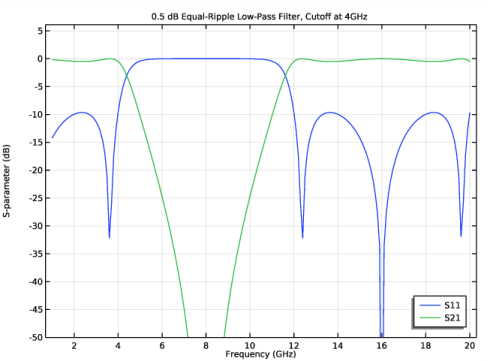
One way to design a filter is to utilize the element values of well-known filter prototypes such as maximally flat or equal-ripple low-pass filters. It is easier to fabricate a distributed element filter on a microwave substrate than a lumped element filter since it is cumbersome to find off-the-shelf capacitors and inductors exactly matched to the frequency-scaled element values of the filter prototype. This example demonstrates the design process of a distributed element filter using Richard’s transformation, Kuroda’s identity, and the Transmission Line physics interface. This approach is very fast compared to solving Maxwell’s equations in 3D. The model simulates a three-element 0.5 dB equal-ripple low-pass filter that has a cutoff frequency at 4 GHz. The resulting S-parameter plot shows a low-pass frequency response that is also periodically observed at higher frequency range.
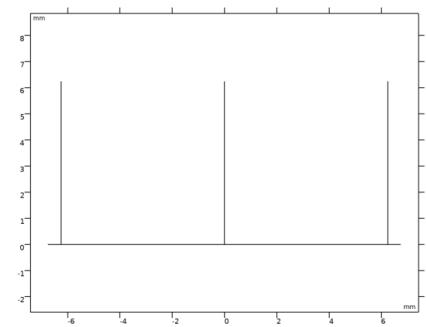
Figure 1: Microstrip low-pass filter circuit. The impedance for each unit length (0.125 wavelengths) stub is calculated from the element values of a three element 0.5 dB equal-ripple low-pass filter.
Model Definition
The modeling process of a low-pass filter can be summarized as
Scale the impedance of stubs by the reference characteristic impedance (50 Ω) and set the length of stubs to 0.125 wavelengths defined by the cutoff frequency.
Ref. 1 provides the element values for a 0.5 dB equal-ripple low-pass filter. The element values for a three element prototype are also shown in Table 1.
g1
g2
g3
g4
These values are unscaled inductance and capacitance in a lumped element circuit that need to be converted to distributed elements. Richard’s transformation converts an inductor to a short-circuited stub and a capacitor to an open-circuited stub, respectively. The model is based on a three element prototype beginning with a series inductor. Two series inductors are transformed to series stubs and one shunt capacitor is transformed to a shunt stub. The normalized impedance of the open-circuited stub is the same as the lumped element value of the inductor (Equation 1) and that for the short-circuited stub is the inverse of the lumped element value of the capacitor (Equation 2).
(1)
(2)
The short-circuited series stub is not easily realizable as a microstrip circuit so it has to be transformed again using Kuroda’s identity that will convert a short-circuited series to an open-circuited shunt stub. A unit length (0.125 wavelengths) transmission line element must be added at each end of the input and output of the filter before applying Kuroda’s identity. During this transformation, the impedance of the stub and an additional unit length microstrip line element is scaled by n2 (Equation 3).
(3)
(4)
(5)
The location of the converted open-circuited stub and the added unit length microstrip line element is swapped to complete the filter geometry. Finally, the impedance is scaled by the reference characteristic impedance, 50 Ω.
Figure 2: The three element filter design using lumped element prototype element values.
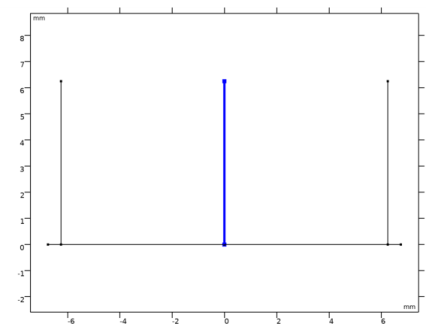
The filter geometry is built with six lines (Bézier polygons) on a two-dimensional space. The properties of each line representing a microstrip line with a different characteristic impedance are configured by Transmission Line Equation features.
The transmission line parameters for a 50 Ω microstrip line built on a 20 mil lossless substrate with permittivity εr = 3.38 and 1 oz copper can be calculated accurately from Ref. 2.
The contribution of the distributed resistance on the insertion loss with the given substrate properties is less than 0.05 dB. To make the modeling steps simpler in this example, the approximated parameter values in Table 3 are used for a 50 Ω microstrip line.
Ω/m
Other transmission line parameters with different characteristic impedance values are adjusted using the normalized impedance. The distributed inductance is proportionally scaled and the distributed capacitance is inversely scaled by the normalized impedance of the microstrip line.
Results and Discussion
The S-parameters, S11 and S21, of the low-pass filter are plotted in Figure 3. The cutoff is shown at the intended frequency of 4 GHz. The ripple of S21 is 0.5 dB.
Figure 3: The frequency response of the 0.5dB equal-ripple low-pass filter.
The passband is observed again at the frequency of 12 GHz. It is a distributed element filter, so the frequency response is periodic.
References
1. D.M. Pozar, Microwave Engineering, John Wiley & Sons, 1998.
2. COMSOL Application Gallery, “Transmission Line Parameter Calculator”, https://www.comsol.com/model/transmission-line-parameter-calculator-22351
Application Library path: RF_Module/Filters/transmission_line_lpf
Model Instructions
From the File menu, choose New.
New
In the New window, click  Model Wizard.
Model Wizard
1
In the Model Wizard window, click  2D.
2
In the Select Physics tree, select Radio Frequency>Transmission Line (tl).
3
Click Add.
4
Click  Study.
5
In the Select Study tree, select General Studies>Frequency Domain.
6
Global Definitions
Parameters 1
1
In the Model Builder window, under Global Definitions click Parameters 1.
2
In the Settings window for Parameters, locate the Parameters section.
3
Click  Load from File.
4
Geometry 1
1
In the Model Builder window, under Component 1 (comp1) click Geometry 1.
2
In the Settings window for Geometry, locate the Units section.
3
From the Length unit list, choose mm.
Line Segment 1 (ls1)
1
In the Geometry toolbar, click  More Primitives and choose Line Segment.
2
In the Settings window for Line Segment, locate the Starting Point section.
3
From the Specify list, choose Coordinates.
4
Locate the Endpoint section. From the Specify list, choose Coordinates.
5
Locate the Starting Point section. In the x text field, type -ul-0.5.
6
Locate the Endpoint section. In the x text field, type ul+0.5.
Line Segment 2 (ls2)
1
In the Geometry toolbar, click  More Primitives and choose Line Segment.
2
In the Settings window for Line Segment, locate the Starting Point section.
3
From the Specify list, choose Coordinates.
4
Locate the Endpoint section. From the Specify list, choose Coordinates.
5
Locate the Starting Point section. In the x text field, type -ul.
6
Locate the Endpoint section. In the x text field, type -ul.
7
In the y text field, type ul.
Line Segment 3 (ls3)
1
In the Geometry toolbar, click  More Primitives and choose Line Segment.
2
In the Settings window for Line Segment, locate the Starting Point section.
3
From the Specify list, choose Coordinates.
4
Locate the Endpoint section. From the Specify list, choose Coordinates.
5
In the y text field, type ul.
Line Segment 4 (ls4)
1
In the Geometry toolbar, click  More Primitives and choose Line Segment.
2
In the Settings window for Line Segment, locate the Starting Point section.
3
From the Specify list, choose Coordinates.
4
Locate the Endpoint section. From the Specify list, choose Coordinates.
5
Locate the Starting Point section. In the x text field, type ul.
6
Locate the Endpoint section. In the x text field, type ul.
7
In the y text field, type ul.
8
In the Geometry toolbar, click  Build All.
9
Click the  Zoom Extents button in the Graphics toolbar.
Transmission Line (tl)
Lumped Port 1
1
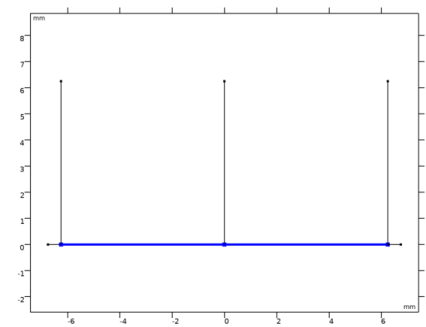
In the Model Builder window, under Component 1 (comp1) right-click Transmission Line (tl) and choose Lumped Port.
2
3
In the Settings window for Lumped Port, locate the Port Properties section.
4
From the Wave excitation at this port list, choose On.
Lumped Port 2
1
In the Physics toolbar, click  Points and choose Lumped Port.
2
Transmission Line Equation 1
Set the input parameters of the transmission line that are configured for 50Ω.
1
In the Model Builder window, click Transmission Line Equation 1.
2
In the Settings window for Transmission Line Equation, locate the Transmission Line Equation section.
3
In the L text field, type L0.
4
In the C text field, type C0.
Transmission Line Equation 2
1
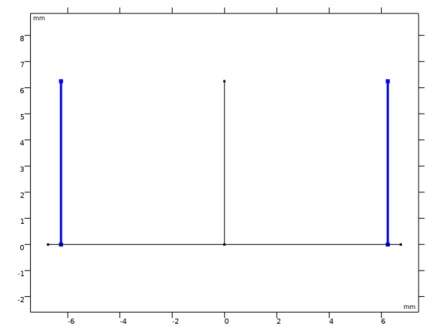
In the Physics toolbar, click  Boundaries and choose Transmission Line Equation.
2
3
In the Settings window for Transmission Line Equation, locate the Transmission Line Equation section.
4
In the L text field, type L0*z1_1.
5
In the C text field, type C0/z1_1.
The input parameters are scaled by the normalized impedance for 129.82Ω.
Transmission Line Equation 3
1
In the Physics toolbar, click  Boundaries and choose Transmission Line Equation.
2
3
In the Settings window for Transmission Line Equation, locate the Transmission Line Equation section.
4
In the L text field, type L0*z1_2.
5
In the C text field, type C0/z1_2.
The input parameters are scaled by the normalized impedance for 81.32Ω.
Transmission Line Equation 4
1
In the Physics toolbar, click  Boundaries and choose Transmission Line Equation.
2
3
In the Settings window for Transmission Line Equation, locate the Transmission Line Equation section.
4
In the L text field, type L0*z2.
5
In the C text field, type C0/z2.
The input parameters are scaled by the normalized impedance for 42.592Ω.
Study 1
Step 1: Frequency Domain
1
In the Model Builder window, under Study 1 click Step 1: Frequency Domain.
2
In the Settings window for Frequency Domain, locate the Study Settings section.
3
In the Frequencies text field, type range(1[GHz],0.1[GHz],20[GHz]).
4
In the Home toolbar, click  Compute.
Results
Line Graph
1
In the Model Builder window, expand the 2D Plot Group 1 node, then click Line Graph.
2
In the 2D Plot Group 1 toolbar, click  Plot.
2D Plot Group 1
1
In the Model Builder window, click 2D Plot Group 1.
2
In the Settings window for 2D Plot Group, locate the Data section.
3
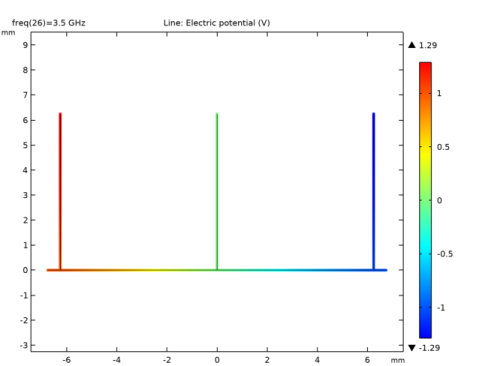
From the Parameter value (freq (GHz)) list, choose 3.5.
4
In the 2D Plot Group 1 toolbar, click  Plot.
This is the voltage plot at 3.5 GHz that is inside the passband.
S-parameter (tl)
1
In the Model Builder window, click S-parameter (tl).
2
In the Settings window for 1D Plot Group, click to expand the Title section.
3
From the Title type list, choose Manual.
4
In the Title text area, type 0.5 dB Equal-Ripple Low-Pass Filter, Cutoff at 4GHz.
5
Locate the Axis section. Select the Manual axis limits check box.
6
In the y minimum text field, type -50.
7
Locate the Legend section. From the Position list, choose Lower right.
Compare the resulting plot with that shown in Figure 3.