
You are viewing the documentation for an older COMSOL version. The latest version is available here.
PDF

Particle Trajectories in a Laminar Static Mixer
Introduction
In static mixers, also called motionless or in-line mixers, a fluid is pumped through a pipe containing stationary blades. This mixing technique is particularly well suited for laminar flow mixing because it generates only small pressure losses in this flow regime. This example studies the flow in a twisted-blade static mixer. It evaluates the mixing performance by calculating the trajectory of suspended particles through the mixer.
Model Definition
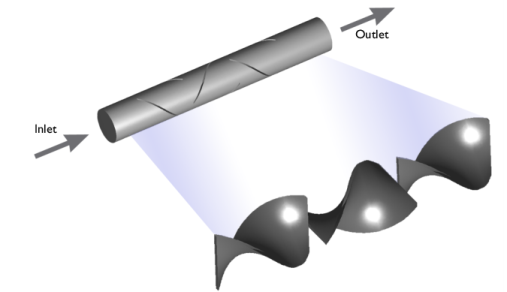
This model studies the mixing of particles (the discrete phase) in a channel containing water (the continuous phase) at room temperature. The geometry consists of a tube with three fixed, twisted blades of alternating rotations (Figure 1).
Figure 1: Depiction of a laminar static mixer containing three blades with alternating rotations.
The tube’s radius, ra, is 3 mm, the length is 14ra, and the length of each blade is 3ra. At the Inlet, a Poiseuille flow is specified with an average velocity of 1 cm/s. At the Outlet, a uniform pressure of 0 Pa (relative to atmosphere) is specified.
The Laminar Flow interface is used to solve for the fluid velocity and pressure:
where
μ is the dynamic viscosity (SI unit: kg/(m·s)),
u is the fluid velocity (SI unit: m/s),
ρ is the fluid density (SI unit: kg/m3), and
p is the pressure (SI unit: Pa).
The motion of small particles in a fluid is governed by Newton’s second law,
where
q is the particle position (SI unit: m),
v is the particle velocity (SI unit: m/s),
mp is the particle mass (SI unit: kg), and
Ft is the total force (SI unit: N).
This equation can be solved using a set of second-order equations for the position vector components, or two sets of coupled first-order equations for the position and velocity components. However, in this example, a simplifying assumption is used to solve a single set of first-order equations instead.
In this example the total force is dominated by the Drag Force FD (SI unit: N). Because the particles are very small and the particle velocity relative to the fluid is not too large, the Stokes drag law is applicable,
where
u (SI unit: m/s) is the fluid velocity,
μ (SI unit: Pa s) is the fluid dynamic viscosity, and
dp (SI unit: m) is the particle diameter.
In this example, the particle diameter is 0.5 μm and the surrounding fluid has a dynamic viscosity of μ = 10-3 Pa s.
Time Scales in Inertial Particle Tracing
The characteristic time scale for a particle to accelerate due to the Stokes drag is
In this example, the particle density is ρp = 2200 kg/m3. Thus the characteristic time scale, sometimes called the particle velocity response time or the Lagrangian time scale, is about τp = 30 ns. In comparison, the fastest particles in this model take about 2 s to reach the outlet. Furthermore, the time at which a given particle might encounter a significant fluid velocity gradient is not known a priori, and this time is likely to differ for all particles. It would therefore take something on the order of 100 million timesteps to fully resolve the acceleration of particles in the nonuniform velocity field. This would be a very time-consuming way to model such a simple particle-laden flow.
A less computationally expensive approach is to use the first-order formulation called Newtonian, ignore inertial terms in the Particle Tracing for Fluid Flow interface. In this formulation, the particle velocity is assigned at each timestep such that the net force on each particle is zero. In this example, the only force on each particle is the Drag Force, so the particle velocity is automatically defined such that FD = 0. This recovers the trivial solution of tracer particles that follow fluid streamlines, u = v. If the model were later extended to include other forces, such as gravity, electromagnetic, or thermophoretic forces, then this formulation would assign the particle velocity so that the drag force on each particle was perfectly counterbalanced by the other applied forces.
Notes on COMSOL Implementation
There are 3000 particles released. The number density of released particles at the Inlet boundary is proportional to the fluid velocity at the inlet. This means that there are more particles released at the center of the boundary where the inlet velocity magnitude is highest and fewer particles released near the edges where the velocity magnitude is low.
The model is solved in two stages. First, the fluid velocity and pressure are solved for using a Stationary study step. Then the particle trajectories are computed using a Time Dependent study step. The solution from the Stationary study is used to define the fluid velocity for the purpose of exerting a Drag Force on the particles, but the presence of particles is not considered when modeling the fluid. This constitutes a unidirectional coupling, which is valid for sparse flows where the volume fraction of particles in the fluid is very small and the momentum imparted onto the fluid by the particles can be neglected.
Also note the following assumptions of the particle tracing implementation:
Results and Discussion
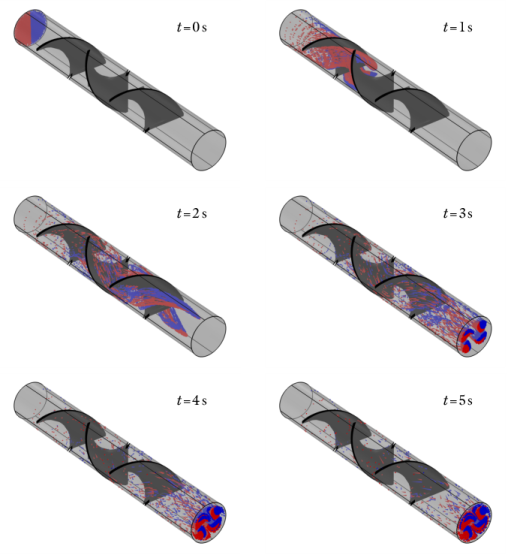
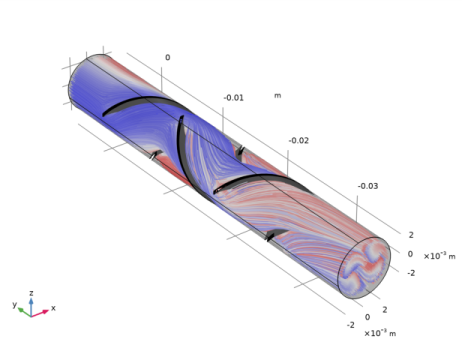
The particle trajectories are plotted in Figure 2. The color along the trajectories indicates the total shear rate at the particle position. Because of discretization error in the fluid velocity field, and because the Time Dependent solver to compute the particle positions uses discrete time steps, particles may occasionally hit one of the mixer blades or the outer boundary of the flow. In addition, some particles pass close enough to the mixing blades that the fluid velocity becomes extremely slow, so the particles don’t reach the outlet even by the final time in the study.
The transmission probability is the ratio of the number of particles that reach the outlet to the total number of particles released. In this example the transmission probability is computed by the Particle Counter feature, which records the number of particles that reach the Outlet and expresses it as a fraction of the total number of released particles.
For this specific configuration the transmission probability is about 0.80. This means that about 20% of the particles remain trapped in the mixer. If the study were run for more than 5 seconds then this transmission probability would gradually increase.
Figure 2: Particle positions in the mixer at different solution times. The comet tails indicate the particle velocity. The particles are colored red if they were released with initial position x < 0; otherwise they are colored blue.
Figure 3: Plot of the particle trajectories inside the laminar mixer. The color is the shear rate.
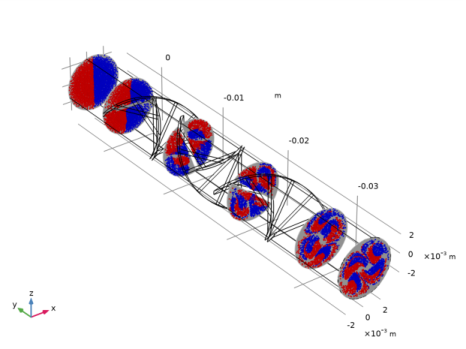
One useful way to visualize how the particles mix is to use a Poincaré Map plot. The Poincaré Map places a colored dot where each particle passes through a cut plane (also known as a Poincaré section). The Cut Plane dataset can easily be used to define a single Poincaré section or multiple parallel planes.
In Figure 4, the location of the particles at 6 Poincaré sections are shown. The color represents the location of the particle at its initial position. Particles colored red had an initial position of x < 0 and particles colored blue had an initial position of x > 0. The at operator is used to mark the particles with the color of their initial position. As the particles move downstream (in the negative y-direction), they begin to mix together.
By the end of the mixer, the particles have not yet mixed completely; there are still significant pockets of only red and only blue particles.
Figure 4: Poincaré maps of the particle trajectories at different Poincaré sections. The color is a logical expression indicating which particles had an initial position at x < 0.
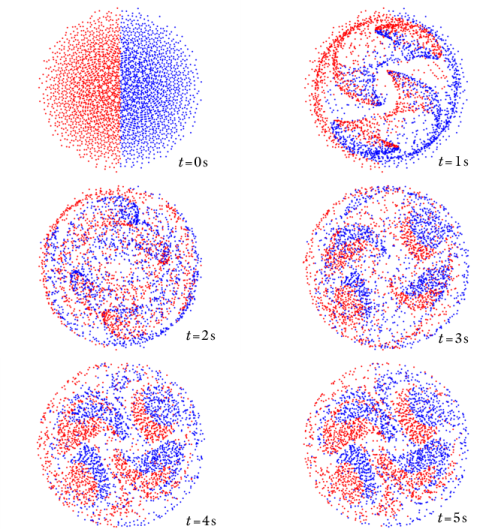
A Phase Portrait plot can also be used to visualize the mixing performance. A single Phase Portrait gives a snapshot of all particles at the same time whereas the Poincaré Map shows the intersection points of particles with a surface, even if these intersections occur at different times. The two axes in the phase portrait can be assigned any particle variables, and are often used to plot velocity or momentum versus position. In Figure 5 the horizontal axis represents the x-coordinates of the particles, and the vertical axis represents the z-coordinates of the particles. Phase portraits are given at 6 different solution times. At the final time (= 5 s) there are still pockets of exclusively blue or red particles, indicating the particles are not yet completely mixed.
Figure 5: Plot of the particle position in the xz-plane at different times. The red particles had an initial position of x < 0 and the blue particles had an initial position of x > 0.
Reference
1. R. Perry and D. Green, Perry’s Chemical Engineering Handbook, 7th ed., McGraw-Hill, 1997.
Application Library path: Particle_Tracing_Module/Fluid_Flow/laminar_mixer_particle
Modeling Instructions
From the File menu, choose New.
New
In the New window, click  Model Wizard.
Model Wizard
1
In the Model Wizard window, click  3D.
2
In the Select Physics tree, select Fluid Flow>Single-Phase Flow>Laminar Flow (spf).
3
Click Add.
4
Click  Study.
5
In the Select Study tree, select General Studies>Stationary.
6
Geometry 1
The mixer geometry is quite complicated so start by importing it from a file.
Import 1 (imp1)
1
In the Home toolbar, click  Import.
2
In the Settings window for Import, locate the Import section.
3
Click Browse.
4
5
Click Import.
Global Definitions
Parameters 1
1
In the Model Builder window, under Global Definitions click Parameters 1.
2
In the Settings window for Parameters, locate the Parameters section.
3
Add some explicit selections on the geometry. These will be useful during results processing.
Definitions
Outer Surfaces
1
In the Definitions toolbar, click  Explicit.
2
In the Settings window for Explicit, type Outer Surfaces in the Label text field.
3
Locate the Input Entities section. From the Geometric entity level list, choose Boundary.
4
Select the Group by continuous tangent check box.
5
Blade Surfaces
1
In the Definitions toolbar, click  Explicit.
2
In the Settings window for Explicit, type Blade Surfaces in the Label text field.
3
Locate the Input Entities section. From the Geometric entity level list, choose Boundary.
4
Select Boundaries 2–7, 9–18, 24–47, and 51–56 only. Instead of clicking so many outer boundaries individually, an easier approach is to use the Select box button on the Graphics toolbar. Selecting the Group by continuous tangent check box may also be helpful.
Materials
Material 1 (mat1)
1
In the Model Builder window, under Component 1 (comp1) right-click Materials and choose Blank Material.
2
In the Settings window for Material, locate the Material Contents section.
3
Laminar Flow (spf)
Now add an expression for the inflow velocity which is parabolic.
Inlet 1
1
In the Model Builder window, under Component 1 (comp1) right-click Laminar Flow (spf) and choose Inlet.
2
3
In the Settings window for Inlet, locate the Velocity section.
4
In the U0 text field, type 2*(1-(x^2+z^2)/Ra^2)*u_av.
The boundary condition which was just added was rather complicated but necessary to get a fully developed flow profile. The CFD, Microfluidics, and Plasma modules all have a special Laminar inflow boundary condition which ensures a fully developed flow profile at the inlet. It is not necessary to enter a complicated expression for the velocity profile, just the average velocity or flowrate.
Outlet 1
1
In the Physics toolbar, click  Boundaries and choose Outlet.
2
Mesh 1
The mesh needs to be quite fine to ensure that the particle motion is accurate through the modeling domain. In this case, take care to ensure that the mesh is fine on the mixing blades.
Free Triangular 1
1
In the Mesh toolbar, click  Boundary and choose Free Triangular.
2
Click the  Wireframe Rendering button in the Graphics toolbar.
3
Size 1
1
Right-click Free Triangular 1 and choose Size.
2
In the Settings window for Size, locate the Element Size section.
3
From the Calibrate for list, choose Fluid dynamics.
4
From the Predefined list, choose Extremely fine.
Size
1
In the Model Builder window, click Size.
2
In the Settings window for Size, locate the Element Size section.
3
From the Predefined list, choose Extremely fine.
4
Click the Custom button.
5
Locate the Element Size Parameters section. In the Curvature factor text field, type 0.15.
Free Triangular 2
1
In the Mesh toolbar, click  Boundary and choose Free Triangular.
2
Size 1
1
Right-click Free Triangular 2 and choose Size.
2
In the Settings window for Size, locate the Element Size section.
3
From the Calibrate for list, choose Fluid dynamics.
4
From the Predefined list, choose Extra fine.
Free Tetrahedral 1
1
In the Mesh toolbar, click  Free Tetrahedral.
2
In the Settings window for Free Tetrahedral, click  Build All.
Study 1
In the Home toolbar, click  Compute.
Results
Velocity (spf)
Now that the flow field has been computed, add the interface to compute the particle trajectories.
Add Physics
1
In the Home toolbar, click  Add Physics to open the Add Physics window.
2
Go to the Add Physics window.
3
In the tree, select Fluid Flow>Particle Tracing>Particle Tracing for Fluid Flow (fpt).
4
Find the Physics interfaces in study subsection. In the table, clear the Solve check box for Study 1.
5
Click Add to Component 1 in the window toolbar.
6
In the Home toolbar, click  Add Physics to close the Add Physics window.
Add Study
1
In the Home toolbar, click  Add Study to open the Add Study window.
2
Go to the Add Study window.
3
Find the Studies subsection. In the Select Study tree, select General Studies>Time Dependent.
4
Find the Physics interfaces in study subsection. In the table, clear the Solve check box for Laminar Flow (spf).
5
Click Add Study in the window toolbar.
6
In the Home toolbar, click  Add Study to close the Add Study window.
Particle Tracing for Fluid Flow (fpt)
1
In the Model Builder window, under Component 1 (comp1) click Particle Tracing for Fluid Flow (fpt).
2
In the Settings window for Particle Tracing for Fluid Flow, locate the Particle Release and Propagation section.
3
From the Formulation list, choose Newtonian, ignore inertial terms.
The drag force feature should get the fluid velocity field and viscosity from the Laminar flow interface.
Drag Force 1
1
In the Physics toolbar, click  Domains and choose Drag Force.
2
3
In the Settings window for Drag Force, locate the Drag Force section.
4
From the u list, choose Velocity field (spf).
5
From the μ list, choose Dynamic viscosity (spf/fp1).
6
Locate the Additional Terms section. Select the Include virtual mass and pressure gradient forces check box.
The goal is to release particles with a number density proportional to the magnitude of the fluid velocity.
Inlet 1
1
In the Physics toolbar, click  Boundaries and choose Inlet.
2
3
In the Settings window for Inlet, locate the Initial Position section.
4
From the Initial position list, choose Density.
5
In the N text field, type 3000.
6
In the ρ text field, type spf.U.
Particle Counter 1
1
In the Physics toolbar, click  Boundaries and choose Particle Counter.
2
3
In the Settings window for Particle Counter, locate the Particle Counter section.
4
From the Release feature list, choose Inlet 1.
Particle Properties 1
1
In the Model Builder window, click Particle Properties 1.
2
In the Settings window for Particle Properties, locate the Particle Properties section.
3
From the ρp list, choose User defined. In the dp text field, type 5E-7[m].
Study 2
Step 1: Time Dependent
1
In the Model Builder window, under Study 2 click Step 1: Time Dependent.
2
In the Settings window for Time Dependent, locate the Study Settings section.
3
Click  Range.
4
In the Range dialog box, type 0.2 in the Step text field.
5
In the Stop text field, type 5.
6
Click Replace.
7
In the Settings window for Time Dependent, locate the Study Settings section.
8
From the Tolerance list, choose User controlled.
9
In the Relative tolerance text field, type 1e-3.
10
Click to expand the Values of Dependent Variables section. Find the Values of variables not solved for subsection. From the Settings list, choose User controlled.
11
From the Method list, choose Solution.
12
From the Study list, choose Study 1, Stationary.
13
In the Home toolbar, click  Compute.
Results
Particle Trajectories (fpt)
1
In the Settings window for 3D Plot Group, locate the Color Legend section.
2
Clear the Show legends check box.
3
Click to expand the Title section. From the Title type list, choose None.
Surface 1
1
Right-click Particle Trajectories (fpt) and choose Surface.
2
In the Settings window for Surface, locate the Expression section.
3
In the Expression text field, type 1.
4
Locate the Coloring and Style section. From the Coloring list, choose Uniform.
5
From the Color list, choose Black.
Selection 1
1
Right-click Surface 1 and choose Selection.
2
In the Settings window for Selection, locate the Selection section.
3
From the Selection list, choose Blade Surfaces.
Surface 2
1
In the Model Builder window, right-click Particle Trajectories (fpt) and choose Surface.
2
In the Settings window for Surface, locate the Expression section.
3
In the Expression text field, type 1.
4
Locate the Coloring and Style section. From the Coloring list, choose Uniform.
5
From the Color list, choose Gray.
Selection 1
1
Right-click Surface 2 and choose Selection.
2
In the Settings window for Selection, locate the Selection section.
3
From the Selection list, choose Outer Surfaces.
Transparency 1
In the Model Builder window, right-click Surface 2 and choose Transparency.
Particle Trajectories 1
1
In the Settings window for Particle Trajectories, locate the Coloring and Style section.
2
Find the Point style subsection. From the Type list, choose Comet tail.
Color Expression 1
1
In the Model Builder window, expand the Particle Trajectories 1 node, then click Color Expression 1.
2
In the Settings window for Color Expression, locate the Expression section.
3
In the Expression text field, type at(0,qx<0).
4
Locate the Coloring and Style section. From the Color table list, choose WaveLight.
5
In the Particle Trajectories (fpt) toolbar, click  Plot.
6
Click the  Go to Default View button in the Graphics toolbar.
Particle Trajectories (fpt)
Select different values from the Time (s) list and then click the Plot button to display the particle positions at different times. The positions at six different output times are shown in Figure 2.
Particle Trajectories (fpt) 1
1
In the Model Builder window, right-click Particle Trajectories (fpt) and choose Duplicate.
2
Expand the Particle Trajectories (fpt) 1 node.
Particle Trajectories 1
1
In the Model Builder window, expand the Results>Particle Trajectories (fpt) 1>Particle Trajectories 1 node, then click Particle Trajectories 1.
2
In the Settings window for Particle Trajectories, locate the Coloring and Style section.
3
Find the Point style subsection. From the Type list, choose None.
4
Find the Line style subsection. From the Type list, choose Line.
Color Expression 1
1
In the Model Builder window, click Color Expression 1.
2
In the Settings window for Color Expression, locate the Expression section.
3
In the Expression text field, type at(0,qx).
4
In the Particle Trajectories (fpt) 1 toolbar, click  Plot. The resulting plot should look like Figure 3.
Global Evaluation 1
1
In the Results toolbar, click  Global Evaluation.
2
In the Settings window for Global Evaluation, locate the Data section.
3
From the Dataset list, choose Study 2/Solution 2 (sol2).
4
From the Time selection list, choose Last.
5
Click Replace Expression in the upper-right corner of the Expressions section. From the menu, choose Component 1 (comp1)>Particle Tracing for Fluid Flow>Particle Counter 1>fpt.pcnt1.alpha - Transmission probability.
6
Click  Evaluate.
Cut Plane 1
1
In the Results toolbar, click  Cut Plane.
2
In the Settings window for Cut Plane, locate the Data section.
3
From the Dataset list, choose Particle 1.
4
Locate the Plane Data section. From the Plane list, choose xz-planes.
5
In the y-coordinate text field, type 0.006.
6
Select the Additional parallel planes check box.
7
In the Distances text field, type 0.006 0.016 0.026 0.036 0.042.
8
Poincaré Maps
1
In the Results toolbar, click  3D Plot Group.
2
In the Settings window for 3D Plot Group, type Poincaré Maps in the Label text field.
3
Locate the Data section. From the Dataset list, choose Particle 1.
4
Locate the Title section. From the Title type list, choose None.
Poincaré Map 1
1
In the Poincaré Maps toolbar, click  More Plots and choose Poincaré Map.
2
In the Settings window for Poincaré Map, locate the Data section.
3
From the Cut plane list, choose Cut Plane 1.
4
Locate the Coloring and Style section. Select the Radius scale factor check box.
5
6
In the Poincaré Maps toolbar, click  Plot.
Color Expression 1
1
Right-click Poincaré Map 1 and choose Color Expression.
2
In the Settings window for Color Expression, locate the Expression section.
3
In the Expression text field, type at(0,qx<0).
4
Locate the Coloring and Style section. From the Color table list, choose WaveLight.
5
Clear the Color legend check box.
Surface 1
1
In the Model Builder window, right-click Poincaré Maps and choose Surface.
2
In the Settings window for Surface, locate the Data section.
3
From the Dataset list, choose Cut Plane 1.
4
Locate the Expression section. In the Expression text field, type 1.
5
Locate the Coloring and Style section. From the Coloring list, choose Uniform.
6
From the Color list, choose Gray.
7
In the Poincaré Maps toolbar, click  Plot.
8
Click the  Go to Default View button in the Graphics toolbar. The resulting plot should look like Figure 4.
Phase Portrait
1
In the Home toolbar, click  Add Plot Group and choose 2D Plot Group.
2
In the Settings window for 2D Plot Group, type Phase Portrait in the Label text field.
3
Locate the Plot Settings section. Clear the Plot dataset edges check box.
4
Locate the Data section. From the Dataset list, choose Particle 1.
Phase Portrait 1
1
In the Phase Portrait toolbar, click  More Plots and choose Phase Portrait.
2
In the Settings window for Phase Portrait, locate the Expression section.
3
From the x-axis list, choose Manual.
4
In the Expression text field, type comp1.qx.
5
From the y-axis list, choose Manual.
6
In the Expression text field, type comp1.qz.
Color Expression 1
1
Right-click Phase Portrait 1 and choose Color Expression.
2
In the Settings window for Color Expression, locate the Coloring and Style section.
3
Clear the Color legend check box.
4
Locate the Expression section. In the Expression text field, type at(0,qx<0).
5
Locate the Coloring and Style section. From the Color table list, choose WaveLight.
6
In the Phase Portrait toolbar, click  Plot.
Phase Portrait
1
In the Model Builder window, click Phase Portrait.
2
In the Settings window for 2D Plot Group, locate the Plot Settings section.
3
From the View list, choose View 2D 2.
4
Click  Go to Source.
View 2D 2
By default the Phase Portrait plot scales the coordinate axes so that the plot fits in the Graphics window. This is to ensure that the phase portrait is shown clearly even if the two axes correspond to quantities with vastly different orders of magnitude, like position and momentum. In the present case, both axes represent position components, so by selecting View 2D 2 a reasonable-looking 1:1 aspect ratio is enforced.
Phase Portrait
1
In the Model Builder window, expand the View 2D 2 node, then click Results>Phase Portrait.
2
In the Settings window for 2D Plot Group, locate the Data section.
3
From the Time (s) list, choose 0.
4
In the Phase Portrait toolbar, click  Plot.
5
Click the  Zoom Extents button in the Graphics toolbar.
Plot the phase portrait at different solution times by selecting values from the Time (s) list. The phase portraits at 1-second intervals are shown in Figure 5.