You are viewing the documentation for an older COMSOL version. The latest version is available here.
PDF

Shell Diffusion in a Tank
Introduction
A goal for many applications is to predict physics in thin structures, such as shells, without modeling the thickness of the structure. This is because large aspect ratios can cause meshing and geometry analysis problems. The model reported here demonstrates how to use the tangential derivative variables in COMSOL Multiphysics to solve partial differential equations in curved 3D shells and 2D boundaries without modeling their thickness.
Model Definition
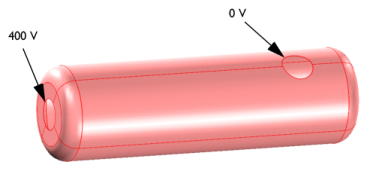
The steel tank shown below has two pipe connections. One is grounded and the other connects to a dead current source. This model calculates the current density in the tank shell along with the potential distribution across the surface.
Equations
The fundamental equation to solve is the current conduction, or charge conservation, equation.
(1)
Here, σ is the electrical conductivity (S/m) and V is the electric potential (V).
The material is a 1 mm thick steel sheet with a conductivity of 4.032·106 S/m. You are working with a surface in 3D so there is no thickness in the model. To account for the charge conservation in Equation 1 you must multiply the current flux expression with the shell thickness d:
(2)
Results
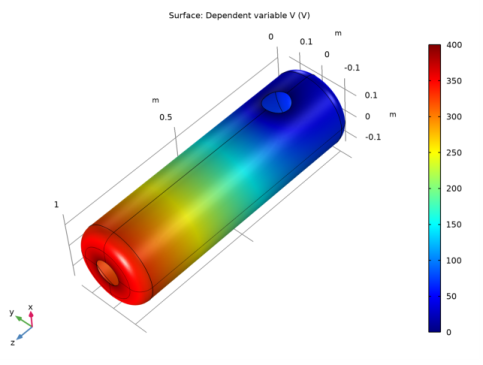
Figure 1 shows the potential distribution across the surface.
Figure 1: Electric potential distribution across the surface (V).
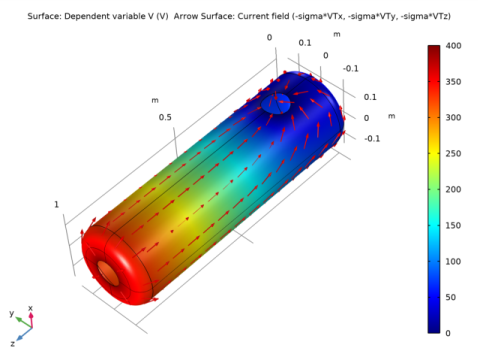
Figure 2 adds the current field as an arrow plot, showing clearly how the current collects toward the grounded connection.
Figure 2: Arrow plot of the local current field.
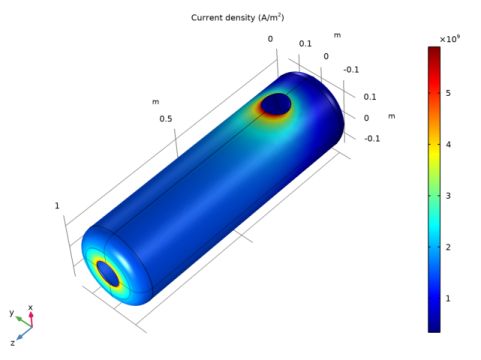
Figure 3: Local magnitude of the electric current density (A/m2).
The plot of the magnitude of the local current density in Figure 3 is interesting because you can use it to calculate the resistive heating in the material as an extension to the model.
Notes About the COMSOL Implementation
Model Equation 2, the current conduction equation, using a Coefficient Form Boundary PDE interface, setting the diffusion coefficient c = σd. To define the current field components use tangential derivative variables, which you access in COMSOL Multiphysics by adding a T suffix to the variable name before specifying the gradient component. So, for example, the tangential derivative (u/∂x)T is represented by the variable uTx.
Application Library path: COMSOL_Multiphysics/Equation_Based/shell_diffusion
Modeling Instructions
From the File menu, choose New.
New
In the New window, click  Model Wizard.
Model Wizard
1
In the Model Wizard window, click  3D.
2
In the Select Physics tree, select Mathematics>PDE Interfaces>Lower Dimensions>Coefficient Form Boundary PDE (cb).
3
Click Add.
4
In the Dependent variables table, enter the following settings:
5
Click  Study.
6
In the Select Study tree, select General Studies>Stationary.
7
Global Definitions
Parameters 1
1
In the Model Builder window, under Global Definitions click Parameters 1.
2
In the Settings window for Parameters, locate the Parameters section.
3
Geometry 1
Create the geometry. To simplify this step, insert a prepared geometry sequence.
1
In the Geometry toolbar, click  Insert Sequence.
2
3
In the Geometry toolbar, click  Build All.
4
Click the  Zoom Extents button in the Graphics toolbar.
Coefficient Form Boundary PDE (cb)
1
In the Model Builder window, under Component 1 (comp1) click Coefficient Form Boundary PDE (cb).
2
In the Settings window for Coefficient Form Boundary PDE, locate the Units section.
3
Click  Select Dependent Variable Quantity.
4
In the Physical Quantity dialog box, type electricpotential in the text field.
5
Click  Filter.
6
In the tree, select Electromagnetics>Electric potential (V).
7
8
In the Settings window for Coefficient Form Boundary PDE, locate the Units section.
9
In the Source term quantity table, enter the following settings:
Coefficient Form PDE 1
1
In the Model Builder window, under Component 1 (comp1)>Coefficient Form Boundary PDE (cb) click Coefficient Form PDE 1.
2
In the Settings window for Coefficient Form PDE, locate the Diffusion Coefficient section.
3
In the c text field, type sigma*d.
4
Locate the Source Term section. In the f text field, type 0.
These settings specify the charge conservation equation (Equation 2) for the shell surface.
Go on to set the values of the potential at the pipe connections by adding Dirichlet boundary conditions.
Dirichlet Boundary Condition 1
1
In the Physics toolbar, click  Edges and choose Dirichlet Boundary Condition.
2
3
In the Settings window for Dirichlet Boundary Condition, locate the Dirichlet Boundary Condition section.
4
In the r text field, type 400.
Dirichlet Boundary Condition 2
1
In the Physics toolbar, click  Edges and choose Dirichlet Boundary Condition.
2
Mesh 1
1
In the Model Builder window, under Component 1 (comp1) click Mesh 1.
2
In the Settings window for Mesh, locate the Physics-Controlled Mesh section.
3
From the Element size list, choose Finer.
4
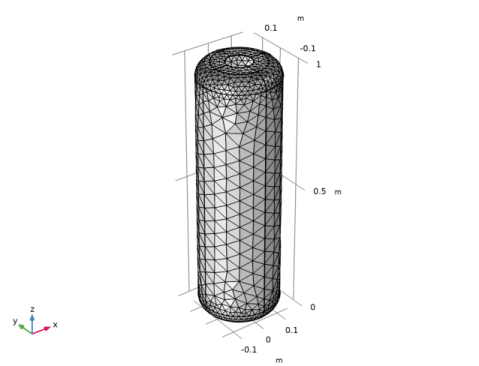
Click  Build All.
Study 1
In the Home toolbar, click  Compute.
Results
3D Plot Group 1
The default plot shows the potential distribution.
1
Click the  Zoom Extents button in the Graphics toolbar.
Rotate the geometry so that you see both pipe connections. Compare the result with the plot in Figure 1.
Add an arrow surface plot of the current field as follows:
Arrow Surface 1
1
Right-click 3D Plot Group 1 and choose Arrow Surface.
2
In the Settings window for Arrow Surface, locate the Expression section.
3
In the X component text field, type -sigma*VTx.
4
In the Y component text field, type -sigma*VTy.
5
In the Z component text field, type -sigma*VTz.
6
Select the Description check box.
7
In the associated text field, type Current field (-sigma*VTx, -sigma*VTy, -sigma*VTz).
8
Locate the Coloring and Style section. From the Arrow length list, choose Normalized.
9
In the 3D Plot Group 1 toolbar, click  Plot.
The plot in the Graphics window should now look like that in Figure 2.
To visualize the magnitude of the local current density, follow the steps given below.
3D Plot Group 2
1
In the Home toolbar, click  Add Plot Group and choose 3D Plot Group.
2
In the Settings window for 3D Plot Group, click to expand the Title section.
3
From the Title type list, choose Manual.
4
In the Title text area, type Current density (A/m<sup>2</sup>).
Surface 1
1
Right-click 3D Plot Group 2 and choose Surface.
2
In the Settings window for Surface, locate the Expression section.
3
In the Expression text field, type sigma*sqrt(VTx^2+VTy^2+VTz^2).
4
In the 3D Plot Group 2 toolbar, click  Plot.
5
Click the  Zoom Extents button in the Graphics toolbar.