You are viewing the documentation for an older COMSOL version. The latest version is available here.
PDF

Rotating Plate in a Unidirectional Molecular Flow
Introduction
Historically it was not feasible to compute molecular flows directly in complex geometries, so a number of approximate techniques for estimating molecular fluxes and pump down times have been developed. Because these techniques are so extensively used, vacuum practitioners are often unaware of the underlying assumptions, and many of these relations have gained the status of physical laws. Additionally physical laws, such as the ideal gas law, which apply generally within a bulk gas, are often misapplied in the molecular flow regime.
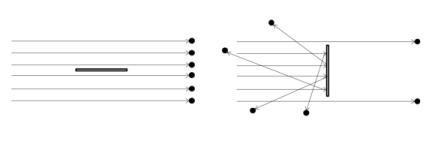
Figure 1: Gas molecules in a collimated molecular flow interacting with a surface in two orientations with respect to the flow. Left: Orientation of the surface in which the pressure and incident flux are both zero. Right: Orientation of the surface in which the pressure and incident flux are maximal. Note that the number density of molecules in the vicinity of the surface is never nonzero.
A simple thought experiment is helpful to highlight some of the assumptions that are frequently made. Figure 1 shows a flat surface (perhaps a thin sheet of metal) interacting with a completely collimated flow of gas molecules. For a surface with characteristic dimension, a, such a flow is created when a diffuse source of gas, with a similar dimension, is placed a distance from the surface in a well pumped vacuum system with dimension . The molecules have a range of velocities in this flow, but their direction of travel (indicated by the arrows in the figure) is uniform. If the surface’s normal is perpendicular to the direction of travel of the molecules, none of the molecules collide with the top surface, so the pressure and molecular flux on the surface are zero. However, the number density of the gas molecules in the vicinity of the surface is nonzero. Next, rotate the surface such that its normal is parallel to the direction of travel and both the pressure and flux on the surface become finite. The number density also increases.
This simple example illustrates the dangers in employing many of the equations that are frequently used in modeling molecular flows without a detailed understanding of the underlying assumptions. For example, the ideal gas law in the form:
(1)
where p is the pressure, n is the number density, kB is the Boltzmann constant, and T is the absolute temperature, clearly cannot hold in this case, as the pressure acting on the surface is zero in the first configuration while the number density is not. In general the pressure at a point in a molecular flow is orientation dependent (pressure is therefore a tensor quantity). Note that the ideal gas law applies for continuum flows to a very good approximation — it breaks down in this case because in deriving it the assumption is made that the molecules are traveling in all directions with equal probability, which is clearly not the case here (note also that the velocity distribution of diffusely reflected or effusing molecules is non-Maxwellian and the ideal gas law assumes a Maxwellian velocity distribution). The same considerations apply to the kinetic theory equation for the molecular flux (G) striking a surface:
(2)
where is the mean velocity of the molecules. Again it is clear that the equation cannot apply generally from considering Figure 1. The derivation of Equation 1 and Equation 2 is discussed in more detail in the Molecular Flow Module User’s Guide.
Finally consider the equation relating throughput to pressure differences:
(3)
where Q is the throughput (units of Pam3/s), C is the conductance (units of m3/s) and δp is the pressure difference (units of Pa). This equation predicts the correct throughput for two volumes in which the gas behaves according to the ideal gas law, provided the correct conductance is used (this usually computed analytically or numerically by the method that COMSOL uses to solve molecular flows). Adding conductances using the usual reciprocal laws is also valid, provided there are intermediate regions where the gas behaves ideally. However, conductances cannot be added in this manner when two lengths of tube are connected directly to one another — for example, at a right-angled bend. Considering the equation at a more fundamental level, the SI base units of the throughput (which is usually considered to be conserved through a system) are kgm2/s3 (the same base units as watts). Physically, mass flow should be conserved in a steady molecular flow, with units of kg/s. Throughput can be conserved (for an isothermal flow) between regions where the ideal gas law applies, because the volumetric flow rate, S, out of a region in which the ideal gas law applies can be related to the number of molecules that flow out of the region in unit time, , by a modified form of the ideal gas equation:
Clearly, because of the limitations of the ideal gas law, Equation 3 is not a fundamental conservation law that can be applied across any surface in a molecular flow, but rather a useful approximation that applies for connections between large regions in vacuum chambers.
Using COMSOL’s Free Molecular Flow interface avoids the assumptions implicit in these techniques. Furthermore COMSOL computes both the number density and pressure in the vicinity of a surface by using kinetic theory to predict the flux between surfaces. For complex geometries it was previously possible to compute molecular fluxes using the “radiation analogy.” Because an exact physical analogy exists between molecular flow and heat transfer by radiation, many vacuum practitioners adapted existing radiation codes for computing molecular fluxes. Although these codes compute fluxes accurately, the pressure and number density were usually obtained by means of the ideal gas law. COMSOL computes these quantities correctly and the corresponding radiation results can be significantly different.
This model constructs a flow similar to that shown in Figure 1 and compares the free molecular flow results with those computed using the radiation analogy.
Model Definition
The model consists of a 5 cm slot in the wall of a large, well-pumped vacuum system that is open to a second chamber with a fixed pressure of 105 mBar. The gas flux from the slot is much larger than the fluxes from any of the other walls in the system. 1 m away from the slot is a 5 cm plate that is rotated with respect to the incoming flux. At this large distance the flux arriving from the slot when the plate is perpendicular to the flow is reasonably constant across the surface of the plate. The pressure, number density, and flux on the plate as a function of the angle to the direction of flow are computed using the Free Molecular Flow interface and compared with results obtained from using the radiation analogy.
Results and Discussion
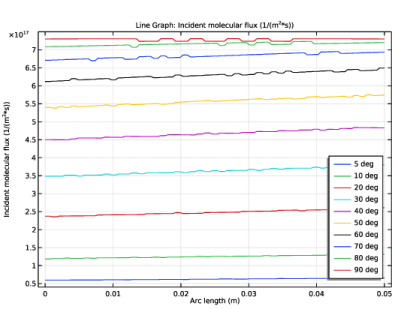
Figure 2 shows the molecular flux on the surface of the plate at each angle of rotation. It is clear that the flux at the surface is reasonably uniform across the plate — so it is reasonable to consider average quantities on the plate as a function of angle.
Figure 2: Molecular flux across the surface of the plate at for each orientation of the plate computed. The key gives the angle in degrees of the plate to the horizontal.
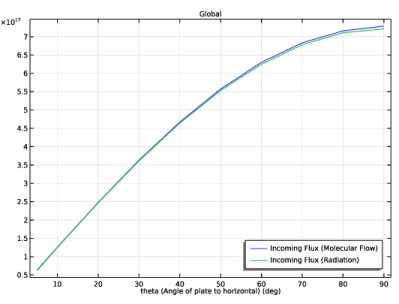
Figure 3 shows the average flux on the top surface of the plate as a function of the angle of the plate to the horizontal. As expected the flux is maximum when the plate faces directly the incoming molecules. Note also that the radiation analogy predicts the molecular flux to a very high degree of accuracy (the slight difference between the two results is due to slight differences in mesh).
Figure 3: Average molecular flux (1/(m2s)) at the plate computed as a function of the angle of the plate to the horizontal (in degrees) by the radiation method and using the molecular flow interface.
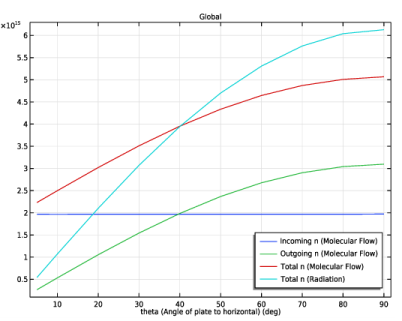
Figure 4: Number density (1/m3) at the plate computed as a function of the angle of the plate to the horizontal (in degrees) by the radiation method and using the molecular flow interface.
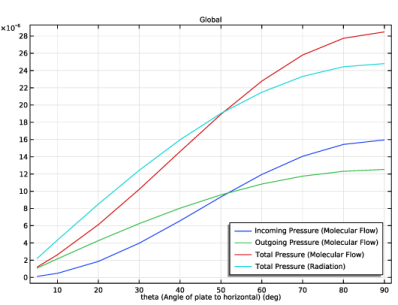
Figure 5: Pressure (Pa) at the plate computed as a function of the angle of the plate to the horizontal (in degrees) by the radiation method and using the molecular flow interface.
Differences between the radiation analogy and the Free Molecular Flow interface become apparent when the results for the pressure or number density are computed using the two methods. Figure 4 shows the number density — note the serious discrepancy predicted by the radiation analogy because at glancing angles (close to 0°) the radiation analogy predicts a vanishing number density, which is clearly incorrect. The molecular flow interface allows the number density to be separated into contributions from incoming and outgoing molecules. Note that COMSOL predicts a constant contribution from incoming molecules, which is clearly physically correct in this case. The outgoing number density contribution vanishes at glancing angles — again as expected physically. Figure 5 shows the pressure distribution at the surface. Again there are serious differences between the form and the magnitude of the pressure predicted by the two methods.
Application Library path: Molecular_Flow_Module/Benchmarks/rotating_plate
Modeling Instructions
From the File menu, choose New.
New
In the New window, click  Model Wizard.
Model Wizard
1
In the Model Wizard window, click  2D.
2
In the Select Physics tree, select Fluid Flow>Rarefied Flow>Free Molecular Flow (fmf).
3
Click Add.
4
Click  Study.
5
In the Select Study tree, select General Studies>Stationary.
6
Global Definitions
Set up a parameter for the angle of the plate.
Parameters 1
1
In the Model Builder window, under Global Definitions click Parameters 1.
2
In the Settings window for Parameters, locate the Parameters section.
3
Build the geometry. Because the effects of the walls of the chamber are neglected, the geometry of the chamber itself is unimportant, provided the inlet location is sufficiently far from the plate.
Geometry 1
Rectangle 1 (r1)
1
In the Geometry toolbar, click  Rectangle.
2
In the Settings window for Rectangle, locate the Size and Shape section.
3
In the Width text field, type 1.1.
4
In the Height text field, type 0.1.
5
Locate the Position section. In the y text field, type -0.05.
Point 1 (pt1)
1
In the Geometry toolbar, click  Point.
2
In the Settings window for Point, locate the Point section.
3
In the y text field, type -0.025.
Point 2 (pt2)
1
In the Geometry toolbar, click  Point.
2
In the Settings window for Point, locate the Point section.
3
In the y text field, type 0.025.
Add the geometry for the plate itself.
Rectangle 2 (r2)
1
In the Geometry toolbar, click  Rectangle.
2
In the Settings window for Rectangle, locate the Size and Shape section.
3
In the Width text field, type 0.05.
4
In the Height text field, type 0.0025.
5
Locate the Position section. In the x text field, type 1.
6
From the Base list, choose Center.
7
Locate the Rotation Angle section. In the Rotation text field, type theta.
Subtract the plate geometry from the chamber so the geometry reflects the region of molecular flow.
Difference 1 (dif1)
1
In the Geometry toolbar, click  Booleans and Partitions and choose Difference.
2
3
In the Settings window for Difference, locate the Difference section.
4
Find the Objects to subtract subsection. Select the  Activate Selection toggle button.
5
6
Click  Build All Objects.
Import radiation analogy results for comparisons in results processing.
Global Definitions
Rad_G
1
In the Home toolbar, click  Functions and choose Global>Interpolation.
2
In the Settings window for Interpolation, locate the Definition section.
3
From the Data source list, choose File.
4
Click Browse.
5
6
Click Import.
7
In the Function name text field, type Rad_G.
8
Right-click Interpolation 1 (int1) and choose Rename.
9
In the Rename Interpolation dialog box, type Rad_G in the New label text field.
10
Rad_p
1
In the Home toolbar, click  Functions and choose Global>Interpolation.
2
In the Settings window for Interpolation, locate the Definition section.
3
From the Data source list, choose File.
4
Click Browse.
5
6
Click Import.
7
In the Function name text field, type Rad_p.
8
Right-click Interpolation 2 (int2) and choose Rename.
9
In the Rename Interpolation dialog box, type Rad_p in the New label text field.
10
Rad_n
1
In the Home toolbar, click  Functions and choose Global>Interpolation.
2
In the Settings window for Interpolation, locate the Definition section.
3
From the Data source list, choose File.
4
Click Browse.
5
6
Click Import.
7
In the Function name text field, type Rad_n.
8
Right-click Interpolation 3 (int3) and choose Rename.
9
In the Rename Interpolation dialog box, type Rad_n in the New label text field.
10
Set up a nonlocal average coupling to compute averages over the top surface of the plate.
Definitions
Average 1 (aveop1)
1
In the Model Builder window, expand the Component 1 (comp1)>Definitions node.
2
Right-click Definitions and choose Nonlocal Couplings>Average.
3
In the Settings window for Average, locate the Source Selection section.
4
From the Geometric entity level list, choose Boundary.
5
Next, enter the physics settings. First set the integration resolution to a higher value.
Free Molecular Flow (fmf)
1
In the Model Builder window, under Component 1 (comp1) click Free Molecular Flow (fmf).
2
In the Settings window for Free Molecular Flow, locate the Integration Settings section.
3
From the Integration resolution list, choose 4096.
Use the total vacuum boundary condition to neglect the effect of the walls of the vacuum system.
Total Vacuum 1
1
In the Physics toolbar, click  Boundaries and choose Total Vacuum.
2
Use a Reservoir condition for the source of the molecules.
Reservoir 1
1
In the Physics toolbar, click  Boundaries and choose Reservoir.
2
3
In the Settings window for Reservoir, locate the Reservoir section.
4
In the p0,G text field, type 1e-5[mbar].
Set up the mesh. A fine mesh is needed only at the reservoir and the plate.
Mesh 1
Scale 1
1
In the Mesh toolbar, click  Modify and choose Mesh>Scale.
2
In the Settings window for Scale, locate the Geometric Entity Selection section.
3
From the Geometric entity level list, choose Boundary.
4
Locate the Scale section. In the Element size scale text field, type 0.1.
5
Size
1
In the Model Builder window, click Size.
2
In the Settings window for Size, locate the Element Size section.
3
From the Predefined list, choose Extremely fine.
Free Triangular 1
1
In the Mesh toolbar, click  Free Triangular.
2
In the Settings window for Free Triangular, click  Build All.
Set the solver to perform a parametric sweep on theta.
Study 1
Parametric Sweep
1
In the Study toolbar, click  Parametric Sweep.
2
In the Settings window for Parametric Sweep, locate the Study Settings section.
3
4
5
In the Study toolbar, click  Compute.
Results
Incident Molecular Flux (fmf)
Check the uniformity of the flux across the plate surface at each angle.
1D Plot Group 4
In the Home toolbar, click  Add Plot Group and choose 1D Plot Group.
Line Graph 1
1
Right-click 1D Plot Group 4 and choose Line Graph.
2
3
In the Settings window for Line Graph, click to expand the Legends section.
4
Select the Show legends check box.
G Uniformity
1
In the Model Builder window, right-click 1D Plot Group 4 and choose Rename.
2
In the Rename 1D Plot Group dialog box, type G Uniformity in the New label text field.
3
4
In the Settings window for 1D Plot Group, locate the Data section.
5
From the Dataset list, choose Study 1/Parametric Solutions 1 (sol2).
6
Locate the Legend section. From the Position list, choose Lower right.
7
In the G Uniformity toolbar, click  Plot.
Compare the resulting plot with that in Figure 2.
Create plots of the average flux, number density and pressure at the plate as a function of angle.
1D Plot Group 5
1
In the Home toolbar, click  Add Plot Group and choose 1D Plot Group.
2
In the Settings window for 1D Plot Group, locate the Data section.
3
From the Dataset list, choose Study 1/Parametric Solutions 1 (sol2).
4
Locate the Legend section. From the Position list, choose Lower right.
Global 1
1
Right-click 1D Plot Group 5 and choose Global.
2
In the Settings window for Global, locate the y-Axis Data section.
3
4
In the 1D Plot Group 5 toolbar, click  Plot.
G
1
In the Model Builder window, click 1D Plot Group 5.
2
3
Right-click 1D Plot Group 5 and choose Rename.
4
In the Rename 1D Plot Group dialog box, type G in the New label text field.
5
Compare the resulting plot with that in Figure 3.
Number Density Plate
1
Right-click G and choose Duplicate.
2
Right-click G 1 and choose Rename.
3
In the Rename 1D Plot Group dialog box, type Number Density Plate in the New label text field.
4
Global 1
1
In the Model Builder window, expand the Number Density Plate node, then click Global 1.
2
In the Settings window for Global, locate the y-Axis Data section.
3
Number Density Plate
1
In the Model Builder window, click Number Density Plate.
2
In the Number Density Plate toolbar, click  Plot.
3
Click the  Zoom Extents button in the Graphics toolbar.
Compare the resulting plot with that in Figure 4.
Pressure Plate
1
Right-click Number Density Plate and choose Duplicate.
2
Right-click Number Density Plate 1 and choose Rename.
3
In the Rename 1D Plot Group dialog box, type Pressure Plate in the New label text field.
4
Global 1
1
In the Model Builder window, expand the Pressure Plate node, then click Global 1.
2
In the Settings window for Global, locate the y-Axis Data section.
3
Pressure Plate
1
In the Model Builder window, click Pressure Plate.
2
In the Pressure Plate toolbar, click  Plot.
3
Click the  Zoom Extents button in the Graphics toolbar.
Compare the resulting plot with that in Figure 5.