

You are viewing the documentation for an older COMSOL version. The latest version is available here.
PDF

Walking Instability in a Washing Machine
Introduction
Walking instability, due to nonuniform distribution of clothes, is a common problem in lightweight portable washing machines. This problem is more severe in horizontal-axis washing machines, which are more popular because of their high efficiency in spite of high manufacturing cost.
This model simulates a simplified model of a portable horizontal-axis washing machine and predicts the onset of walking instability during the spinning cycle. A control-based active balancing method is also implemented to eliminate the instability and vibrations present in the system.
Model Definitions
About the instability
The instability occurs due to the presence of an unbalanced laundry mass during spinning. A significant centrifugal force is generated by the rotating unbalanced laundry mass which tends to destabilize the machine. This problem of instability used to be solved by adding additional weight to the machine. Nowadays there are better ways available to stabilize the system.
The instability could give rise to translational slip, rotational slip, or tip. It can be proved that the critical speed for impending translational slip is higher than that of rotational slip. Hence this model analyzes the rotational instability.
Modeling Assumptions
There are several assumptions taken to simplify the model:
geometry
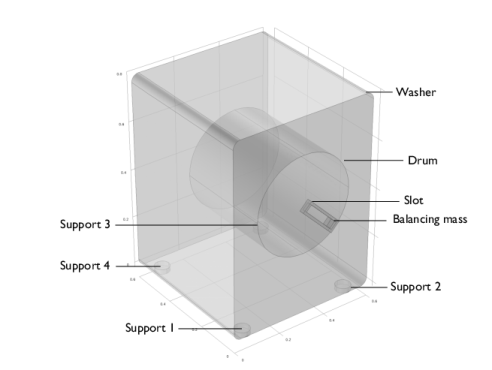
The modeled geometry, consisting of an assembly of washer, drum, slot, and balancing mass, shown in Figure 1.
Figure 1: Modeled geometry of a washing machine.
Ideally, the balancing mass should be placed on both the sides, front and back, of the drum to minimize the moment imbalance. However, for the ease of modeling, it is modeled only on the front side of the drum but its y-coordinate of the center of mass is shifted in such way that it coincides with that of the drum.
The drum and slot are assumed to have a negligible mass compared to the mass of the washer however the drum adds the mass of unbalanced clothes.
connections
The drum is connected to the washer through a hinge joint. The drum and slot are also connected through a hinge joint. This joint is needed for active balancing and is locked when there is no balancing in the system. In case of active balancing, a corrective angular velocity is applied on this joint.
The slot and balancing mass are connected through a prismatic joint. This joint is also needed for active balancing. However in this model, it is not used and always locked.
The washer has four supports to the ground which are modeled with the planar joints. These planar joints have elasticity so that the joint forces can be computed independently on all the joints in spite of the washer (a rigid body) being connected to the ground at four different locations.
Slip margin
Slip margin is a measure of stability and walk occurs when it goes to zero. It is defined as the difference between the maximum possible friction force and the actual friction force.
Slip margin is defined for all the supports of the machine and the machine actually slips when at least three or all four supports have zero slip margin. The slip margin is a function of the angular speed of the drum and hence it defines the critical operational speed to avoid the machine start walking.
In practice, the active balancing system should be activated when this slip margin is close to zero. In this model, the drum’s angular speed is known and linearly increased with time, and the balancing system is activated at a certain time.
Control mechanism for active balancing
The cause of imbalance is the net unbalanced centrifugal force on the rotating clothes. If an equal and opposite force is applied, the vibrations can be eliminated. This can be achieved with the help of a balancing mass. In general, the mass and position of unbalanced clothes are not known a priori and the mass of balancing mass is constant. The angular and radial position of the balancing mass must thus be adjusted in order to balance the forces created by the unbalanced clothes by the balancing mass.
The control mechanism for active balancing performs two type of corrections:
In this model, parameters are chosen so that radial correction is not required and hence it is not modeled. However the model can be extended to also implement this correction.
Angular correction
The total imbalance in the xz-plane in the rotating frame can be written as:
where
mb is the mass of the balancing mass
mcl is the mass of the unbalanced clothes
rb is the radial position of the balancing mass
rcl is the radial position of the unbalanced clothes
ω is the angular velocity of the drum
φ0 is the initial angle of the balancing mass with horizontal axis
β is the relative rotation between the drum and the slot
The total imbalance magnitude and the angle between the total imbalance and the balancing mass is given as:
The correction angle can be computed as:
Results and Discussion
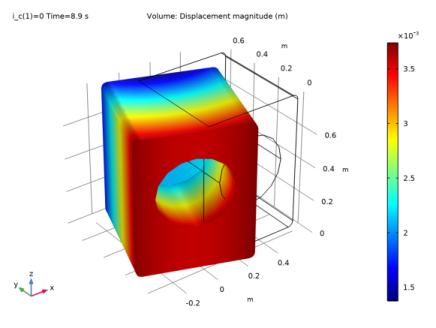
Figure 2 shows the rotation of the washer at a particular instant for a system without active balancing. Here displacement is scaled by a factor of 100 for better visualization.
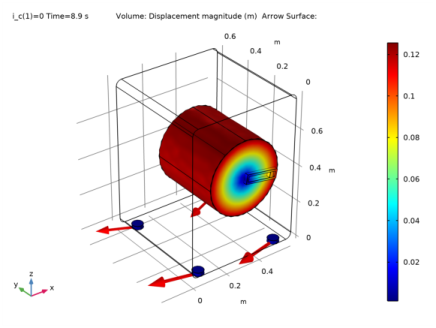
The direction and magnitude of the friction force on all the supports at a particular instant can be seen in Figure 3.
Figure 2: Washer rotation for a system without active balancing (magnified).
Figure 3: Drum rotation and friction force at washer supports for a system without active balancing.
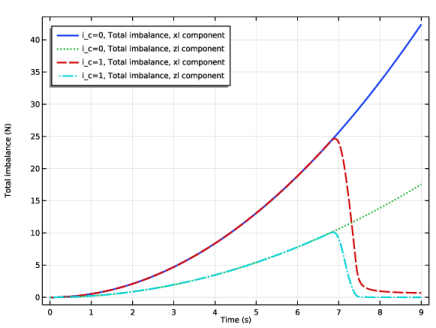
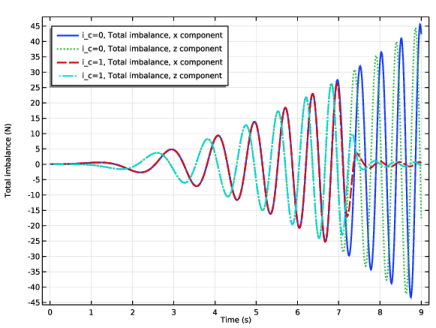
Figure 4 shows the total imbalance in the rotating frame. The total imbalance increases with the increase in drum angular velocity. The effect of active balancing is clearly visible. It reduces the imbalance to a very small value as soon as it is activated. The variation of total imbalance in the fixed frame is shown in Figure 5.
Figure 4: Total imbalance in the rotating frame.
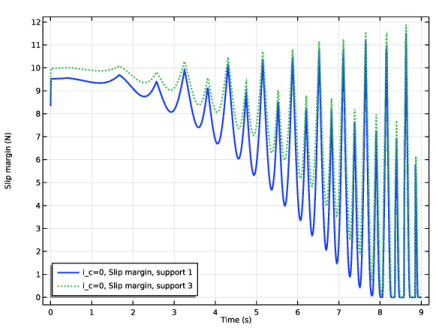
The time variation of slip margin for support-1 (front) and support-3 (back) are shown in Figure 6. It can be observed that the slip margin on support-3 is higher than that of support-1. This indicates that in this particular design, the front support is more likely to slip.
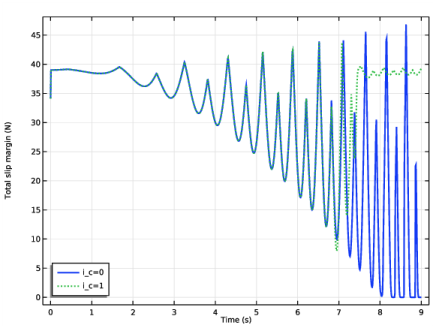
The total slip margin of the washing machine can be seen in Figure 7. Total slip margin is the sum of slip margins of individual supports. It can be seen in the plot that the total slip margin becomes zero for short durations which gives rise to the slip of the washing machine. In case of active balancing, the total slip margin is improved as soon as the balancing mechanism is activated.
Figure 5: Total imbalance in the fixed frame.
Figure 6: Slip margins of support-1 (front) and support-3 (back) for a system without active balancing.
Figure 7: Total slip margin of the washing machine.
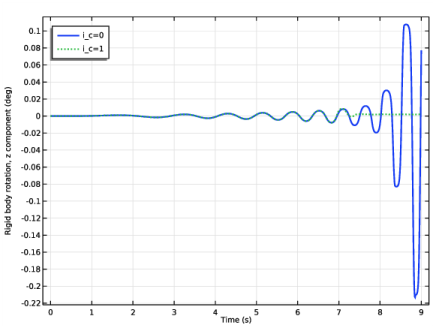
The rotation of the washer about z-axis is shown in Figure 8. It shows the rotational instability developing with time which is eliminated once the balancing mechanism is activated.
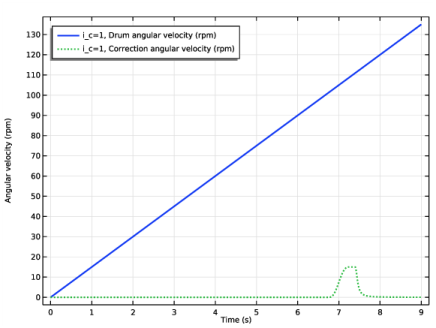
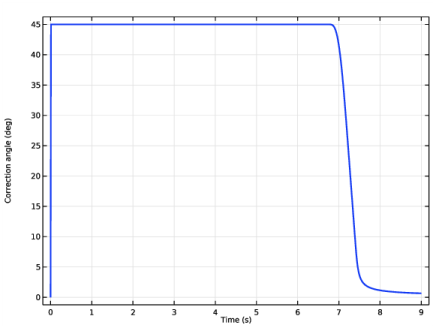
Figure 9 shows the rpm of the drum and the correction motor. It can be seen that correction motor starts working around 7 seconds and stops as soon as the system is stabilized. The correction angle needed to stabilize the system is shown in Figure 10.
 
Figure 8: Rotation of washer about vertical axis.
Figure 9: RPM of the drum and the correction motor.
Figure 10: Required correction angle for a system with active balancing.
Notes About the COMSOL Implementation
References
1. E. Papadopoulos and I.Papadimitriou, “Modeling, Design and Control of a Portable Washing Machine During the Spinning Cycle,” IEEE-ASME International Conference on Advanced Intelligent Mechatronics Systems, vol. 2, pp. 899–904, 2001.
Application Library path: Multibody_Dynamics_Module/Machinery_and_Robotics/washing_machine_walk
Modeling Instructions
From the File menu, choose New.
New
In the New window, click  Model Wizard.
Model Wizard
1
In the Model Wizard window, click  3D.
2
In the Select Physics tree, select Structural Mechanics>Multibody Dynamics (mbd).
3
Click Add.
4
Click  Study.
5
In the Select Study tree, select General Studies>Time Dependent.
6
Global Definitions
Start by importing the model parameters and geometry.
Parameters 1
1
In the Model Builder window, under Global Definitions click Parameters 1.
2
In the Settings window for Parameters, locate the Parameters section.
3
Click  Load from File.
4
Geometry 1
Import 1 (imp1)
1
In the Home toolbar, click  Import.
2
In the Settings window for Import, locate the Import section.
3
Click Browse.
4
5
Click Import.
Form Union (fin)
1
In the Model Builder window, under Component 1 (comp1)>Geometry 1 click Form Union (fin).
2
In the Settings window for Form Union/Assembly, locate the Form Union/Assembly section.
3
From the Action list, choose Form an assembly.
4
Clear the Create pairs check box.
5
In the Home toolbar, click  Build All.
6
Click the  Go to Default View button in the Graphics toolbar.
7
Click the  Zoom Extents button in the Graphics toolbar.
Multibody Dynamics (mbd)
Rigid Domain: Washer
1
In the Model Builder window, under Component 1 (comp1) right-click Multibody Dynamics (mbd) and choose Rigid Domain.
2
In the Settings window for Rigid Domain, type Rigid Domain: Washer in the Label text field.
3
Set the density of the selected rigid domains to zero. Use the Mass and Moment of Inertia subnode instead to specify the mass and center of mass of the domains.
4
Locate the Density section. From the ρ list, choose User defined.
Mass and Moment of Inertia 1
1
In the Physics toolbar, click  Attributes and choose Mass and Moment of Inertia.
2
In the Settings window for Mass and Moment of Inertia, locate the Center of Mass section.
3
4
Specify the Xm vector as
5
Locate the Mass and Moment of Inertia section. In the m text field, type m_w.
Use an Applied Force subnode to account for the gravitational force.
Rigid Domain: Washer
In the Model Builder window, click Rigid Domain: Washer.
Applied Force 1
1
In the Physics toolbar, click  Attributes and choose Applied Force.
2
In the Settings window for Applied Force, locate the Location section.
3
4
Specify the Xp vector as
5
Locate the Applied Force section. Specify the F vector as
Create more parts of the assembly by duplicating the Rigid Domain: Washer node.
Rigid Domain: Drum
1
Right-click Rigid Domain: Washer and choose Duplicate.
2
In the Settings window for Rigid Domain, type Rigid Domain: Drum in the Label text field.
3
Locate the Domain Selection section. Click  Clear Selection.
4
Mass and Moment of Inertia 1
1
In the Model Builder window, expand the Rigid Domain: Drum node, then click Mass and Moment of Inertia 1.
2
In the Settings window for Mass and Moment of Inertia, locate the Center of Mass section.
3
Specify the Xm vector as
4
Locate the Mass and Moment of Inertia section. In the m text field, type m_cl.
Applied Force 1
1
In the Model Builder window, click Applied Force 1.
2
In the Settings window for Applied Force, locate the Location section.
3
Specify the Xp vector as
4
Locate the Applied Force section. Specify the F vector as
Rigid Domain: Balancing mass
1
In the Model Builder window, right-click Rigid Domain: Drum and choose Duplicate.
2
In the Settings window for Rigid Domain, type Rigid Domain: Balancing mass in the Label text field.
3
Locate the Domain Selection section. Click  Clear Selection.
4
Mass and Moment of Inertia 1
1
In the Model Builder window, expand the Rigid Domain: Balancing mass node, then click Mass and Moment of Inertia 1.
2
In the Settings window for Mass and Moment of Inertia, locate the Center of Mass section.
3
Specify the Xm vector as
4
Locate the Mass and Moment of Inertia section. In the m text field, type m_b.
Applied Force 1
1
In the Model Builder window, click Applied Force 1.
2
In the Settings window for Applied Force, locate the Location section.
3
Specify the Xp vector as
4
Locate the Applied Force section. Specify the F vector as
Rigid Domain: Slot
1
In the Physics toolbar, click  Domains and choose Rigid Domain.
2
In the Settings window for Rigid Domain, type Rigid Domain: Slot in the Label text field.
3
4
Locate the Density section. From the ρ list, choose User defined.
Use planar joints to support the washer on the ground at various locations. Use the elastic version of the joint to reduce the system constraints and hence enabling the computation of joint forces.
Planar Joint: Support 1
1
In the Physics toolbar, click  Global and choose Planar Joint.
2
In the Settings window for Planar Joint, type Planar Joint: Support 1 in the Label text field.
3
Locate the Attachment Selection section. From the Source list, choose Fixed.
4
From the Destination list, choose Rigid Domain: Washer.
5
Locate the Axis of Joint section. Specify the e0 vector as
6
Locate the Joint Elasticity section. From the list, choose Elastic joint.
7
Locate the Joint Forces and Moments section. From the list, choose Computed using weak constraints.
Center of Joint: Boundary 1
1
In the Model Builder window, expand the Planar Joint: Support 1 node, then click Center of Joint: Boundary 1.
2
Joint Elasticity 1
1
In the Model Builder window, click Joint Elasticity 1.
2
In the Settings window for Joint Elasticity, locate the Spring section.
3
In the ku text field, type k_s.
4
In the kθ text field, type k_s.
5
Locate the Viscous Damping section. In the cu text field, type c_s.
6
In the cθ text field, type c_s.
Planar Joint: Support 1
In the Model Builder window, click Planar Joint: Support 1.
Friction 1
1
In the Physics toolbar, click  Attributes and choose Friction.
2
In the Settings window for Friction, locate the Friction section.
3
In the μ text field, type mu.
Create three more planar joints by duplicating Planar Joint: Support 1.
Planar Joint: Support 2
1
Right-click Planar Joint: Support 1 and choose Duplicate.
2
In the Settings window for Planar Joint, type Planar Joint: Support 2 in the Label text field.
Center of Joint: Boundary 1
1
In the Model Builder window, expand the Planar Joint: Support 2 node, then click Center of Joint: Boundary 1.
2
In the Settings window for Center of Joint: Boundary, locate the Boundary Selection section.
3
Click  Clear Selection.
4
Planar Joint: Support 3
1
In the Model Builder window, right-click Planar Joint: Support 2 and choose Duplicate.
2
In the Settings window for Planar Joint, type Planar Joint: Support 3 in the Label text field.
Center of Joint: Boundary 1
1
In the Model Builder window, expand the Planar Joint: Support 3 node, then click Center of Joint: Boundary 1.
2
In the Settings window for Center of Joint: Boundary, locate the Boundary Selection section.
3
Click  Clear Selection.
4
Planar Joint: Support 4
1
In the Model Builder window, right-click Planar Joint: Support 3 and choose Duplicate.
2
In the Settings window for Planar Joint, type Planar Joint: Support 4 in the Label text field.
Center of Joint: Boundary 1
1
In the Model Builder window, expand the Planar Joint: Support 4 node, then click Center of Joint: Boundary 1.
2
In the Settings window for Center of Joint: Boundary, locate the Boundary Selection section.
3
Click  Clear Selection.
4
Define the connection between the washer and the drum using a Hinge Joint node.
Hinge Joint: Washer-drum
1
In the Physics toolbar, click  Global and choose Hinge Joint.
2
In the Settings window for Hinge Joint, type Hinge Joint: Washer-drum in the Label text field.
3
Locate the Attachment Selection section. From the Source list, choose Rigid Domain: Washer.
4
From the Destination list, choose Rigid Domain: Drum.
5
Locate the Axis of Joint section. Specify the e0 vector as
Center of Joint: Boundary 1
1
In the Model Builder window, expand the Hinge Joint: Washer-drum node, then click Center of Joint: Boundary 1.
2
Define a Hinge Joint between the drum and the slot to correct the angular position of the balancing mass with respect to the drum.
Hinge Joint: Drum-slot
1
In the Model Builder window, right-click Hinge Joint: Washer-drum and choose Duplicate.
2
In the Settings window for Hinge Joint, type Hinge Joint: Drum-slot in the Label text field.
3
Locate the Attachment Selection section. From the Source list, choose Rigid Domain: Drum.
4
From the Destination list, choose Rigid Domain: Slot.
Define a Prismatic Joint between the slot and the balancing mass to correct the radial position of the balancing mass. In this model the radial correction is however not included and the relative motion at this joint is fully constrained.
Prismatic Joint: Slot-balancing mass
1
In the Physics toolbar, click  Global and choose Prismatic Joint.
2
In the Settings window for Prismatic Joint, type Prismatic Joint: Slot-balancing mass in the Label text field.
3
Locate the Attachment Selection section. From the Source list, choose Rigid Domain: Slot.
4
From the Destination list, choose Rigid Domain: Balancing mass.
5
Locate the Axis of Joint section. From the list, choose Select a parallel edge.
Center of Joint: Boundary 1
1
In the Model Builder window, expand the Prismatic Joint: Slot-balancing mass node, then click Center of Joint: Boundary 1.
2
Joint Axis 1
1
In the Model Builder window, click Joint Axis 1.
2
Prismatic Joint: Slot-balancing mass
In the Model Builder window, click Prismatic Joint: Slot-balancing mass.
Prescribed Motion 1
In the Physics toolbar, click  Attributes and choose Prescribed Motion.
Global Definitions
Add step functions for activation and deactivation of the control mechanism.
Step 1 (step1)
1
In the Home toolbar, click  Functions and choose Global>Step.
2
In the Settings window for Step, type step_act in the Function name text field.
3
Locate the Parameters section. In the Location text field, type 7.
4
Click to expand the Smoothing section. In the Size of transition zone text field, type 0.5.
5
Step 2 (step_act2)
1
Right-click Step 1 (step1) and choose Duplicate.
2
In the Settings window for Step, type step_deact in the Function name text field.
3
Locate the Parameters section. In the Location text field, type 5.
4
Locate the Smoothing section. In the Size of transition zone text field, type 10.
5
Definitions
Variables 1
1
In the Model Builder window, under Component 1 (comp1) right-click Definitions and choose Variables.
2
In the Settings window for Variables, locate the Variables section.
3
Click  Load from File.
4
Define the friction force variables on the support boundaries.
Variables 2
1
In the Model Builder window, right-click Definitions and choose Variables.
2
In the Settings window for Variables, locate the Geometric Entity Selection section.
3
From the Geometric entity level list, choose Boundary.
4
5
Locate the Variables section. In the table, enter the following settings:
Variables 3
1
Right-click Definitions and choose Variables.
2
In the Settings window for Variables, locate the Geometric Entity Selection section.
3
From the Geometric entity level list, choose Boundary.
4
5
Locate the Variables section. In the table, enter the following settings:
Variables 4
1
Right-click Definitions and choose Variables.
2
In the Settings window for Variables, locate the Geometric Entity Selection section.
3
From the Geometric entity level list, choose Boundary.
4
5
Locate the Variables section. In the table, enter the following settings:
Variables 5
1
Right-click Definitions and choose Variables.
2
In the Settings window for Variables, locate the Geometric Entity Selection section.
3
From the Geometric entity level list, choose Boundary.
4
5
Locate the Variables section. In the table, enter the following settings:
Specify the drum rotation and angular correction of the balancing mass.
Multibody Dynamics (mbd)
Hinge Joint: Washer-drum
In the Model Builder window, under Component 1 (comp1)>Multibody Dynamics (mbd) click Hinge Joint: Washer-drum.
Prescribed Motion 1
1
In the Physics toolbar, click  Attributes and choose Prescribed Motion.
2
In the Settings window for Prescribed Motion, locate the Prescribed Rotational Motion section.
3
From the Prescribed motion through list, choose Angular velocity.
4
In the ωp text field, type omega.
Hinge Joint: Drum-slot
In the Model Builder window, click Hinge Joint: Drum-slot.
Prescribed Motion 1
1
In the Physics toolbar, click  Attributes and choose Prescribed Motion.
2
In the Settings window for Prescribed Motion, locate the Prescribed Rotational Motion section.
3
From the Prescribed motion through list, choose Angular velocity.
4
In the ωp text field, type i_c*omegaC.
Study 1
Add a parametric sweep to perform the analysis with and without active balancing.
Parametric Sweep
1
In the Study toolbar, click  Parametric Sweep.
2
In the Settings window for Parametric Sweep, locate the Study Settings section.
3
4
Step 1: Time Dependent
1
In the Model Builder window, click Step 1: Time Dependent.
2
In the Settings window for Time Dependent, locate the Study Settings section.
3
In the Output times text field, type range(0,0.01,9).
4
In the Study toolbar, click  Compute.
Results
Displacement (mbd)
Create more datasets for better visualization in the postprocessing.
Study 1/Parametric Solutions 1 (3) (sol2)
1
In the Model Builder window, expand the Results>Datasets node.
2
Right-click Results>Datasets>Study 1/Parametric Solutions 1 (sol2) and choose Duplicate.
Selection
1
In the Results toolbar, click  Attributes and choose Selection.
2
In the Settings window for Selection, locate the Geometric Entity Selection section.
3
From the Geometric entity level list, choose Domain.
4
Study 1/Parametric Solutions 1 (4) (sol2)
In the Model Builder window, under Results>Datasets right-click Study 1/Parametric Solutions 1 (2) (sol2) and choose Duplicate.
Selection
1
In the Results toolbar, click  Attributes and choose Selection.
2
In the Settings window for Selection, locate the Geometric Entity Selection section.
3
From the Geometric entity level list, choose Domain.
4
Click in the Graphics window and then press Ctrl+A to select all domains.
5
6
Clear the Propagate to lower dimensions check box.
Follow the instructions to plot the washer displacement and friction forces as shown in Figure 2 and Figure 3 respectively.
Washer Displacement
1
In the Results toolbar, click  3D Plot Group.
2
In the Settings window for 3D Plot Group, type Washer Displacement in the Label text field.
3
Locate the Data section. From the Dataset list, choose Study 1/Parametric Solutions 1 (3) (sol2).
4
From the Parameter value (i_c) list, choose 0.
5
From the Time (s) list, choose 8.9.
6
Locate the Plot Settings section. From the Frame list, choose Spatial  (x, y, z).
Volume 1
Right-click Washer Displacement and choose Volume.
Deformation 1
1
In the Model Builder window, right-click Volume 1 and choose Deformation.
2
In the Settings window for Deformation, locate the Scale section.
3
Select the Scale factor check box.
4
5
In the Washer Displacement toolbar, click  Plot.
6
Click the  Go to Default View button in the Graphics toolbar.
7
Click the  Zoom Extents button in the Graphics toolbar.
Friction Force
1
In the Model Builder window, right-click Washer Displacement and choose Duplicate.
2
In the Settings window for 3D Plot Group, type Friction Force in the Label text field.
3
Locate the Data section. From the Dataset list, choose Study 1/Parametric Solutions 1 (4) (sol2).
4
In the Model Builder window, expand the Friction Force node.
Deformation 1
1
In the Model Builder window, expand the Results>Friction Force>Volume 1 node, then click Deformation 1.
2
In the Settings window for Deformation, locate the Scale section.
3
In the Scale factor text field, type 1.
4
In the Friction Force toolbar, click  Plot.
Arrow Surface 1
1
In the Model Builder window, right-click Friction Force and choose Arrow Surface.
2
In the Settings window for Arrow Surface, locate the Expression section.
3
In the X component text field, type Fsx.
4
In the Y component text field, type Fsy.
5
In the Z component text field, type 0.
6
Locate the Coloring and Style section. Select the Scale factor check box.
7
8
In the Friction Force toolbar, click  Plot.
9
Click the  Go to Default View button in the Graphics toolbar.
10
Click the  Zoom Extents button in the Graphics toolbar.
Follow these instructions to plot the total imbalance in the rotating and the fixed frame as shown in Figure 4 and Figure 5 respectively.
Total Imbalance (Local)
1
In the Home toolbar, click  Add Plot Group and choose 1D Plot Group.
2
In the Settings window for 1D Plot Group, type Total Imbalance (Local) in the Label text field.
3
Locate the Data section. From the Dataset list, choose Study 1/Parametric Solutions 1 (2) (sol2).
4
Click to expand the Title section. From the Title type list, choose None.
5
Locate the Plot Settings section. Select the y-axis label check box.
6
7
Locate the Legend section. From the Position list, choose Upper left.
Global 1
1
Right-click Total Imbalance (Local) and choose Global.
2
In the Settings window for Global, click Replace Expression in the upper-right corner of the y-Axis Data section. From the menu, choose Component 1 (comp1)>Definitions>Variables>Fxl - Total imbalance, xl component - N.
3
Click Add Expression in the upper-right corner of the y-Axis Data section. From the menu, choose Component 1 (comp1)>Definitions>Variables>Fzl - Total imbalance, zl component - N.
4
Click to expand the Coloring and Style section. Find the Line style subsection. From the Line list, choose Cycle.
5
In the Width text field, type 2.
6
In the Total Imbalance (Local) toolbar, click  Plot.
7
Click the  Zoom Extents button in the Graphics toolbar.
Total Imbalance
1
In the Model Builder window, right-click Total Imbalance (Local) and choose Duplicate.
2
In the Settings window for 1D Plot Group, type Total Imbalance in the Label text field.
Global 1
1
In the Model Builder window, expand the Total Imbalance node, then click Global 1.
2
In the Settings window for Global, click Replace Expression in the upper-right corner of the y-Axis Data section. From the menu, choose Component 1 (comp1)>Definitions>Variables>Fx - Total imbalance, x component - N.
3
Click Add Expression in the upper-right corner of the y-Axis Data section. From the menu, choose Component 1 (comp1)>Definitions>Variables>Fz - Total imbalance, z component - N.
4
In the Total Imbalance toolbar, click  Plot.
5
Click the  Zoom Extents button in the Graphics toolbar.
Follow the instructions below to plot the slip margin for Support 1, Support 3, and the total slip margin as shown in Figure 6 and Figure 7 respectively.
Slip Margin
1
In the Model Builder window, right-click Total Imbalance and choose Duplicate.
2
In the Settings window for 1D Plot Group, type Slip Margin in the Label text field.
3
Locate the Data section. From the Parameter selection (i_c) list, choose First.
4
Locate the Plot Settings section. In the y-axis label text field, type Slip margin (N).
5
Locate the Legend section. From the Position list, choose Lower left.
Global 1
1
In the Model Builder window, expand the Slip Margin node, then click Global 1.
2
In the Settings window for Global, click Replace Expression in the upper-right corner of the y-Axis Data section. From the menu, choose Component 1 (comp1)>Definitions>Variables>Msl1 - Slip margin, support 1 - N.
3
Click Add Expression in the upper-right corner of the y-Axis Data section. From the menu, choose Component 1 (comp1)>Definitions>Variables>Msl3 - Slip margin, support 3 - N.
4
In the Slip Margin toolbar, click  Plot.
5
Click the  Zoom Extents button in the Graphics toolbar.
Total Slip Margin
1
In the Model Builder window, right-click Slip Margin and choose Duplicate.
2
In the Settings window for 1D Plot Group, type Total Slip Margin in the Label text field.
3
Locate the Data section. From the Parameter selection (i_c) list, choose All.
4
Locate the Plot Settings section. Clear the y-axis label check box.
Global 1
1
In the Model Builder window, expand the Total Slip Margin node, then click Global 1.
2
In the Settings window for Global, click Replace Expression in the upper-right corner of the y-Axis Data section. From the menu, choose Component 1 (comp1)>Definitions>Variables>Msl_tot - Total slip margin - N.
3
Click to expand the Legends section. Find the Include subsection. Clear the Description check box.
4
In the Total Slip Margin toolbar, click  Plot.
5
Click the  Zoom Extents button in the Graphics toolbar.
To plot the angular displacement of the washer as shown in Figure 8, follow the instructions below.
Washer Rotation
1
In the Model Builder window, right-click Total Slip Margin and choose Duplicate.
2
In the Settings window for 1D Plot Group, type Washer Rotation in the Label text field.
3
Locate the Legend section. From the Position list, choose Upper left.
Global 1
1
In the Model Builder window, expand the Washer Rotation node, then click Global 1.
2
In the Settings window for Global, click Replace Expression in the upper-right corner of the y-Axis Data section. From the menu, choose Component 1 (comp1)>Multibody Dynamics>Rigid domains>Rigid Domain: Washer>Rigid body rotation (spatial frame) - rad>mbd.rd1.thz - Rigid body rotation, z component.
Change the units to degrees from radians.
3
Locate the y-Axis Data section. In the table, enter the following settings:
4
In the Washer Rotation toolbar, click  Plot.
Use the following instructions to plot the RPM of the drum and the correction motor as shown in Figure 9.
5
Click the  Zoom Extents button in the Graphics toolbar.
Angular Velocity
1
In the Model Builder window, right-click Washer Rotation and choose Duplicate.
2
In the Settings window for 1D Plot Group, type Angular Velocity in the Label text field.
3
Locate the Data section. From the Parameter selection (i_c) list, choose Last.
4
Locate the Plot Settings section. Select the y-axis label check box.
5
Global 1
1
In the Model Builder window, expand the Angular Velocity node, then click Global 1.
2
In the Settings window for Global, locate the y-Axis Data section.
3
4
Locate the Legends section. Find the Include subsection. Select the Description check box.
5
In the Angular Velocity toolbar, click  Plot.
6
Click the  Zoom Extents button in the Graphics toolbar.
Use the following instructions to plot the correction angle shown in Figure 10.
Correction Angle
1
In the Model Builder window, right-click Angular Velocity and choose Duplicate.
2
In the Settings window for 1D Plot Group, type Correction Angle in the Label text field.
3
Locate the Plot Settings section. Clear the y-axis label check box.
Global 1
1
In the Model Builder window, expand the Correction Angle node, then click Global 1.
2
In the Settings window for Global, click Replace Expression in the upper-right corner of the y-Axis Data section. From the menu, choose Component 1 (comp1)>Definitions>Variables>d_th - Correction angle - rad.
3
Locate the y-Axis Data section. In the table, enter the following settings:
4
Locate the Legends section. Clear the Show legends check box.
5
In the Correction Angle toolbar, click  Plot.
6
Click the  Zoom Extents button in the Graphics toolbar.