You are viewing the documentation for an older COMSOL version. The latest version is available here.
PDF

Four-Bar Mechanism with Assembly Defect
Introduction
This model simulates the dynamic behavior of a planar four-bar mechanism when one of the joints has a defect. There is an out-of-plane motion in the mechanism due to this defect. Flexible parts are used to model the links in the mechanism as the mechanism locks if the links are rigid.
The mechanism is modeled using the Multibody Dynamics interface and the results of the analysis are compared with those available in Ref. 1.
Model Definition
The geometry of the four-bar mechanism is shown in Figure 1. The geometry consists of three links. The connections between the links are modeled using hinge joints.
Figure 1: The geometry.
One end of each of the links 1 and 3 is connected to the ground using a hinge joint. The other end of these links are connected to link 2 using hinge joints. In case of no defect, the axis of rotation of all four hinge joints is perpendicular to the plane of the mechanism, so that the mechanism moves only in the plane. In this case, however, there is a defect in the joint between link 2 and link 3. The axis of rotation of this joint is at an angle of from the normal to the plane. This simulates an assembly defect in the mechanism.
The length of links 1 and 3 is 0.12 m, and the length of link 2 is 0.24 m. The cross section of all the links is circular with a diameter of mm. The links have the following material data:
Density: 3000 kg/m3
The angular velocity of the left crank (link 1) is prescribed as rad/s. The effect of gravity is neglected.
Results and Discussion
Figure 2: Configuration of the four-bar mechanism at t=10 sec. Trajectory of point B and point C is also shown.
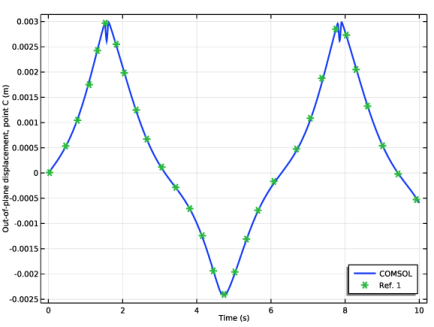
The computed results are compared with the solution available in Ref. 1. The comparison shows that the computed results are in a very good agreement with the results given in the reference.
Figure 2 shows the configuration of the four-bar mechanism at t=10 sec. The out-of-plane displacement is scaled by a factor of 20 for better visualization. The trajectory of point B and point C can also be seen.
Figure 3 shows the y-component of the displacement at the joint between link 1 and link 2. If there is no defect in the joint, the out-of-plane displacement vanish.
Figure 4 displays the y-component of the displacement at the joint between link 2 and link 3.
Figure 3: Comparison of out-of-plane displacement of point B with Ref. 1.
Figure 4: Comparison of out-of-plane displacement of point C with Ref. 1.
Notes About the COMSOL Implementation
Reference
1. J. Cuadrado, R. Gutiérrez, M.A. Naya, and P. Morer, “A Comparison in Terms of Accuracy and Efficiency between a MBS Dynamic Formulation with Stress Analysis and a Non-linear FEA Code”, Int. J. for Numerical Methods in Engineering, vol. 51, pp. 1033–1052, 2001.
Application Library path: Multibody_Dynamics_Module/Verification_Examples/crooked_four_bar_mechanism
Modeling Instructions
From the File menu, choose New.
New
In the New window, click  Model Wizard.
Model Wizard
1
In the Model Wizard window, click  3D.
2
In the Select Physics tree, select Structural Mechanics>Multibody Dynamics (mbd).
3
Click Add.
4
Click  Study.
5
In the Select Study tree, select General Studies>Time Dependent.
6
Global Definitions
Parameters 1
1
In the Model Builder window, under Global Definitions click Parameters 1.
2
In the Settings window for Parameters, locate the Parameters section.
3
Geometry 1
Cylinder 1 (cyl1)
1
In the Geometry toolbar, click  Cylinder.
2
In the Settings window for Cylinder, locate the Size and Shape section.
3
In the Radius text field, type d/2.
4
In the Height text field, type l1.
Cylinder 2 (cyl2)
1
Right-click Cylinder 1 (cyl1) and choose Duplicate.
2
In the Settings window for Cylinder, locate the Position section.
3
In the x text field, type l2.
Cylinder 3 (cyl3)
1
In the Model Builder window, under Component 1 (comp1)>Geometry 1 right-click Cylinder 1 (cyl1) and choose Duplicate.
2
In the Settings window for Cylinder, locate the Size and Shape section.
3
In the Height text field, type l2.
4
Locate the Position section. In the z text field, type l1.
5
Locate the Axis section. From the Axis type list, choose x-axis.
Form Union (fin)
1
In the Model Builder window, under Component 1 (comp1)>Geometry 1 click Form Union (fin).
2
In the Settings window for Form Union/Assembly, locate the Form Union/Assembly section.
3
From the Action list, choose Form an assembly.
4
In the Geometry toolbar, click  Build All.
5
Click the  Zoom Extents button in the Graphics toolbar.
Materials
Material 1 (mat1)
1
In the Model Builder window, under Component 1 (comp1) right-click Materials and choose Blank Material.
2
In the Settings window for Material, locate the Material Contents section.
3
Multibody Dynamics (mbd)
1
In the Model Builder window, under Component 1 (comp1) click Multibody Dynamics (mbd).
2
In the Settings window for Multibody Dynamics, click to expand the Discretization section.
3
From the Displacement field list, choose Quadratic Lagrange.
Attachment 1
1
In the Physics toolbar, click  Boundaries and choose Attachment.
2
Hinge Joint 1
1
In the Physics toolbar, click  Global and choose Hinge Joint.
2
In the Settings window for Hinge Joint, locate the Attachment Selection section.
3
From the Source list, choose Fixed.
4
From the Destination list, choose Attachment 1.
5
Locate the Axis of Joint section. From the list, choose From selected coordinate system.
6
From the Axis to use list, choose 2.
Attachment 2
1
In the Physics toolbar, click  Boundaries and choose Attachment.
2
Attachment 3
1
In the Physics toolbar, click  Boundaries and choose Attachment.
2
Hinge Joint 2
1
In the Model Builder window, under Component 1 (comp1)>Multibody Dynamics (mbd) right-click Hinge Joint 1 and choose Duplicate.
2
In the Settings window for Hinge Joint, locate the Attachment Selection section.
3
From the Source list, choose Attachment 2.
4
From the Destination list, choose Attachment 3.
Attachment 4
1
In the Physics toolbar, click  Boundaries and choose Attachment.
2
Attachment 5
1
In the Physics toolbar, click  Boundaries and choose Attachment.
2
Hinge Joint 3
1
In the Model Builder window, under Component 1 (comp1)>Multibody Dynamics (mbd) right-click Hinge Joint 2 and choose Duplicate.
2
In the Settings window for Hinge Joint, locate the Attachment Selection section.
3
From the Source list, choose Attachment 4.
4
From the Destination list, choose Attachment 5.
5
Locate the Axis of Joint section. From the list, choose Specify direction.
6
Specify the e0 vector as
Attachment 6
1
In the Physics toolbar, click  Boundaries and choose Attachment.
2
Hinge Joint 4
1
In the Model Builder window, under Component 1 (comp1)>Multibody Dynamics (mbd) right-click Hinge Joint 1 and choose Duplicate.
2
In the Settings window for Hinge Joint, locate the Attachment Selection section.
3
From the Destination list, choose Attachment 6.
Hinge Joint 1
In the Model Builder window, click Hinge Joint 1.
Prescribed Motion 1
1
In the Physics toolbar, click  Attributes and choose Prescribed Motion.
2
In the Settings window for Prescribed Motion, locate the Prescribed Rotational Motion section.
3
From the Prescribed motion through list, choose Angular velocity.
4
In the ωp text field, type -1.
Mesh 1
Use a swept mesh since the geometry consists of slender components.
Free Triangular 1
1
In the Mesh toolbar, click  Boundary and choose Free Triangular.
2
Click the  Go to Default View button in the Graphics toolbar.
3
Size
1
In the Model Builder window, click Size.
2
In the Settings window for Size, locate the Element Size section.
3
From the Predefined list, choose Fine.
Swept 1
In the Mesh toolbar, click  Swept.
Distribution 1
1
Right-click Swept 1 and choose Distribution.
2
3
In the Settings window for Distribution, locate the Distribution section.
4
In the Number of elements text field, type 10.
Distribution 2
1
In the Model Builder window, right-click Swept 1 and choose Distribution.
2
3
In the Settings window for Distribution, locate the Distribution section.
4
In the Number of elements text field, type 20.
5
In the Model Builder window, right-click Mesh 1 and choose Build All.
Study 1
Step 1: Time Dependent
1
In the Model Builder window, under Study 1 click Step 1: Time Dependent.
2
In the Settings window for Time Dependent, locate the Study Settings section.
3
In the Output times text field, type range(0,0.01,10).
4
In the Home toolbar, click  Compute.
Results
Displacement (mbd)
The two default plots show the displacement and velocity profile of the four bar mechanism. Follow the instructions to add the trajectory of points B and C in the first plot shown in Figure 2.
1
In the Model Builder window, expand the Displacement (mbd) node.
Surface
Scale the out-of-plane displacement by a factor of 20 for better visualization.
Deformation
1
In the Model Builder window, expand the Results>Displacement (mbd)>Surface node, then click Deformation.
2
In the Settings window for Deformation, locate the Expression section.
3
In the Y component text field, type 20*v.
Displacement (mbd)
In the Model Builder window, click Displacement (mbd).
Point Trajectories 1
1
In the Displacement (mbd) toolbar, click  More Plots and choose Point Trajectories.
2
In the Settings window for Point Trajectories, locate the Trajectory Data section.
3
In the Y-expression text field, type Y+20*v.
4
5
Locate the Coloring and Style section. Find the Line style subsection. From the Type list, choose Tube.
Point Trajectories 2
1
Right-click Point Trajectories 1 and choose Duplicate.
2
In the Settings window for Point Trajectories, locate the Selection section.
3
Click  Clear Selection.
4
5
Locate the Coloring and Style section. Find the Line style subsection. From the Color list, choose Blue.
6
Click the  Go to Default View button in the Graphics toolbar.
Displacement (mbd)
1
Click the  Zoom Extents button in the Graphics toolbar.
2
In the Model Builder window, click Displacement (mbd).
3
In the Displacement (mbd) toolbar, click  Plot.
Import the data obtained from Ref. 1 for comparison.
vB
1
In the Results toolbar, click  Table.
2
In the Settings window for Table, type vB in the Label text field.
3
Locate the Data section. Click Import.
4
vC
1
In the Results toolbar, click  Table.
2
In the Settings window for Table, type vC in the Label text field.
3
Locate the Data section. Click Import.
4
Use the following instructions to plot the out of plane displacement of point B shown in Figure 3.
y-Displacement: Point B
1
In the Results toolbar, click  1D Plot Group.
2
In the Settings window for 1D Plot Group, type y-Displacement: Point B in the Label text field.
Point Graph 1
1
Right-click y-Displacement: Point B and choose Point Graph.
2
3
In the Settings window for Point Graph, locate the y-Axis Data section.
4
In the Expression text field, type v.
5
Click to expand the Coloring and Style section. In the Width text field, type 2.
6
Click to expand the Legends section. Select the Show legends check box.
7
From the Legends list, choose Manual.
8
Table Graph 1
1
In the Model Builder window, right-click y-Displacement: Point B and choose Table Graph.
2
In the Settings window for Table Graph, locate the Coloring and Style section.
3
Find the Line markers subsection. From the Marker list, choose Asterisk.
4
From the Positioning list, choose In data points.
5
Find the Line style subsection. From the Line list, choose None.
6
Click to expand the Legends section. Select the Show legends check box.
7
From the Legends list, choose Manual.
8
y-Displacement: Point B
1
In the Model Builder window, click y-Displacement: Point B.
2
In the Settings window for 1D Plot Group, locate the Legend section.
3
From the Position list, choose Lower right.
4
Click to expand the Title section. From the Title type list, choose None.
5
Locate the Plot Settings section. Select the x-axis label check box.
6
7
Select the y-axis label check box.
8
In the associated text field, type Out-of-plane displacement, point B (m).
9
In the y-Displacement: Point B toolbar, click  Plot.
Use the following instructions to plot the out of plane displacement of point C shown in Figure 4.
y-Displacement: Point C
1
Right-click y-Displacement: Point B and choose Duplicate.
2
In the Settings window for 1D Plot Group, type y-Displacement: Point C in the Label text field.
Point Graph 1
1
In the Model Builder window, expand the y-Displacement: Point C node, then click Point Graph 1.
2
In the Settings window for Point Graph, locate the Selection section.
3
Select the  Activate Selection toggle button.
4
Table Graph 1
1
In the Model Builder window, click Table Graph 1.
2
In the Settings window for Table Graph, locate the Data section.
3
From the Table list, choose vC.
y-Displacement: Point C
1
In the Model Builder window, click y-Displacement: Point C.
2
In the Settings window for 1D Plot Group, locate the Plot Settings section.
3
In the y-axis label text field, type Out-of-plane displacement, point C (m).
4
In the y-Displacement: Point C toolbar, click  Plot.
Finally, to generate an animation of the four-bar mechanism, follow these instructions:
Animation 1
1
In the Results toolbar, click  Animation and choose Player.
The default scene contains the displacements which are to be animated, so you do not need to change that setting.
2
In the Settings window for Animation, locate the Frames section.
3
In the Number of frames text field, type 100.
4
Right-click Animation 1 and choose Play.