You are viewing the documentation for an older COMSOL version. The latest version is available here.
PDF

Power Transistor
Introduction
Transistors are building blocks of electronic appliances, and can be found in radios, computers, and calculators, to name a few. When working with electrical systems you typically have to deal with heat transfer; electric heating is often an unwanted result of current conduction.
This example simulates a system consisting of a small part of a circuit board containing a power transistor and the copper pathways connected to the transistor. The purpose of the simulation is to estimate the operating temperature of the transistor, which can be substantially higher than room temperature due to undesired electric heating.
Transistors are semiconductor devices used to switch or amplify electronic signals. There are different types of transistors, ranging in size depending on how they are packaged. Power transistors carry and dissipate more power and therefore come in larger packages. These packages can be attached to a heat sink for better cooling and to avoid overheating of the system.
The heat sink would then be attached to the transistor via the copper plate located behind the ceramic piece (shown in Figure 1 to the left). While it’s often important to construct a way to cool electronic systems, such as in the case of components in hybrid cars, each system has its own acceptable operating temperature range. What determines the maximum and minimum temperature limits include the semiconductor material properties, the transistor type, the design of the device, and so forth. There is a conventional temperature range, however, which is thought to be between -55 °C and 125 °C.
Model Definition
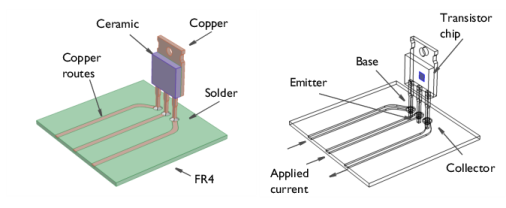
Figure 1 shows the model geometry used in the simulation. The power transistor is mounted on the circuit board using through-hole technology. The solder in the holes give mechanical support and electronic contact between the copper routes and the transistor pins.
Figure 1: Model geometry and position of transistor chip.
The transistor chip itself is a very thin structure represented by an internal surface in Figure 1. The chip is connected to the pins but this connections are assumed to have negligible effects on heat transfer.
The transistor package front part is made of ceramics while the back part, which could be clamped to a heat sink, is made of copper. The transistor chip and the front part of the package have matching thermal properties. The copper pins are soldered to the circuit board by the solder material 60Sn-40Pb (60 % tin and 40 % lead). The circuit board is made of FR4.
Current conduction and Joule heating take place in the copper routes, in the solders, and in the pins. In these parts, the physics of heat transfer and heat production due to Joule heating are fully coupled to the conduction of electric current. In all other parts of the transistor, only heat transfer and heat production take place.
The transistor chip itself is represented by an interior boundary with an internal production of heat corresponding to 0.9 W. Cooling through convection takes place at all external boundaries with a heat transfer coefficient of 5.0 W/(m2·K). This value of the heat transfer coefficient corresponds to the worst case scenario when the fan is switched off. The ambient temperature is 293.15 K.
Current enters the circuit board at the left vertical boundaries of the copper routes connected to the base, emitter, and collector in Figure 1. The value of the current at the boundary of the route connected to the emitter is 0.2 A. The value of the current at the boundary of the route connected to the collector is 0.1998 A. The difference in absolute current between the emitter and collector currents corresponds to the current at the boundary of the route connected to the base, which is 0.2 mA.
Results and Discussion
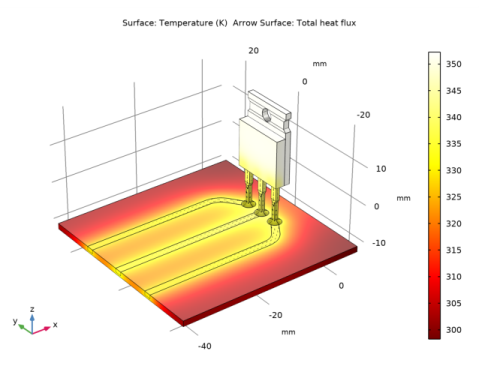
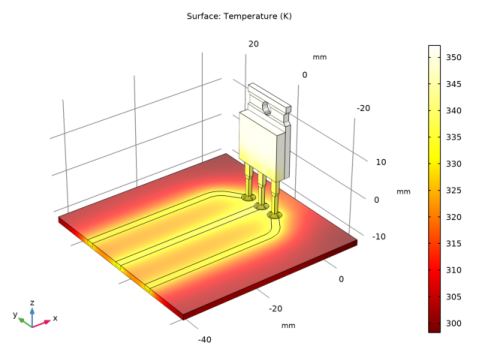
Figure 2 below shows the temperature distribution in the device. The maximum temperature is about 354 K or 81 °C. This is well within the acceptable operation temperature range for the transistor, which implies that attaching it to a heat sink is not needed in this case.
Figure 2: Temperature distribution.
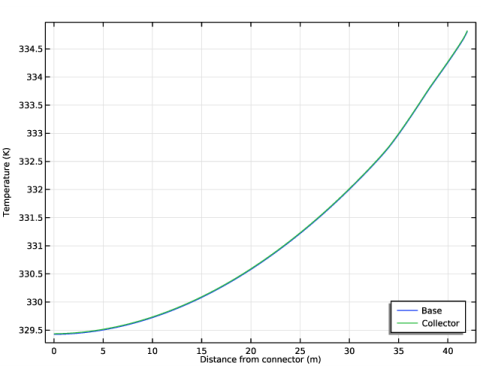
Also worth noting is that electric heating, or Joule heating as it is also referred to, hardly influences the temperature of the copper routes at the distance from the transistor modeled above. That’s most likely due to copper’s high conductivity; some of the heat produced in the transistor chip is conducted away from the device via the copper routes. Figure 3 shows the temperature along the copper routes connected to the base and the collector respectively. The current density in the base is 1/1000 of that in the collector but the temperature in the copper routes connected to the base and collector is almost identical.
Figure 3: Temperature along the copper routes connected to the base and collector.
The fact that the Joule heating effect does not increase temperature in the copper routes leads to the conclusion that the higher temperature in these routes is due to coppers high conductivity. The copper routes conduct some of the heat produced in the transistor chip away from this device. The circuit board has a poor thermal conductivity and is therefore not heated to the same extent as the copper routes.
Notes About the COMSOL Implementation
You can find all the material properties for this application in COMSOL’s Material Library. Furthermore, the ready-made physics interface for Joule heating sets up all model formulations that you need for the simulation: Electric Current and Heat Transfer in Solids are added with the corresponding Joule Heating coupling features in the Multiphysics node.
The Joule heating interface is by default available for all materials in the model. However, the circuit board material and the package material do no conduct electric current. For this reason, you have to edit the selection of Electric current physics to remove non-conducting domains. On the circuit board material, only heat transfer physics is calculated. By removing the non-conductive parts of the device to the list of Electric Current physics, Electromagnetic Heat Source and Boundary Electromagnetic Heat Source are automatically not applicable on these domains.
Application Library path: Heat_Transfer_Module/Power_Electronics_and_Electronic_Cooling/power_transistor
Modeling Instructions
From the File menu, choose New.
New
In the New window, click  Model Wizard.
Model Wizard
1
In the Model Wizard window, click  3D.
2
In the Select Physics tree, select Heat Transfer>Electromagnetic Heating>Joule Heating.
3
Click Add.
4
Click  Study.
5
In the Select Study tree, select General Studies>Stationary.
6
Geometry 1
The geometry sequence for the model is available in a file. If you want to create it from scratch yourself, you can follow the instructions in the Geometry Modeling Instructions section. Otherwise, insert the geometry sequence as follows:
1
In the Geometry toolbar, click  Insert Sequence.
2
3
In the Geometry toolbar, click  Build All.
4
Click the  Zoom Extents button in the Graphics toolbar.
You should now see the geometry shown above.
Global Definitions
Parameters 1
1
In the Model Builder window, under Global Definitions click Parameters 1.
2
In the Settings window for Parameters, locate the Parameters section.
3
Add Material
1
In the Home toolbar, click  Add Material to open the Add Material window.
2
Go to the Add Material window.
3
In the tree, select Built-in>Copper.
4
Click Add to Component in the window toolbar.
5
In the tree, select Built-in>FR4 (Circuit Board).
6
Click Add to Component in the window toolbar.
7
In the tree, select Built-in>Silica glass.
8
Click Add to Component in the window toolbar.
9
In the tree, select Built-in>Solder, 60Sn-40Pb.
10
Click Add to Component in the window toolbar.
11
In the Home toolbar, click  Add Material to close the Add Material window.
Materials
Copper (mat1)
1
Click the  Wireframe Rendering button in the Graphics toolbar.
2
In the Model Builder window, under Component 1 (comp1)>Materials click Copper (mat1).
3
In the Settings window for Material, locate the Geometric Entity Selection section.
4
Click  Clear Selection.
5
FR4 (Circuit Board) (mat2)
1
In the Model Builder window, click FR4 (Circuit Board) (mat2).
2
Silica glass (mat3)
1
In the Model Builder window, click Silica glass (mat3).
2
Solder, 60Sn-40Pb (mat4)
1
In the Model Builder window, click Solder, 60Sn-40Pb (mat4).
2
3
In the Settings window for Material, locate the Material Contents section.
4
Electric Currents (ec)
1
In the Model Builder window, under Component 1 (comp1) click Electric Currents (ec).
2
Ground 1
1
In the Physics toolbar, click  Boundaries and choose Ground.
2
Normal Current Density 1
1
In the Physics toolbar, click  Boundaries and choose Normal Current Density.
2
3
In the Settings window for Normal Current Density, locate the Normal Current Density section.
4
In the Jn text field, type (1-1e-3)*j_CE.
Normal Current Density 2
1
In the Physics toolbar, click  Boundaries and choose Normal Current Density.
2
3
In the Settings window for Normal Current Density, locate the Normal Current Density section.
4
In the Jn text field, type -j_CE.
Normal Current Density 3
1
In the Physics toolbar, click  Boundaries and choose Normal Current Density.
2
3
In the Settings window for Normal Current Density, locate the Normal Current Density section.
4
In the Jn text field, type 1e-3*j_CE.
Heat Transfer in Solids (ht)
In the Model Builder window, under Component 1 (comp1) click Heat Transfer in Solids (ht).
Heat Flux 1
1
In the Physics toolbar, click  Boundaries and choose Heat Flux.
2
In the Settings window for Heat Flux, locate the Boundary Selection section.
3
From the Selection list, choose All boundaries.
4
Locate the Heat Flux section. Click the Convective heat flux button.
5
In the h text field, type h_coeff.
Boundary Heat Source 1
1
In the Physics toolbar, click  Boundaries and choose Boundary Heat Source.
2
In the Settings window for Boundary Heat Source, locate the Boundary Selection section.
3
From the Selection list, choose Transistor Chip.
4
Locate the Boundary Heat Source section. In the Qb text field, type Q_h.
Mesh 1
1
In the Model Builder window, under Component 1 (comp1) click Mesh 1.
2
In the Settings window for Mesh, locate the Physics-Controlled Mesh section.
3
From the Element size list, choose Fine.
4
Click  Build All.
Study 1
In the Home toolbar, click  Compute.
Results
Multislice 1
1
In the Model Builder window, expand the Electric Potential (ec) node.
2
Right-click Multislice 1 and choose Delete.
Electric Potential (ec)
In the Model Builder window, click Electric Potential (ec).
Surface 1
1
In the Electric Potential (ec) toolbar, click  Surface.
2
Temperature (ht)
The second default plot shows the temperature. Add an arrow plot of the total heat flux.
1
In the Model Builder window, click Temperature (ht).
Arrow Surface 1
1
In the Temperature (ht) toolbar, click  Arrow Surface.
2
In the Settings window for Arrow Surface, click Replace Expression in the upper-right corner of the Expression section. From the menu, choose Component 1 (comp1)>Heat Transfer in Solids>Domain fluxes>ht.tfluxx,...,ht.tfluxz - Total heat flux.
3
Locate the Arrow Positioning section. In the Number of arrows text field, type 5e3.
4
Locate the Coloring and Style section. From the Color list, choose Black.
5
In the Temperature (ht) toolbar, click  Plot.
6
Click the  Zoom In button in the Graphics toolbar.
7
Click the  Zoom Extents button in the Graphics toolbar.
Finally, reproduce the plot in Figure 3 by following the steps outlined below.
Temperature along Copper Routes
1
In the Home toolbar, click  Add Plot Group and choose 1D Plot Group.
2
In the Settings window for 1D Plot Group, type Temperature along Copper Routes in the Label text field.
3
Locate the Legend section. From the Position list, choose Lower right.
Line Graph 1
1
In the Temperature along Copper Routes toolbar, click  Line Graph.
2
3
In the Settings window for Line Graph, click Replace Expression in the upper-right corner of the y-Axis Data section. From the menu, choose Component 1 (comp1)>Heat Transfer in Solids>Temperature>T - Temperature - K.
4
Click to expand the Legends section. Select the Show legends check box.
5
From the Legends list, choose Manual.
6
7
In the Temperature along Copper Routes toolbar, click  Plot.
Line Graph 2
1
Right-click Line Graph 1 and choose Duplicate.
2
In the Settings window for Line Graph, locate the Selection section.
3
Select the  Activate Selection toggle button.
4
5
Locate the Legends section. In the table, enter the following settings:
6
In the Temperature along Copper Routes toolbar, click  Plot.
Temperature along Copper Routes
1
In the Model Builder window, click Temperature along Copper Routes.
2
In the Settings window for 1D Plot Group, click to expand the Title section.
3
From the Title type list, choose None.
4
Locate the Plot Settings section. Select the x-axis label check box.
5
In the associated text field, type Distance from connector (m).
6
In the Temperature along Copper Routes toolbar, click  Plot.
Geometry Modeling Instructions
If you want to create the geometry yourself, follow these steps.
Geometry 1
1
In the Model Builder window, under Component 1 (comp1) click Geometry 1.
2
In the Settings window for Geometry, locate the Units section.
3
From the Length unit list, choose mm.
Block 1 (blk1)
1
In the Geometry toolbar, click  Block.
2
In the Settings window for Block, locate the Size and Shape section.
3
In the Width text field, type 50.
4
In the Depth text field, type 50.
5
In the Height text field, type 1.5.
6
Locate the Position section. In the x text field, type -44.
7
In the y text field, type -25.
8
In the z text field, type -12.
Work Plane 1 (wp1)
1
In the Geometry toolbar, click  Work Plane.
2
In the Settings window for Work Plane, locate the Plane Definition section.
3
In the z-coordinate text field, type -10.5.
Work Plane 1 (wp1)>Plane Geometry
In the Model Builder window, click Plane Geometry.
Work Plane 1 (wp1)>Rectangle 1 (r1)
1
In the Work Plane toolbar, click  Rectangle.
2
In the Settings window for Rectangle, locate the Size and Shape section.
3
In the Width text field, type 34.
4
In the Height text field, type 2.
5
Locate the Position section. In the xw text field, type -44.
6
In the yw text field, type 10.5.
Work Plane 1 (wp1)>Circle 1 (c1)
1
In the Work Plane toolbar, click  Circle.
2
In the Settings window for Circle, locate the Size and Shape section.
3
In the Sector angle text field, type 180.
4
In the Radius text field, type 6.5.
5
Locate the Position section. In the xw text field, type -10.
6
In the yw text field, type 6.
7
Locate the Rotation Angle section. In the Rotation text field, type -45.
8
Click to expand the Layers section. In the table, enter the following settings:
Work Plane 1 (wp1)>Circle 2 (c2)
1
In the Work Plane toolbar, click  Circle.
2
In the Settings window for Circle, locate the Size and Shape section.
3
In the Radius text field, type 1.75.
4
Locate the Position section. In the xw text field, type -2.5.
5
In the yw text field, type 5.
6
Locate the Layers section. In the table, enter the following settings:
Work Plane 1 (wp1)>Tangent 1 (tan1)
1
In the Work Plane toolbar, click  Tangent.
2
On the object c1, select Boundary 9 only.
3
In the Settings window for Tangent, locate the Tangent section.
4
Find the Second edge to tangent subsection. Select the  Activate Selection toggle button.
5
On the object c2, select Boundary 11 only.
6
Work Plane 1 (wp1)>Tangent 2 (tan2)
1
In the Work Plane toolbar, click  Tangent.
2
On the object c1, select Boundary 8 only.
3
In the Settings window for Tangent, locate the Tangent section.
4
Find the Second edge to tangent subsection. Select the  Activate Selection toggle button.
5
On the object c2, select Boundary 7 only.
6
Work Plane 1 (wp1)>Convert to Curve 1 (ccur1)
1
In the Work Plane toolbar, click  Conversions and choose Convert to Curve.
2
Click in the Graphics window and then press Ctrl+A to select all objects.
3
In the Settings window for Convert to Curve, click  Build Selected.
Work Plane 1 (wp1)>Delete Entities 1 (del1)
1
In the Work Plane toolbar, click  Delete.
2
In the Settings window for Delete Entities, locate the Entities or Objects to Delete section.
3
From the Geometric entity level list, choose Boundary.
4
On the object ccur1, select Boundaries 5, 7, 8, 10, 27, 30, and 32 only.
Work Plane 1 (wp1)>Convert to Solid 1 (csol1)
1
In the Work Plane toolbar, click  Conversions and choose Convert to Solid.
2
Work Plane 1 (wp1)>Union 1 (uni1)
1
In the Work Plane toolbar, click  Booleans and Partitions and choose Union.
2
3
In the Settings window for Union, locate the Union section.
4
Clear the Keep interior boundaries check box.
Plane Geometry
1
In the Model Builder window, collapse the Component 1 (comp1)>Geometry 1>Work Plane 1 (wp1)>Plane Geometry node.
2
In the Model Builder window, click Plane Geometry.
Work Plane 1 (wp1)>Rectangle 2 (r2)
1
In the Work Plane toolbar, click  Rectangle.
2
In the Settings window for Rectangle, locate the Size and Shape section.
3
In the Width text field, type 40.5.
4
In the Height text field, type 2.
5
Locate the Position section. In the xw text field, type -44.
6
In the yw text field, type -1.
Work Plane 1 (wp1)>Circle 3 (c3)
1
In the Work Plane toolbar, click  Circle.
2
In the Settings window for Circle, locate the Size and Shape section.
3
In the Radius text field, type 1.75.
4
Locate the Position section. In the xw text field, type -2.5.
Work Plane 1 (wp1)>Union 2 (uni2)
1
In the Work Plane toolbar, click  Booleans and Partitions and choose Union.
2
Select the objects c3 and r2 only.
3
In the Settings window for Union, locate the Union section.
4
Clear the Keep interior boundaries check box.
Work Plane 1 (wp1)>Mirror 1 (mir1)
1
In the Work Plane toolbar, click  Transforms and choose Mirror.
2
3
In the Settings window for Mirror, locate the Input section.
4
Select the Keep input objects check box.
5
Locate the Normal Vector to Line of Reflection section. In the xw text field, type 0.
6
In the yw text field, type 1.
Extrude 1 (ext1)
1
In the Model Builder window, under Component 1 (comp1)>Geometry 1 right-click Work Plane 1 (wp1) and choose Extrude.
2
In the Settings window for Extrude, locate the Distances section.
3
Select the Reverse direction check box.
Block 2 (blk2)
1
In the Geometry toolbar, click  Block.
2
In the Settings window for Block, locate the Size and Shape section.
3
In the Height text field, type 9.
4
Locate the Position section. In the x text field, type -3.
5
In the y text field, type 4.5.
6
In the z text field, type -14.05.
Block 3 (blk3)
1
In the Geometry toolbar, click  Block.
2
In the Settings window for Block, locate the Size and Shape section.
3
In the Depth text field, type 1.75.
4
In the Height text field, type 6.
5
Locate the Position section. In the x text field, type -3.
6
In the y text field, type 4.125.
7
In the z text field, type -4.25.
Hexahedron 1 (hex1)
1
In the Geometry toolbar, click  More Primitives and choose Hexahedron.
2
In the Settings window for Hexahedron, locate the Vertices section.
3
In row 1, set x to -3.
4
In row 1, set y to 4.5.
5
In row 1, set z to -5.05.
6
In row 2, set z to -5.05.
7
In row 3, set z to -5.05.
8
In row 4, set z to -5.05.
9
In row 5, set z to -4.25.
10
In row 6, set z to -4.25.
11
In row 7, set z to -4.25.
12
In row 8, set z to -4.25.
13
In row 2, set y to 4.5.
14
In row 3, set y to 5.5.
15
In row 4, set y to 5.5.
16
In row 5, set y to 4.125.
17
In row 6, set y to 4.125.
18
In row 7, set y to 5.875.
19
In row 8, set y to 5.875.
20
In row 2, set x to -2.
21
In row 3, set x to -2.
22
In row 4, set x to -3.
23
In row 5, set x to -3.
24
In row 6, set x to -2.
25
In row 7, set x to -2.
26
In row 8, set x to -3.
Union 1 (uni1)
1
In the Geometry toolbar, click  Booleans and Partitions and choose Union.
2
Select the objects blk2, blk3, and hex1 only.
3
In the Settings window for Union, locate the Union section.
4
Clear the Keep interior boundaries check box.
Block 4 (blk4)
1
In the Geometry toolbar, click  Block.
2
In the Settings window for Block, locate the Size and Shape section.
3
In the Width text field, type 2.5.
4
In the Depth text field, type 14.
5
In the Height text field, type 12.5.
6
Locate the Position section. In the x text field, type -4.
7
In the y text field, type -7.
Block 5 (blk5)
1
In the Geometry toolbar, click  Block.
2
In the Settings window for Block, locate the Size and Shape section.
3
In the Width text field, type 1.5.
4
In the Depth text field, type 14.
5
In the Height text field, type 14.
6
Locate the Position section. In the x text field, type -1.5.
7
In the y text field, type -7.
Block 6 (blk6)
1
In the Geometry toolbar, click  Block.
2
In the Settings window for Block, locate the Size and Shape section.
3
In the Width text field, type 1.5.
4
In the Depth text field, type 12.5.
5
In the Height text field, type 2.
6
Locate the Position section. In the x text field, type -1.5.
7
In the y text field, type -6.25.
8
In the z text field, type 14.75.
Block 7 (blk7)
1
In the Geometry toolbar, click  Block.
2
In the Settings window for Block, locate the Size and Shape section.
3
In the Width text field, type 1.5.
4
In the Depth text field, type 14.
5
In the Height text field, type 1.5.
6
Locate the Position section. In the x text field, type -1.5.
7
In the y text field, type -7.
8
In the z text field, type 17.5.
Hexahedron 2 (hex2)
1
In the Geometry toolbar, click  More Primitives and choose Hexahedron.
2
In the Settings window for Hexahedron, locate the Vertices section.
3
In row 1, set x to -1.5.
4
In row 1, set y to -7.
5
In row 1, set z to 14.
6
In row 2, set y to -7.
7
In row 2, set z to 14.
8
In row 3, set y to 7.
9
In row 3, set z to 14.
10
In row 3, set x to 0.
11
In row 4, set x to -1.5.
12
In row 4, set y to 7.
13
In row 4, set z to 14.
14
In row 5, set x to -1.5.
15
In row 5, set y to -6.25.
16
In row 5, set z to 14.75.
17
In row 6, set y to -6.25.
18
In row 6, set z to 14.75.
19
In row 7, set x to 0.
20
In row 7, set y to 6.25.
21
In row 7, set z to 14.75.
22
In row 8, set x to -1.5.
23
In row 8, set y to 6.25.
24
In row 8, set z to 14.75.
Mirror 1 (mir1)
1
In the Geometry toolbar, click  Transforms and choose Mirror.
2
3
In the Settings window for Mirror, locate the Input section.
4
Select the Keep input objects check box.
5
Locate the Point on Plane of Reflection section. In the z text field, type 15.75.
Union 2 (uni2)
1
In the Geometry toolbar, click  Booleans and Partitions and choose Union.
2
Select the objects blk5, blk6, blk7, hex2, and mir1 only.
3
In the Settings window for Union, locate the Union section.
4
Clear the Keep interior boundaries check box.
Cylinder 1 (cyl1)
1
In the Geometry toolbar, click  Cylinder.
2
In the Settings window for Cylinder, locate the Size and Shape section.
3
In the Radius text field, type 1.65.
4
In the Height text field, type 1.5.
5
Locate the Position section. In the x text field, type -1.5.
6
In the z text field, type 15.75.
7
Locate the Axis section. From the Axis type list, choose x-axis.
Difference 1 (dif1)
1
In the Geometry toolbar, click  Booleans and Partitions and choose Difference.
2
3
In the Settings window for Difference, locate the Difference section.
4
Find the Objects to subtract subsection. Select the  Activate Selection toggle button.
5
Transistor Chip
1
In the Geometry toolbar, click  Work Plane.
2
In the Settings window for Work Plane, type Transistor Chip in the Label text field.
3
Locate the Plane Definition section. From the Plane type list, choose Face parallel.
4
On the object dif1, select Boundary 1 only.
Transistor Chip (wp2)>Plane Geometry
In the Model Builder window, click Plane Geometry.
Transistor Chip (wp2)>Square 1 (sq1)
1
In the Work Plane toolbar, click  Square.
2
In the Settings window for Square, locate the Size section.
3
In the Side length text field, type 3.
4
Locate the Position section. In the xw text field, type -1.5.
Transistor Chip (wp2)
1
In the Model Builder window, click Transistor Chip (wp2).
2
In the Settings window for Work Plane, locate the Selections of Resulting Entities section.
3
Select the Resulting objects selection check box.
Work Plane 3 (wp3)
1
In the Geometry toolbar, click  Work Plane.
2
In the Settings window for Work Plane, locate the Plane Definition section.
3
From the Plane list, choose yz-plane.
4
In the x-coordinate text field, type -2.5.
Work Plane 3 (wp3)>Plane Geometry
In the Model Builder window, click Plane Geometry.
Work Plane 3 (wp3)>Polygon 1 (pol1)
1
In the Work Plane toolbar, click  Polygon.
2
In the Settings window for Polygon, locate the Object Type section.
3
From the Type list, choose Open curve.
4
Locate the Coordinates section. From the Data source list, choose Vectors.
5
In the xw text field, type 5.5 5.5 5.9 5.9 6.75.
6
In the yw text field, type -9.7 -12 -12 -10.5 -10.5.
Work Plane 3 (wp3)>Quadratic Bézier 1 (qb1)
1
In the Work Plane toolbar, click  More Primitives and choose Quadratic Bézier.
2
In the Settings window for Quadratic Bézier, locate the Control Points section.
3
In row 1, set xw to 6.75.
4
In row 2, set xw to 5.5.
5
In row 3, set xw to 5.5.
6
In row 1, set yw to -10.5.
7
In row 2, set yw to -10.3.
8
In row 3, set yw to -9.7.
9
Locate the Weights section. In the 2 text field, type 0.5/sqrt(2).
Work Plane 3 (wp3)>Convert to Solid 1 (csol1)
1
In the Work Plane toolbar, click  Conversions and choose Convert to Solid.
2
Click in the Graphics window and then press Ctrl+A to select both objects.
Revolve 1 (rev1)
1
In the Model Builder window, under Component 1 (comp1)>Geometry 1 right-click Work Plane 3 (wp3) and choose Revolve.
2
In the Settings window for Revolve, locate the Revolution Angles section.
3
Clear the Keep original faces check box.
4
Locate the Revolution Axis section. From the Axis type list, choose 3D.
5
Find the Point on the revolution axis subsection. In the x text field, type -2.5.
6
In the y text field, type 5.
7
In the z text field, type -5.05.
8
Find the Direction of revolution axis subsection. In the y text field, type 0.
9
In the z text field, type 1.
Union 3 (uni3)
1
In the Geometry toolbar, click  Booleans and Partitions and choose Union.
2
Select the objects rev1 and uni1 only.
Array 1 (arr1)
1
In the Geometry toolbar, click  Transforms and choose Array.
2
3
In the Settings window for Array, locate the Size section.
4
In the y size text field, type 3.
5
Locate the Displacement section. In the y text field, type -5.
Form Composite Domains 1 (cmd1)
1
In the Geometry toolbar, click  Virtual Operations and choose Form Composite Domains.
2
Click the  Wireframe Rendering button in the Graphics toolbar.
3
On the object fin, select Domain 39 only.
4
On the object fin, select Domains 15, 16, 26, 27, 30, 37–47, and 60–65 only.
5
On the object fin, select Domains 11, 12, 15, 16, 26–47, and 54–65 only.
6
On the object fin, select Domains 15–65 only.
Form Composite Domains 2 (cmd2)
1
In the Geometry toolbar, click  Virtual Operations and choose Form Composite Domains.
2
Click the  Select Box button in the Graphics toolbar.
3
On the object cmd1, select Domains 5–7 and 9–14 only.