

You are viewing the documentation for an older COMSOL version. The latest version is available here.
PDF

Electrodeposition of a Microconnector Bump with Deforming Geometry in 3D
Introduction
This model simulates the shape evolution of a microconnector bump over time as copper deposits on an electrode surface. Transport of cupric ions in the electrolyte occurs by convection and diffusion. The electrode kinetics are described by a concentration dependent Butler-Volmer expression.
The model is an extension to 3D of the Electrodeposition of a Microconnector Bump in 2D example.
Model Definition
The basics of the electrochemical cell, geometry and model problem are described in Electrodeposition of a Microconnector Bump in 2D. For this 3D model the Péclet number of the cell is 41.6.
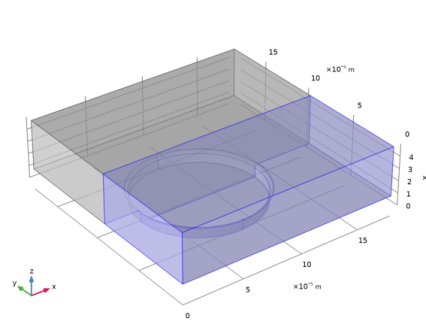
Figure 1 shows the 3D model geometry. Due to symmetry the unit cell has been cut in half along the x-axis.
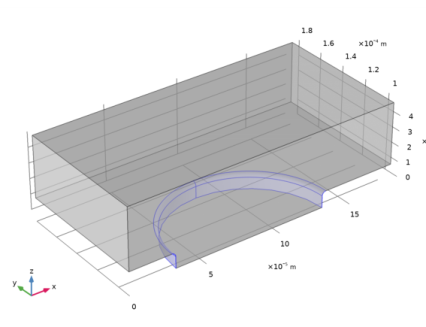
Figure 1: Model geometry. The electrolyte, flows from left to right in the x direction, over the circular hole in the photoresist mask, and exits on the right. The cathode (gray) is placed at the bottom of the circular hole. The top boundary is in contact with the electrolyte bulk.
In the 2D model, the cupric ion concentration is set to zero on the electrode surface, and the electrode current density is calculated from the electrolyte flux variable. In this 3D model however, in order to improve the stability of the deforming boundary, a concentration dependent Butler-Volmer expression is used to describe the current density at the cathode.
On the bottom boundary, the cathode, the electrode reaction
follows the following kinetics expression for the charge transfer current ict:
where i0 is the exchange current density (10 A/m2), η the overpotential, F Faraday’s constant (96,485 C/mol), R the molar gas constant (8.13 J/(mol·K)), T the temperature, the electrolyte cupric ion concentration (mol/m3), and , the reference cupric concentration in the bulk electrolyte (600 mol/m3).

The electrode reaction causes the electrode boundary to move in the normal direction with a velocity vdep (m/s) according to
where MCu is the molar mass (0.06355 kg/mol) and ρCu the density (8,960 kg/m3) of copper, respectively.
The electrode potential is set to 0.45 V. The electrolyte conductivity is set to 1 S/m, and the top bulk electrolyte boundary potential is set 0 V. All boundaries except the cathode and the top bulk electrolyte boundary are isolated.
The problem is solved in a time-dependent simulation to simulate the electrode deformation during 120 s.
Results and Discussion
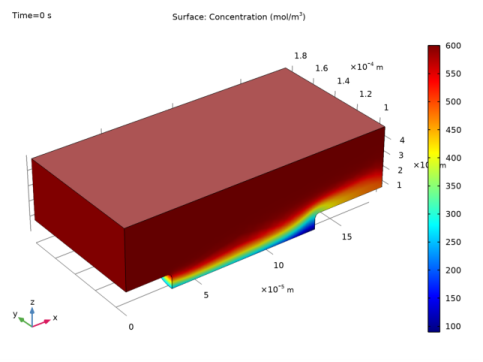
Figure 2 shows the concentration in the cell at t = 0 s. The concentration along the zx-plane is qualitatively similar to Figure 5 of the 2D model, with the main differences being the cupric concentration at the electrode surface. This difference is due to the changed boundary condition, with a limiting current condition in the 2D model and a mixed concentration/activation condition in the 3D model.
Figure 2: Cu2+ concentration in the cell at t = 0.
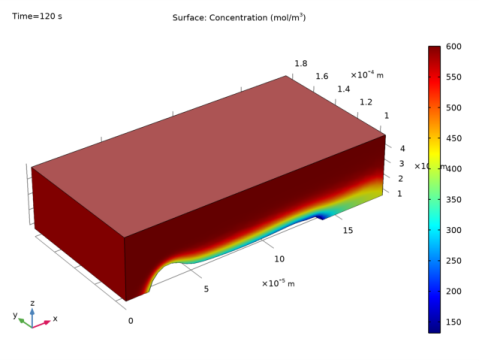
Figure 3 shows the concentration at t = 120 s. The minimum concentration is now higher compared to t = 0 s due to a shorter transport length of ions toward the electrode surface.
Figure 3: Cu2+ concentration in the cell at t = 120.
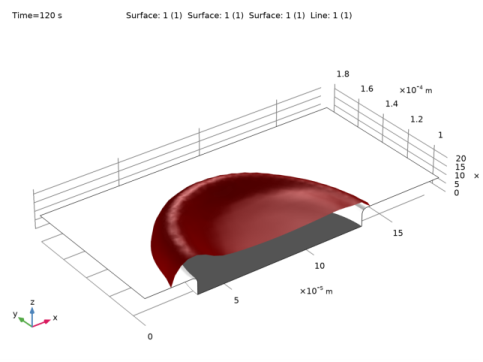
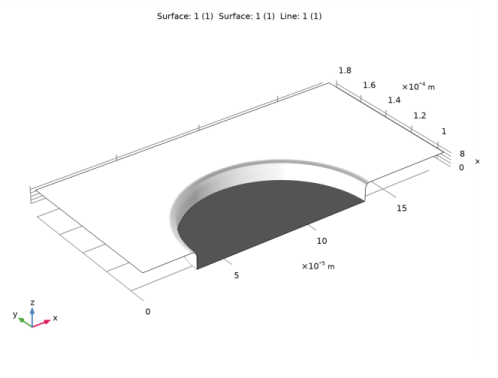
Figure 4 shows the electrode surface at t = 120 s. The deposit is thicker toward the left in the figure, and the shape follows the same trend as was seen in Figure 7 of the 2D model.
Figure 4: Microconnector bump surface (red) at t = 120 s.
Notes About the COMSOL Implementation
The model is solved using two stationary steps followed by a time-dependent step. The first stationary step solves for the laminar flow only. The second stationary step solves for the concentration and initial current distribution in the cell. The results from the two initial steps are used as initial values for the third time-dependent study step.
Reference
K. Kondo, K. Fukui, K. Uno, and K. Shonohara, “Shape Evolution of Electrodeposited Copper Bumps,” J. Electrochemical Society, vol. 143, pp 1880–1886, 1996.
Application Library path: Electrodeposition_Module/Tutorials/microconnector_bump_3d
From the File menu, choose New.
New
In the New window, click  Model Wizard.
Model Wizard
1
In the Model Wizard window, click  3D.
2
In the Select Physics tree, select Electrochemistry>Electrodeposition, Deformed Geometry>Electrodeposition, Tertiary with Supporting Electrolyte.
3
Click Add.
4
In the Number of species text field, type 1.
5
In the Concentrations table, enter the following settings:
6
In the Select Physics tree, select Fluid Flow>Single-Phase Flow>Laminar Flow (spf).
7
Click Add.
8
Global Definitions
Load the model parameters from a text file.
Parameters 1
1
In the Model Builder window, under Global Definitions click Parameters 1.
2
In the Settings window for Parameters, locate the Parameters section.
3
Click  Load from File.
4
Definitions
Load also some variables from a text file.
Variables 1
1
In the Model Builder window, under Component 1 (comp1) right-click Definitions and choose Variables.
2
In the Settings window for Variables, locate the Variables section.
3
Click  Load from File.
4
Geometry 1
Draw the geometry as a block and a cylinder (for the hole in the photoresist film). Round off the sharp corners of the film by using an additional cylinder and a torus. Finally, use the symmetry of the problem by cutting the model geometry in half.
Block 1 (blk1)
1
In the Geometry toolbar, click  Block.
2
In the Settings window for Block, locate the Size and Shape section.
3
In the Width text field, type Ltot.
4
In the Depth text field, type Ltot.
5
In the Height text field, type h2.
6
Locate the Position section. In the z text field, type h1.
Cylinder 1 (cyl1)
1
In the Geometry toolbar, click  Cylinder.
2
In the Settings window for Cylinder, locate the Size and Shape section.
3
In the Radius text field, type L1/2.
4
In the Height text field, type h1.
5
Locate the Position section. In the x text field, type L3+L1/2.
6
In the y text field, type Ltot/2.
7
Click  Build Selected.
8
Click the  Transparency button in the Graphics toolbar.
Cylinder 2 (cyl2)
1
Right-click Cylinder 1 (cyl1) and choose Duplicate.
2
In the Settings window for Cylinder, locate the Size and Shape section.
3
In the Radius text field, type L1/2+r_edge.
4
In the Height text field, type r_edge.
5
Locate the Position section. In the z text field, type h1-r_edge.
6
Click  Build Selected.
Torus 1 (tor1)
1
In the Geometry toolbar, click  Torus.
2
In the Settings window for Torus, locate the Size and Shape section.
3
In the Major radius text field, type L1/2+r_edge.
4
In the Minor radius text field, type r_edge.
5
Locate the Position section. In the x text field, type L3+L1/2.
6
In the y text field, type Ltot/2.
7
In the z text field, type h1-r_edge.
8
Click  Build Selected.
Difference 1 (dif1)
1
In the Geometry toolbar, click  Booleans and Partitions and choose Difference.
2
3
In the Settings window for Difference, locate the Difference section.
4
Find the Objects to subtract subsection. Select the  Activate Selection toggle button.
5
6
Click  Build Selected.
Union 1 (uni1)
1
In the Geometry toolbar, click  Booleans and Partitions and choose Union.
2
Click in the Graphics window and then press Ctrl+A to select all objects.
3
In the Settings window for Union, locate the Union section.
4
Clear the Keep interior boundaries check box.
5
Click  Build Selected.
Work Plane 1 (wp1)
1
In the Geometry toolbar, click  Work Plane.
2
In the Settings window for Work Plane, locate the Plane Definition section.
3
From the Plane list, choose xz-plane.
4
In the y-coordinate text field, type Ltot/2.
Partition Objects 1 (par1)
1
In the Geometry toolbar, click  Booleans and Partitions and choose Partition Objects.
2
3
In the Settings window for Partition Objects, locate the Partition Objects section.
4
From the Partition with list, choose Work plane.
5
Click  Build Selected.
Delete Entities 1 (del1)
1
In the Model Builder window, right-click Geometry 1 and choose Delete Entities.
2
In the Settings window for Delete Entities, locate the Entities or Objects to Delete section.
3
From the Geometric entity level list, choose Domain.
4
On the object par1, select Domain 1 only.
5
Click  Build Selected.
6
Click the  Zoom Extents button in the Graphics toolbar.
Definitions
Add a number of selections to facilitate choosing various parts of the geometry when setting up the physics later.
Inlet
1
In the Definitions toolbar, click  Explicit.
2
In the Settings window for Explicit, locate the Input Entities section.
3
From the Geometric entity level list, choose Boundary.
4
5
Right-click Explicit 1 and choose Rename.
6
In the Rename Explicit dialog box, type Inlet in the New label text field.
7
Outlet
1
In the Definitions toolbar, click  Explicit.
2
In the Settings window for Explicit, locate the Input Entities section.
3
From the Geometric entity level list, choose Boundary.
4
5
Right-click Explicit 2 and choose Rename.
6
In the Rename Explicit dialog box, type Outlet in the New label text field.
7
Symmetry Walls
1
In the Definitions toolbar, click  Explicit.
2
In the Settings window for Explicit, locate the Input Entities section.
3
From the Geometric entity level list, choose Boundary.
4
5
Right-click Explicit 3 and choose Rename.
6
In the Rename Explicit dialog box, type Symmetry Walls in the New label text field.
7
Cathode
1
In the Definitions toolbar, click  Explicit.
2
In the Settings window for Explicit, locate the Input Entities section.
3
From the Geometric entity level list, choose Boundary.
4
5
Right-click Explicit 4 and choose Rename.
6
In the Rename Explicit dialog box, type Cathode in the New label text field.
7
Bulk Electrolyte
1
In the Definitions toolbar, click  Explicit.
2
In the Settings window for Explicit, locate the Input Entities section.
3
From the Geometric entity level list, choose Boundary.
4
5
Right-click Explicit 5 and choose Rename.
6
In the Rename Explicit dialog box, type Bulk Electrolyte in the New label text field.
7
Inlet + Bulk Electrolyte
1
In the Definitions toolbar, click  Union.
2
In the Settings window for Union, locate the Geometric Entity Level section.
3
From the Level list, choose Boundary.
4
Locate the Input Entities section. Under Selections to add, click  Add.
5
In the Add dialog box, in the Selections to add list, choose Inlet and Bulk Electrolyte.
6
7
Right-click Union 1 and choose Rename.
8
In the Rename Union dialog box, type Inlet + Bulk Electrolyte in the New label text field.
9
Insulator Hole Walls
1
In the Definitions toolbar, click  Explicit.
2
In the Settings window for Explicit, locate the Input Entities section.
3
From the Geometric entity level list, choose Boundary.
4
5
Right-click Explicit 6 and choose Rename.
6
In the Rename Explicit dialog box, type Insulator Hole Walls in the New label text field.
7
Tertiary Current Distribution, Nernst-Planck (tcd)
Set up the current distribution and deforming geometry in the Electrodeposition, Tertiary with Supporting Electrolyte interface.
Electrolyte 1
Now set up the convection and diffusion part of the problem using Tertiary Current Distribution Nernst-Planck.
1
In the Model Builder window, under Component 1 (comp1)>Tertiary Current Distribution, Nernst-Planck (tcd) click Electrolyte 1.
2
In the Settings window for Electrolyte, locate the Convection section.
3
From the u list, choose Velocity field (spf).
4
Locate the Diffusion section. In the Dc text field, type D.
5
Locate the Electrolyte Current Conduction section. From the σl list, choose User defined. In the associated text field, type 1.
Initial Values 1
1
In the Model Builder window, click Initial Values 1.
2
In the Settings window for Initial Values, locate the Initial Values section.
3
In the c text field, type c_bulk.
Concentration 1
1
In the Physics toolbar, click  Boundaries and choose Concentration.
2
In the Settings window for Concentration, locate the Boundary Selection section.
3
From the Selection list, choose Inlet + Bulk Electrolyte.
4
Locate the Concentration section. Select the Species c check box.
5
In the c0,c text field, type c_bulk.
Outflow 1
1
In the Physics toolbar, click  Boundaries and choose Outflow.
2
In the Settings window for Outflow, locate the Boundary Selection section.
3
From the Selection list, choose Outlet.
Electrode Surface 1
1
In the Physics toolbar, click  Boundaries and choose Electrode Surface.
2
In the Settings window for Electrode Surface, click to expand the Dissolving-Depositing Species section.
3
4
Clear the Solve for surface concentration variables check box.
5
Locate the Boundary Selection section. From the Selection list, choose Cathode.
6
Locate the Electrode Phase Potential Condition section. In the φs,ext text field, type -0.45.
Electrode Reaction 1
Now define the concentration-dependent kinetics for cupric ions on the cathode.
1
In the Model Builder window, expand the Electrode Surface 1 node, then click Electrode Reaction 1.
2
In the Settings window for Electrode Reaction, locate the Stoichiometric Coefficients section.
3
In the n text field, type 2.
4
In the νc text field, type -1.
5
In the Stoichiometric coefficients for dissolving-depositing species: table, enter the following settings:
6
Click to expand the Reference Concentrations section. In the table, enter the following settings:
7
Locate the Electrode Kinetics section. In the i0,ref(T) text field, type 10[A/m^2].
8
In the αa text field, type 1.5.
Electrolyte Potential 1
1
In the Physics toolbar, click  Boundaries and choose Electrolyte Potential.
2
In the Settings window for Electrolyte Potential, locate the Boundary Selection section.
3
From the Selection list, choose Bulk Electrolyte.
Linear shape functions for concentration, electrolyte potential and electric potential are sufficient for this model setup. They also result in reduced computation time and memory requirements when compared to the default quadratic shape functions.
4
In the Model Builder window, click Tertiary Current Distribution, Nernst-Planck (tcd).
5
In the Settings window for Tertiary Current Distribution, Nernst-Planck, click to expand the Discretization section.
6
From the Concentration list, choose Linear.
7
From the Electrolyte potential list, choose Linear.
8
From the Electric potential list, choose Linear.
Laminar Flow (spf)
Set up the flow.
Fluid Properties 1
1
In the Model Builder window, under Component 1 (comp1)>Laminar Flow (spf) click Fluid Properties 1.
2
In the Settings window for Fluid Properties, locate the Fluid Properties section.
3
From the ρ list, choose User defined. In the associated text field, type rho.
4
From the μ list, choose User defined. In the associated text field, type mu.
Symmetry 1
1
In the Physics toolbar, click  Boundaries and choose Symmetry.
2
In the Settings window for Symmetry, locate the Boundary Selection section.
3
From the Selection list, choose Symmetry Walls.
Inlet 1
1
In the Physics toolbar, click  Boundaries and choose Inlet.
2
In the Settings window for Inlet, locate the Boundary Selection section.
3
From the Selection list, choose Inlet.
4
Locate the Velocity section. Click the Velocity field button.
5
Specify the u0 vector as
Wall 2
1
In the Physics toolbar, click  Boundaries and choose Wall.
2
In the Settings window for Wall, locate the Boundary Selection section.
3
From the Selection list, choose Bulk Electrolyte.
4
Click to expand the Wall Movement section. From the Translational velocity list, choose Manual.
5
Specify the utr vector as
Outlet 1
1
In the Physics toolbar, click  Boundaries and choose Outlet.
2
In the Settings window for Outlet, locate the Boundary Selection section.
3
From the Selection list, choose Outlet.
Multiphysics
Nondeforming Boundary 2 (ndb2)
1
In the Physics toolbar, click  Multiphysics Couplings and choose Boundary>Nondeforming Boundary.
2
3
In the Settings window for Nondeforming Boundary, locate the Nondeforming Boundary section.
4
From the Boundary condition list, choose Zero normal displacement.
Mesh 1
Size 1
1
In the Model Builder window, under Component 1 (comp1) right-click Mesh 1 and choose Size.
2
In the Settings window for Size, locate the Geometric Entity Selection section.
3
From the Geometric entity level list, choose Boundary.
4
From the Selection list, choose Insulator Hole Walls.
5
Locate the Element Size section. Click the Custom button.
6
Locate the Element Size Parameters section. Select the Maximum element size check box.
7
Size
1
In the Model Builder window, click Size.
2
In the Settings window for Size, click to expand the Element Size Parameters section.
3
In the Maximum element size text field, type 8E-6.
4
In the Maximum element growth rate text field, type 1.1.
5
In the Curvature factor text field, type 0.7.
Mapped 1
1
In the Mesh toolbar, click  Boundary and choose Mapped.
2
In the Settings window for Mapped, locate the Boundary Selection section.
3
From the Selection list, choose Insulator Hole Walls.
4
Click to expand the Advanced Settings section. From the Interpolation method list, choose Transfinite in 3D.
Convert 1
1
In the Mesh toolbar, click  Modify and choose Elements>Convert.
2
In the Settings window for Convert, locate the Geometric Entity Selection section.
3
From the Geometric entity level list, choose Boundary.
4
From the Selection list, choose Insulator Hole Walls.
5
Click  Build Selected.
Free Tetrahedral 1
1
In the Mesh toolbar, click  Free Tetrahedral.
2
In the Settings window for Free Tetrahedral, click  Build Selected.
Boundary Layers 1
1
In the Mesh toolbar, click  Boundary Layers.
2
In the Settings window for Boundary Layers, click to expand the Corner Settings section.
3
From the Handling of sharp edges list, choose Trimming.
4
Click to expand the Transition section. Clear the Smooth transition to interior mesh check box.
Boundary Layer Properties
1
In the Model Builder window, click Boundary Layer Properties.
2
3
In the Settings window for Boundary Layer Properties, locate the Boundary Layer Properties section.
4
In the Number of boundary layers text field, type 1.
5
From the Thickness of first layer list, choose Manual.
6
In the Thickness text field, type 0.5E-6.
7
Click  Build All.
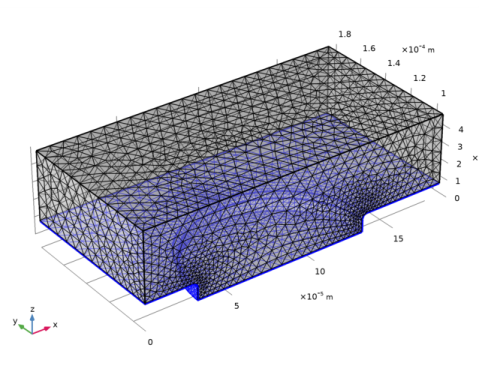
Your finished mesh should now look like this:
8
Right-click Boundary Layer Properties and choose Plot.
Root
Solve the problem using three different steps. The first study step solves for the flow profile at t = 0.
Add Study
1
In the Home toolbar, click  Add Study to open the Add Study window.
2
Go to the Add Study window.
3
Find the Studies subsection. In the Select Study tree, select General Studies>Stationary.
4
Click Add Study in the window toolbar.
5
In the Home toolbar, click  Add Study to close the Add Study window.
Study 1
Step 1: Stationary
1
In the Settings window for Stationary, locate the Physics and Variables Selection section.
2
Select the Modify model configuration for study step check box.
3
In the Physics and variables selection tree, select Component 1 (comp1)>Tertiary Current Distribution, Nernst-Planck (tcd).
4
Click  Disable in Solvers.
5
In the Physics and variables selection tree, select Component 1 (comp1)>Deformed Geometry (dg), Controls material frame.
6
Click  Disable in Solvers.
7
In the Physics and variables selection tree, select Component 1 (comp1)>Multiphysics Couplings>Nondeforming Boundary 1 (ndb1), Component 1 (comp1)>Multiphysics Couplings>Deforming Electrode Surface 1 (des1), and Component 1 (comp1)>Multiphysics Couplings>Nondeforming Boundary 2 (ndb2).
8
Click  Disable in Solvers.
Stationary 2
Add a second step to solve for the concentration and current distribution at t = 0.
1
In the Study toolbar, click  Study Steps and choose Stationary>Stationary.
2
In the Settings window for Stationary, locate the Physics and Variables Selection section.
3
Select the Modify model configuration for study step check box.
4
In the Physics and variables selection tree, select Component 1 (comp1)>Deformed Geometry (dg), Controls material frame.
5
Click  Disable in Solvers.
6
In the Physics and variables selection tree, select Component 1 (comp1)>Laminar Flow (spf).
7
Click  Disable in Solvers.
8
In the Physics and variables selection tree, select Component 1 (comp1)>Multiphysics Couplings>Nondeforming Boundary 1 (ndb1), Component 1 (comp1)>Multiphysics Couplings>Deforming Electrode Surface 1 (des1), and Component 1 (comp1)>Multiphysics Couplings>Nondeforming Boundary 2 (ndb2).
9
Click  Disable in Solvers.
Time Dependent
Add a third and final time dependent step to solve for the problem during 120 s. The results from the first two steps will be used as initial values automatically.
1
In the Study toolbar, click  Study Steps and choose Time Dependent>Time Dependent.
2
In the Settings window for Time Dependent, locate the Study Settings section.
3
In the Output times text field, type range(0,10,120).
Solution 1 (sol1)
1
In the Study toolbar, click  Show Default Solver.
2
In the Model Builder window, expand the Solution 1 (sol1) node.
3
In the Model Builder window, expand the Study 1>Solver Configurations>Solution 1 (sol1)>Time-Dependent Solver 1 node, then click Segregated 1.
4
In the Settings window for Segregated, locate the General section.
5
In the Maximum number of iterations text field, type 15.
6
In the Model Builder window, expand the Study 1>Solver Configurations>Solution 1 (sol1)>Time-Dependent Solver 1>Segregated 1 node, then click Velocity u, Pressure p.
7
In the Settings window for Segregated Step, click to expand the Method and Termination section.
8
From the Jacobian update list, choose On first iteration.
9
In the Model Builder window, click Merged variables.
10
In the Settings window for Segregated Step, locate the Method and Termination section.
11
From the Termination technique list, choose Tolerance.
12
In the Model Builder window, click Study 1.
13
In the Settings window for Study, locate the Study Settings section.
14
Clear the Generate default plots check box.
15
In the Study toolbar, click  Compute.
Results
3D Plot Group 1
In the Home toolbar, click  Add Plot Group and choose 3D Plot Group.
Surface 1
1
Right-click 3D Plot Group 1 and choose Surface.
2
In the Settings window for Surface, locate the Expression section.
3
In the Expression text field, type c.
4
In the 3D Plot Group 1 toolbar, click  Plot.
5
Click the  Transparency button in the Graphics toolbar.
3D Plot Group 1
1
In the Model Builder window, click 3D Plot Group 1.
2
In the Settings window for 3D Plot Group, locate the Data section.
3
From the Time (s) list, choose 0.
4
In the 3D Plot Group 1 toolbar, click  Plot.
3D Plot Group 2
1
Right-click Results>3D Plot Group 1 and choose Duplicate.
2
In the Model Builder window, click 3D Plot Group 2.
3
In the Settings window for 3D Plot Group, locate the Data section.
4
From the Time (s) list, choose 120.
5
Locate the Plot Settings section. Clear the Plot dataset edges check box.
Surface 1
1
In the Model Builder window, click Surface 1.
2
In the Settings window for Surface, locate the Expression section.
3
In the Expression text field, type 1.
4
Locate the Coloring and Style section. From the Coloring list, choose Uniform.
5
From the Color list, choose Custom.
6
7
Click Define custom colors.
8
9
Click Add to custom colors.
10
Click Show color palette only or OK on the cross-platform desktop.
11
Click to expand the Quality section. From the Resolution list, choose Fine.
Selection 1
1
Right-click Surface 1 and choose Selection.
2
Surface 2
1
In the Model Builder window, right-click 3D Plot Group 2 and choose Surface.
2
In the Settings window for Surface, locate the Data section.
3
From the Dataset list, choose Study 1/Solution Store 1 (sol2).
4
Locate the Expression section. In the Expression text field, type 1.
5
Locate the Coloring and Style section. From the Coloring list, choose Uniform.
6
From the Color list, choose White.
7
Locate the Quality section. From the Resolution list, choose Fine.
Selection 1
1
Right-click Surface 2 and choose Selection.
2
In the Settings window for Selection, locate the Selection section.
3
Click  Paste Selection.
4
In the Paste Selection dialog box, type 3, 6-7, 9-10 in the Selection text field.
5
Results
Surface 2
In the Model Builder window, collapse the Results>3D Plot Group 2>Surface 2 node.
Surface 3
1
Right-click Surface 2 and choose Duplicate.
2
In the Model Builder window, click Surface 3.
3
In the Settings window for Surface, locate the Coloring and Style section.
4
From the Color list, choose Black.
Selection 1
1
In the Model Builder window, click Selection 1.
2
In the Settings window for Selection, locate the Selection section.
3
Click  Clear Selection.
4
Click  Paste Selection.
5
In the Paste Selection dialog box, type 8 in the Selection text field.
6
Line 1
1
In the Model Builder window, right-click 3D Plot Group 2 and choose Line.
2
In the Settings window for Line, locate the Data section.
3
From the Dataset list, choose Study 1/Solution Store 1 (sol2).
4
Locate the Expression section. In the Expression text field, type 1.
5
Locate the Coloring and Style section. From the Coloring list, choose Uniform.
6
From the Color list, choose Black.
Selection 1
1
Right-click Line 1 and choose Selection.
2
In the Settings window for Selection, locate the Selection section.
3
Click  Paste Selection.
4
In the Paste Selection dialog box, type 2-3, 7, 9, 11-13, 16, 20-22, 24 in the Selection text field.
5
Animation 1
1
In the Results toolbar, click  Animation and choose Player.
2
In the Settings window for Animation, locate the Scene section.
3
From the Subject list, choose 3D Plot Group 2.
4
Locate the Frames section. In the Number of frames text field, type 13.
5
In the Frame number text field, type 13.
6
Right-click Animation 1 and choose Play.