
|
|
|

|
•
|
A total load of 1 kN is applied to one of the corners of the right end of the laminate in the form of a line load as shown in Figure 2.
|


|
•
|
|
•
|


|
1
|
|
2
|
|
3
|
Click Add.
|
|
4
|
Click
 Study. Study. |
|
5
|
|
6
|
Click
 Done. Done. |
|
1
|
|
2
|
|
3
|
|
4
|
Browse to the model’s Application Libraries folder and double-click the file stacking_sequence_optimization_parameters.txt.
|
|
1
|
|
2
|
|
1
|
|
2
|
|
4
|
Click
 Add. Add. |
|
6
|
Click
 Add. Add. |
|
8
|
|
1
|
|
2
|
|
3
|
|
4
|
|
5
|
|
6
|
|
1
|
In the Model Builder window, under Component 1 (comp1) right-click Materials and choose Layers>Layered Material Link.
|
|
2
|
|
3
|
|
4
|
Click to expand the Preview Plot Settings section. In the Thickness-to-width ratio text field, type 0.4.
|
|
5
|
Click Section_bar in the upper-right corner of the Layered Material Settings section. From the menu, choose Layer Cross Section Preview.
|
|
6
|
Click Section_bar in the upper-right corner of the Layered Material Settings section. From the menu, choose Layer Stack Preview.
|
|
1
|
In the Model Builder window, under Global Definitions>Materials click Material: Carbon-Epoxy (mat1).
|
|
2
|
|
1
|
In the Model Builder window, under Component 1 (comp1) right-click Layered Shell (lshell) and choose Fixed Constraint.
|
|
1
|
|
3
|
|
4
|
|
5
|
|
1
|
|
2
|
|
3
|
|
1
|
|
2
|
|
1
|
|
2
|
|
3
|
|
1
|
|
2
|
|
4
|
Click
 Evaluate. Evaluate. |
|
1
|
|
2
|
|
3
|
|
1
|
In the Model Builder window, expand the Results>Datasets>Layered Materials node, then click Layered Material 2 (Shell Geometry).
|
|
2
|
|
3
|
|
1
|
|
2
|
|
3
|
|
1
|
|
2
|
|
1
|
In the Model Builder window, expand the Stress, Slice (lshell) node, then click Layered Material Slice 1.
|
|
2
|
|
3
|
|
4
|
|
5
|
|
6
|
|
7
|
|
8
|
|
9
|
|
10
|
|
1
|
|
2
|
|
3
|
|
4
|
|
5
|
|
1
|
|
2
|
In the Model Builder window, expand the Results>Geometry and Layup (lshell) node, then click Ply Angle (lshell).
|
|
3
|
|
1
|
|
2
|
|
1
|
In the Model Builder window, expand the Results>Applied Loads (lshell) node, then click Line Loads (lshell).
|
|
2
|
|
1
|
|
2
|
|
3
|
|
4
|
|
1
|
|
2
|
|
1
|
|
2
|
|
3
|
|
4
|
|
5
|
|
7
|
Click
 Add. Add. |
|
9
|
Click
 Add. Add. |
|
11
|
|
1
|
|
2
|
|
3
|
|
1
|
In the Model Builder window, expand the Results>Datasets>Layered Materials 1 node, then click Layered Material 5 (Shell Geometry).
|
|
2
|
|
3
|
|
1
|
|
2
|
|
3
|
|
1
|
|
2
|
|
1
|
In the Model Builder window, expand the Stress, Slice (lshell) 1 node, then click Layered Material Slice 1.
|
|
2
|
|
3
|
|
4
|
|
5
|
|
6
|
|
7
|
|
8
|
|
1
|
|
2
|
|
3
|
|
4
|
|
1
|
|
2
|
In the Model Builder window, expand the Results>Geometry and Layup (lshell) 1 node, then click Ply Angle (lshell) 1.
|
|
3
|
|
1
|
|
2
|
|
1
|
In the Model Builder window, expand the Stress, Slice (lshell) 2 node, then click Layered Material Slice 1.
|
|
2
|
|
3
|
|
4
|
|
5
|
Locate the Through-Thickness Location section. From the Location definition list, choose Reference surface.
|
|
6
|
|
7
|
|
8
|
|
9
|
Select the Wireframe check box.
|
|
1
|
|
2
|
|
3
|
|
4
|
|
5
|
|
6
|
|
1
|
In the Model Builder window, expand the Results>Stress, Slice (lshell) 2>Layered Material Slice 1 node, then click Deformation.
|
|
2
|
|
3
|
|
1
|
|
2
|
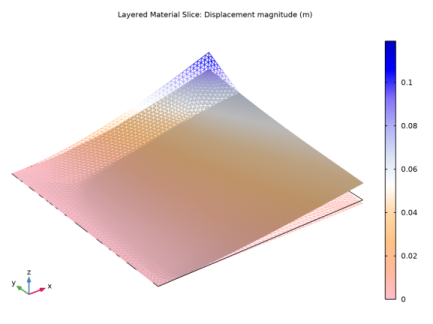
In the Settings window for 3D Plot Group, type Displacement: Original & Optimized in the Label text field.
|
|
3
|
|
4
|
|
5
|


