


You are viewing the documentation for an older COMSOL version. The latest version is available here.
PDF

Semibatch Polymerization
Introduction
As reactant monomer converts into polymer chains, the density of the reacting mixture often changes notably. This example looks at how this effect impacts the total production of polymer in a process. The liquid phase polymerization takes place in a semibatch reactor, where two operating conditions are compared. In the first scenario, the feed of monomer to the reactor is turned off once the maximum volume capacity is reached. In a second scenario, the feed of monomer is allowed to continuously compensate for the volume change due to chemical reaction.
The model illustrates the use of the Semibatch reactor type, which is predefined in the Reaction Engineering interface in the Chemical Reaction Engineering Module. It also shows how to set timed events, in this case for controlling the reactant feed to the reactor. This example reproduces results found in Ref. 1.
Model Definition
A liquid phase polymerization can be modeled as a first order irreversible reaction:
In the above equations, M denotes the monomer, P the polymer, r is the reaction rate (SI unit: mol/(m3·s)), k is the rate constant (SI unit: 1/s), and cM is the concentration of the monomer. This process takes place in the presence of water.
The polymerization takes place in a semibatch reactor with a volume capacity of 20 m3. Initially the reactor is charged with 10 m3 of water. Pure monomer enters the reactor with a volumetric flow rate of vf = 1 m3/min.
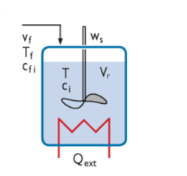
Figure 1 shows a schematic representation of the semibatch reactor.
Figure 1: The Semibatch reactor is a predefined reactor type in the Reaction Engineering interface.
The following mass balance describes the semibatch reactor:
(1)
In Equation 1, ci is species molar concentration (SI unit: mol/m3), cf,i is the species concentration (SI unit: mol/m3) of the associated feed stream vf,i (SI unit: m3/s), and Ri denotes the species rate expression (SI unit: mol/(m3·s)). Vr labels the reactor volume (SI unit: m3) and is a function of time. For ideal mixtures:
where vp is the volumetric production rate due to chemical reaction:
(2)
In Equation 2, νij is the stoichiometric coefficient of species i in reaction j, Mi denotes the species molecular weight (SI unit: kg/mol), ρi is the species density (SI unit: kg/m3), and rj is the reaction rate (SI unit: mol/(m3·s)) of reaction j.
In the present example, the density of the monomer is 800 kg/m3, 1100 kg/m3 for the polymer, and 1000 kg/m3 for water. Hence, as polymer is being formed, the volume of the reacting mixture decreases (vp is negative). The model investigates two operating conditions:
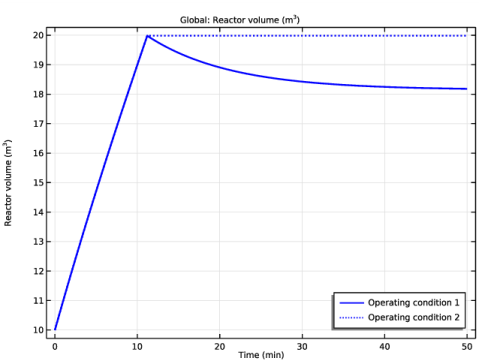
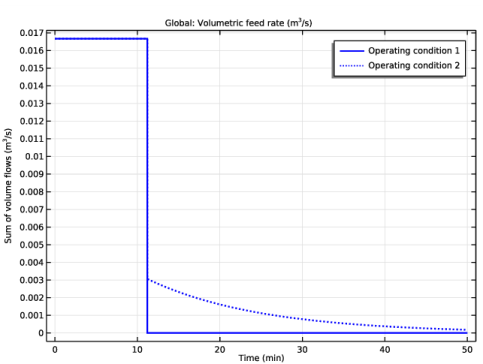
Operating condition 1 — The monomer feed (1 m3/min) is shut off once the reactor volume reaches 20 m3, which occurs after 11.2 minutes. The reaction is then allowed to go to completion.
Operating condition 2 — The monomer feed is adjusted to keep the reactor filled while the reaction goes to completion. This is accomplished by setting the volumetric feed equal to vp, for > 11.2 minutes.
Results
Figure 2 illustrates the volumetric flow rate of the feed stream, vf.
Figure 2: The volumetric flow rate of the feed stream (m3/s) as function of time (minutes) for operating condition 1 (solid line) and 2 (dash-dotted line).
Figure 3 shows the reactor volume as function of the runtime, illustrating the two operating conditions listed above.
Figure 3: The reactor volume (m3) as function of time (minutes) for operating condition 1 (solid line) and 2 (dash-dotted line).
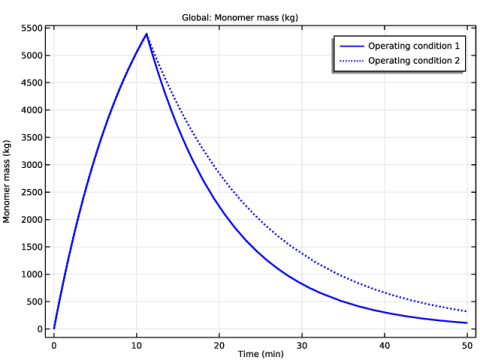
Figure 4 shows the total mass of monomer in the reactor, mM (kg), as evaluated by the expression:
Figure 4: The total monomer mass in the reactor volume (kg) as function of time (minutes) for operating condition 1 (solid line) and 2 (dash-dotted line).
It is straightforward to compare the amount of produced polymer as a result of the different operating conditions. For both cases the reaction has run to completion after approximately 50 minutes. At this time, the total volume of the reacting mixture is 18.2 m3 for operating condition 1 and 20 m3 for operating condition 2.
The relative increase in polymer production using operating condition 2 compared to condition 1 is then:
Reference
1. J.B. Rawlings and J.G. Ekerdt, Chemical Reactor Analysis and Design Fundamentals, Nob Hill Publishing, example 4.3, pp. 139–144, 2004.
Application Library path: Chemical_Reaction_Engineering_Module/Ideal_Tank_Reactors/semibatch_polymerization
Modeling Instructions
From the File menu, choose New.
New
In the New window, click  Model Wizard.
Model Wizard
1
In the Model Wizard window, click  0D.
2
In the Select Physics tree, select Chemical Species Transport>Reaction Engineering (re).
3
Click Add.
4
Click  Study.
5
In the Select Study tree, select General Studies>Time Dependent.
6
Global Definitions
Add a set of model parameters by importing their definitions from a text file provided with the Model Library.
Parameters 1
1
In the Model Builder window, under Global Definitions click Parameters 1.
2
In the Settings window for Parameters, locate the Parameters section.
3
Click  Load from File.
4
Step 1 (step1)
Add a step function that regulates the volumetric feed rate during the operations.
1
In the Home toolbar, click  Functions and choose Global>Step.
2
In the Settings window for Step, locate the Parameters section.
3
In the Location text field, type t_cond.
Reaction Engineering (re)
1
In the Model Builder window, under Component 1 (comp1) click Reaction Engineering (re).
2
In the Settings window for Reaction Engineering, locate the Reactor section.
3
From the Reactor type list, choose Semibatch.
4
Click to expand the Mixture Properties section. From the Phase list, choose Liquid.
Reaction 1
1
In the Reaction Engineering toolbar, click  Reaction.
2
In the Settings window for Reaction, locate the Reaction Formula section.
3
In the Formula text field, type M=>P.
4
Locate the Rate Constants section. In the kf text field, type kf_reaction.
Species: M
1
In the Model Builder window, click Species: M.
2
In the Settings window for Species, locate the General Parameters section.
3
In the M text field, type Mm_M.
4
In the ρ text field, type density_M.
Species: P
1
In the Model Builder window, click Species: P.
2
In the Settings window for Species, locate the General Parameters section.
3
In the M text field, type Mm_P.
4
In the ρ text field, type density_P.
The reaction takes place in water.
Species 1
1
In the Reaction Engineering toolbar, click  Species.
2
In the Settings window for Species, locate the Species Name section.
3
4
Locate the General Parameters section. In the M text field, type Mm_H2O.
5
In the ρ text field, type density_H2O.
Definitions
Add the two filling conditions as variables dependent on the step function and the monomer mass expression. This is retrieved from a data text file provided with the Model Library.
Variables 1
1
In the Model Builder window, under Component 1 (comp1) right-click Definitions and choose Variables.
2
In the Settings window for Variables, locate the Variables section.
3
Click  Load from File.
4
Reaction Engineering (re)
Feed Inlet 1
1
In the Reaction Engineering toolbar, click  Feed Inlet.
2
In the Settings window for Feed Inlet, locate the Feed Inlet Properties section.
3
In the vf text field, type vfs.
4
Locate the Feed Inlet Concentration section. In the Feed inlet concentration table, enter the following settings:
Initial Values 1
1
In the Model Builder window, click Initial Values 1.
2
In the Settings window for Initial Values, locate the General Parameters section.
3
In the Vr0 text field, type Vr_init.
4
Locate the Volumetric Species Initial Values section. In the table, enter the following settings:
Study 1
Step 1: Time Dependent
1
In the Model Builder window, under Study 1 click Step 1: Time Dependent.
2
In the Settings window for Time Dependent, locate the Study Settings section.
3
In the Output times text field, type range(0,0.1,3000).
4
In the Home toolbar, click  Compute.
Results
Global 1
1
In the Model Builder window, expand the Concentration (re) node, then click Global 1.
2
In the Settings window for Global, locate the x-Axis Data section.
3
From the Parameter list, choose Expression.
4
In the Expression text field, type t.
5
From the Unit list, choose min.
6
In the Concentration (re) toolbar, click  Plot.
Study 1
Use the Parametric Sweep feature to investigate the difference when the compensating fill is turned on.
Parametric Sweep
1
In the Study toolbar, click  Parametric Sweep.
2
In the Settings window for Parametric Sweep, locate the Study Settings section.
3
4
5
In the Study toolbar, click  Compute.
Results
Volumetric feed rate
In the Settings window for 1D Plot Group, type Volumetric feed rate in the Label text field.
Global 1
1
In the Model Builder window, expand the Volumetric feed rate node, then click Global 1.
2
In the Settings window for Global, click Replace Expression in the upper-right corner of the y-Axis Data section. From the menu, choose Component 1 (comp1)>Reaction Engineering>re.sumvf - Sum of volume flows - m³/s.
3
Click to expand the Title section. From the Title type list, choose Manual.
4
In the Title text area, type Global: Volumetric feed rate (m<sup>3</sup>/s).
5
Locate the x-Axis Data section. From the Parameter list, choose Expression.
6
In the Expression text field, type t.
7
From the Unit list, choose min.
8
Click to expand the Coloring and Style section. Find the Line style subsection. From the Line list, choose Cycle.
9
From the Color list, choose Blue.
10
In the Width text field, type 2.
11
Click to expand the Legends section. From the Legends list, choose Manual.
12
13
In the Volumetric feed rate toolbar, click  Plot.
Reactor volume
1
In the Home toolbar, click  Add Plot Group and choose 1D Plot Group.
2
In the Settings window for 1D Plot Group, type Reactor volume in the Label text field.
3
Locate the Data section. From the Dataset list, choose Study 1/Parametric Solutions 1 (sol2).
4
Locate the Legend section. From the Position list, choose Lower right.
Global 1
1
Right-click Reactor volume and choose Global.
2
In the Settings window for Global, click Replace Expression in the upper-right corner of the y-Axis Data section. From the menu, choose Component 1 (comp1)>Reaction Engineering>re.Vr - Reactor volume - .
3
Locate the x-Axis Data section. From the Parameter list, choose Expression.
4
In the Expression text field, type t.
5
From the Unit list, choose min.
6
Locate the Coloring and Style section. Find the Line style subsection. From the Line list, choose Cycle.
7
From the Color list, choose Blue.
8
In the Width text field, type 2.
9
Locate the Legends section. From the Legends list, choose Manual.
10
11
In the Reactor volume toolbar, click  Plot.
Monomer mass
1
In the Home toolbar, click  Add Plot Group and choose 1D Plot Group.
2
In the Settings window for 1D Plot Group, type Monomer mass in the Label text field.
3
Locate the Data section. From the Dataset list, choose Study 1/Parametric Solutions 1 (sol2).
Global 1
1
Right-click Monomer mass and choose Global.
2
In the Settings window for Global, click Replace Expression in the upper-right corner of the y-Axis Data section. From the menu, choose Component 1 (comp1)>Definitions>Variables>m_mon - Monomer mass - kg.
3
Locate the x-Axis Data section. From the Parameter list, choose Expression.
4
In the Expression text field, type t.
5
From the Unit list, choose min.
6
Locate the Coloring and Style section. Find the Line style subsection. From the Line list, choose Cycle.
7
From the Color list, choose Blue.
8
In the Width text field, type 2.
9
Locate the Legends section. From the Legends list, choose Manual.
10
11
In the Monomer mass toolbar, click  Plot.