You are viewing the documentation for an older COMSOL version. The latest version is available here.
PDF

Parameter Estimation for Nonideal Reactor Models
Introduction
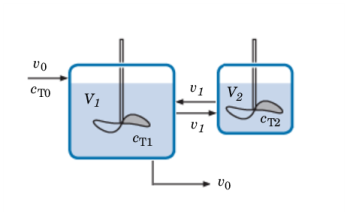
Real reactors can be modeled as combinations of ideal reactors. In this example, the “Dead zone model” is utilized. Two ideal CSTRs with interchange are used to model a real reactor. One CSTR represents the highly agitated region and the other one the less agitated region. Two parameters relating the volume and exchange rate of the two regions are required for this. The parameters are found by comparing the model results to experimental tracer data. Applying the Parameter Estimation feature in the Reaction Engineering interface makes this an easy task.
A problem description similar to the model presented here is given in Ref. 1.
Note: This application requires the Optimization Module and the Chemical Reaction Engineering Module.
Model Definition
Two ideal CSTRs with interchange capture the essential behavior of a real reactor system.
Figure 1: A real reactor can be modeled by two ideal CSTRs with interchange.
The highly agitated volume is represented by V1 and the less agitated region by V2. The total real reactor volume is defined as:
(1)
and the parameter α gives the fraction of the total volume that belongs to V1:
Fluid is exchanged between volumes at a rate of v1 (SI unit: m3/s), and the parameter β relates this rate to the inlet flow rate:
Assuming that the reactor volume is constant, then the space time, τ (SI unit: s), is:
Mass Balances
To evaluate the parameters α and β, a tracer compound is added through the reactor inlet stream, after which a response curve is measured at the outlet. Mass balances over the two CSTRs provide a model to which the experimental data can be compared. The mass balances are:
where cT1 is the tracer concentration (SI unit: mol /m3) in the region given by V1, and cT2 is the tracer concentration in V2. cT0 is the tracer amount into the real reactor. The tracer compound is said to be diluted in water.
This coupled set of ODEs can easily be set up by combining two Reaction Engineering interfaces where the reactor type is set to CSTR constant mass/generic.
Experimental data
An experiment is performed where a 1000 mol/m3 tracer solution is added in the reactor feed inlet stream. The tracer concentration in the reactor outlet stream is then recorded as a function of time. The data is presented in Table 1 below.
The Parameter Estimation feature accepts comma-separated value files (csv-files) for import of experimental data into the software. After import, the columns of the data file are shown and are mapped to the model variables.
Results and Discussion
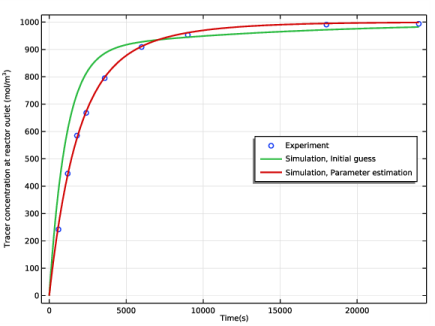
Figure 2 shows the model results, both when using an initial guess, and when using parameter estimation. The figure also shows the experimental data. The results from the parameter estimation are seen to coincide well with the experimental data.
Figure 2: Model results and experimental data of the tracer concentration in the real reactor outlet.
The estimated values of α and β are 0.83 and 0.11, respectively.
Reference
1. H.S. Fogler, Elements in Chemical Reaction Engineering, 4th ed., Prentice Hall, pp. 985–987, 2005.
Application Library path: Chemical_Reaction_Engineering_Module/Tutorials/nonideal_cstr
Modeling Instructions
From the File menu, choose New.
New
In the New window, click  Model Wizard.
Model Wizard
1
In the Model Wizard window, click  0D.
2
In the Select Physics tree, select Chemical Species Transport>Reaction Engineering (re).
3
Click Add.
4
Click  Study.
5
In the Select Study tree, select General Studies>Time Dependent.
6
Global Definitions
Add a set of model parameters by importing their definitions from a data text file provided with the Applications Library.
Parameters 1
1
In the Model Builder window, under Global Definitions click Parameters 1.
2
In the Settings window for Parameters, locate the Parameters section.
3
Click  Load from File.
4
Start defining the first CSTR representing the highly agitated zone.
Reaction Engineering - CSTR 1
1
In the Model Builder window, under Component 1 (comp1) click Reaction Engineering (re).
2
In the Settings window for Reaction Engineering, type Reaction Engineering - CSTR 1 in the Label text field.
3
In the Name text field, type re1.
4
Locate the Reactor section. From the Reactor type list, choose CSTR, constant mass/generic.
5
Locate the Mixture Properties section. From the Phase list, choose Liquid.
6
Locate the Reactor section. Find the Mass balance subsection. From the Volumetric rate list, choose Generic.
Two streams are assumed to exit the first CSTR: v0 and v0*beta.
7
In the v text field, type (1+beta)*v0.
Species 1
1
In the Reaction Engineering toolbar, click  Species.
2
In the Settings window for Species, locate the Species Name section.
3
4
In the Reaction Engineering toolbar, click  Species.
Species 1
1
In the Settings window for Species, locate the Species Name section.
2
3
Locate the Species Type section. From the list, choose Solvent.
Species: T
1
In the Model Builder window, click Species: T.
2
In the Settings window for Species, locate the General Parameters section.
3
In the M text field, type Mn_T.
Species: H2O
1
In the Model Builder window, click Species: H2O.
2
In the Settings window for Species, locate the General Parameters section.
3
In the M text field, type Mn_w.
4
In the ρ text field, type rho_w.
Initial Values 1
The first CSTR has an initial volume alpha times the total real reactor volume.
1
In the Model Builder window, click Initial Values 1.
2
In the Settings window for Initial Values, locate the General Parameters section.
3
In the Vr0 text field, type alpha*Vtot.
4
Locate the Volumetric Species Initial Values section. In the table, enter the following settings:
Add two feed inlet streams to the first CSTR. One representing the flow entering the real reactor, v0, and another one representing the stream from the second CSTR, v0*beta.
Feed Inlet 1
1
In the Reaction Engineering toolbar, click  Feed Inlet.
2
In the Settings window for Feed Inlet, locate the Feed Inlet Properties section.
3
In the vf text field, type v0.
4
Locate the Feed Inlet Concentration section. In the Feed inlet concentration table, enter the following settings:
Feed Inlet 2
1
In the Reaction Engineering toolbar, click  Feed Inlet.
2
In the Settings window for Feed Inlet, locate the Feed Inlet Properties section.
3
In the vf text field, type v0*beta.
4
Locate the Feed Inlet Concentration section. In the Feed inlet concentration table, enter the following settings:
Continue to define the second CSTR representing the dead zone. To do this copy the first interface.
5
In the Model Builder window, right-click Reaction Engineering - CSTR 1 (re1) and choose Copy.
Reaction Engineering - CSTR 2
1
In the Model Builder window, right-click Component 1 (comp1) and choose Paste Reaction Engineering.
2
In the Messages from Paste dialog box, click OK.
3
In the Settings window for Reaction Engineering, type Reaction Engineering - CSTR 2 in the Label text field.
Only one stream exits the second CSTR: v0*beta.
4
Locate the Reactor section. Find the Mass balance subsection. In the v text field, type v0*beta.
Initial Values 1
The second CSTR has an initial volume (1-alpha) times the total real reactor volume.
1
In the Model Builder window, expand the Component 1 (comp1)>Reaction Engineering - CSTR 2 (re2) node, then click Initial Values 1.
2
In the Settings window for Initial Values, locate the General Parameters section.
3
In the Vr0 text field, type (1-alpha)*Vtot.
4
Locate the Volumetric Species Initial Values section. In the table, enter the following settings:
Feed Inlet 1
1
In the Model Builder window, click Feed Inlet 1.
2
In the Settings window for Feed Inlet, locate the Feed Inlet Properties section.
3
In the vf text field, type v0*beta.
4
Locate the Feed Inlet Concentration section. In the Feed inlet concentration table, enter the following settings:
Remove the second feed inlet stream.
Feed Inlet 2
In the Model Builder window, right-click Feed Inlet 2 and choose Delete.
Reaction Engineering - CSTR 1 (re1)
Now add a Parameter Estimation feature to be used in the optimization.
1
In the Model Builder window, under Component 1 (comp1) click Reaction Engineering - CSTR 1 (re1).
Parameter Estimation 1
1
In the Reaction Engineering toolbar, click  Parameter Estimation.
2
In the Settings window for Parameter Estimation, locate the Estimation Parameters section.
3
In the Parameter table, enter the following settings:
4
5
In the Parameter table, enter the following settings:
Experiment 1
1
In the Reaction Engineering toolbar, click  Attributes and choose Experiment.
Read in the csv-file with the Experimental Data and map the data columns with the model variables.
2
In the Settings window for Experiment, locate the Experimental Data section.
3
Click Browse.
4
5
Click Import.
6
Solve the model using the initial values of the alpha and beta parameters.
Study 1: Initial guess
1
In the Model Builder window, click Study 1.
2
In the Settings window for Study, type Study 1: Initial guess in the Label text field.
Step 1: Time Dependent
1
In the Model Builder window, under Study 1: Initial guess click Step 1: Time Dependent.
2
In the Settings window for Time Dependent, locate the Study Settings section.
3
In the Output times text field, type 24000.
Disable the Parameter Estimation feature for this study step.
4
Locate the Physics and Variables Selection section. Select the Modify model configuration for study step check box.
5
In the Physics and variables selection tree, select Component 1 (comp1)>Reaction Engineering - CSTR 1 (re1)>Parameter Estimation 1.
6
Click  Disable.
7
In the Home toolbar, click  Compute.
The following instructions generate Figure 2.
Results
Concentration in Real Reactor
1
In the Model Builder window, under Results click Experiment 1 Group.
2
In the Settings window for 1D Plot Group, type Concentration in Real Reactor in the Label text field.
3
Click to expand the Title section. From the Title type list, choose None.
4
Locate the Plot Settings section. Select the x-axis label check box.
5
6
Select the y-axis label check box.
7
In the associated text field, type Tracer concentration at reactor outlet (mol/m<sup>3</sup>).
8
Locate the Legend section. From the Position list, choose Middle right.
Experiment
1
In the Model Builder window, expand the Concentration in Real Reactor node, then click Experiment 1 Data.
2
In the Settings window for Table Graph, type Experiment in the Label text field.
3
Click to expand the Legends section. From the Legends list, choose Manual.
4
Simulation, Initial guess
1
In the Model Builder window, right-click Concentration in Real Reactor and choose Global.
2
In the Settings window for Global, locate the Data section.
3
From the Dataset list, choose Study 1: Initial guess/Solution 1 (sol1).
4
Locate the y-Axis Data section. In the table, enter the following settings:
5
In the Label text field, type Simulation, Initial guess.
6
Click to expand the Coloring and Style section. In the Width text field, type 2.
7
Click to expand the Legends section. From the Legends list, choose Manual.
8
9
In the Concentration in Real Reactor toolbar, click  Plot.
The following instructions generate a figure with tracer concentrations in the two CSTRs.
Concentrations in CSTRs
1
In the Model Builder window, under Results click Concentration (re1).
2
In the Settings window for 1D Plot Group, type Concentrations in CSTRs in the Label text field.
3
Locate the Plot Settings section. Select the y-axis label check box.
4
In the associated text field, type Tracer concentrations (mol/m<sup>3</sup>).
5
Locate the Legend section. From the Position list, choose Middle right.
Global 1
1
In the Model Builder window, expand the Concentrations in CSTRs node, then click Global 1.
2
In the Settings window for Global, click Add Expression in the upper-right corner of the y-Axis Data section. From the menu, choose Component 1 (comp1)>Reaction Engineering - CSTR 2>re2.c_T - Concentration - mol/m³.
3
Locate the Coloring and Style section. In the Width text field, type 2.
4
Locate the Legends section. From the Legends list, choose Manual.
5
6
In the Concentrations in CSTRs toolbar, click  Plot.
The third plot group will not be used and can be deleted.
Concentration (re2)
In the Model Builder window, right-click Concentration (re2) and choose Delete.
Add a new study node for the optimization calculations.
Add Study
1
In the Home toolbar, click  Add Study to open the Add Study window.
2
Go to the Add Study window.
3
Find the Studies subsection. In the Select Study tree, select General Studies>Time Dependent.
4
Click Add Study in the window toolbar.
5
In the Home toolbar, click  Add Study to close the Add Study window.
Study 2
Step 1: Time Dependent
1
In the Settings window for Time Dependent, locate the Study Settings section.
2
In the Output times text field, type 24000.
Add an Optimization study step to perform the parameter estimation calculations.
3
In the Model Builder window, click Study 2.
4
In the Settings window for Study, type Study 2: Parameter estimation in the Label text field.
Optimization
1
In the Study toolbar, click  Optimization.
Select to use the Levenberg-Marquardt optimization method. This method is very efficient for this type of optimization; when no mesh is effected and no additional constraints are present.
2
In the Settings window for Optimization, locate the Optimization Solver section.
3
From the Method list, choose Levenberg-Marquardt.
The existing plots will be reused. Disable the generation of default plots.
4
In the Model Builder window, click Study 2: Parameter estimation.
5
In the Settings window for Study, locate the Study Settings section.
6
Clear the Generate default plots check box.
Solution 2 (sol2)
1
In the Study toolbar, click  Show Default Solver.
2
In the Settings window for Solution, click  Compute.
Results
Simulation, Parameter estimation
1
In the Model Builder window, right-click Simulation, Initial guess and choose Duplicate.
2
In the Settings window for Global, type Simulation, Parameter estimation in the Label text field.
3
Locate the Data section. From the Dataset list, choose Study 2: Parameter estimation/Solution 2 (sol2).
4
Locate the Legends section. In the table, enter the following settings:
5
In the Concentration in Real Reactor toolbar, click  Plot.
Concentrations in CSTRs
1
In the Model Builder window, click Concentrations in CSTRs.
2
In the Settings window for 1D Plot Group, locate the Data section.
3
From the Dataset list, choose Study 2: Parameter estimation/Solution 2 (sol2).
4
In the Concentrations in CSTRs toolbar, click  Plot.
Display the estimated parameters in a table.
Global Evaluation 1
1
In the Results toolbar, click  Global Evaluation.
2
In the Settings window for Global Evaluation, locate the Data section.
3
From the Dataset list, choose Study 2: Parameter estimation/Solution 2 (sol2).
4
From the Time selection list, choose Last.
5
Click Replace Expression in the upper-right corner of the Expressions section. From the menu, choose Component 1 (comp1)>Reaction Engineering - CSTR 1>alpha - Global control variable alpha.
6
Click Add Expression in the upper-right corner of the Expressions section. From the menu, choose Component 1 (comp1)>Reaction Engineering - CSTR 1>beta - Global control variable beta.
7
Click  Evaluate.