You are viewing the documentation for an older COMSOL version. The latest version is available here.
Transferring a Model to the COMSOL Desktop®
In addition to transferring your model to MATLAB, a model edited at the MATLAB command line can be accessed from the COMSOL Desktop. It only requires loading the model object from the COMSOL Multiphysics Server to the COMSOL Desktop.
1
2
model = ModelUtil.create('ImportExample');
model.geom.create('geom1', 3);
model.geom('geom1').feature.create('blk1', 'Block');
model.geom('geom1').run;
3
mphlaunch
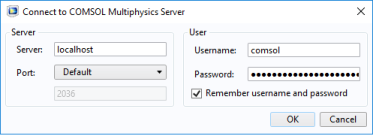
An alternative to the command mphlaunch, you can perform the same operation manually. To connect the COMSOL Desktop, from the File menu (Windows users) or from the Options menu (Mac and Linux users), select COMSOL Multiphysics Server>Connect to Server ().
Now that the COMSOL Desktop is connected to the COMSOL Multiphysics Server, you can import the model. From the File menu (Windows users) or from the Options menu (Mac and Linux users), select COMSOL Multiphysics Server>Import Application from Server (). In the Import Application from Server window, select Untitled.mph {ImportExample} which corresponds to the model created previously from the MATLAB prompt.