You are viewing the documentation for an older COMSOL version. The latest version is available here.
Geometry
2
comp1 = model.component.create('comp1', true);
3
geom1 = comp1.geom.create('geom1', 3);
The create method of the geometry node requires, as input, a tag for the geometry name ('geom1') and the geometry space dimension (3 for 3D).
4
wp1 = geom1.feature.create('wp1', 'WorkPlane');
wp1.set('quickplane', 'xz');
5
r1 = wp1.geom.feature.create('r1', 'Rectangle');
r1.set('size', {'L+2*tbb' '0.1'});
Note: When the size properties of the rectangle are enclosed within single quotes ' ', it indicates that the variables L and tbb are defined within the model object. In this case, they are defined in the Parameters node.
6
Create a second rectangle and set the width to L+tbb and the height to 0.1-tbb. Then change the rectangle position to (0;tbb):
r2 = wp1.geom.feature.create('r2', 'Rectangle');
r2.set('size', {'L+tbb' '0.1-tbb'});
r2.set('pos', {'0' 'tbb'});
7
Subtract rectangle r2 from rectangle r1, by creating a Difference feature with the 'input' property set to r1 and the 'input2' property set to r2:
dif = wp1.geom.feature.create('dif', 'Difference');
dif.selection('input').set({'r1'});
dif.selection('input2').set({'r2'});
To display the current geometry in the COMSOL Desktop, you need to build the geometry node. Enter at the MATLAB prompt:
geom1.run;
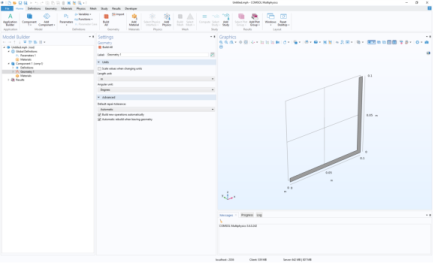
In the COMSOL Desktop, you can visualize the current geometry built at the MATLAB prompt.
8
Round the inner corner by creating a Fillet feature and set point 3 in the selection property. Then set the radius to tbb:
fil1 = wp1.geom.feature.create('fil1', 'Fillet');
fil1.selection('point').set('dif(1)', 3);
fil1.set('radius', 'tbb');
9
Round the outer corner by creating a new Fillet feature, then select point 6 and set the radius to 2*tbb:
fil2 = wp1.geom.feature.create('fil2', 'Fillet');
fil2.selection('point').set('fil1(1)', 6);
fil2.set('radius', '2*tbb');
For geometry operations, the names of the resulting geometry objects are formed by appending a numeral in parenthesis to the tag of the geometry operation. Above, 'fil1(1)' is the result of the 'fil1' operation.
10
Extrude the geometry objects in the work plane. Create an Extrude feature, set the work plane wp1 as input and the distance to wbb:
ext1 = geom1.feature.create('ext1', 'Extrude');
ext1.selection('input').set({'wp1'});
ext1.set('distance', {'wbb'});
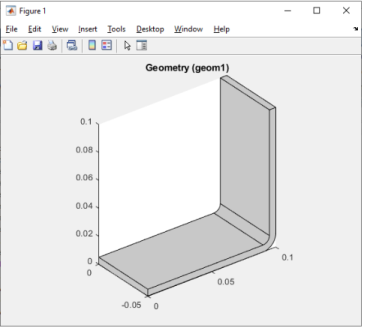
You can plot the current geometry in a MATLAB figure by entering the following command at the MATLAB prompt:
mphgeom(model)
Note that mphgeom automatically builds the geometry node and also updates the COMSOL Desktop.
The busbar shape is now generated. Next, create the cylinders that represent the bolts connecting the busbar to the external frame (not represented in the model).
11
Create a new work plane and set the planetype property to faceparallel. Then set the selection to boundary 8:
wp2 = geom1.feature.create('wp2', 'WorkPlane');
wp2.set('planetype', 'faceparallel');
wp2.selection('face').set('ext1(1)', 8);
12
c1 = wp2.geom.feature.create('c1', 'Circle');
c1.set('r', 'rad_1');
13
Create an Extrude node, select the second work plane wp2 as input, and then set the extrusion distance to -2*tbb:
ext2 = geom1.feature.create('ext2', 'Extrude');
ext2.selection('input').set({'wp2'});
ext2.set('distance', {'-2*tbb'});
14
Create a new workplane, set planetype to faceparallel, then set the selection to boundary 4:
wp3 = geom1.feature.create('wp3', 'WorkPlane');
wp3.set('planetype', 'faceparallel');
wp3.selection('face').set('ext1(1)', 4);
15
Create a circle, then set the radius to rad_1 and set the position of the center to (-L/2+1.5e-2;-wbb/4):
c2 = wp3.geom.feature.create('c2', 'Circle');
c2.set('r', 'rad_1');
c2.set('pos', {'-L/2+1.5e-2' '-wbb/4'});
16
copy = wp3.geom.feature.create('copy', 'Copy');
copy.selection('input').set({'c2'});
copy.set('disply', 'wbb/2');
17
Extrude the circles c2 and copy1 from the work plane wp3 a distance -2*tbb:
ext3 = geom1.feature.create('ext3', 'Extrude');
ext3.selection('input').set({'wp3.c2' 'wp3.copy'});
ext3.set('distance', {'-2*tbb'});
18
geom1.run;
Note: The run method only builds features which need rebuilding or have not yet been built, including the finalize node.
This ends the geometry building. In the COMSOL Desktop, you can now see the final model geometry.