

You are viewing the documentation for an older COMSOL version. The latest version is available here.
PDF

Small Concert Hall Acoustics
Introduction
Designing structures and open spaces with respect to sound quality is important for concert halls, outdoor environments, and even the rooms of a house. Simulating acoustics in the high-frequency limit, where the wavelength is smaller than the geometrical features, is best done with ray acoustics.
This tutorial model shows the basic steps and principles used when setting up a model using the Ray Acoustics physics interface. In the model, the acoustics of a small concert hall is analyzed. The model setup includes an omnidirectional sound source, wall boundary conditions for specular and diffuse scattering, sound pressure evaluation, a receiver data set used to reconstruct a temporal impulse response plot, and an energy response (reflectogram). The results are compared to simple reverberation time estimates.
Model Definition
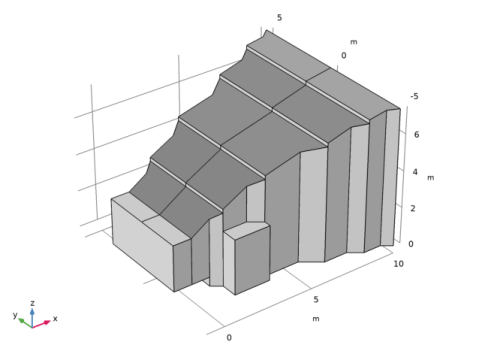
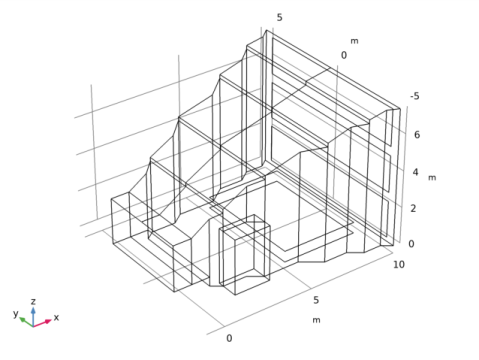
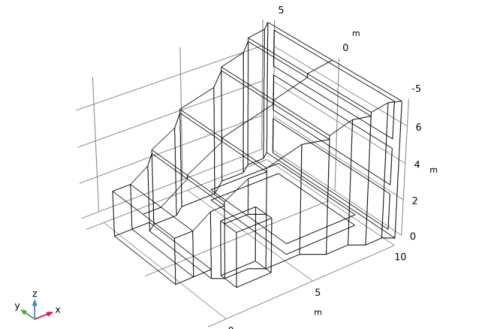
In this model the acoustics of a generic “small concert hall” are analyzed. The model is that of a listening environment with a volume of 460 m3 and a total surface area of 390 m2. The listening environment is fitted with absorbers and diffusers; their location is not particularly optimized and does probably not follow design rules. The aim of this tutorial is to describe the important modeling steps to perform a room acoustics simulation using ray tracing. The geometry of the concert hall is depicted in Figure 1.
Figure 1: Geometry of the small concert hall.
An omni-directional source is located at the coordinates (xs, ys, zs) near the stage. The receiver (microphone) is located at the coordinates (xr, yr, zr). These are parameters found under Global Definitions > Parameters 1. The location of the receiver can be changed in postprocessing while the location of the source needs to be changed before running the model.
The absorption properties if the various surfaces (windows, seats, diffusers, floor, entrance, walls, and absorbers) are generic values taken from Ref. 1 and 2. The data is given in octave band values and imported from the file small_concert_hall_absorption_parameters.txt file into an interpolation function (lookup table). Moreover, the (intensity) attenuation of air is imported from the file small_concert_hall_volume_absorption.txt. Note that when the (volume) attenuation coefficient m (loaded from the file) is entered in the Material Properties of Exterior and Unmeshed Domains section it is the amplitude attenuation αext (= 0.5·m) that should be used. The difference is a factor 0.5.
Results and Discussion
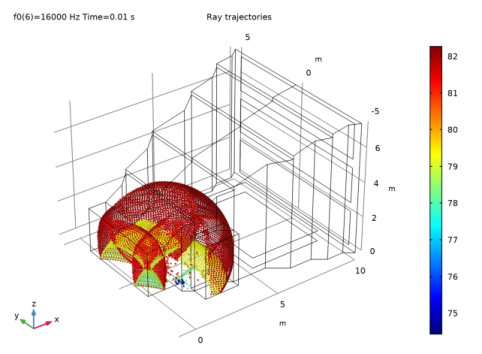
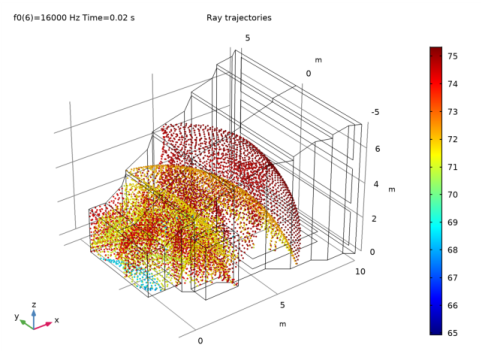
The local wavefront sound pressure level (SPL) is depicted in Figure 2 after 10 ms and in Figure 3 after 20 ms propagation. When the compute intensity option is selected in the Ray Acoustics interface, wavefront curvature, intensity, and SPL is calculated along each ray. They allow visualization of the local acoustic properties. However, it is the acoustic power transported by each ray that is important when calculating the impulse response (IR) and when visualizing the sound pressure level at surfaces. This means that the compute power option should always be selected for IR computation but the compute intensity can be turned off. Only selecting Compute power will also make the model run slightly faster and reduce the number of degrees of freedom (DOFs) solved for.
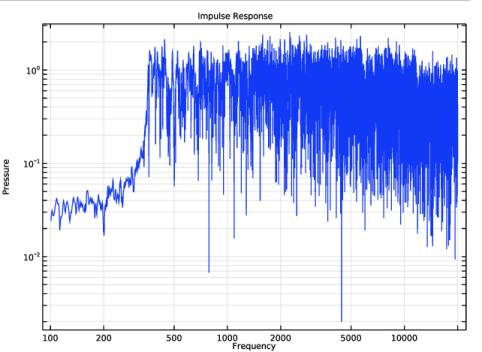
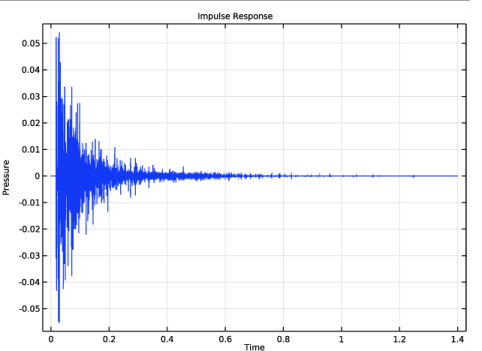
The temporal IR for the default source location configuration used in the model is depicted in Figure 4 and the frequency domain (FFT) of the IR is depicted in Figure 5. For most practical application and further postprocessing the impulse response should be exported under the >Export node by adding a Plot export. Per default the IR has a sampling frequency of 44100 Hz.
When an IR is reconstructed from a ray tracing simulation, information is inferred and put back into the time signal. The quality of the simulated IR increases with the number of rays (this model uses 10000) as well as the frequency resolution of the absorption, scattering, and source data (this data can be difficult to get from vendors but can often be simulated). In this model, octave band resolution is used. The Impulse Response plot also allows the use of 1/3 octave and 1/6 octave frequency resolution.
Figure 2: Ray location and SPL after 10 ms.
Figure 3: Ray location and field SPL after 20 ms.
Figure 4: Temporal impulse response reconstructed from the ray data at the receiver location.
Figure 5: FFT of the impulse response (no smoothing/windowing is used).
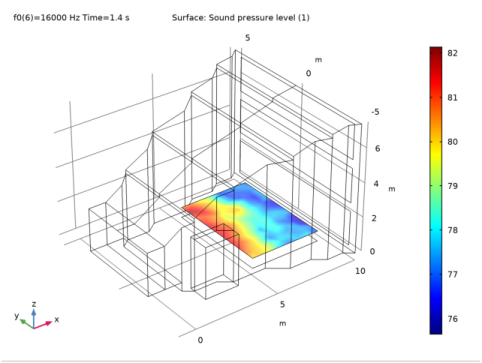
Figure 6: SPL in a cross section 60 cm above the ground at the location of the audience.
The sound pressure level in a cross section located above the seating section is depicted in Figure 6. It is calculated using the Sound Pressure Level Calculation feature, available as a sub-node to all wall conditions. In this case it is added to a transparent surface (Pass through used as Wall condition). The feature can be added to all other walls to postprocess the SPL distribution there if necessary.
In ray tracing methods, the intensity I and RMS pressure prms of the n’th ray detected by the receiver sphere is expressed as
where Vr is the receiver volume, Lr is the distance traveled by the ray inside the receiver, and Qn is the power carried by the ray (see, for example, Ref. 3). The intensity is evaluated using the expression re1dist*rac.Q/re1vol. Plotting this information in a Ray plot as function of the arrival time yields the (discrete time) energy impulse response. It is also sometimes known as a reflectogram. It is plotted for the 500 Hz and the 16 kHz octave bands in Figure 7. The slope of the curves (point data) is related to the reverberation time of the room. The slope is usually assessed using, for example, Shroeder’s backward integration or a moving integration/averaging. This is not done here but can be done in an external tool if the data is exported. In Figure 7 approximate trend lines have been added; their slope (60 dB down which is 6 decades for log10(In)) predict the T60 reverberation time. The values can be compared to the predicted values shown in Figure 8. The graph shows the values both with and without the effect of air attenuation. The values are calculated using the Sabine equation used in statistical room acoustics
where V is the room volume, S is the total surface area, m is the volume attenuation, and is the average wall absorption (see Ref. 2). For the two frequency bands the results from Figure 7 show good agreement with the results in Figure 8.
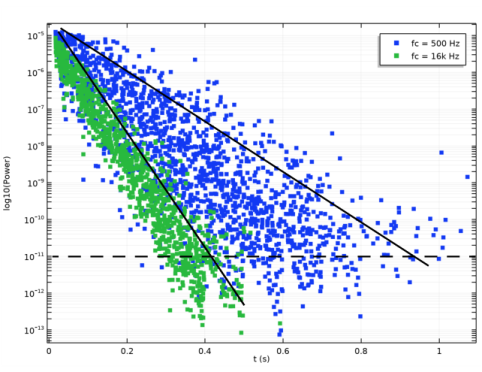
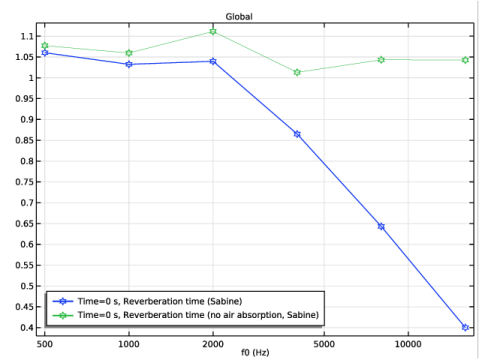
Figure 7: The raw data of the energetic impulse response or reflectogram. The slope represents the reverberation time in the given octave band.
 
Figure 8: Reverberation time estimates based on the Sabine formula. The curve with and without the volume absorption of air. The importance of including air absorption is evident at the higher frequencies.
Notes About the COMSOL Implementation
Results
There are several options that can be selected on the >Results node that are useful when working with ray acoustic models and especially when evaluating the impulse response.
When first setting up plots, it is useful to select the Only plot when requested option as some plots take a long time to render. Another trick is to use only a few rays initially.
Once the plots are set up, then before running the model (with a large number of rays), select the Recompute all plot data after solving option. Once the model has solved the plots will be rendered. This is very useful when running the model over lunch break or over night since rendering the IR plot often takes longer time than solving the model.
Before saving the model, remember to set the Save plot data list to On. Then all plots do not need to be re-rendered once the model is opened again.
Extra Time-Steps Convergence Analysis
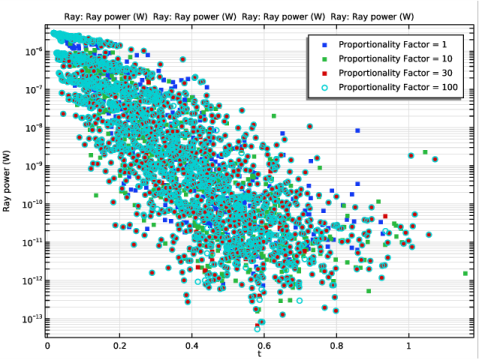
When this tutorial model is solved the solution is only stored every 0.1 s. This reduces the file size when saving. For postprocessing it is typically necessary with a much finer time resolution. Ideally there should be one time before and after each ray-wall interaction and one time before and after a ray crosses the receiver. This is achieved using the Extra Time Steps in the Receiver data set. To find an adequate value a small convergence test can be run. This is done in the model (see the last plot also shown in Figure 9). For a single band, plot the power rac.Q detected at the receiver using a Ray plot; do this while increasing the number of extra time steps. In this model the Proportionality factor is increased. Once the solution does not change any more, enough extra times have been used. In Figure 9 you can see that the red dots are on top of all the cyan circles (except a few). This means that a proportionality factor of 30 is an adequate choice for all the postprocessing.
Figure 9: Graph used to evaluate how many extra time steps (time steps added in-between the stored times) that are needed when reconstructing the impulse response in order to get consistent results.
References
1. M. Vorländer, Auralization, Fundamentals of Acoustics, Modeling, Simulation, Algorithms and Acoustic Virtual Reality, Springer, 2008.
2. H. Kuttruff, Room Acoustics, CRC Press, 2009.
3. Z. Xiangyang, C. Ke'an, and S. Jincai, “On the accuracy of the ray-tracing algorithms based on various sound receiver models,” Appl. Acoust., vol. 64, pp. 433-441, 2003.
Application Library path: Acoustics_Module/Building_and_Room_Acoustics/small_concert_hall
Modeling Instructions
This section contains the modeling instructions for the Absorptive Muffler model. They are followed by the Geometry Sequence Instructions section.
From the File menu, choose New.
New
In the New window, click Model Wizard.
Model Wizard
1
In the Model Wizard window, click 3D.
2
In the Select Physics tree, select Acoustics>Geometrical Acoustics>Ray Acoustics (rac).
3
Click Add.
4
Click Study.
5
In the Select Study tree, select Preset Studies for Selected Physics Interfaces>Ray Tracing.
6
Click Done.
The geometry is set up by importing a geometry sequence. The sequence imports the small concert hall geometry and sets up several selections. The predefined selections simplify the rest of the model setup.
Geometry 1
1
In the Geometry toolbar, click Insert Sequence.
2
3
In the Geometry toolbar, click Build All.
4
Click the Zoom Extents button in the Graphics toolbar.
Import the model parameters form a file. The parameters include the band center frequency f0, the location of the source and receiver, as well as the room volume.
Global Definitions
Parameters 1
1
In the Model Builder window, under Global Definitions click Parameters 1.
2
In the Settings window for Parameters, locate the Parameters section.
3
Click Load from File.
4
Proceed and set up interpolation functions for the absorption coefficients of the different surfaces in the concert hall. The data is easily stored in one .txt file. Also define an interpolation function for the intensity attenuation of air (given at 50 % relative humidity and 20 deg. C).
Interpolation 1 (int1)
1
In the Home toolbar, click Functions and choose Global>Interpolation.
2
In the Settings window for Interpolation, locate the Definition section.
3
From the Data source list, choose File.
4
Click Browse.
5
6
In the Number of arguments text field, type 1.
7
Click Import.
8
Find the Functions subsection. In the table, enter the following settings:
9
Locate the Interpolation and Extrapolation section. From the Interpolation list, choose Nearest neighbor.
10
Locate the Units section. In the Arguments text field, type Hz.
11
In the Function text field, type 1.
Interpolation 2 (int2)
1
In the Home toolbar, click Functions and choose Global>Interpolation.
2
In the Settings window for Interpolation, locate the Definition section.
3
From the Data source list, choose File.
4
Click Browse.
5
6
Click Import.
7
In the Function name text field, type m_air.
8
Locate the Interpolation and Extrapolation section. From the Interpolation list, choose Nearest neighbor.
9
Locate the Units section. In the Arguments text field, type Hz.
10
In the Function text field, type 1/m.
Now import the variables that define the reverberation time (T60) based on the simple Sabine equations. This also requires setting up integration operators for all the surfaces.
Definitions
Variables 1
1
In the Model Builder window, expand the Definitions node.
2
Right-click Component 1 (comp1)>Definitions and choose Variables.
3
In the Settings window for Variables, type Variables: Reverberation Time Estimates in the Label text field.
4
Locate the Variables section. Click Load from File.
5
Integration 1 (intop1)
1
In the Definitions toolbar, click Nonlocal Couplings and choose Integration.
2
In the Settings window for Integration, type intop_windows in the Operator name text field.
3
Locate the Source Selection section. From the Geometric entity level list, choose Boundary.
4
From the Selection list, choose Windows.
Integration 2 (intop2)
1
In the Definitions toolbar, click Nonlocal Couplings and choose Integration.
2
In the Settings window for Integration, type intop_seats in the Operator name text field.
3
Locate the Source Selection section. From the Geometric entity level list, choose Boundary.
4
From the Selection list, choose Seats.
Integration 3 (intop3)
1
In the Definitions toolbar, click Nonlocal Couplings and choose Integration.
2
In the Settings window for Integration, type intop_diffusers in the Operator name text field.
3
Locate the Source Selection section. From the Geometric entity level list, choose Boundary.
4
From the Selection list, choose Diffusers.
Integration 4 (intop4)
1
In the Definitions toolbar, click Nonlocal Couplings and choose Integration.
2
In the Settings window for Integration, type intop_floor in the Operator name text field.
3
Locate the Source Selection section. From the Geometric entity level list, choose Boundary.
4
From the Selection list, choose Floor.
Integration 5 (intop5)
1
In the Definitions toolbar, click Nonlocal Couplings and choose Integration.
2
In the Settings window for Integration, type intop_entrance in the Operator name text field.
3
Locate the Source Selection section. From the Geometric entity level list, choose Boundary.
4
From the Selection list, choose Entrance.
Integration 6 (intop6)
1
In the Definitions toolbar, click Nonlocal Couplings and choose Integration.
2
In the Settings window for Integration, type intop_walls in the Operator name text field.
3
Locate the Source Selection section. From the Geometric entity level list, choose Boundary.
4
From the Selection list, choose Walls.
Integration 7 (intop7)
1
In the Definitions toolbar, click Nonlocal Couplings and choose Integration.
2
In the Settings window for Integration, type intop_absorbers in the Operator name text field.
3
Locate the Source Selection section. From the Geometric entity level list, choose Boundary.
4
From the Selection list, choose Absorbers.
Now it is time to set up and define the physics and boundary conditions of the model. To compute the impulse response, it is necessary to model the intensity and power along the rays. The model only uses a surface mesh. Propagation in the unmeshed domains requires the definition of material properties at the interface level (in the section Material Properties of Exterior and Unmeshed Domains). Also set up boundary conditions for the different walls (boundaries).
Ray Acoustics (rac)
1
In the Model Builder window, click Ray Acoustics (rac).
2
In the Settings window for Ray Acoustics, locate the Intensity Computation section.
3
From the Intensity computation list, choose Compute intensity and power.
4
Locate the Material Properties of Exterior and Unmeshed Domains section. In the cext text field, type c0.
5
In the ρext text field, type rho0.
6
In the αext text field, type 0.5*m_air(f0).
Multiplication by 0.5 is necessary as the input in COMSOL is defined for the amplitude attenuation and not the intensity attenuation (as given in the interpolation data).
Ray Properties 1
1
In the Model Builder window, under Component 1 (comp1)>Ray Acoustics (rac) click Ray Properties 1.
2
In the Settings window for Ray Properties, locate the Ray Properties section.
3
In the f text field, type f0.
Wall 2
1
In the Physics toolbar, click Boundaries and choose Wall.
2
In the Settings window for Wall, type Wall: Walls in the Label text field.
3
Locate the Boundary Selection section. From the Selection list, choose Walls.
4
Locate the Wall Condition section. From the Wall condition list, choose Specular reflection.
5
Locate the Reflection Coefficient Model section. In the α text field, type a_walls(f0).
Wall 3
1
In the Physics toolbar, click Boundaries and choose Wall.
2
In the Settings window for Wall, type Wall: Entrance in the Label text field.
3
Locate the Boundary Selection section. From the Selection list, choose Entrance.
4
Locate the Wall Condition section. From the Wall condition list, choose Specular reflection.
5
Locate the Reflection Coefficient Model section. In the α text field, type a_entrance(f0).
Wall 4
1
In the Physics toolbar, click Boundaries and choose Wall.
2
In the Settings window for Wall, type Wall: Windows in the Label text field.
3
Locate the Boundary Selection section. From the Selection list, choose Windows.
4
Locate the Wall Condition section. From the Wall condition list, choose Specular reflection.
5
Locate the Reflection Coefficient Model section. In the α text field, type a_windows(f0).
Wall 5
1
In the Physics toolbar, click Boundaries and choose Wall.
2
In the Settings window for Wall, type Wall: Floor in the Label text field.
3
Locate the Boundary Selection section. From the Selection list, choose Floor.
4
Locate the Wall Condition section. From the Wall condition list, choose Specular reflection.
5
Locate the Reflection Coefficient Model section. In the α text field, type a_floor(f0).
Wall 6
1
In the Physics toolbar, click Boundaries and choose Wall.
2
In the Settings window for Wall, type Wall: Diffusers in the Label text field.
3
Locate the Boundary Selection section. From the Selection list, choose Diffusers.
4
Locate the Wall Condition section. From the Wall condition list, choose Mixed diffuse and specular reflection.
5
In the γs text field, type 1-s_diffuser.
6
Locate the Reflection Coefficients Model section. In the αs text field, type a_diffuser(f0).
7
In the αd text field, type a_diffuser(f0).
In this model the scattering coefficient s_diffuser is constant across the frequency bands. It can of course also be defined as an interpolation function.
Wall 7
1
In the Physics toolbar, click Boundaries and choose Wall.
2
In the Settings window for Wall, type Wall: Seats in the Label text field.
3
Locate the Boundary Selection section. From the Selection list, choose Seats.
4
Locate the Wall Condition section. From the Wall condition list, choose Specular reflection.
5
Locate the Reflection Coefficient Model section. In the α text field, type a_seats(f0).
Wall 8
1
In the Physics toolbar, click Boundaries and choose Wall.
2
In the Settings window for Wall, type Wall: Absorbers in the Label text field.
3
Locate the Boundary Selection section. From the Selection list, choose Absorbers.
4
Locate the Wall Condition section. From the Wall condition list, choose Specular reflection.
5
Locate the Reflection Coefficient Model section. In the α text field, type a_absorbers(f0).
Wall 9
1
In the Physics toolbar, click Boundaries and choose Wall.
2
In the Settings window for Wall, type Wall: SPL cross section in the Label text field.
3
Locate the Wall Condition section. From the Wall condition list, choose Pass through.
The Pass through option is used here as this surface only is meant for visualizing the SPL in a cross section. Use Wireframe rendering to select the surface that is located inside the concert hall.
4
Click the Wireframe Rendering button in the Graphics toolbar.
5
Sound Pressure Level Calculation 1
In the Physics toolbar, click Attributes and choose Sound Pressure Level Calculation.
Release from Grid 1
1
In the Physics toolbar, click Global and choose Release from Grid.
2
In the Settings window for Release from Grid, locate the Initial Coordinates section.
3
In the qx, 0 text field, type x_s.
4
In the qy, 0 text field, type y_s.
5
In the qz, 0 text field, type z_s.
6
Locate the Ray Direction Vector section. From the Ray direction vector list, choose Spherical.
7
In the Nw text field, type Nrays.
8
Locate the Total Source Power section. In the Psrc text field, type P0.
Ray Termination 1
1
In the Physics toolbar, click Global and choose Ray Termination.
2
In the Settings window for Ray Termination, locate the Termination Criteria section.
3
From the Spatial extents of ray propagation list, choose Bounding box, from geometry.
4
From the Additional termination criteria list, choose Intensity.
5
In the Ith text field, type 1e-13[W/m^2].
Mesh 1
Free Triangular 1
1
In the Model Builder window, under Component 1 (comp1) right-click Mesh 1 and choose More Operations>Free Triangular.
2
In the Settings window for Free Triangular, locate the Boundary Selection section.
3
From the Selection list, choose All boundaries.
Size
1
In the Model Builder window, click Size.
2
In the Settings window for Size, locate the Element Size section.
3
From the Predefined list, choose Finer.
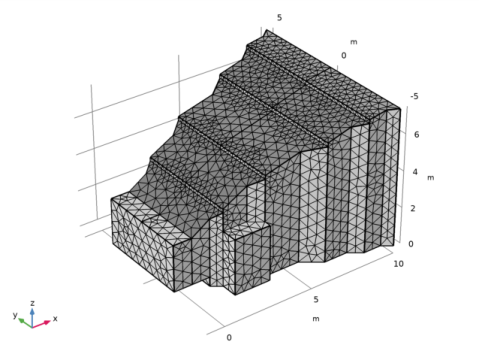
4
Click Build All.
Proceed and solve the model by adding a parametric sweep over the center frequency variable f0. This represents the center frequency of the octave bands analyzed in this model, in order to get a broadband response. The first time you set up and solve the model it can be useful to reduce the number of rays by changing the value of the parameter Nrays to, for example, 1000. This will make postprocessing faster. Remember that the quality of the results in acoustic ray tracing increase for an increasing number of rays and more narrow frequency bands (you need to have wall absorption data with the desired resolution). In the Ray Acoustics interface the impulse response plot can handle octave, 1/3 octave, and 1/6 octave data.
Study 1
Step 1: Ray Tracing
1
In the Model Builder window, expand the Study 1 node, then click Step 1: Ray Tracing.
2
In the Settings window for Ray Tracing, locate the Study Settings section.
3
From the Time unit list, choose s.
4
In the Times text field, type 0 0.01 0.02 range(0.1,0.1,1.4).
The times entered here represent instances where the solution is stored (the model size on disc depends in part on this). Much smaller time steps are used internally by the solver. In postprocessing when reconstructing the impulse response additional time steps are rendered and used by the data sets.
Parametric Sweep
1
In the Study toolbar, click Parametric Sweep.
Using the parametric sweep is important as this gives the frequency resolution (here in full octaves). The ray propagation model is solved once per frequency band. The data is collected in postprocessing, by the receiver data set and the impulse response plot, to generate the broadband response.
2
In the Settings window for Parametric Sweep, locate the Study Settings section.
3
Click Add.
4
Click Range.
5
In the Range dialog box, choose ISO preferred frequencies from the Entry method list.
6
In the Start frequency text field, type 500.
7
In the Stop frequency text field, type 20000.
8
Click Replace.
Solving the model takes a couple of minutes and uses less than 2 GB of RAM (depending on your hardware). This will increase for an increasing number of rays.
9
In the Study toolbar, click Compute.
Results
Ray Trajectories (rac)
1
In the Settings window for 3D Plot Group, locate the Data section.
2
From the Time (s) list, choose 0.01.
3
In the Ray Trajectories (rac) toolbar, click Plot.
Ray Trajectories 1
1
In the Model Builder window, expand the Ray Trajectories (rac) node, then click Ray Trajectories 1.
2
In the Settings window for Ray Trajectories, locate the Coloring and Style section.
3
Find the Line style subsection. From the Type list, choose None.
4
Find the Point style subsection. From the Type list, choose Point.
Color Expression 1
1
In the Model Builder window, expand the Ray Trajectories 1 node, then click Color Expression 1.
2
In the Settings window for Color Expression, locate the Expression section.
3
In the Expression text field, type rac.Lp.
4
In the Ray Trajectories (rac) toolbar, click Plot.
This should reproduce the image in Figure 2.
Ray Trajectories (rac)
1
In the Model Builder window, click Ray Trajectories (rac).
2
In the Settings window for 3D Plot Group, locate the Data section.
3
From the Time (s) list, choose 0.02.
4
In the Ray Trajectories (rac) toolbar, click Plot.
This should reproduce the image in Figure 3.
On the Results node you have several options that are useful when postprocessing ray tracing simulations, where rendering plots can be time consuming. This is especially true for the impulse response plots. While setting up plots, it is useful to select Only plot when requested such that the plots are not generated every time you change an option. It is also good practice to save the plots in the model such that they are already rendered when you open your model at a later stage. Finally, once you have set up all the plots and you are ready to run the model again, it can be useful to enable Recompute all plot data after solving. All plots will then be recomputed after the model is solved, for example, running over night.
5
In the Model Builder window, click Results.
6
In the Settings window for Results, locate the Update of Results section.
7
Select the Only plot when requested check box.
8
Locate the Save Data in the Model section. From the Save plot data list, choose On.
Now set up all the data sets you will need for postprocessing the results. First, set up the receiver data set that includes all the solved frequency bands (for a broadband analysis). Then, set up a receiver for the first and for the last frequency band. Finally, set up a series of data sets that will be used in a convergence analysis performed later on. The latter is optional, but it shows how the Proportionality factor value is chosen and set equal to 30 in all the receiver data sets used.
Receiver 3D 1
1
In the Results toolbar, click More Datasets and choose Receiver 3D.
2
In the Settings window for Receiver 3D, type Receiver 3D - All Bands in the Label text field.
3
Locate the Receiver section. Find the Center subsection. In the x text field, type x_r.
4
In the y text field, type y_r.
5
In the z text field, type z_r.
6
Find the Radius subsection. In the Number of rays text field, type Nrays.
7
In the Room volume text field, type Vol.
8
In the Source-receiver distance text field, type dsr.
9
Locate the Extra Time Steps section. From the Maximum number of extra time steps rendered list, choose Proportional to number of solution times.
10
In the Proportionality factor text field, type 30.
Receiver 3D - All Bands 1
1
Right-click Receiver 3D - All Bands and choose Duplicate.
2
In the Settings window for Receiver 3D, type Receiver 3D - 500 Hz Band in the Label text field.
3
Locate the Data section. From the Parameter selection (f0) list, choose From list.
4
In the Parameter values (f0 (Hz)) list, select 500.
Receiver 3D - 500 Hz Band 1
1
Right-click Receiver 3D - 500 Hz Band and choose Duplicate.
2
In the Settings window for Receiver 3D, type Receiver 3D - 16k Hz Band in the Label text field.
3
Locate the Data section. In the Parameter values (f0 (Hz)) list, select 16000.
Group 1
1
In the Model Builder window, right-click Datasets and choose Node Group.
2
In the Settings window for Group, type Group: Convergence Analysis Data Sets in the Label text field.
Receiver 3D 4
1
In the Results toolbar, click More Datasets and choose Receiver 3D.
2
In the Settings window for Receiver 3D, type Receiver 3D - Single Band (prop = 1) in the Label text field.
3
Locate the Data section. From the Parameter selection (f0) list, choose First.
4
Locate the Receiver section. Find the Center subsection. In the x text field, type x_r.
5
In the y text field, type y_r.
6
In the z text field, type z_r.
7
Find the Radius subsection. In the Number of rays text field, type Nrays.
8
In the Room volume text field, type Vol.
9
In the Source-receiver distance text field, type dsr.
10
Locate the Extra Time Steps section. From the Maximum number of extra time steps rendered list, choose Proportional to number of solution times.
Receiver 3D - Single Band (prop = 1) 1
1
Right-click Receiver 3D - Single Band (prop = 1) and choose Duplicate.
2
In the Settings window for Receiver 3D, type Receiver 3D - Single Band (prop = 10) in the Label text field.
3
Locate the Extra Time Steps section. In the Proportionality factor text field, type 10.
Receiver 3D - Single Band (prop = 10) 1
1
Right-click Receiver 3D - Single Band (prop = 10) and choose Duplicate.
2
In the Settings window for Receiver 3D, type Receiver 3D - Single Band (prop = 30) in the Label text field.
3
Locate the Extra Time Steps section. In the Proportionality factor text field, type 30.
Receiver 3D - Single Band (prop = 30) 1
1
Right-click Receiver 3D - Single Band (prop = 30) and choose Duplicate.
2
In the Settings window for Receiver 3D, type Receiver 3D - Single Band (prop = 100) in the Label text field.
3
Locate the Extra Time Steps section. In the Proportionality factor text field, type 100.
1D Plot Group 2
1
In the Results toolbar, click 1D Plot Group.
2
In the Settings window for 1D Plot Group, type Impulse Response in the Label text field.
3
Locate the Data section. From the Dataset list, choose Receiver 3D - All Bands.
Impulse Response 1
1
In the Impulse Response toolbar, click More Plots and choose Impulse Response.
Rendering the impulse response will typically take longer time than solving the model (up to 20-30 min for this plot alone). The plot is not just a representation of computed data but consists of a reconstruction (computation) of a signal based on the ray data picked up at the receiver.
2
Click Plot.
This should reproduce the impulse response shown in Figure 4. The impulse response is the most important result of this model. The signal can be exported under the Export node and used for further analysis in an external signal processing tool. The response is reconstructed from the ray data detected by the Receiver data set (arrival time, power, and band center frequency). It has a default sampling frequency of 44100 Hz. This can be changed under the Advanced section in the plot settings window.
Impulse Response 1
1
In the Model Builder window, right-click Impulse Response and choose Duplicate.
2
In the Settings window for 1D Plot Group, type Impulse Response FFT in the Label text field.
3
Locate the Axis section. Select the x-axis log scale check box.
4
Select the y-axis log scale check box.
Impulse Response 1
1
In the Model Builder window, expand the Results>Impulse Response FFT node, then click Impulse Response 1.
2
In the Settings window for Impulse Response, locate the x-Axis Data section.
3
From the Transformation list, choose Frequency spectrum.
4
Select the Frequency range check box.
5
In the Minimum text field, type 100.
6
In the Maximum text field, type 20000.
7
In the Impulse Response FFT toolbar, click Plot.
This should reproduce the image in Figure 5.
3D Plot Group 4
1
In the Home toolbar, click Add Plot Group and choose 3D Plot Group.
2
In the Settings window for 3D Plot Group, type Cross Section SPL in the Label text field.
3
Locate the Data section. From the Dataset list, choose Study 1/Parametric Solutions 1 (sol2).
Surface 1
1
Right-click Cross Section SPL and choose Surface.
2
In the Settings window for Surface, click Replace Expression in the upper-right corner of the Expression section. From the menu, choose Component 1>Ray Acoustics>Accumulated variables>Wall intensity comp1.rac.wall9.spl1.Iw>rac.wall9.spl1.Lp - Sound pressure level - dB.
3
In the Cross Section SPL toolbar, click Plot.
This should reproduce the image in Figure 6. Choose the 16k data set to see the SPL at this frequency.
1D Plot Group 5
1
In the Home toolbar, click Add Plot Group and choose 1D Plot Group.
2
In the Settings window for 1D Plot Group, type Energetic Impulse Response (Reflectogram) in the Label text field.
3
Click to expand the Title section. From the Title type list, choose None.
4
Locate the Plot Settings section. Select the x-axis label check box.
5
6
Select the y-axis label check box.
7
8
Locate the Data section. From the Dataset list, choose None.
9
Locate the Axis section. Select the y-axis log scale check box.
Ray 1
1
In the Energetic Impulse Response (Reflectogram) toolbar, click More Plots and choose Ray.
2
In the Settings window for Ray, locate the Data section.
3
From the Dataset list, choose Receiver 3D - 500 Hz Band.
4
Locate the y-Axis Data section. In the Expression text field, type re1dist*rac.Q/re1vol.
5
Click to expand the Coloring and Style section. Find the Line style subsection. From the Line list, choose None.
6
Find the Line markers subsection. From the Marker list, choose Point.
7
From the Positioning list, choose In data points.
8
Click to expand the Legends section. From the Legends list, choose Manual.
9
Select the Show legends check box.
10
Ray 2
1
Right-click Ray 1 and choose Duplicate.
2
In the Settings window for Ray, locate the Data section.
3
From the Dataset list, choose Receiver 3D - 16k Hz Band.
4
Locate the Legends section. In the table, enter the following settings:
5
In the Energetic Impulse Response (Reflectogram) toolbar, click Plot.
This should reproduce the image in Figure 7.
1D Plot Group 6
1
In the Home toolbar, click Add Plot Group and choose 1D Plot Group.
2
In the Settings window for 1D Plot Group, type Reverberation Time Estimates in the Label text field.
3
Locate the Data section. From the Dataset list, choose Study 1/Parametric Solutions 1 (sol2).
4
From the Time selection list, choose First.
5
Locate the Axis section. Select the x-axis log scale check box.
6
Locate the Legend section. From the Position list, choose Lower left.
Global 1
1
Right-click Reverberation Time Estimates and choose Global.
2
In the Settings window for Global, locate the y-Axis Data section.
3
4
Locate the x-Axis Data section. From the Axis source data list, choose f0.
5
Click to expand the Coloring and Style section. Find the Line markers subsection. From the Marker list, choose Star.
6
From the Positioning list, choose In data points.
7
In the Reverberation Time Estimates toolbar, click Plot.
This should reproduce the image in Figure 8.
1D Plot Group 7
1
In the Home toolbar, click Add Plot Group and choose 1D Plot Group.
2
In the Settings window for 1D Plot Group, type Extra Time-Steps Convergence Analysis in the Label text field.
3
Locate the Data section. From the Dataset list, choose None.
4
Locate the Axis section. Select the y-axis log scale check box.
Ray 1
1
In the Extra Time-Steps Convergence Analysis toolbar, click More Plots and choose Ray.
2
In the Settings window for Ray, locate the Data section.
3
From the Dataset list, choose Receiver 3D - Single Band (prop = 1).
4
Locate the y-Axis Data section. In the Expression text field, type rac.Q.
5
Locate the Coloring and Style section. Find the Line style subsection. From the Line list, choose None.
6
Find the Line markers subsection. From the Marker list, choose Point.
7
From the Positioning list, choose In data points.
8
Locate the Legends section. Select the Show legends check box.
9
From the Legends list, choose Manual.
10
Ray 2
1
Right-click Ray 1 and choose Duplicate.
2
In the Settings window for Ray, locate the Data section.
3
From the Dataset list, choose Receiver 3D - Single Band (prop = 10).
4
Locate the Legends section. In the table, enter the following settings:
Ray 3
1
Right-click Ray 2 and choose Duplicate.
2
In the Settings window for Ray, locate the Data section.
3
From the Dataset list, choose Receiver 3D - Single Band (prop = 30).
4
Locate the Legends section. In the table, enter the following settings:
Ray 4
1
Right-click Ray 3 and choose Duplicate.
2
In the Settings window for Ray, locate the Data section.
3
From the Dataset list, choose Receiver 3D - Single Band (prop = 100).
4
Locate the Coloring and Style section. Find the Line markers subsection. From the Marker list, choose Circle.
5
Locate the Legends section. In the table, enter the following settings:
6
In the Extra Time-Steps Convergence Analysis toolbar, click Plot.
This should reproduce the image in Figure 9.
Finally, evaluate the arrival time of the first ray using the built-in data set variable re1first. This time can, for example, be used when analyzing the temporal alignment of speakers.
Evaluation Group 1
1
In the Results toolbar, click Evaluation Group.
2
In the Settings window for Evaluation Group, type Evaluation Group: Arrival Time of First Ray in the Label text field.
3
Locate the Data section. From the Dataset list, choose Receiver 3D - 500 Hz Band.
Global Evaluation 1
1
Right-click Evaluation Group: Arrival Time of First Ray and choose Global Evaluation.
2
In the Settings window for Global Evaluation, locate the Expressions section.
3
4
In the Evaluation Group: Arrival Time of First Ray toolbar, click Evaluate.
Geometry Sequence Instructions
From the File menu, choose New.
New
In the New window, click Blank Model.
Add Component
In the Home toolbar, click Add Component and choose 3D.
Geometry 1
Import 1 (imp1)
1
In the Home toolbar, click Import.
2
In the Settings window for Import, locate the Import section.
3
Click Browse.
4
5
Click Import.
6
Click the Wireframe Rendering button in the Graphics toolbar.
Explicit Selection 1 (sel1)
1
In the Geometry toolbar, click Selections and choose Explicit Selection.
2
In the Settings window for Explicit Selection, type Windows in the Label text field.
3
Locate the Entities to Select section. From the Geometric entity level list, choose Boundary.
4
On the object imp1, select Boundaries 60–62 only.
Explicit Selection 2 (sel2)
1
In the Geometry toolbar, click Selections and choose Explicit Selection.
2
In the Settings window for Explicit Selection, type Seats in the Label text field.
3
Locate the Entities to Select section. From the Geometric entity level list, choose Boundary.
4
On the object imp1, select Boundary 39 only.
Explicit Selection 3 (sel3)
1
In the Geometry toolbar, click Selections and choose Explicit Selection.
2
In the Settings window for Explicit Selection, type Diffusers in the Label text field.
3
Locate the Entities to Select section. From the Geometric entity level list, choose Boundary.
4
On the object imp1, select Boundaries 13, 15, 29, 30, 41, 42, 49, and 50 only.
Explicit Selection 4 (sel4)
1
In the Geometry toolbar, click Selections and choose Explicit Selection.
2
In the Settings window for Explicit Selection, type Floor in the Label text field.
3
Locate the Entities to Select section. From the Geometric entity level list, choose Boundary.
4
On the object imp1, select Boundaries 3, 8, 12, 14, 18, and 21 only.
Explicit Selection 5 (sel5)
1
In the Geometry toolbar, click Selections and choose Explicit Selection.
2
In the Settings window for Explicit Selection, type Entrance in the Label text field.
3
Locate the Entities to Select section. From the Geometric entity level list, choose Boundary.
4
On the object imp1, select Boundaries 16, 19, 20, 23, 31, and 32 only.
Explicit Selection 6 (sel6)
1
In the Geometry toolbar, click Selections and choose Explicit Selection.
2
In the Settings window for Explicit Selection, type Walls in the Label text field.
3
Locate the Entities to Select section. From the Geometric entity level list, choose Boundary.
4
On the object imp1, select Boundaries 7, 9–11, 17, 22, 24–28, 34–37, 43–48, and 51–59 only.
Explicit Selection 7 (sel7)
1
In the Geometry toolbar, click Selections and choose Explicit Selection.
2
In the Settings window for Explicit Selection, type Absorbers in the Label text field.
3
Locate the Entities to Select section. From the Geometric entity level list, choose Boundary.
4
On the object imp1, select Boundaries 1, 2, 4–6, 33, and 38 only.
Form Union (fin)
1
In the Model Builder window, click Form Union (fin).
2
Click Build Selected.