|
|
|





|
1
|
|
2
|
|
3
|
Click Add.
|
|
4
|
Click Study.
|
|
5
|
|
6
|
Click Done.
|
|
1
|
|
2
|
|
3
|
|
4
|
Browse to the model’s Application Libraries folder and double-click the file isotropic_anisotropic_sample_parameters.txt.
|
|
1
|
|
2
|
|
3
|
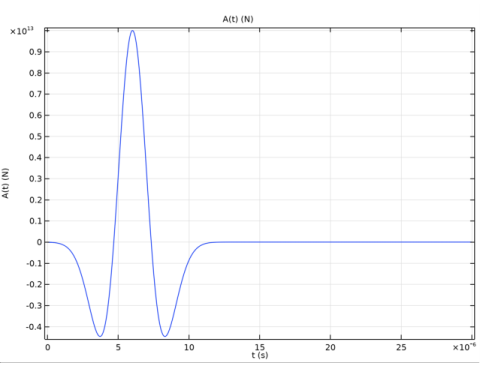
Locate the Definition section. In the Expression text field, type 1e13*(1 - 2*pi^2*f0^2*(t - t0)^2)*exp(-pi^2*f0^2*(t - t0)^2).
|
|
4
|
|
5
|
|
6
|
|
7
|
|
8
|
Click Plot.
|
|
1
|
|
2
|
|
3
|
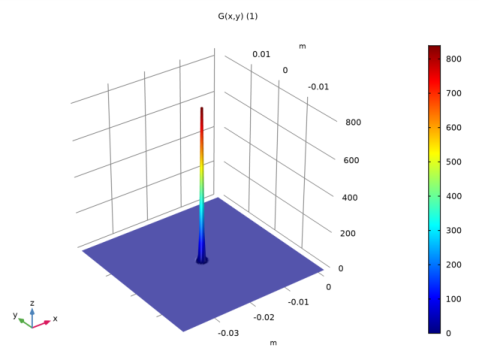
Locate the Definition section. In the Expression text field, type 1/sqrt(pi*dS)*exp(-((x - x0)^2 + (y - y0)^2)/dS).
|
|
4
|
|
5
|
|
6
|
|
7
|
|
8
|
|
1
|
|
2
|
|
3
|
|
4
|
|
5
|
|
7
|
|
8
|
|
1
|
|
2
|
|
3
|
|
4
|
|
5
|
|
6
|
|
1
|
|
2
|
|
3
|
|
4
|
|
5
|
|
1
|
|
2
|
|
3
|
|
5
|
|
1
|
|
1
|
In the Model Builder window, under Component 1 (comp1)>Elastic Waves, Time Explicit (elte) click Elastic Waves, Time Explicit Model 1.
|
|
2
|
In the Settings window for Elastic Waves, Time Explicit Model, locate the Linear Elastic Material section.
|
|
3
|
|
1
|
In the Model Builder window, under Component 1 (comp1) right-click Materials and choose Blank Material.
|
|
2
|
|
4
|
|
1
|
|
2
|
|
4
|
|
1
|
|
3
|
|
4
|
|
5
|
|
1
|
|
1
|
|
1
|
|
2
|
|
3
|
|
1
|
|
2
|
|
3
|
Click the Custom button.
|
|
4
|
Locate the Element Size Parameters section. In the Maximum element size text field, type cs_an/(2*f0)/1.5.
|
|
5
|
|
6
|
|
1
|
|
2
|
In the Settings window for Study, type Study 1 - ELTE (store full solution) in the Label text field.
|
|
1
|
In the Model Builder window, under Study 1 - ELTE (store full solution) click Step 1: Time Dependent.
|
|
2
|
|
3
|
|
4
|
|
1
|
|
2
|
|
3
|
|
4
|
|
1
|
|
2
|
|
3
|
|
1
|
|
2
|
|
3
|
|
4
|
|
5
|
|
6
|
|
7
|
|
1
|
|
2
|
|
3
|
|
4
|
|
1
|
|
2
|
|
3
|
|
1
|
|
2
|
|
3
|
|
4
|
|
1
|
|
2
|
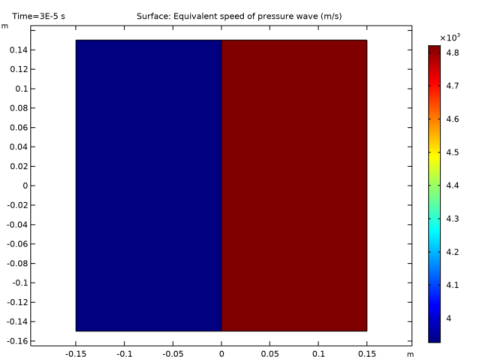
In the Settings window for 2D Plot Group, type Apparent Pressure Wave Speed in the Label text field.
|
|
1
|
In the Model Builder window, expand the Results>Apparent Pressure Wave Speed node, then click Surface 1.
|
|
2
|
|
3
|
|
4
|
|
1
|
|
2
|
|
3
|
|
4
|
|
1
|
|
2
|
|
3
|
|
4
|
|
1
|
|
2
|
|
3
|
|
4
|
Click to expand the Values of Dependent Variables section. Find the Store fields in output subsection. From the Settings list, choose For selections.
|
|
5
|
|
6
|
|
7
|
Click OK.
|
|
8
|
|
1
|
|
2
|
|
3
|
|
4
|
|
5
|
|
1
|
|
2
|
|
3
|
|
4
|
|
5
|
Click Filter.
|
|
6
|
|
7
|
Click OK.
|
|
8
|
|
9
|
|
10
|
|
11
|
Click Filter.
|
|
12
|
|
13
|
Click OK.
|
|
14
|
|
15
|
|
16
|
In the Dependent variables table, enter the following settings:
|
|
1
|
In the Model Builder window, under Component 1 (comp1)>Point ODEs and DAEs (pode) click Distributed ODE 1.
|
|
2
|
|
3
|
|
4
|
|
1
|
|
2
|
|
3
|
|
4
|
|
5
|
|
6
|
|
1
|
|
2
|
|
3
|
|
1
|
|
2
|
|
3
|
|
4
|
Locate the Values of Dependent Variables section. Find the Values of variables not solved for subsection. From the Settings list, choose User controlled.
|
|
5
|
|
6
|
|
7
|
|
1
|
|
2
|
|
3
|
|
4
|
|
5
|
|
6
|
|
7
|
|
1
|
|
2
|
In the Settings window for 1D Plot Group, type Displacement in (x,y) = (-10.5 cm, -8 cm) in the Label text field.
|
|
3
|
Locate the Data section. From the Dataset list, choose Study 3 - Displacement (ODE)/Solution 3 (sol3).
|
|
4
|
|
5
|
|
6
|
|
7
|
In the associated text field, type Displacement, y-component (m).
|
|
1
|
|
3
|
|
4
|
|
5
|
|
1
|
In the Model Builder window, right-click Displacement in (x,y) = (-10.5 cm, -8 cm) and choose Duplicate.
|
|
2
|
In the Settings window for 1D Plot Group, type Displacement in (x,y) = (-3.5 cm, -8 cm) in the Label text field.
|
|
1
|
In the Model Builder window, expand the Results>Displacement in (x,y) = (-3.5 cm, -8 cm) node, then click Point Graph 1.
|
|
2
|
|
3
|
|
5
|