You are viewing the documentation for an older COMSOL version. The latest version is available here.
PDF

Electrodynamics of a Power Switch — Multibody Version
Introduction
Events such as overcurrent or overload can seriously damage electrical circuits or power lines. A possible solution to this problem is the implementation of circuit breakers in the form of automatic electrical switches, which mechanically interrupt the current flow by moving a plunger as soon as a defect is detected. In contrast to a fuse, which has to be replaced after its activation, a circuit breaker can be reset.
Circuit breakers can be classified according to features like voltage rating, construction type, structural features, and interruption technique. The main purpose of this model is to illustrate the working principle and some possible solutions for modeling one class of circuit breakers: magnetic power switches, electromechanical devices in which iron plungers are moved by means of the magnetic attraction exerted by current flowing in coils. Turning off the driving current resets the switch to the initial state. Similar technology is present also in electrovalves and many other magnetic actuators.
The model includes the rigid body dynamics under the influence of magnetic forces, induced currents, and spring/constraint arrangements that keep the plunger in its equilibrium position.
Note: This model requires the AC/DC Module and the Multibody Dynamics Module.
Model Definition
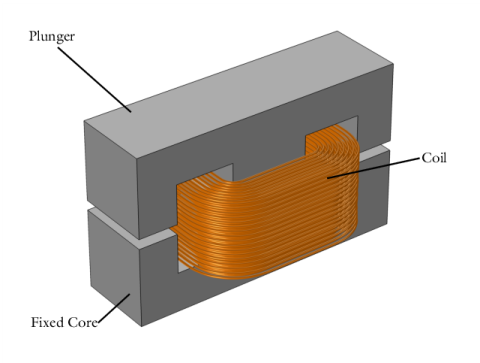
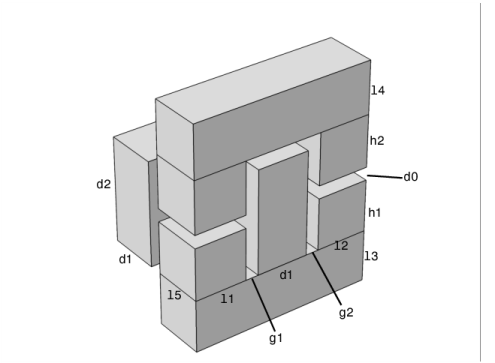
The geometry of the electromechanical device is shown in Figure 1. Two bulk E-shaped iron cores are separated by an air gap. A copper coil is placed on the central leg of the lower E-core, which is kept fixed. As current flows in the coil, an attractive force is exerted on the upper E-core (the moving plunger), which is held in place by a prestressed spring. When the force reaches a threshold value, the plunger moves towards the lower E-core, closing the air gap. The model illustrates how to properly simulate the movement and the closing time, which depends on the spring stiffness.
Figure 1: Geometry of the switch.
The geometry is built using COMSOL Multiphysics’ CAD tools and taking advantage of parameterized Geometry Parts, allowing a finer control on the geometry. Due to the symmetry of the device, it is possible to represent only a quarter of the geometry. Figure 2 shows the simulation geometry, complete with size specifications, which are added as model parameters in COMSOL Multiphysics. In order to compute the electromagnetic fields, the power switch is embedded in an air domain.
Figure 2: Switch specifications.
The model solves a preprocessing study to compute the parameterization of the air gap and the coil direction, as detailed in the following sections, then a main Time Dependent study step from t = 0 s to t = 1 s.
Physics Interfaces
This model uses the Magnetic Fields and Multibody Dynamics interfaces coupled to the Moving Mesh, which allows computing magnetic fields in a geometry that changes with time, due to the closure of the air gap. The Magnetic Fields interface computes the time-dependent magnetic field generated by the coil, the current densities induced in the coils and their magnetic effects. A Coil feature using a homogenized multi-turn model is used for the excitation. The direction of the current flow in the coil is computed automatically in a Coil Geometry Analysis study step. The attractive force acting on the moving domain is computed using a Force Calculation feature. Plunger dynamics is described using Rigid Domain node in the Multibody Dynamics interface. The attractive force acting on the moving domain is modeled as an applied force on the rigid plunger with a given mass.
To improve the stability of the solution in presence of nonlinear magnetic materials, linear elements are used for the discretization of the magnetic vector potential.
Mesh Deformation
During the switching process, the plunger moves rigidly in the vertical direction, while the lower core remains fixed. The mesh in the air gap must then be deformed consistently to accommodate this movement. This is taken care of by the Yeoh smoother.
In order to avoid complete collapse of the mesh, displacement is limited to be at most 90% of the initial air gap, with a marginal impact on the results. This model is set up in order to consider an elastic but highly damped collision between the plunger and fixed core. It is achieved using the locking functionality available in the Joint node in the Multibody Dynamics interface. An alternative solution to model the complete collapse of gap is to use a Stop Condition in the solver sequence, continuing the simulation with a geometry without the gap, or by means of the Events interface.
Results and Discussion
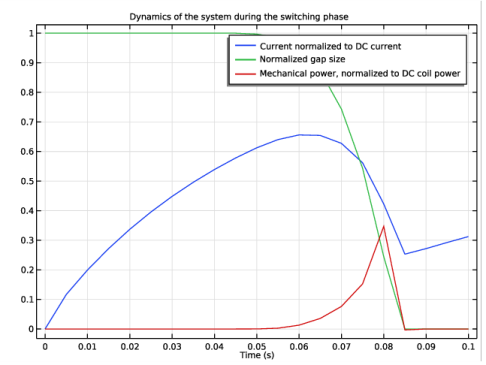
Different stages can be identified in the transient analysis. During the first 45 ms of the simulation the current grows but the electromagnetic attractive force is not enough to overcome the opposing spring force. In the interval between 45 ms and 85 ms the electromagnetic force increases further and the plunger starts to translate downward, toward the iron core; once it reaches this new position it stops its movement. During this stage the current decreases due to the inductance changing, reaching its minimum value with the closing of the air gap. When the plunger and core make contact, a new stationary RL circuit is created. The current starts to increase again with a slope depending on the new characteristic time of the device.
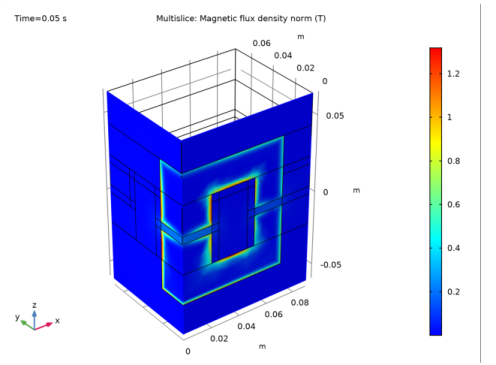
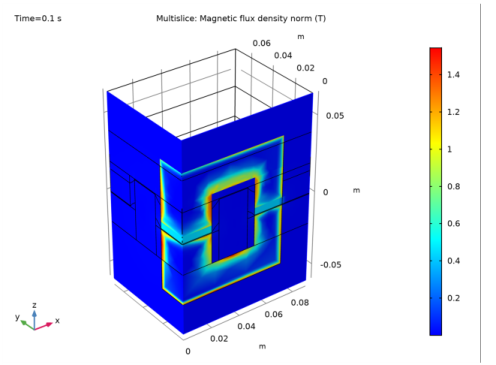
Figure 3 and Figure 4 show the magnetic fields on symmetry planes when the gap is still open (Figure 3) and at a time where the gap is closed (Figure 4). In both cases, it is evident that induced eddy currents are screening the interior of the core from the field. These currents are limited to a region as large as the skin depth, resolved by the boundary layer mesh.
Figure 3: Magnetic flux density norm at t = 0.05 s, when the gap is open.
Figure 4: Magnetic flux density norm at t = 0.1 s, when the gap is closed.
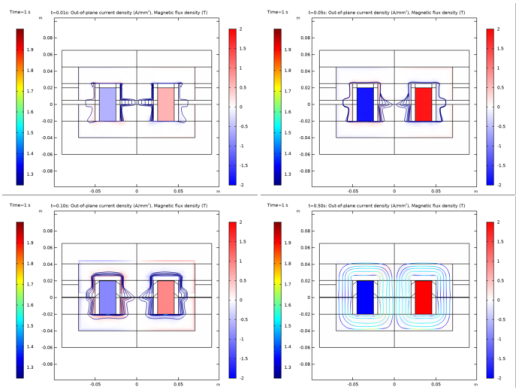
Figure 5 shows the evolution of magnetic field streamlines at different instants of the simulation. The top-left image refers to a time instant in which the spring is still prestressed. As the magnetic force increases, it starts to compress the spring (top right) until it reaches its maximum compression (lower-left). Well before the final time of the simulation, the spring is completely compressed and the induced currents in the core have decayed (lower-right).
Figure 5: Evolution of current density (surface) and magnetic flux density (streamlines) at different times.
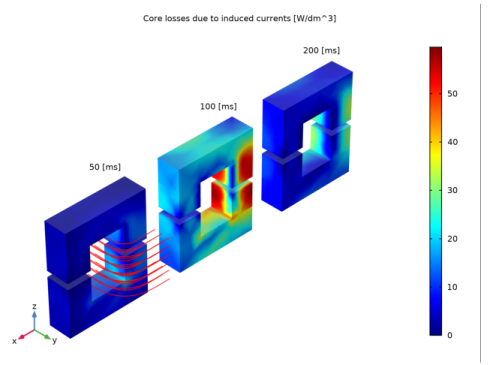
Figure 6 shows the core losses in the device due to induced current density. This information may be relevant in order to predict possible overheating of the device.
Figure 6: Core losses due to induced currents at different time instants.
A series of 1D plots are also created to highlight the dynamics of the magnetic switch, before, during, and after plunger motion.
Before plunger motion: Figure 7 shows the first stage of the simulation, when the spring is not yet compressed. Blue and green lines represent normalized currents and gap size respectively. Red line is an exponential fit for the RL current dynamics of the initially non-moving inductor — the response of an ideal system.
During plunger motion: the compression of the spring and the resulting closure of the gap are visualized in Figure 8. Normalized currents and gap size are represented by blue and green lines respectively, the red line showing instead the mechanical power (which is nonzero only during the motion of the plunger).
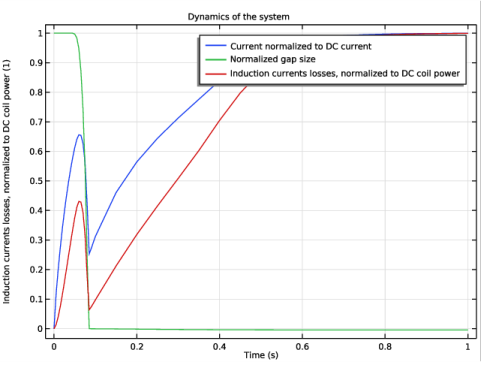
After plunger motion: Figure 9 refers to the last stage of simulation, when the spring is completely compressed. The red line shows the induction losses in the core, which are significant during the movement of the plunger. Depending on the details of the device and the desired performance, this aspect may need to be taken into account during the design process. After the movement is completed, the current starts increasing again as expected in a (nonlinear) RL circuit.
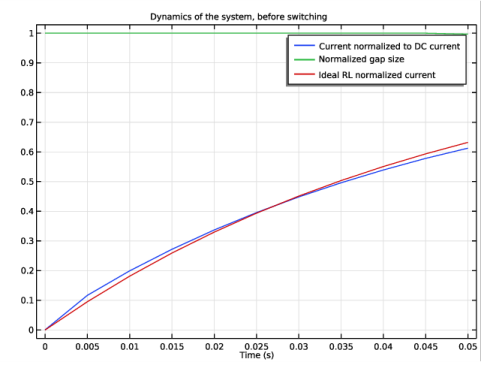
Figure 7: Magnetic flux density norm at t = 0.1 s, when the gap is closed.
Figure 8: Magnetic flux density norm at t = 0.1 s, when the gap is closed.
Figure 9: Magnetic flux density norm at t = 0.1 s, when the gap is closed.
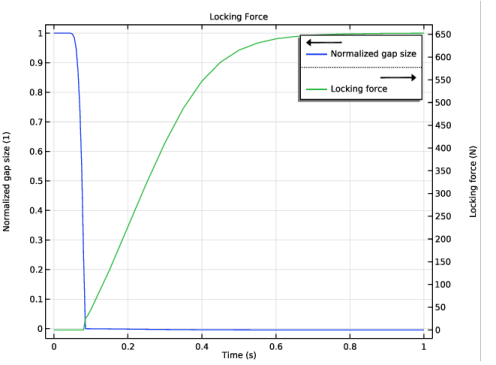
It is worth recalling that blue and green curves in Figure 7, Figure 8, and Figure 9 are representing the same physical quantities, respectively the normalized current and the normalized gap size. The reason why they look different is the limit of the x axis (time scale). Figure 10 shows the variation of locking force with time.
Figure 10: Variation of locking force and gap with time.
Application Library path: ACDC_Module/Motors_and_Actuators/power_switch_multibody
Modeling Instructions
From the File menu, choose New.
New
In the New window, click Model Wizard.
Model Wizard
1
In the Model Wizard window, click 3D.
2
In the Select Physics tree, select AC/DC>Electromagnetic Fields>Magnetic Fields (mf).
3
Click Add.
4
In the Select Physics tree, select Structural Mechanics>Multibody Dynamics (mbd).
5
Click Add.
6
Click Study.
7
In the Select Study tree, select Preset Studies for Some Physics Interfaces>Coil Geometry Analysis.
8
Click Done.
Global Definitions
Parameters 1
Import the geometric and physical parameters from an external file.
1
In the Model Builder window, under Global Definitions click Parameters 1.
2
In the Settings window for Parameters, locate the Parameters section.
3
Click Load from File.
4
In order to draw the parameterized geometry of the solid parts, create two 2D Geometry Parts, one for the core projection and one for the coil. These parts will be successively combined in a third 3D part.
Part 1
1
In the Model Builder window, right-click Global Definitions and choose Geometry Parts>2D Part.
2
In the Settings window for Part, type Core Section in the Label text field.
The core section is made up of six rectangles.
3
Right-click Core Section and choose Rectangle six times, entering the following settings in each Rectangle node:
Proceed to create the geometry part for the coil.
Part 2
1
Right-click Core Section and choose 2D Part.
2
In the Settings window for Part, type Coil Section in the Label text field.
Rectangle 1 (r1)
1
In the Geometry toolbar, click Rectangle.
2
In the Settings window for Rectangle, locate the Size and Shape section.
3
In the Width text field, type d1.
4
In the Height text field, type l5.
5
Locate the Position section. In the x text field, type l1+g1.
Circle 1 (c1)
1
In the Geometry toolbar, click Circle.
2
In the Settings window for Circle, locate the Size and Shape section.
3
In the Radius text field, type g1+d1.
4
In the Sector angle text field, type 90.
5
Locate the Position section. In the x text field, type l1.
6
In the y text field, type l5.
7
Click to expand the Layers section. In the table, enter the following settings:
Rectangle 2 (r2)
1
In the Geometry toolbar, click Rectangle.
2
In the Settings window for Rectangle, locate the Size and Shape section.
3
In the Width text field, type l1.
4
In the Height text field, type d1.
5
Locate the Position section. In the y text field, type l5+g1.
6
Click the Zoom Extents button in the Graphics toolbar.
7
Click Build Selected.
Delete Entities 1 (del1)
1
In the Model Builder window, right-click Coil Section and choose Delete Entities.
2
In the Settings window for Delete Entities, locate the Entities or Objects to Delete section.
3
From the Geometric entity level list, choose Domain.
4
On the object c1, select Domain 1 only.
5
Click Build Selected.
Global Definitions
Create a three-dimensional geometry part for the solid object, combining the two previously created parts.
Part 3
1
In the Model Builder window, under Global Definitions right-click Geometry Parts and choose 3D Part.
2
In the Settings window for Part, type Solid Parts in the Label text field.
Work Plane 1 (wp1)
1
In the Geometry toolbar, click Work Plane.
2
In the Settings window for Work Plane, locate the Plane Definition section.
3
From the Plane list, choose xz-plane.
Plane Geometry
In the Model Builder window, click Plane Geometry.
Work Plane 1 (wp1)>Core Section 1 (pi1)
In the Work Plane toolbar, click Parts and choose Core Section.
Work Plane 1 (wp1)
In the Model Builder window, click Work Plane 1 (wp1).
Extrude 1 (ext1)
1
In the Geometry toolbar, click Extrude.
2
In the Settings window for Extrude, locate the Distances section.
3
4
Select the Reverse direction check box.
Work Plane 2 (wp2)
1
In the Geometry toolbar, click Work Plane.
2
In the Settings window for Work Plane, locate the Plane Definition section.
3
In the z-coordinate text field, type -h1.
Plane Geometry
In the Model Builder window, click Plane Geometry.
Work Plane 2 (wp2)>Coil Section 1 (pi1)
In the Work Plane toolbar, click Parts and choose Coil Section.
Work Plane 2 (wp2)
In the Model Builder window, click Work Plane 2 (wp2).
Extrude 2 (ext2)
1
In the Geometry toolbar, click Extrude.
2
In the Settings window for Extrude, locate the Distances section.
3
4
In the Geometry toolbar, click Build All.
5
Click the Zoom Extents button in the Graphics toolbar.
Now create the actual simulation geometry. Start by creating an instance of the three-dimensional geometry part just added. After that, several other solid parts have to be drawn in order to partition properly the air domain surrounding the coil and the core. Refer to the saved .mph file to see a possible parameterized partitioning. The purpose of partitioning the air gap is to minimize as much as possible the distortion of the mesh during the deformation.
Geometry 1
Solid Parts 1 (pi1)
1
In the Geometry toolbar, click Parts and choose Solid Parts.
2
Right-click Solid Parts 1 (pi1) and choose Build All Objects.
In order to have a robust geometric parameterization, create a number of Selection nodes.
3
In the Definitions toolbar, use the buttons to create Selection nodes according to the following table:
Materials
Next, add the materials — air, a coil material, and soft iron for the coil. For air, use a small and finite conductivity in order to be able to solve using the same formulation used in the conductors.
Material 1 (mat1)
1
In the Model Builder window, under Component 1 (comp1) right-click Materials and choose Blank Material.
2
In the Settings window for Material, type Air in the Label text field.
3
Locate the Material Contents section. In the table, enter the following settings:
Material 2 (mat2)
1
Right-click Materials and choose Blank Material.
2
In the Settings window for Material, type Coil Material in the Label text field.
3
Locate the Geometric Entity Selection section. From the Selection list, choose Coil Domain.
4
Locate the Material Contents section. In the table, enter the following settings:
Add Material
1
In the Home toolbar, click Add Material to open the Add Material window.
2
Go to the Add Material window.
3
In the tree, select AC/DC>Soft Iron (With Losses).
4
Click Add to Component 1 (comp1).
5
In the Home toolbar, click Add Material to close the Add Material window.
Materials
Soft Iron (With Losses) (mat3)
1
In the Settings window for Material, locate the Geometric Entity Selection section.
2
From the Selection list, choose Nonlinear Core.
Mesh 1
Move now to the mesh setup, using a Coarser setting for all domains that will later be overwritten in specific parts of the geometry.
1
In the Model Builder window, under Component 1 (comp1) click Mesh 1.
2
In the Settings window for Mesh, locate the Physics-Controlled Mesh section.
3
From the Element size list, choose Coarser.
Free Triangular 1
1
Right-click Component 1 (comp1)>Mesh 1 and choose More Operations>Free Triangular.
2
Size 1
1
Right-click Free Triangular 1 and choose Size.
2
3
In the Settings window for Size, click to expand the Element Size Parameters section.
4
Locate the Element Size section. Click the Custom button.
5
Locate the Element Size Parameters section. Select the Maximum element size check box.
6
7
Select the Maximum element growth rate check box.
8
Swept 1
1
In the Model Builder window, right-click Mesh 1 and choose Swept.
2
In the Settings window for Swept, locate the Domain Selection section.
3
From the Geometric entity level list, choose Domain.
4
Distribution 1
1
Right-click Swept 1 and choose Distribution.
2
In the Settings window for Distribution, locate the Distribution section.
3
In the Number of elements text field, type 2.
Swept 2
1
In the Model Builder window, right-click Mesh 1 and choose Swept.
2
In the Settings window for Swept, locate the Domain Selection section.
3
From the Geometric entity level list, choose Domain.
4
Distribution 1
Right-click Swept 2 and choose Distribution.
Free Triangular 2
1
In the Model Builder window, right-click Mesh 1 and choose More Operations>Free Triangular.
2
Swept 3
1
Right-click Mesh 1 and choose Swept.
2
In the Settings window for Swept, locate the Domain Selection section.
3
From the Geometric entity level list, choose Domain.
4
Distribution 1
1
Right-click Swept 3 and choose Distribution.
2
In the Settings window for Distribution, locate the Distribution section.
3
In the Number of elements text field, type 2.
Free Tetrahedral 1
In the Model Builder window, right-click Mesh 1 and choose Free Tetrahedral.
Use a boundary layer mesh to resolve the skin depth inside the core.
Boundary Layers 1
1
Right-click Mesh 1 and choose Boundary Layers.
2
In the Settings window for Boundary Layers, locate the Domain Selection section.
3
From the Geometric entity level list, choose Domain.
4
From the Selection list, choose Nonlinear Core.
Boundary Layer Properties
Select the boundaries interior to the geometry and adjacent to the nonlinear core. The easiest way to do this is as follows:
1
In the Model Builder window, click Boundary Layer Properties.
2
From the Selection list box, choose Ext. Boundaries to Nonlinear Core .
3
4
In the Settings window for Boundary Layer Properties, locate the Boundary Layer Properties section.
5
In the Number of boundary layers text field, type 7.
6
In the Boundary layer stretching factor text field, type 1.4.
7
From the Thickness of first layer list, choose Manual.
8
In the Thickness text field, type 0.2[mm].
9
Click Build All.
Definitions
Deforming Domain 1
1
In the Definitions toolbar, click Moving Mesh and choose Deforming Domain.
2
In the Settings window for Deforming Domain, locate the Domain Selection section.
3
From the Selection list, choose Deformed Domains.
4
Locate the Smoothing section. In the C2 text field, type 100.
Prescribed Normal Mesh Displacement 1
1
In the Definitions toolbar, click Moving Mesh and choose Prescribed Normal Mesh Displacement.
2
Prescribed Mesh Displacement 1
1
In the Definitions toolbar, click Moving Mesh and choose Prescribed Mesh Displacement.
2
In the Settings window for Prescribed Mesh Displacement, locate the Boundary Selection section.
3
From the Selection list, choose Fixed Boundaries.
Prescribed Mesh Displacement 2
1
In the Model Builder window, right-click Prescribed Mesh Displacement 1 and choose Duplicate.
2
In the Settings window for Prescribed Mesh Displacement, locate the Boundary Selection section.
3
From the Selection list, choose Moving Boundaries.
4
Locate the Prescribed Mesh Displacement section. Specify the dx vector as
Magnetic Fields (mf)
1
In the Model Builder window, under Component 1 (comp1) click Magnetic Fields (mf).
2
In the Settings window for Magnetic Fields, click to expand the Discretization section.
3
From the Magnetic vector potential list, choose Linear.
Coil 1
1
In the Physics toolbar, click Domains and choose Coil.
2
In the Settings window for Coil, locate the Domain Selection section.
3
From the Selection list, choose Coil Domain.
4
Locate the Coil section. From the Conductor model list, choose Homogenized multi-turn.
5
From the Coil type list, choose Numeric.
6
From the Coil excitation list, choose Voltage.
7
In the Vcoil text field, type 10[V].
8
Locate the Homogenized Multi-Turn Conductor section. In the N text field, type filling*d1*d2/a_coil.
9
In the acoil text field, type a_coil.
Geometry Analysis 1
1
In the Model Builder window, expand the Coil 1 node.
2
In the Settings window for Geometry Analysis, locate the Coil Geometry section.
3
Find the Symmetry specification subsection. In the FL text field, type 4.
Input 1
1
In the Model Builder window, expand the Geometry Analysis 1 node, then click Input 1.
2
Output 1
1
In the Model Builder window, right-click Geometry Analysis 1 and choose Output.
2
Ampère’s Law 2
1
In the Physics toolbar, click Domains and choose Ampère’s Law.
2
In the Settings window for Ampère’s Law, locate the Constitutive Relation B-H section.
3
From the Magnetization model list, choose B-H curve.
4
Locate the Domain Selection section. From the Selection list, choose Nonlinear Core.
Force Calculation 1
1
In the Physics toolbar, click Domains and choose Force Calculation.
2
Gauge Fixing for A-field 1
In the Physics toolbar, click Domains and choose Gauge Fixing for A-field.
Multibody Dynamics (mbd)
1
In the Model Builder window, under Component 1 (comp1) click Multibody Dynamics (mbd).
2
In the Settings window for Multibody Dynamics, locate the Domain Selection section.
3
From the Selection list, choose Plunger.
Rigid Domain 1
1
In the Physics toolbar, click Domains and choose Rigid Domain.
2
In the Settings window for Rigid Domain, locate the Domain Selection section.
3
From the Selection list, choose Plunger.
4
Locate the Density section. From the ρ list, choose User defined. In the Model Builder window, click Rigid Domain 1.
Mass and Moment of Inertia 1
1
In the Physics toolbar, click Attributes and choose Mass and Moment of Inertia.
2
In the Settings window for Mass and Moment of Inertia, locate the Mass and Moment of Inertia section.
3
In the m text field, type mass.
Applied Force 1
1
In the Model Builder window, right-click Rigid Domain 1 and choose Applied Force.
2
In the Settings window for Applied Force, locate the Applied Force section.
3
Specify the F vector as
Prismatic Joint 1
1
In the Physics toolbar, click Global and choose Prismatic Joint.
2
In the Settings window for Prismatic Joint, locate the Attachment Selection section.
3
From the Source list, choose Fixed.
4
From the Destination list, choose Rigid Domain 1.
5
In the Settings window for Prismatic Joint, locate the Center of Joint section.
6
7
In the Model Builder window, click Prismatic Joint 1.
8
In the Settings window for Prismatic Joint, locate the Axis of Joint section.
9
Specify the e0 vector as
Locking 1
1
In the Physics toolbar, click Attributes and choose Locking.
2
In the Settings window for Locking, locate the Translational Locking section.
3
In the umin text field, type -maxdisp.
4
In the Settings window for Locking, locate the Translational Locking section.
5
From the Locking parameters list, choose User defined.
6
In the Model Builder window, click Locking 1.
7
In the Settings window for Locking, locate the Translational Locking section.
8
In the pu1 text field, type (0.01*mbd.prj1.lk1.Eequ)*mbd.diag/10.
9
In the pu2 text field, type mbd.prj1.lk1.p_u1*10[ms]/50.
Definitions
Variables 1
1
In the Model Builder window, under Component 1 (comp1) right-click Definitions and choose Variables.
2
In the Settings window for Variables, locate the Variables section.
3
The first study consists of a preprocessing step to solve Coil Geometry Analysis which is needed in order to compute the direction of the coil.
Study 1
1
In the Model Builder window, click Study 1.
2
In the Settings window for Study, type Study 1 (Preprocessing) in the Label text field.
3
Locate the Study Settings section. Clear the Generate default plots check box.
4
In the Home toolbar, click Compute.
Results
3D Plot Group 1
1
In the Home toolbar, click Add Plot Group and choose 3D Plot Group.
2
In the Settings window for 3D Plot Group, type Preprocessing: Air Gap Parameterization and Coil Direction in the Label text field.
3
Click to expand the Title section. From the Title type list, choose Manual.
4
In the Title text area, type Preprocessing: Air Gap Parameterization and Coil Direction.
Volume 1
1
Right-click Preprocessing: Air Gap Parameterization and Coil Direction and choose Volume.
2
In the Settings window for Volume, locate the Expression section.
3
In the Expression text field, type 1.
Filter 1
1
Right-click Volume 1 and choose Filter.
2
In the Settings window for Filter, locate the Element Selection section.
3
In the Logical expression for inclusion text field, type y<x.
4
In the Preprocessing: Air Gap Parameterization and Coil Direction toolbar, click Plot.
Streamline 1
1
In the Model Builder window, right-click Preprocessing: Air Gap Parameterization and Coil Direction and choose Streamline.
2
3
In the Settings window for Streamline, click Replace Expression in the upper-right corner of the Expression section. From the menu, choose Model>Component 1>Magnetic Fields>Coil parameters>mf.coil1.eCoilx,...,mf.coil1.eCoilz - Coil direction (spatial frame).
4
Locate the Coloring and Style section. Find the Line style subsection. From the Type list, choose Tube.
5
Find the Point style subsection. From the Color list, choose Yellow.
6
In the Preprocessing: Air Gap Parameterization and Coil Direction toolbar, click Plot.
7
Click the Zoom Extents button in the Graphics toolbar.
Root
Now create the main study containing the Time Dependent step. Specify that the step must use the values computed in the preprocessing study.
Add Study
1
In the Home toolbar, click Add Study to open the Add Study window.
2
Go to the Add Study window.
3
Find the Studies subsection. In the Select Study tree, select General Studies>Time Dependent.
4
Click Add Study in the window toolbar.
5
In the Home toolbar, click Add Study to close the Add Study window.
Study 2
1
In the Model Builder window, click Study 2.
2
In the Settings window for Study, type Study 2 (Time Dependent) in the Label text field.
Step 1: Time Dependent
1
In the Model Builder window, under Study 2 (Time Dependent) click Step 1: Time Dependent.
2
In the Settings window for Time Dependent, locate the Study Settings section.
3
In the Times text field, type range(0,0.005,0.1) range(0.15,0.05,1).
4
Click to expand the Values of Dependent Variables section. Find the Values of variables not solved for subsection. From the Settings list, choose User controlled.
5
From the Method list, choose Solution.
6
From the Study list, choose Study 1 (Preprocessing), Coil Geometry Analysis.
Solution 2 (sol2)
1
In the Study toolbar, click Show Default Solver.
Apply typical solver settings for strongly nonlinear problems.
2
In the Model Builder window, expand the Solution 2 (sol2) node.
3
In the Model Builder window, expand the Study 2 (Time Dependent)>Solver Configurations>Solution 2 (sol2)>Dependent Variables 1 node, then click Magnetic vector potential (spatial frame) (comp1.A).
4
In the Settings window for Field, locate the Scaling section.
5
From the Method list, choose Manual.
6
In the Scale text field, type 1e-3.
7
In the Model Builder window, click Divergence condition variable (comp1.mf.psi).
8
In the Settings window for Field, locate the Scaling section.
9
From the Method list, choose Manual.
10
In the Model Builder window, click Coil current (comp1.mf.coil1.ICoil_ode).
11
In the Settings window for State, locate the Scaling section.
12
From the Method list, choose Manual.
13
In the Model Builder window, expand the Study 2 (Time Dependent)>Solver Configurations>Solution 2 (sol2)>Time-Dependent Solver 1 node.
14
Right-click Direct and choose Enable.
15
In the Settings window for Direct, locate the General section.
16
From the Solver list, choose PARDISO.
17
In the Model Builder window, click Time-Dependent Solver 1.
18
In the Settings window for Time-Dependent Solver, click to expand the Time Stepping section.
19
Find the Algebraic variable settings subsection. From the Error estimation list, choose Exclude algebraic.
20
From the Maximum BDF order list, choose 2.
21
Click to expand the Absolute Tolerance section. From the Tolerance method list, choose Manual.
22
In the Absolute tolerance text field, type 0.01.
23
Right-click Time-Dependent Solver 1 and choose Fully Coupled.
24
In the Settings window for Fully Coupled, locate the General section.
25
From the Linear solver list, choose Direct.
26
Click to expand the Method and Termination section. From the Jacobian update list, choose On every iteration.
27
In the Study toolbar, click Compute. The solution process will need about 50 minutes on a typical workstation.
Results
Modify the previously generated plot to visualize the normalized displacement in the moving mesh regions. It is possible to verify that the material frame representation of this quantity does not depend significanly on the time after the moving anchor has moved away from its rest position.
Volume 1
1
In the Model Builder window, under Results>Preprocessing: Air Gap Parameterization and Coil Direction click Volume 1.
2
In the Settings window for Volume, locate the Data section.
3
From the Dataset list, choose Study 2 (Time Dependent)/Solution 2 (sol2).
4
From the Time (s) list, choose 0.05.
5
Locate the Expression section. In the Expression text field, type (z-Z)/disp.
Selection 1
1
Right-click Volume 1 and choose Selection.
2
In the Settings window for Selection, locate the Selection section.
3
From the Selection list, choose Deformed Domains.
Multislice 1
1
In the Model Builder window, expand the Results>Magnetic Flux Density Norm (mf) node, then click Multislice 1.
2
In the Settings window for Multislice, locate the Multiplane Data section.
3
Find the Z-planes subsection. In the Planes text field, type 0.
4
Find the X-planes subsection. From the Entry method list, choose Coordinates.
5
Find the Y-planes subsection. From the Entry method list, choose Coordinates.
6
Find the X-planes subsection. In the Coordinates text field, type 0.
7
Find the Y-planes subsection. In the Coordinates text field, type 0.
Magnetic Flux Density Norm (mf)
1
In the Model Builder window, click Magnetic Flux Density Norm (mf).
2
In the Settings window for 3D Plot Group, locate the Plot Settings section.
3
From the Frame list, choose Spatial  (x, y, z).
4
In the Magnetic Flux Density Norm (mf) toolbar, click Plot.
The generated plot shows the magnetic fields on the symmetry planes at the last time step, when the gap is closed and the induction currents have decayed.
5
Locate the Data section. From the Time (s) list, choose 0.05.
6
In the Magnetic Flux Density Norm (mf) toolbar, click Plot.
The generated plot shows the magnetic fields on the symmetry planes at a time when the gap was still open.
7
In the Model Builder window, click Magnetic Flux Density Norm (mf).
8
In the Settings window for 3D Plot Group, locate the Data section.
9
From the Time (s) list, choose 0.1.
10
In the Magnetic Flux Density Norm (mf) toolbar, click Plot.
The generated plot shows the magnetic fields on the symmetry planes at a time step in which the gap is closed and induction currents are screening the interior of the core to the field.
Datasets
A 2D section of the complete geometry can be produced with the following instructions.
Mirror 3D 1
1
In the Results toolbar, click More Datasets and choose Mirror 3D.
2
In the Settings window for Mirror 3D, locate the Data section.
3
From the Dataset list, choose Study 2 (Time Dependent)/Solution 2 (sol2).
Cut Plane 1
1
In the Results toolbar, click Cut Plane.
2
In the Settings window for Cut Plane, locate the Data section.
3
From the Dataset list, choose Mirror 3D 1.
4
Locate the Plane Data section. From the Plane list, choose xz-planes.
2D Plot Group 6
1
In the Results toolbar, click 2D Plot Group.
2
In the Settings window for 2D Plot Group, click to expand the Title section.
3
In the Label text field, type Current Density and Magnetic Flux Lines.
4
Locate the Title section. From the Title type list, choose Manual.
5
In the Title text area, type t=0.01s: Out-of-plane current density (A/mm<sup>2</sup>), Magnetic flux density (T).
6
Locate the Plot Settings section. From the Frame list, choose Spatial  (x, y, z).
Surface 1
1
Right-click Current Density and Magnetic Flux Lines and choose Surface.
2
In the Settings window for Surface, locate the Expression section.
3
In the Expression text field, type mf.Jy.
4
In the Unit field, type A/mm^2.
5
Click to expand the Range section. Select the Manual color range check box.
6
In the Minimum text field, type -2.
7
In the Maximum text field, type 2.
8
Locate the Coloring and Style section. From the Color table list, choose WaveLight.
9
In the Current Density and Magnetic Flux Lines toolbar, click Plot.
The plot shows the currents perpendicular to the xz -plane, simply mirrored. Use a side indicator variable to provide the correct sign for the currents.
Mirror 3D 1
1
In the Model Builder window, click Mirror 3D 1.
2
In the Settings window for Mirror 3D, click to expand the Advanced section.
3
Select the Define variables check box.
Surface 1
1
In the Model Builder window, click Surface 1.
2
In the Settings window for Surface, locate the Expression section.
3
In the Expression text field, type mf.Jy*sign(mir1x).
4
In the Current Density and Magnetic Flux Lines toolbar, click Plot.
Current Density and Magnetic Flux Lines
Vector quantities are automatically correct when inherited from a mirror dataset.
Streamline 1
1
In the Model Builder window, right-click Current Density and Magnetic Flux Lines and choose Streamline.
2
In the Settings window for Streamline, locate the Expression section.
3
In the x component text field, type mf.Bx.
4
In the y component text field, type mf.Bz.
5
Locate the Streamline Positioning section. From the Entry method list, choose Coordinates.
6
In the x text field, type range(-0.018,0.004,0.018).
7
In the y text field, type 0.
8
Click to expand the Advanced section. In the Loop tolerance text field, type 0.1.
Color Expression 1
1
Right-click Streamline 1 and choose Color Expression.
2
In the Settings window for Color Expression, click to expand the Range section.
3
Select the Manual color range check box.
4
In the Maximum text field, type 2.
Current Density and Magnetic Flux Lines
1
In the Model Builder window, click Current Density and Magnetic Flux Lines.
2
In the Settings window for 2D Plot Group, locate the Color Legend section.
3
From the Position list, choose Alternating.
4
Locate the Data section. From the Time (s) list, choose 0.01.
5
In the Current Density and Magnetic Flux Lines toolbar, click Plot.
The plot shows the field and geometry configuration at a time instant in which the gap is still open. Use the Time list box to visualize the solution at different time instants.
Create a plot showing the losses in the core at different times, in the same 3D visualization.
3D Plot Group 7
1
In the Home toolbar, click Add Plot Group and choose 3D Plot Group.
2
In the Settings window for 3D Plot Group, locate the Data section.
3
From the Dataset list, choose Study 2 (Time Dependent)/Solution 2 (sol2).
4
In the Label text field, type Core Losses.
5
Locate the Title section. From the Title type list, choose Manual.
6
In the Title text area, type Core losses due to induced currents [W/dm^3].
7
Locate the Plot Settings section. Clear the Plot dataset edges check box.
Streamline 1
1
Right-click Core Losses and choose Streamline.
2
In the Settings window for Streamline, locate the Expression section.
3
In the X component text field, type mf.Jx.
4
In the Y component text field, type mf.Jy.
5
In the Z component text field, type mf.Jz.
6
Volume 1
1
In the Model Builder window, right-click Core Losses and choose Volume.
2
In the Settings window for Volume, locate the Data section.
3
From the Dataset list, choose Study 2 (Time Dependent)/Solution 2 (sol2).
4
Locate the Expression section. In the Expression text field, type mf.Qrh.
5
In the Unit field, type W/dm^3.
6
Locate the Data section. From the Time (s) list, choose 0.05.
Selection 1
1
Right-click Volume 1 and choose Selection.
2
In the Settings window for Selection, locate the Selection section.
3
From the Selection list, choose Nonlinear Core.
Volume 2
1
In the Model Builder window, under Results>Core Losses right-click Volume 1 and choose Duplicate.
2
In the Settings window for Volume, locate the Data section.
3
From the Time (s) list, choose 0.1.
Deformation 1
1
Right-click Volume 2 and choose Deformation.
2
In the Settings window for Deformation, locate the Expression section.
3
In the X component text field, type -0.1.
4
In the Y component text field, type 0.
5
In the Z component text field, type 0.
6
Locate the Scale section. Select the Scale factor check box.
7
Volume 2
1
In the Model Builder window, click Volume 2.
2
In the Settings window for Volume, click to expand the Inherit Style section.
3
From the Plot list, choose Volume 1.
Volume 3
1
Right-click Results>Core Losses>Volume 2 and choose Duplicate.
2
In the Settings window for Volume, locate the Data section.
3
From the Time (s) list, choose 0.2.
Deformation 1
1
In the Model Builder window, expand the Volume 3 node, then click Deformation 1.
2
In the Settings window for Deformation, locate the Expression section.
3
In the X component text field, type -0.2.
Annotation 1
1
In the Model Builder window, right-click Core Losses and choose Annotation.
2
In the Settings window for Annotation, locate the Annotation section.
3
In the Text text field, type 50 [ms].
4
Locate the Position section. In the X text field, type 0.03.
5
In the Z text field, type 0.07.
6
Locate the Coloring and Style section. Clear the Show point check box.
Annotation 2
1
Right-click Core Losses and choose Annotation.
2
In the Settings window for Annotation, locate the Annotation section.
3
In the Text text field, type 100 [ms].
4
Locate the Position section. In the X text field, type -0.07.
5
In the Z text field, type 0.07.
6
Locate the Coloring and Style section. Clear the Show point check box.
Annotation 3
1
Right-click Core Losses and choose Annotation.
2
In the Settings window for Annotation, locate the Annotation section.
3
In the Text text field, type 200 [ms].
4
Locate the Position section. In the X text field, type -0.17.
5
In the Z text field, type 0.07.
6
Locate the Coloring and Style section. Clear the Show point check box.
Then generate the plot and rotate the view with the mouse to visualize the solution.
Create a first 1D plot to visualize the dynamics at the beginning of the process, when the spring is not yet compressed. Plot the normalized currents, gap size, and an exponential fit for the RL current dynamics in a charging inductor.
1D Plot Group 8
1
In the Home toolbar, click Add Plot Group and choose 1D Plot Group.
2
In the Settings window for 1D Plot Group, type Dynamics, Before Switching in the Label text field.
3
Click to expand the Title section. From the Title type list, choose Manual.
4
In the Title text area, type Dynamics of the system, before switching.
Global 1
1
Right-click Dynamics, Before Switching and choose Global.
2
In the Settings window for Global, locate the Data section.
3
From the Dataset list, choose Study 2 (Time Dependent)/Solution 2 (sol2).
4
From the Time selection list, choose Interpolated.
5
In the Times (s) text field, type range(0,0.005,0.05).
6
Locate the y-Axis Data section. In the table, enter the following settings:
7
Click to expand the Coloring and Style section. In the Dynamics, Before Switching toolbar, click Plot.
Dynamics, Before Switching
From the first 1D plot, create a second one is to visualize the dynamics of the spring compression. Plot normalized current, gap size, and mechanical power of the moving plunger. Mechanical power is directly linked to the change in inductance, in turn forcing the current to decrease as the gap closes.
Dynamics, Before Switching 1
1
In the Model Builder window, right-click Dynamics, Before Switching and choose Duplicate.
2
In the Settings window for 1D Plot Group, type Dynamics During Switching in the Label text field.
3
Locate the Title section. In the Title text area, type Dynamics of the system during the switching phase.
Global 1
1
In the Model Builder window, expand the Results>Dynamics During Switching node, then click Global 1.
2
In the Settings window for Global, locate the Data section.
3
In the Times (s) text field, type range(0,0.005,0.1).
4
Locate the y-Axis Data section. In the table, enter the following settings:
5
In the Dynamics During Switching toolbar, click Plot.
Dynamics During Switching
Create a third 1D plot to visualize the dynamics of the current after the spring has been completely compressed. Plot the normalized current, gap size, and the induction losses in the core. After the gap is closed, the current will start increasing again as expected in a RL circuit. The curve deviates slightly from the expected exponential behavior because of the induction currents and the nonlinearity of the iron core.
Dynamics During Switching 1
1
In the Model Builder window, right-click Dynamics During Switching and choose Duplicate.
2
In the Settings window for 1D Plot Group, type Dynamics, Complete in the Label text field.
3
Locate the Title section. In the Title text area, type Dynamics of the system.
Global 1
1
In the Model Builder window, expand the Results>Dynamics, Complete node, then click Global 1.
2
In the Settings window for Global, locate the Data section.
3
From the Time selection list, choose All.
4
Integral 1
1
In the Results toolbar, click More Datasets and choose Evaluation>Integral.
2
In the Settings window for Integral, locate the Data section.
3
From the Dataset list, choose Study 2 (Time Dependent)/Solution 2 (sol2).
Selection
1
Right-click Integral 1 and choose Selection.
2
In the Settings window for Selection, locate the Geometric Entity Selection section.
3
From the Geometric entity level list, choose Domain.
4
From the Selection list, choose Coil Domain.
Global 2
1
In the Model Builder window, right-click Dynamics, Complete and choose Global.
2
In the Settings window for Global, locate the y-Axis Data section.
3
4
Locate the Data section. From the Dataset list, choose Integral 1.
5
Locate the y-Axis Data section. In the table, enter the following settings:
6
In the Dynamics, Complete toolbar, click Plot.
Dynamics, Complete 1
1
Right-click Dynamics, Complete and choose Duplicate.
2
In the Settings window for 1D Plot Group, type Locking Force in the Label text field.
3
Locate the Data section. From the Dataset list, choose Study 2 (Time Dependent)/Solution 2 (sol2).
4
Locate the Title section. In the Title text area, type Locking Force.
5
Locate the Plot Settings section. Select the Two y-axes check box.
6
Global 1
1
In the Model Builder window, expand the Results>Locking Force node, then click Global 1.
2
In the Settings window for Global, locate the Data section.
3
From the Dataset list, choose From parent.
4
Locate the y-Axis Data section. Click Clear Table.
5
In the Model Builder window, click Global 1.
6
In the Settings window for Global, locate the y-Axis Data section.
7
Global 2
1
In the Model Builder window, click Global 2.
2
In the Settings window for Global, locate the Data section.
3
From the Dataset list, choose From parent.
4
Locate the y-Axis Data section. Click Clear Table.
5
In the Model Builder window, click Global 2.
6
In the Settings window for Global, locate the y-Axis Data section.
7
8
In the Locking Force toolbar, click Plot.