You are viewing the documentation for an older COMSOL version. The latest version is available here.
PDF

Thermal Controller, Reduced Order Model
Introduction
This example demonstrates controlling the temperature in a heated metal block using a thermal controller and how to use reduced order modeling to shorten computing time for additional simulations.
The model studies the controlled temperature response to a sinusoidal variation of the external temperature for two candidate thermostat positions and two temperature setpoints. One candidate location for the thermostat is between the surface with the external temperature variation and the heater, and in the other location both the heater and the surface with the external temperature are located on the same side.
Model Definition
The dynamic system consists of a metal block that exchanges heat with the environment. A heater and a thermostat switch are situated inside the glass-enclosed system. The system works as follows: The thermostat turns the heater on or off when the temperature becomes too low or too high.
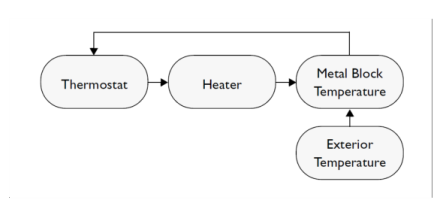
The finite-element model of the metal block requires two inputs:
•
•
As its output, the model supplies the temperature at the thermostat’s location.
Figure 1: Block diagram for the thermal controller system.
The PDE describes the overall system’s temperature distribution given the temperature of the heater and the exterior environment. If the heat transfer is so fast that the heat distribution is more or less constant (in space, not in time), a single state is sufficient. Otherwise, controlling the temperature requires modeling a PDE in COMSOL Multiphysics.
Domain Equations
The heat equation is:
Boundary conditions
The boundary conditions come from the level of insulation around the system. On well-insulated sides the temperature flux is zero, which gives the Neumann boundary condition . The poorly insulated sides involve the Neumann condition , where kG and lG are the thermal conductivity and the thickness of the glass sheet that separates the metal block and the exterior.

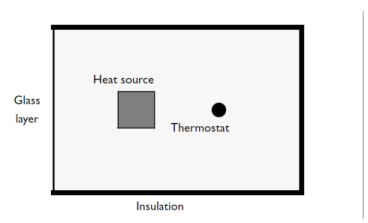
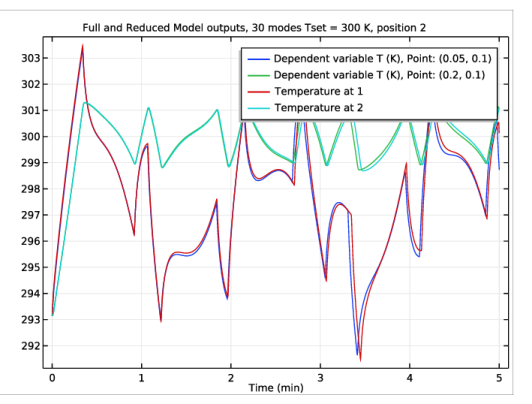
Figure 2: Geometry of the thermal controller system. The figure shows one of the two candidate thermostat positions.
Because only the temperature distribution in the xy-plane is of interest, you can use a 2D model. For the units to make sense, think of the domain as having a depth (z direction) of 1 m.
Controlling Temperature
The temperature is controlled by switching the heater on and off depending on a temperature measurement (T) relative to a temperature setpoint (Tset). In order to avoid switching on an off as soon as there is a small deviation, a deadband (+/- dT) is often used to define an acceptable deviation from the setpoint. Introducing indicator functions (lowtemp and higtemp) switching signs when the temperature changes to a value outside the acceptable range, events can be used to switch the heater on and off.
lowtemp = (Tset – dT) – T
hightemp = T – (Tset + dT)
The event triggered when detecting lowtemp > 0 switches the heater on and the event triggered when detecting hightemp > 0 switches the heater off.
Reduced Order Modeling (Model reduction)
Large FEM simulations can be costly, and if repeated simulations are needed it can be beneficial to use reduced-order models (ROMs). ROMs are typically valid only in the vicinity of their design conditions and have lower accuracy, but the simulation time is significantly shorter. The objective for model reduction is to provide a sufficiently accurate representation of the input-output dynamics of the unreduced model in a given parameter range with a minimal total computational cost, including the cost of creating the reduced model. The characteristics of the unreduced model as well as the value of the reduced model guide the choice of model reduction method. Nonlinearities require special treatment, and if the model is to be valid in a large parameter range it can be costly to produce basis functions or input-output samples. Model reduction can e.g. be performed by linearization of the FEM model and projection of the resulting system matrices onto a limited set of base functions representing the dynamics of significance for the application and defining the relevant inputs and outputs of interest.
In the present example the unreduced model as well as the outputs are linear and the dependence on the input parameters has an affine representation. A small number of eigenmodes are used as the basis functions and the inputs represent the exterior temperature (Tout) and the fraction of maximum power of the heater (HeatState). The outputs are defined as the temperatures in two candidate points for thermostat placement (T1, T2). The control strategy described in the previous section is however clearly nonlinear and not a candidate for model reduction since it only has two states.
Results and Discussion
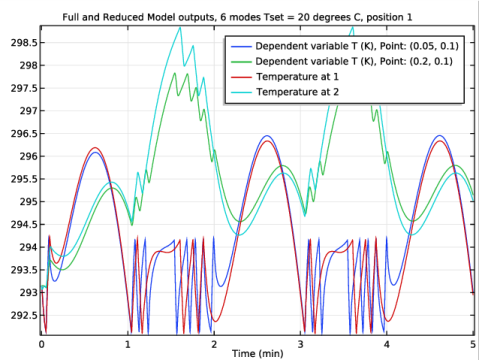
The tutorial shows how to use a reduced model rather than a full FEM simulation to evaluate a control strategy. In this case the controlled system is linear but the controller has nonlinear dynamics. It is also illustrated how increasing the number of basis functions can improve the transient response of the reduced model when compared to a FEM simulation. The external temperature variation is slow and smooth but the dynamics of the controller can introduce high frequency transients. The dynamic response of the reduced model is determined by the eigenmodes included in the basis, and increasing the number of modes extends the dynamic range of the reduced model and improves the accuracy of the transient response. From the comparison with the response of the unreduced model it is clear that an increase from 6 to 30 eigenmodes brings the reduced model response closer to that of the unreduced model. The final comparison is shown in Figure 3.
Figure 3: Comparing the reduced model outputs with the temperatures from the FEM model with the thermostat shows good agreement when using 30 eigenmodes, a setpoint of 300K, and placing the thermostat at position 2.
Application Library path: COMSOL_Multiphysics/Tutorials/thermal_controller_rom
Modeling Instructions
From the File menu, choose New.
New
In the New window, click Blank Model.
Root
Add a 2D component to set up the geometry and use the Heat Transfer in Solids physics interface in a time-dependent study.
1
In the Home toolbar, click Component and choose Add Component>2D.
Geometry 1
Rectangle 1 (r1)
1
In the Geometry toolbar, click Primitives and choose Rectangle.
2
In the Settings window for Rectangle, locate the Size and Shape section.
3
In the Width text field, type 0.3.
4
In the Height text field, type 0.2.
Square 1 (sq1)
1
In the Geometry toolbar, click Primitives and choose Square.
2
In the Settings window for Square, locate the Size section.
3
In the Side length text field, type 0.04.
4
Locate the Position section. In the x text field, type 0.1.
5
In the y text field, type 0.1.
6
From the Base list, choose Center.
Point 1 (pt1)
Add 2 points to represent the candidate thermostat positions 1 and 2.
1
In the Geometry toolbar, click Primitives and choose Point.
2
In the Settings window for Point, locate the Point section.
3
In the x text field, type 0.05,0.2.
4
In the y text field, type 0.1,0.1.
5
In the Geometry toolbar, click Build All.
Add Physics
1
In the Home toolbar, click Add Physics to open the Add Physics window.
2
Go to the Add Physics window.
3
In the tree, select Mathematics>Classical PDEs>Heat Equation (hteq).
4
Click Add to Component in the window toolbar.
5
In the Home toolbar, click Add Physics to close the Add Physics window.
Heat Equation (hteq)
1
In the Settings window for Heat Equation, click to expand the Dependent Variables section.
2
In the Dependent variable text field, type T.
Global Definitions
Add model parameters for the temperature setpoint, thermal conductivity, density, and heat capacity.
Parameters 1
1
In the Model Builder window, under Global Definitions click Parameters 1.
2
In the Settings window for Parameters, locate the Parameters section.
3
Define the inputs of the reduced model separately.
Global Reduced Model Inputs 1
1
In the Model Builder window, right-click Global Definitions and choose Global Reduced Model Inputs.
2
In the Settings window for Global Reduced Model Inputs, locate the Reduced Model Inputs section.
3
Parameterize the model using the global definitions.
Heat Equation (hteq)
Heat Equation 1
1
In the Model Builder window, under Component 1 (comp1)>Heat Equation (hteq) click Heat Equation 1.
2
In the Settings window for Heat Equation, locate the Diffusion Coefficient section.
3
In the c text field, type kiso.
4
Locate the Source Term section. In the f text field, type 0.
5
Locate the Damping or Mass Coefficient section. In the da text field, type rho*Cp.
Initial Values 1
1
In the Model Builder window, under Component 1 (comp1)>Heat Equation (hteq) click Initial Values 1.
2
In the Settings window for Initial Values, locate the Initial Values section.
3
In the T text field, type 293.15[K].
Source 1
1
In the Physics toolbar, click Domains and choose Source.
2
3
In the Settings window for Source, locate the Source Term section.
4
In the f text field, type 7.5e7[W/(m^3)]*HeatState.
Flux/Source 1
1
In the Physics toolbar, click Boundaries and choose Flux/Source.
2
3
In the Settings window for Flux/Source, click to expand the Boundary Absorption/Impedance Term section.
4
Locate the Boundary Flux/Source section. In the g text field, type (54/1e-3)[W/(m^2*K)]*(Tout-T).
Definitions
Introduce probes for the FEM model outputs in the positions 1 and 2.
Domain Point Probe 1
1
In the Definitions toolbar, click Probes and choose Domain Point Probe.
2
In the Settings window for Domain Point Probe, locate the Point Selection section.
3
In row Coordinates, set x to 0.05.
4
In row Coordinates, set y to 0.1.
5
In the Label text field, type Thermostat position 1.
6
Right-click Thermostat position 1 and choose Duplicate.
7
In the Settings window for Domain Point Probe, type Thermostat position 2 in the Label text field.
8
Locate the Point Selection section. In row Coordinates, set x to 0.2.
9
In the Model Builder window, expand the Component 1 (comp1)>Definitions>Thermostat position 1 node, then click Point Probe Expression 1 (ppb1).
10
In the Settings window for Point Probe Expression, type Temperature 1 in the Label text field.
11
In the Model Builder window, expand the Component 1 (comp1)>Definitions>Thermostat position 2 node, then click Point Probe Expression 1 (ppb2).
12
In the Settings window for Point Probe Expression, type Temperature 2 in the Label text field.
Root
The thermostat can be modeled by a discrete on/off state that can be described using Events. Add a 0D component to set up appropriate events.
1
In the Home toolbar, click Component and choose Add Component>0D.
Component 2 (comp2)
Add the variable that defines the source of the measured temperature.
1
In the Model Builder window, right-click Component 2 (comp2) and choose Variables.
Definitions (comp2)
Variables 1
1
In the Model Builder window, under Component 2 (comp2)>Definitions click Variables 1.
2
In the Settings window for Variables, locate the Variables section.
3
This assigns Tmeasured the value of the FEM-model probe variable corresponding to the measured temperature at position 1.
Add Physics
1
In the Home toolbar, click Add Physics to open the Add Physics window.
2
Go to the Add Physics window.
3
In the tree, select Mathematics>ODE and DAE Interfaces>Events (ev).
4
Click Add to Component in the window toolbar.
5
In the Home toolbar, click Add Physics to close the Add Physics window.
Events (ev)
Set up a discrete state for the current on/off setting and indicator functions for the temperatures relative to the controller setpoint and deadband. If the temperature is too low, lowtemp changes sign and triggers an event to turn the heater on, and if the temperature is too high, hightemp changes sign and triggers an event to turn the heater off.
Indicator States 1
1
In the Events toolbar, click Indicator States.
2
In the Settings window for Indicator States, locate the Indicator Variables section.
3
Discrete States 1
1
In the Events toolbar, click Discrete States.
2
In the Settings window for Discrete States, locate the Discrete States section.
3
Implicit Event 1
1
In the Events toolbar, click Implicit Event.
2
In the Settings window for Implicit Event, locate the Event Conditions section.
3
In the Condition text field, type lowtemp > 0.
4
Clear the Use consistent initialization check box.
5
Locate the Reinitialization section. In the table, enter the following settings:
Implicit Event 2
1
In the Events toolbar, click Implicit Event.
2
In the Settings window for Implicit Event, locate the Event Conditions section.
3
In the Condition text field, type hightemp > 0.
4
Locate the Reinitialization section. In the table, enter the following settings:
Global Definitions
Assign the modeling state of the thermostat to the heater state.
Global Reduced Model Inputs 1
1
In the Model Builder window, under Global Definitions>Reduced Model Inputs click Global Reduced Model Inputs 1.
2
In the Settings window for Global Reduced Model Inputs, locate the Reduced Model Inputs section.
3
Set up a time-dependent study to compute the FEM model.
Add Study
1
In the Home toolbar, click Add Study to open the Add Study window.
2
Go to the Add Study window.
3
Find the Studies subsection. In the Select Study tree, select General Studies>Time Dependent.
4
Click Add Study in the window toolbar.
5
In the Home toolbar, click Add Study to close the Add Study window.
Study 1
Step 1: Time Dependent
1
In the Settings window for Time Dependent, locate the Study Settings section.
2
From the Time unit list, choose min.
3
In the Times text field, type range(0,0.1,5).
4
In the Study toolbar, click Show Default Solver.
Solution 1 (sol1)
1
In the Model Builder window, expand the Solution 1 (sol1) node.
2
In the Model Builder window, under Study 1>Solver Configurations>Solution 1 (sol1) click Time-Dependent Solver 1.
3
In the Settings window for Time-Dependent Solver, click to expand the Time Stepping section.
4
From the Steps taken by solver list, choose Manual.
5
In the Time step text field, type 0.1.
6
In the Study toolbar, click Compute.
Results
Duplicate the probe table and set an appropriate label for the copy for future reference.
Probe Table 1
In the Model Builder window, expand the Results>Tables node.
Probe Table 1.1
1
Right-click Probe Table 1 and choose Duplicate.
2
In the Settings window for Table, type Full model outputs Tset = 20 degrees C, position 1 in the Label text field.
Set up an eigenvalue study to compute a basis to be used for model reduction.
Add Study
1
In the Study toolbar, click Add Study to open the Add Study window.
2
Go to the Add Study window.
3
Find the Studies subsection. In the Select Study tree, select Empty Study.
4
Click Add Study.
Study 2
1
In the Model Builder window, click Study 2.
2
In the Settings window for Study, locate the Study Settings section.
3
Clear the Generate default plots check box.
4
Clear the Generate convergence plots check box.
Step 1: Eigenvalue
1
In the Study toolbar, click Study Steps and choose Eigenfrequency>Eigenvalue.
2
In the Settings window for Eigenvalue, locate the Study Settings section.
3
Select the Desired number of eigenvalues check box.
4
Locate the Physics and Variables Selection section. In the table, clear the Solve for check box for Events.
5
In the Study toolbar, click Compute.
Set up an empty study and then add a Model Reduction study. Configure inputs and outputs using the global inputs and the output probes.
Add Study
1
Go to the Add Study window.
2
Find the Studies subsection. In the Select Study tree, select Empty Study.
3
Click Add Study in the window toolbar.
4
In the Study toolbar, click Add Study to close the Add Study window.
Root
In the Model Builder window’s toolbar, click the Show button and select Advanced Study Options in the menu.
Study 3
1
In the Model Builder window, click Study 3.
2
In the Settings window for Study, locate the Study Settings section.
3
Clear the Generate default plots check box.
4
Clear the Generate convergence plots check box.
Model Reduction
1
Right-click Study 3 and choose Model Reduction.
2
In the Settings window for Model Reduction, locate the Model Reduction Settings section.
3
From the Training study list, choose Study 2.
4
From the Unreduced model study list, choose Study 1.
5
From the Defined by study step list, choose Time Dependent.
6
Locate the Outputs section. In the table, enter the following settings:
7
Locate the Model Control Inputs section. In the table, set up the training values: change the value of Tout to 293.15 and HeatState to 1.
8
Locate the Model Reduction Settings section. Clear the Enable reconstruction capability check box.
Study 1
The model reduction study retrieves the variables to solve for from the unreduced study settings. Events, in this case, should be deactivated.
Step 1: Time Dependent
1
In the Model Builder window, under Study 1 click Step 1: Time Dependent.
2
In the Settings window for Time Dependent, locate the Physics and Variables Selection section.
3
In the table, clear the Solve for check box for Events.
Study 3
In the Study toolbar, click Compute.
Definitions (comp2)
Configure events to run with the Reduced Model output temperature at position 1.
Variables 1
1
In the Model Builder window, under Component 2 (comp2)>Definitions click Variables 1.
2
In the Settings window for Variables, locate the Variables section.
3
Definitions (comp1)
Add global variable probes for the outputs of the Reduced Model.
1
In the Model Builder window, under Component 1 (comp1) click Definitions.
Global Variable Probe 1 (var1)
1
In the Definitions toolbar, click Probes and choose Global Variable Probe.
2
In the Settings window for Global Variable Probe, locate the Expression section.
3
In the Expression text field, type rom1.mr.T1.
Global Variable Probe 2 (var2)
1
In the Definitions toolbar, click Probes and choose Global Variable Probe.
2
In the Settings window for Global Variable Probe, locate the Expression section.
3
In the Expression text field, type rom1.mr.T2.
Set up a time-dependent study to perform simulations using the Reduced Model.
Add Study
1
In the Home toolbar, click Add Study to open the Add Study window.
2
Go to the Add Study window.
3
Find the Studies subsection. In the Select Study tree, select General Studies>Time Dependent.
4
Click Add Study in the window toolbar.
5
In the Home toolbar, click Add Study to close the Add Study window.
Study 4
Step 1: Time Dependent
1
In the Settings window for Time Dependent, locate the Physics and Variables Selection section.
2
In the table, clear the Solve for check box for the Heat Equation interface.
3
Locate the Study Settings section. From the Time unit list, choose min.
4
In the Times text field, type range(0,0.1,5).
5
Click to expand the Results While Solving section. From the Probes list, choose Manual.
6
In the Probes list, select Thermostat position 1.
7
Under Probes, click Delete.
8
Click Delete again to remove Thermostat position 2 as well.
9
In the Model Builder window, click Study 4.
10
In the Settings window for Study, locate the Study Settings section.
11
Clear the Generate default plots check box.
12
Clear the Generate convergence plots check box.
13
In the Study toolbar, click Show Default Solver.
Solution 4 (sol4)
1
In the Model Builder window, expand the Solution 4 (sol4) node, then click Time-Dependent Solver 1.
2
In the Settings window for Time-Dependent Solver, locate the Time Stepping section.
3
From the Steps taken by solver list, choose Manual.
4
In the Time step text field, type 0.1.
5
In the Study toolbar, click Compute.
Results
Probe Table 1.1
1
In the Model Builder window, under Results>Tables right-click Probe Table 1 and choose Duplicate.
2
In the Settings window for Table, type Reduced Model outputs, 6 modes Tset = 20 degrees C, position 1 in the Label text field.
Probe Plot Group 2.1
1
In the Model Builder window, under Results right-click Probe Plot Group 2 and choose Duplicate.
2
In the Settings window for 1D Plot Group, type Full and Reduced Model outputs, 6 modes Tset = 20 degrees C, position 1 in the Label text field.
3
Click to expand the Title section. From the Title type list, choose Manual.
4
In the Title text area, type Full and Reduced Model outputs, 6 modes Tset = 20 degrees C, position 1.
Probe Table Graph 1
1
In the Model Builder window, expand the Results>Full and Reduced Model outputs, 6 modes Tset = 20 degrees C, position 1 node, then click Probe Table Graph 1.
2
In the Settings window for Table Graph, type Full model output table graph in the Label text field.
3
Locate the Data section. From the Table list, choose Full model outputs Tset = 20 degrees C, position 1.
Full model output table graph 1
1
Right-click Results>Full and Reduced Model outputs, 6 modes Tset = 20 degrees C, position 1>Full model output table graph and choose Duplicate.
2
In the Settings window for Table Graph, type Reduced model output table graph in the Label text field.
3
Locate the Data section. From the Table list, choose Reduced Model outputs, 6 modes Tset = 20 degrees C, position 1.
Full and Reduced Model outputs, 6 modes Tset = 20 degrees C, position 1
1
In the Model Builder window, under Results click Full and Reduced Model outputs, 6 modes Tset = 20 degrees C, position 1.
2
In the Full and Reduced Model outputs, 6 modes Tset = 20 degrees C, position 1 toolbar, click Plot.
Comparing the reduced model with 6 eigenmodes and the full model shows some disagreement.
Study 2
Increase the number of eigenmodes to produce a more complete basis for the Reduced Model.
Step 1: Eigenvalue
1
In the Model Builder window, under Study 2 click Step 1: Eigenvalue.
2
In the Settings window for Eigenvalue, locate the Study Settings section.
3
In the Desired number of eigenvalues text field, type 30.
Study 3
Recompute the Model Reduction study with the new set of eigenmodes.
Model Reduction
1
In the Model Builder window, under Study 3 click Model Reduction.
2
In the Settings window for Model Reduction, locate the Model Reduction Settings section.
3
From the Compute list, choose Always.
4
In the Home toolbar, click Compute.
Study 4
Recompute the Reduced Model dependent study.
Click Compute.
Results
Probe Table 1.1
1
In the Model Builder window, under Results>Tables right-click Probe Table 1 and choose Duplicate.
2
In the Settings window for Table, type Reduced Model outputs, 30 modes Tset = 20 degrees C, position 1 in the Label text field.
Probe Plot Group 2.1
1
In the Model Builder window, under Results right-click Probe Plot Group 2 and choose Duplicate.
2
In the Settings window for 1D Plot Group, type Full and Reduced Model outputs, 30 modes Tset = 20 degrees C, position 1 in the Label text field.
3
Locate the Title section. From the Title type list, choose Manual.
4
In the Title text area, type Full and Reduced Model outputs, 30 modes Tset = 20 degrees C, position 1.
Probe Table Graph 1
1
In the Model Builder window, expand the Results>Full and Reduced Model outputs, 30 modes Tset = 20 degrees C, position 1 node, then click Probe Table Graph 1.
2
In the Settings window for Table Graph, type Full model output table graph in the Label text field.
3
Locate the Data section. From the Table list, choose Full model outputs Tset = 20 degrees C, position 1.
Full model output table graph 1
1
Right-click Results>Full and Reduced Model outputs, 30 modes Tset = 20 degrees C, position 1>Full model output table graph and choose Duplicate.
2
In the Settings window for Table Graph, type Reduced model output table graph in the Label text field.
3
Locate the Data section. From the Table list, choose Reduced Model outputs, 30 modes Tset = 20 degrees C, position 1.
Full and Reduced Model outputs, 30 modes Tset = 20 degrees C, position 1
1
In the Model Builder window, under Results click Full and Reduced Model outputs, 30 modes Tset = 20 degrees C, position 1.
2
In the Full and Reduced Model outputs, 30 modes Tset = 20 degrees C, position 1 toolbar, click Plot.
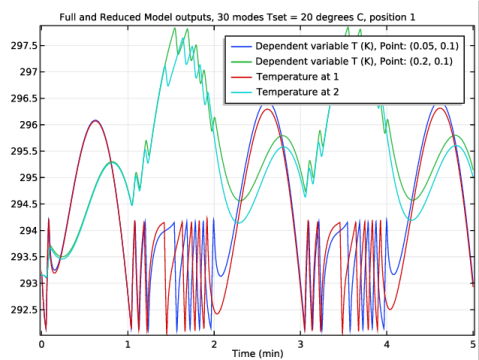
Comparing the reduced model with 30 eigenmodes and the full model shows better agreement.
Change the temperature setpoint and recompute the Reduced Model dependent study.
Global Definitions
Parameters 1
1
In the Model Builder window, under Global Definitions click Parameters 1.
2
In the Settings window for Parameters, locate the Parameters section.
3
Study 4
In the Home toolbar, click Compute.
Results
Probe Table 1.1
1
In the Model Builder window, under Results>Tables right-click Probe Table 1 and choose Duplicate.
2
In the Settings window for Table, type Reduced Model outputs, 30 modes Tset = 300 K, position 1 in the Label text field.
Probe Plot Group 2.1
1
In the Model Builder window, under Results right-click Probe Plot Group 2 and choose Duplicate.
2
In the Settings window for 1D Plot Group, type Reduced Model outputs, 30 modes Tset = 300 K, position 1 in the Label text field.
3
Locate the Title section. From the Title type list, choose Manual.
4
In the Title text area, type Reduced Model outputs, 30 modes Tset = 300 K, position 1.
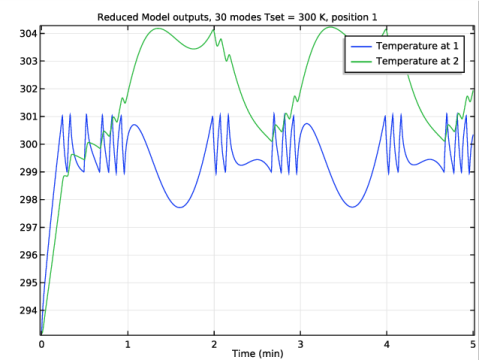
With the temperature setpoint at 300 K, the heater is active a larger fraction of the time span.
Probe Table Graph 1
1
In the Model Builder window, expand the Results>Reduced Model outputs, 30 modes Tset = 300 K, position 1 node, then click Probe Table Graph 1.
2
In the Settings window for Table Graph, locate the Data section.
3
From the Table list, choose Reduced Model outputs, 30 modes Tset = 300 K, position 1.
Change the thermostat location to position 2 and recompute the Reduced Model dependent study.
Definitions (comp2)
Variables 1
1
In the Model Builder window, under Component 2 (comp2)>Definitions click Variables 1.
2
In the Settings window for Variables, locate the Variables section.
3
Study 4
1
In the Model Builder window, click Study 4.
2
In the Home toolbar, click Compute.
Results
Probe Table 1.1
1
In the Model Builder window, under Results>Tables right-click Probe Table 1 and choose Duplicate.
2
In the Settings window for Table, type Reduced Model outputs, 30 modes Tset = 300 K, position 2 in the Label text field.
Probe Plot Group 2.1
1
In the Model Builder window, under Results right-click Probe Plot Group 2 and choose Duplicate.
2
In the Settings window for 1D Plot Group, type Reduced Model outputs, 30 modes Tset = 300 K, position 2 in the Label text field.
3
Locate the Title section. From the Title type list, choose Manual.
4
In the Title text area, type Reduced Model outputs, 30 modes Tset = 300 K, position 2.
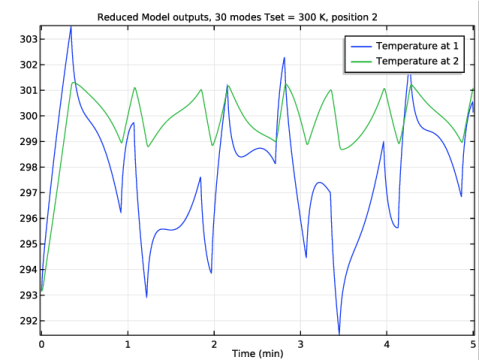
With the thermostat at position 2, the temperature at 2 rather than that at 1 has an approximate average value of 300 K.
Probe Table Graph 1
1
In the Model Builder window, expand the Results>Reduced Model outputs, 30 modes Tset = 300 K, position 2 node, then click Probe Table Graph 1.
2
In the Settings window for Table Graph, locate the Data section.
3
From the Table list, choose Reduced Model outputs, 30 modes Tset = 300 K, position 2.
Compute the FEM model with the thermostat set at position 2 and perform a comparison.
Definitions (comp2)
Variables 1
1
In the Model Builder window, under Component 2 (comp2)>Definitions click Variables 1.
2
In the Settings window for Variables, locate the Variables section.
3
Study 1
Step 1: Time Dependent
1
In the Model Builder window, under Study 1 click Step 1: Time Dependent.
2
In the Settings window for Time Dependent, locate the Physics and Variables Selection section.
3
In the table, select the Solve for check box for Events.
4
Locate the Results While Solving section. From the Probes list, choose Manual.
5
In the Probes list, select Global Variable Probe 1 (var1).
6
Under Probes, click Delete.
7
In the Probes list, select Global Variable Probe 2 (var2).
8
Under Probes, click Delete.
9
In the Home toolbar, click Compute.
Results
Probe Table 1.1
1
In the Model Builder window, under Results>Tables right-click Probe Table 1 and choose Duplicate.
2
In the Settings window for Table, type Full Model outputs, Tset = 300 K, position 2 in the Label text field.
Probe Plot Group 2.1
1
In the Model Builder window, under Results right-click Probe Plot Group 2 and choose Duplicate.
2
In the Model Builder window, expand the Results>Probe Plot Group 2.1 node, then click Probe Plot Group 2.1.
3
In the Settings window for 1D Plot Group, type Full and Reduced Model outputs, 30 modes Tset = 300 K, position 2 in the Label text field.
4
Locate the Title section. From the Title type list, choose Manual.
5
In the Title text area, type Full and Reduced Model outputs, 30 modes Tset = 300 K, position 2.
Probe Table Graph 1
1
In the Model Builder window, under Results>Full and Reduced Model outputs, 30 modes Tset = 300 K, position 2 click Probe Table Graph 1.
2
In the Settings window for Table Graph, type Full model output table graph in the Label text field.
3
Locate the Data section. From the Table list, choose Full Model outputs, Tset = 300 K, position 2.
Full model output table graph 1
1
Right-click Results>Full and Reduced Model outputs, 30 modes Tset = 300 K, position 2>Full model output table graph and choose Duplicate.
2
In the Settings window for Table Graph, type Reduced model output table graph in the Label text field.
3
Locate the Data section. From the Table list, choose Reduced Model outputs, 30 modes Tset = 300 K, position 2.