








You are viewing the documentation for an older COMSOL version. The latest version is available here.
PDF

Effective Diffusivity in Porous Materials
This example introduces the concept of effective diffusivity in porous media by comparing the transport through an artificial porous structure described in a detailed model with a simplified homogeneous porous media approach using effective transport properties.
The exercise consists of two parts. The first part describes how to create the model with a detailed geometry. The second part shows how to define a homogeneous model for porous media using an effective diffusivity calculated using the detailed model from the first part.
Introduction
Transport through porous structures is usually treated using simplified homogeneous models with effective transport properties. This is in most cases a necessity, since the typical dimensions of the pores and particles making up the porous structure are several orders of magnitude smaller than the size of the domain that is to be modeled.
However, it might be interesting to investigate the assumptions and simplifications done when homogenizing a porous structure by comparing a homogeneous model with a model defined using the detailed structure.
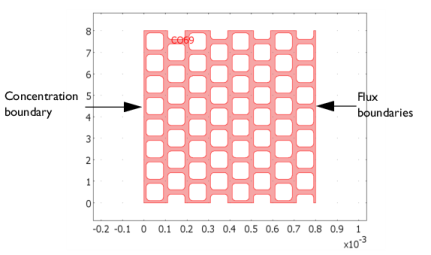
The artificial porous structure used in this example is shown in Figure 1 below.
Figure 1: Artificial porous structure. The domain colored in red is accessible for diffusion.
Model Definition
The model equation in the modeled domain shown in Figure 1 is the time-dependent equation
where c denotes concentration (mol/m3 using SI units) and D the diffusion coefficient (m2/s) of the solute.
The boundary conditions are of three different types. A concentration boundary condition applies at the left vertical boundary in Figure 1. It is expressed as
where c0 is a given concentration.
The right vertical boundary in Figure 1 is set according to
where km is the mass transfer coefficient (m/s), and c1 is the concentration in a bulk solution outside of the porous structure.
All other boundaries are insulating boundaries according to
The initial condition is given by a bell-shaped profile along the x-axis with its maximum at x = 0 and a corresponding value of c = c0:
Assume a gaseous solution with a solute content of 3 mol/m3 at the concentration boundary. The diffusion coefficient is set to 1·105 m2/s.
The second part of this exercise uses a homogenized 1D model geometry with effective transport properties and an average porosity. The model equation then becomes:
where ε denotes the average porosity and Deff is the effective diffusivity. These properties are calculated from the results of the detailed structure; see the next section. At the boundaries, the concentration and flux conditions described above apply.
Results and Discussion
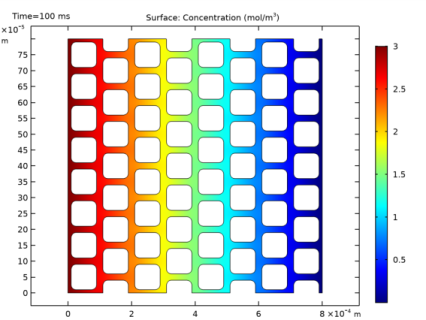
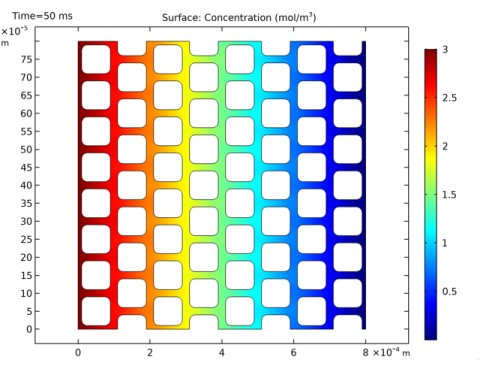
The simulations are run for t = 0 to 0.1 s, when the simulation reaches steady state. Figure 2 below shows the concentration profile after 0.05 s in the porous structure. Already at this stage the concentration has almost reached steady state, which is visible by the nearly linear concentration profile across the structure.
Figure 2: Concentration profile in the modeled artificial porous structure at t = 0.05 s.
When modeling porous media, the exact concentration in the pore structure is not the most important issue because the description of the structure is homogenized and not detailed as in Figure 2. The most interesting issue is then the description of the flux. To calculate the average flux, integrate over the flux boundary and divide by its length, L0, which yields the following expression:
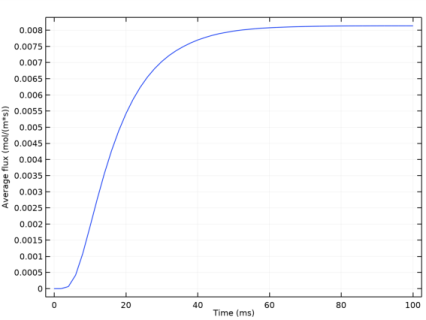
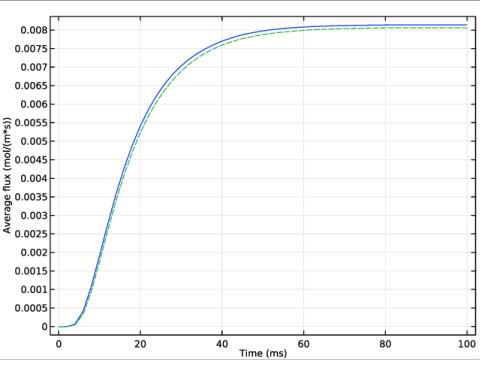
Figure 3 shows the value of this integral as a function of time. If you let the process reach steady-state, the average flux becomes 8.051·103 mol/(m2/s). Considering the almost linear profile across the structure, it is natural to replace the porous structure with a 1D homogenized structure along the x-axis. It is then possible to calculate the effective diffusivity according to the following:
where cout is the average concentration (mol/m3) at the flux boundary, and L1 is the length of the geometry along the x-axis. The average concentration is obtained by integrating according to the expression below:
This gives an average concentration cout = 1.63·103 mol/m3. Using L1 = 8·104 m, the effective diffusivity is:
which yields a value for the effective diffusivity of 2.15·106 m2/s compared to the “free” diffusivity of 1·105 m2/s. The effective and “free” diffusivities are usually related according to the equation
where ε is the porosity of the structure and τ is the tortuosity, which is a measure of the actual length per unit effective length a molecule has to diffuse in a porous structure. To calculate the porosity of the modeled structure, you integrate the value 1 over the structure and then divide this by the length and width of the structure:
resulting in a value of 0.383. The value of τ can then be calculated to 1.62. In addition, the tortuosity is usually expressed as a power of the porosity, resulting in an expression for the effective diffusivity according to
If you use the calculated values for porosity and effective diffusivity, the value for p is 1.60. The experimental values for p for porous structures used for transport in catalysts, soils, and other porous structures is usually in the range 1.52.
Using the value of the effective diffusivity, a simple homogenized 1D model provides the possibility to compare the value of the flux using a homogenized model to the value using the detailed 2D structure. Figure 3 shows that there is an excellent agreement between the model using a detailed geometry and the homogenized model. The difference in the time-dependent flux is hardly visible between the two cases in the graph.
Figure 3: Average flux at the flux boundary in the detailed 2D model (solid blue line) and the 1D homogenized approximation (dashed green line).
Notes About the COMSOL Implementation
Both models described above are straightforward to define in COMSOL Multiphysics. One feature that is of great use in this example is the ability to define integration coupling operators to generate the values of the integrals needed to evaluate the results. The definition of these integrals is described in detail in the step-by-step instructions below.
Application Library path: COMSOL_Multiphysics/Diffusion/effective_diffusivity
Modeling Instructions
From the File menu, choose New.
New
In the New window, click Model Wizard.
Model Wizard
1
In the Model Wizard window, click 2D.
2
In the Select Physics tree, select Chemical Species Transport>Transport of Diluted Species (tds).
3
Click Add.
4
Click Study.
5
In the Select Study tree, select General Studies>Time Dependent.
6
Click Done.
Geometry 1
Import 1 (imp1)
1
In the Home toolbar, click Import.
2
In the Settings window for Import, locate the Import section.
3
From the Source list, choose COMSOL Multiphysics file.
4
Click Browse.
5
6
Click Import.
Global Definitions
1
In the Model Builder window, under Global Definitions click Parameters 1.
2
In the Settings window for Parameters, locate the Parameters section.
3
Variables 1
1
In the Home toolbar, click Variables and choose Global Variables.
2
In the Settings window for Variables, locate the Variables section.
3
Definitions
Next, define selections that will be useful when defining the boundary conditions and an integration coupling operator, and also during postprocessing.
Explicit 1
1
In the Definitions toolbar, click Explicit.
2
In the Model Builder window, right-click Explicit 1 and choose Rename.
3
In the Rename Explicit dialog box, type Left boundary in the New label text field.
4
5
In the Settings window for Explicit, locate the Input Entities section.
6
From the Geometric entity level list, choose Boundary.
7
Explicit 2
1
In the Definitions toolbar, click Explicit.
2
In the Model Builder window, right-click Explicit 2 and choose Rename.
3
In the Rename Explicit dialog box, type Right boundary in the New label text field.
4
5
In the Settings window for Explicit, locate the Input Entities section.
6
From the Geometric entity level list, choose Boundary.
7
Explicit 3
1
In the Definitions toolbar, click Explicit.
2
In the Model Builder window, right-click Explicit 3 and choose Rename.
3
In the Rename Explicit dialog box, type Top-right vertex in the New label text field.
4
5
In the Settings window for Explicit, locate the Input Entities section.
6
From the Geometric entity level list, choose Point.
7
Transport of Diluted Species (tds)
1
In the Settings window for Transport of Diluted Species, locate the Transport Mechanisms section.
2
Clear the Convection check box.
This setting gives a pure diffusion interface.
Transport Properties 1
1
In the Model Builder window, under Component 1 (comp1)>Transport of Diluted Species (tds) click Transport Properties 1.
2
In the Settings window for Transport Properties, locate the Diffusion section.
3
In the Dc text field, type D2.
Initial Values 1
1
In the Model Builder window, under Component 1 (comp1)>Transport of Diluted Species (tds) click Initial Values 1.
2
In the Settings window for Initial Values, locate the Initial Values section.
3
In the c text field, type c0.
Concentration 1
1
In the Physics toolbar, click Boundaries and choose Concentration.
2
In the Settings window for Concentration, locate the Boundary Selection section.
3
From the Selection list, choose Left boundary.
4
Locate the Concentration section. Select the Species c check box.
5
In the c0,c text field, type c_max.
Flux 1
1
In the Physics toolbar, click Boundaries and choose Flux.
2
In the Settings window for Flux, locate the Boundary Selection section.
3
From the Selection list, choose Right boundary.
4
Locate the Inward Flux section. From the Flux type list, choose External convection.
5
Select the Species c check box.
6
In the kc, c text field, type k_f.
Definitions
Proceed to define a variable for the average flux through the porous structure. Begin by defining an Average coupling operator on the rightmost boundary.
Average 1 (aveop1)
1
In the Definitions toolbar, click Component Couplings and choose Average.
2
In the Settings window for Average, locate the Source Selection section.
3
From the Geometric entity level list, choose Boundary.
4
From the Selection list, choose Right boundary.
Variables 2
1
In the Definitions toolbar, click Local Variables.
2
In the Settings window for Variables, locate the Variables section.
3
Mesh 1
In the Model Builder window, under Component 1 (comp1) right-click Mesh 1 and choose Build All.
Study 1
Step 1: Time Dependent
1
In the Model Builder window, under Study 1 click Step 1: Time Dependent.
2
In the Settings window for Time Dependent, locate the Study Settings section.
3
From the Time unit list, choose ms.
4
In the Times text field, type range(0,2,100).
5
In the Home toolbar, click Compute.
Results
Concentration (tds)
1
Click the Zoom Extents button in the Graphics toolbar.
The default plot shows concentration at the end time, that is, 0.1 seconds.
You can plot the concentration at different time steps.
2
In the Model Builder window, under Results click Concentration (tds).
3
In the Settings window for 2D Plot Group, locate the Data section.
4
From the Time (ms) list, choose 50.
5
In the Concentration (tds) toolbar, click Plot.
Compare this plot to the one shown in Figure 2.
1D Plot Group 2
Now, plot the average flux.
Point Graph 1
1
In the Home toolbar, click Add Plot Group and choose 1D Plot Group.
2
In the Model Builder window, right-click 1D Plot Group 2 and choose Point Graph.
3
In the Settings window for Point Graph, locate the Selection section.
4
From the Selection list, choose Top-right vertex.
5
Click Replace Expression in the upper-right corner of the y-axis data section. From the menu, choose Component 1>Definitions>Variables>flux_avg - Average flux - mol/(m²·s).
1D Plot Group 2
1
In the Model Builder window, under Results click 1D Plot Group 2.
2
In the Settings window for 1D Plot Group, click to expand the Title section.
3
In the Label text field, type Molar fluxes.
4
Locate the Title section. From the Title type list, choose None.
5
Locate the Plot Settings section. Select the y-axis label check box.
6
In the associated text field, type Average flux (mol/(m*s)).
7
In the Molar fluxes toolbar, click Plot.
To get the porosity of the domain for the 1D model, perform a surface integration.
Surface Integration 1
1
In the Results toolbar, click More Derived Values and choose Integration>Surface Integration.
2
In the Settings window for Surface Integration, locate the Selection section.
3
From the Selection list, choose All domains.
4
Locate the Expressions section. In the table, enter the following settings:
The denominator in this expression represents the product of the length and the width of the 2D model structure.
5
Click Evaluate.
Table
1
Go to the Table window.
The evaluated value of the integral should be close to 0.383.
Root
Now turn to the 1D model.
In the Home toolbar, click Component and choose Add Component>1D.
Geometry 2
In the Model Builder window, under Component 2 (comp2) click Geometry 2.
Add Physics
1
In the Home toolbar, click Add Physics to open the Add Physics window.
2
Go to the Add Physics window.
3
In the tree, select Chemical Species Transport>Transport of Diluted Species (tds).
4
Find the Physics interfaces in study subsection. In the table, clear the Solve check box for Study 1.
5
Click Add to Component in the window toolbar.
6
In the Home toolbar, click Add Physics to close the Add Physics window.
Add Study
1
In the Home toolbar, click Add Study to open the Add Study window.
2
Go to the Add Study window.
3
Find the Physics interfaces in study subsection. In the table, clear the Solve check box for the Transport of Diluted Species (tds) interface.
4
Find the Studies subsection. In the Select Study tree, select General Studies>Time Dependent.
5
Click Add Study in the window toolbar.
6
In the Home toolbar, click Add Study to close the Add Study window.
Geometry 2
Interval 1 (i1)
1
In the Geometry toolbar, click Interval.
2
In the Settings window for Interval, locate the Interval section.
3
4
Right-click Interval 1 (i1) and choose Build Selected.
5
Click the Zoom Extents button in the Graphics toolbar.
Global Definitions
Add the following parameters to those you already defined.
1
In the Model Builder window, under Global Definitions click Parameters 1.
2
In the Settings window for Parameters, locate the Parameters section.
3
Transport of Diluted Species 2 (tds2)
In the Physics toolbar, click Transport of Diluted Species (tds) and choose Transport of Diluted Species 2 (tds2).
1
In the Model Builder window, under Component 2 (comp2) click Transport of Diluted Species 2 (tds2).
2
In the Settings window for Transport of Diluted Species, locate the Transport Mechanisms section.
3
Clear the Convection check box.
Transport Properties 1
1
In the Model Builder window, under Component 2 (comp2)>Transport of Diluted Species 2 (tds2) click Transport Properties 1.
2
In the Settings window for Transport Properties, locate the Diffusion section.
3
In the Dc2 text field, type D1/epsilon.
Initial Values 1
1
In the Model Builder window, under Component 2 (comp2)>Transport of Diluted Species 2 (tds2) click Initial Values 1.
2
In the Settings window for Initial Values, locate the Initial Values section.
3
In the c2 text field, type c0.
Concentration 1
1
In the Physics toolbar, click Boundaries and choose Concentration.
2
3
In the Settings window for Concentration, locate the Concentration section.
4
Select the Species c2 check box.
5
In the c0,c2 text field, type c_max.
Flux 1
1
In the Physics toolbar, click Boundaries and choose Flux.
2
3
In the Settings window for Flux, locate the Inward Flux section.
4
From the Flux type list, choose External convection.
5
Select the Species c2 check box.
6
In the kc, c2 text field, type k_f/epsilon.
Definitions (comp2)
Create a variable for the flux in the homogenized 1D model.
Variables 3
1
In the Home toolbar, click Variables and choose Local Variables.
2
In the Settings window for Variables, locate the Variables section.
3
Mesh 2
1
In the Model Builder window, under Component 2 (comp2) click Mesh 2.
2
In the Settings window for Mesh, locate the Physics-Controlled Mesh section.
3
From the Element size list, choose Extra fine.
4
Click Build All.
Study 2
Step 1: Time Dependent
1
In the Model Builder window, under Study 2 click Step 1: Time Dependent.
2
In the Settings window for Time Dependent, locate the Study Settings section.
3
From the Time unit list, choose ms.
4
In the Times text field, type range(0,2,100).
5
In the Home toolbar, click Compute.
Results
Concentration (tds2)
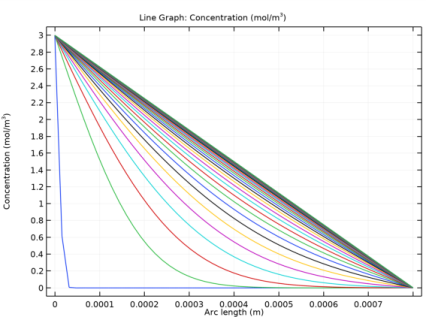
The default plot for the 1D model shows the concentration for all time steps.
Finally, plot the result for the flux at the flux boundary in the homogenized 1D model in the same plot as the 2D result for comparison.
Point Graph 2
1
In the Model Builder window, under Results right-click Molar fluxes and choose Point Graph.
2
In the Settings window for Point Graph, locate the Data section.
3
From the Data set list, choose Study 2/Solution 2 (3) (sol2).
4
5
Click Replace Expression in the upper-right corner of the y-axis data section. From the menu, choose Component 2>Definitions>Variables>flux_hom - Flux, 1D model - mol/(m²·s).
6
Click to expand the Coloring and Style section. Find the Line style subsection. From the Line list, choose Dashed.
7
In the Molar fluxes toolbar, click Plot.
Compare the result with that shown in Figure 3.
Appendix — Geometry Modeling Instructions
From the File menu, choose New.
New
In the New window, click Blank Model.
Root
On the Home toolbar, click Add Component and choose 2D.
Geometry 1
1
In the Model Builder window, under Component 1 (comp1) click Geometry 1.
2
In the Settings window for Geometry, locate the Units section.
3
From the Length unit list, choose mm.
Rectangle 1 (r1)
1
On the Geometry toolbar, click Primitives and choose Rectangle.
2
In the Settings window for Rectangle, locate the Size and Shape section.
3
In the Width text field, type 0.1.
4
In the Height text field, type 0.8.
Square 1 (sq1)
1
On the Geometry toolbar, click Primitives and choose Square.
2
In the Settings window for Square, locate the Size section.
3
In the Side length text field, type 0.08.
4
Locate the Position section. In the x text field, type 0.01.
5
In the y text field, type 0.01.
6
Locate the Selections of Resulting Entities section. Select the Resulting objects selection check box.
7
From the Show in physics list, choose Off.
Fillet 1 (fil1)
1
On the Geometry toolbar, click Fillet.
2
In the Settings window for Fillet, locate the Points section.
3
From the Vertices to fillet list, choose Square 1.
4
Locate the Radius section. In the Radius text field, type 0.016.
Rectangle 2 (r2)
1
On the Geometry toolbar, click Primitives and choose Rectangle.
2
In the Settings window for Rectangle, locate the Size and Shape section.
3
In the Width text field, type 0.1.
4
In the Height text field, type 0.9.
5
Locate the Position section. In the x text field, type 0.1.
6
Right-click Rectangle 2 (r2) and choose Build Selected.
7
Click the Zoom Extents button on the Graphics toolbar.
Square 2 (sq2)
1
On the Geometry toolbar, click Primitives and choose Square.
2
In the Settings window for Square, locate the Size section.
3
In the Side length text field, type 0.08.
4
Locate the Position section. In the x text field, type 0.11.
5
In the y text field, type 0.01.
6
Locate the Selections of Resulting Entities section. Select the Resulting objects selection check box.
7
From the Show in physics list, choose Off.
Fillet 2 (fil2)
1
On the Geometry toolbar, click Fillet.
2
In the Settings window for Fillet, locate the Points section.
3
From the Vertices to fillet list, choose Square 2.
4
Locate the Radius section. In the Radius text field, type 0.016.
5
Locate the Selections of Resulting Entities section. Select the Resulting objects selection check box.
6
From the Show in physics list, choose Off.
Array 1 (arr1)
1
On the Geometry toolbar, click Transforms and choose Array.
2
3
In the Settings window for Array, locate the Size section.
4
In the y size text field, type 8.
5
Locate the Displacement section. In the y text field, type 0.1.
6
Locate the Selections of Resulting Entities section. Select the Resulting objects selection check box.
7
From the Show in physics list, choose Off.
Array 2 (arr2)
1
On the Geometry toolbar, click Transforms and choose Array.
2
In the Settings window for Array, locate the Input section.
3
From the Input objects list, choose Fillet 2.
4
Locate the Size section. In the y size text field, type 9.
5
Locate the Displacement section. In the y text field, type 0.1.
6
Locate the Selections of Resulting Entities section. Select the Resulting objects selection check box.
7
From the Show in physics list, choose Off.
Difference 1 (dif1)
1
On the Geometry toolbar, click Booleans and Partitions and choose Difference.
2
3
In the Settings window for Difference, locate the Difference section.
4
From the Objects to subtract list, choose Array 1.
Difference 2 (dif2)
1
On the Geometry toolbar, click Booleans and Partitions and choose Difference.
2
3
In the Settings window for Difference, locate the Difference section.
4
From the Objects to subtract list, choose Array 2.
5
Right-click Difference 2 (dif2) and choose Build Selected.
Move 1 (mov1)
1
On the Geometry toolbar, click Transforms and choose Move.
2
3
In the Settings window for Move, locate the Displacement section.
4
In the y text field, type -0.05.
Array 3 (arr3)
1
On the Geometry toolbar, click Transforms and choose Array.
2
Click in the Graphics window and then press Ctrl+A to select both objects.
3
In the Settings window for Array, locate the Size section.
4
In the x size text field, type 4.
5
Locate the Displacement section. In the x text field, type 0.2.
6
Right-click Array 3 (arr3) and choose Build Selected.
7
Click the Zoom Extents button on the Graphics toolbar.
Union 1 (uni1)
1
On the Geometry toolbar, click Booleans and Partitions and choose Union.
2
In the Settings window for Union, locate the Union section.
3
Clear the Keep interior boundaries check box.
4
Click the Select All button on the Graphics toolbar.
Partition Domains 1 (pard1)
1
On the Geometry toolbar, click Booleans and Partitions and choose Partition Domains.
2
On the object uni1, select Domain 1 only.
3
In the Settings window for Partition Domains, locate the Partition Domains section.
4
From the Partition with list, choose Extended edges.
5
On the object uni1, select Boundaries 2 and 3 only.
Delete Entities 1 (del1)
1
In the Model Builder window, right-click Geometry 1 and choose Delete Entities.
2
In the Settings window for Delete Entities, locate the Entities or Objects to Delete section.
3
From the Geometric entity level list, choose Domain.
4
Click the Select All button on the Graphics toolbar.
5
On the object pard1, select Domains 2–9 only.
Form Union (fin)
In the Model Builder window, under Component 1 (comp1)>Geometry 1 right-click Form Union (fin) and choose Build Selected.
Explicit Selection 1 (sel1)
1
On the Geometry toolbar, click Selections and choose Explicit Selection.
2
In the Settings window for Explicit Selection, type Top right vertex in the Label text field.
3
Locate the Entities to Select section. From the Geometric entity level list, choose Point.
4
On the object fin, select Point 546 only.
5
Right-click Top right vertex and choose Build Selected.
6
Click the Zoom Extents button on the Graphics toolbar.
Explicit Selection 2 (sel2)
1
On the Geometry toolbar, click Selections and choose Explicit Selection.
2
In the Settings window for Explicit Selection, type Left boundary in the Label text field.
3
Locate the Entities to Select section. From the Geometric entity level list, choose Boundary.
4
On the object fin, select Boundary 1 only.
Explicit Selection 3 (sel3)
1
On the Geometry toolbar, click Selections and choose Explicit Selection.
2
In the Settings window for Explicit Selection, type Right boundary in the Label text field.
3
Locate the Entities to Select section. From the Geometric entity level list, choose Boundary.
4
On the object fin, select Boundary 290 only.
5
Right-click Right boundary and choose Build Selected.