You are viewing the documentation for an older COMSOL version. The latest version is available here.
PDF

Condensation Risk in a Wood-Frame Wall
Introduction
This tutorial shows how to model heat and moisture transport in a wood-frame wall to evaluate the risk of condensation inside the wall. Different design and modeling approaches are compared under stationary outdoor conditions. In addition, the effect of the diurnal variation of outdoor humidity on the humidity distribution in the wall is computed.
Model Definition
The model is the 2D representation of a portion of a wood-frame wall placed between different outdoor and indoor conditions. The risk of condensation in the wall is evaluated through the coupled computation of heat and moisture transport. Values of relative humidity close to unity indicate a risk of condensation.
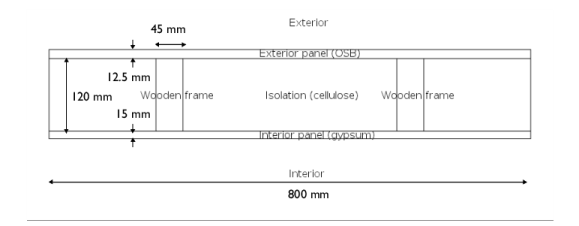
The geometry is shown on the figure below:
Figure 1: Geometry of the model
The wall is made of the following components:
In addition, a vapor barrier made of plastic coated paper may be placed between the gypsum interior siding and the isolation boards.
Convective heat and moisture flux conditions are applied on the top and bottom boundaries to model the outdoor and indoor air flows surrounding the wall. The outdoor and indoor heat transfer coefficients are set as hext=25 W/(m·K) and hint=8 W/(m·K). The outdoor and indoor moisture transfer coefficients are set to βext=25·10-8 s/m and βint=8·10-8 s/m, according to the heat and mass transfer boundary layers analogy.
The side boundaries are supposed to be totally isolated regarding heat and moisture.
Dynamic modeling of Heat and Moisture Transport
In this approach, both the transport of liquid moisture by capillary forces and the transport of vapor by diffusion are computed, and the latent heat effect due to vapor diffusion is modeled. In addition, heat and moisture storage is considered, and moisture-dependent thermal properties are used. The corresponding equations, defined in the Norm EN 15026, are solved by default by the Moisture Transport in Building Materials and Heat Transfer in Building Materials interfaces:
where:
Cp)eff (SI unit: J/(m3·K)) is the effective volumetric heat capacity at constant pressure
T (SI unit: K) is the temperature
keff (SI unit: W/(m·K)) is the effective thermal conductivity
Lv (SI unit: J/kg) is the latent heat of evaporation
δp (SI unit: s) is the vapor permeability
φ (dimensionless) is the relative humidity
psat (SI unit: Pa) is the vapor saturation pressure
Q (SI unit: W/m3·s) is the heat source
ξ (SI unit: kg/m3) is the moisture storage capacity
Dw (SI unit: m2/s) is the moisture diffusivity
G (SI unit: kg/m3·s) is the moisture source
See Ref. 1 for details about the norm EN 15026.
Static modeling of Heat and Moisture Transport
By ignoring heat and moisture storage, latent heat effect, and capillary transport of liquid moisture, the following equations are obtained for heat and moisture transport:
These equations are known as the Glaser Method. They can be solved in the Moisture Transport in Building Materials interface by setting the moisture diffusivity to 0, and in the Heat Transfer in Building Materials interface by setting the vapor permeability to 0.
The advantage of this second approach is that you need to provide less hygroscopic material properties. In particular, the moisture diffusivity used for the expression of the liquid transport flux is not required. However, for high values of relative humidity, the simplifications mentioned above may result in an over-estimation of the condensation.
Modeling of the Vapor Barrier
Upside and downside moisture fluxes defined by β(φd  φu) and β(φu  φd) are applied at the interface between the interior siding and the isolation to model the vapor barrier. The moisture transfer coefficient β is defined as
where δ is the vapor permeability of still air (SI unit: s), psat is the saturation pressure of water vapor (SI unit: Pa), μ is the vapor resistance factor (dimensionless), and ds is the vapor barrier thickness (SI unit: m).
Diurnal Variations of Outdoor Conditions
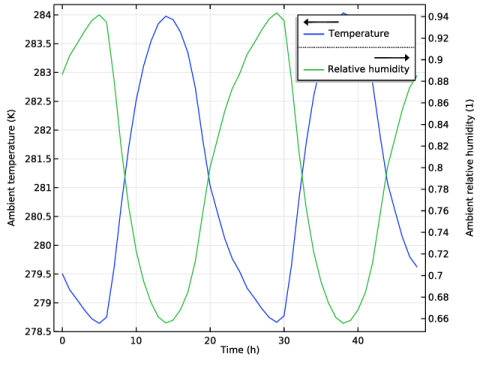
The effect of time-dependent outdoor conditions on condensation risk is studied by using typical weather data from ASHRAE 2013 database. Average temperature and relative humidity ambient conditions in Dublin from the 1st to the 3rd of June are used for the definition of the convective flux conditions on the exterior side of the wall. The simulation is run over two days with the temperature and relative humidity conditions shown on the graph of Figure 2.
Figure 2: Ambient data for temperature and relative humidity used on the exterior side of the wall.
Results and Discussion
Temperature and Moisture Distributions Without Vapor Barrier
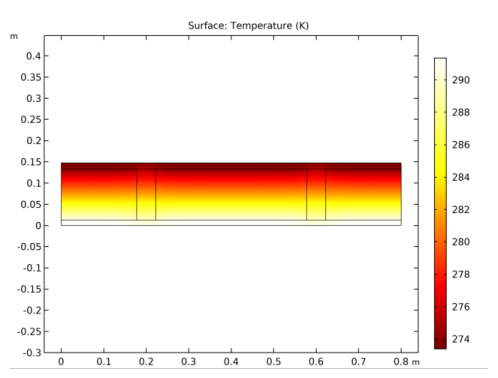
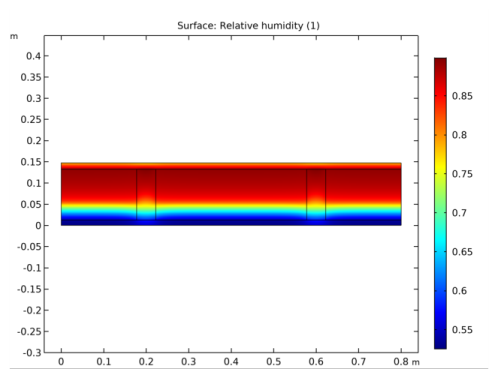
The temperature and moisture distributions due to the different outdoor and indoor conditions are shown on Figure 3 and Figure 4. The highest values of relative humidity are obtained close to the bracing.
Figure 3: Temperature distribution, stationary study without vapor barrier
Figure 4: Relative humidity distribution, stationary study without vapor barrier
Effect of vapor barrier on Heat and Moisture Distribution
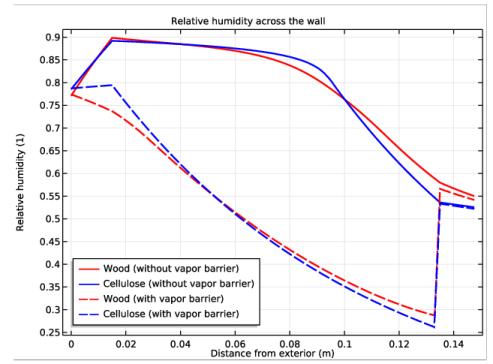
The graph of Figure 5 shows that the addition of a vapor barrier between the interior siding and the isolation reduces the risk of condensation at the interface between the wooden frame/isolation and the bracing.
Figure 5: Effect of vapor barrier on relative humidity distribution across the wall, in the wooden frame and in the isolation.
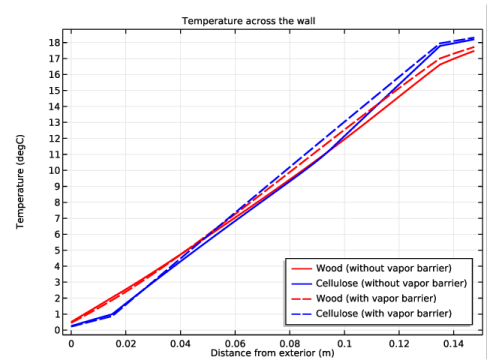
The effect on temperature distribution is shown on Figure 6.
Figure 6: Effect of vapor barrier on temperature distribution across the wall, in the wooden frame and in the isolation.
Comparison of the Modeling Approaches
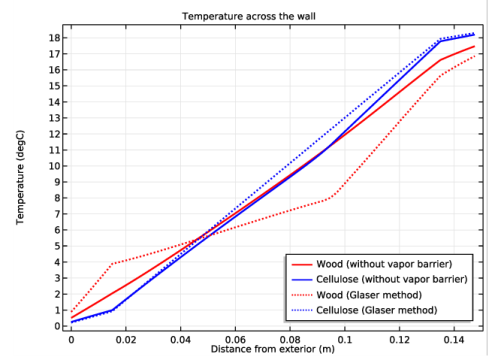
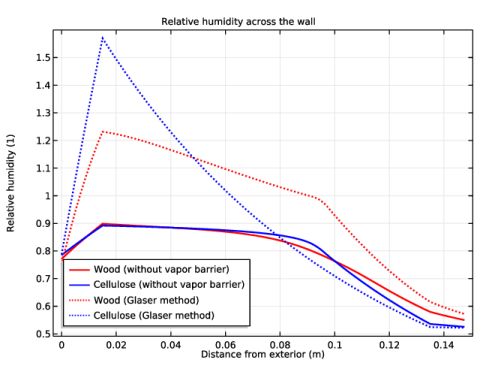
The Glaser method over-estimates condensation by not taking into account the liquid transport which becomes significant when the relative humidity is high, close to the bracing. The effect on temperature and moisture distribution is shown on Figure 7 and Figure 8.
Figure 7: Comparison of the modeling approaches for the temperature distribution across the wall, in the wooden frame and in the isolation.
Figure 8: Comparison of the modeling approaches for the relative humidity distribution across the wall, in the wooden frame and in the isolation.
Reference
1. EN 15026, Hygrothermal performance of building components and building elements - Assessment of moisture transfer by numerical simulation, CEN, 2007.
Application Library path: Heat_Transfer_Module/Buildings_and_Constructions/wood_frame_wall
Modeling Instructions
From the File menu, choose New.
New
In the New window, click Model Wizard.
Model Wizard
1
In the Model Wizard window, click 2D.
2
In the Select Physics tree, select Heat Transfer>Heat and Moisture Transport>Building Materials.
3
Click Add.
4
Click Study.
5
In the Select Study tree, select General Studies>Stationary.
6
Click Done.
Root
First define the geometry of the wall, composed of wood studs and isolation boards, completed at the top and bottom by a bracing and an interior siding.
Global Definitions
1
In the Model Builder window, under Global Definitions click Parameters 1.
2
In the Settings window for Parameters, locate the Parameters section.
3
Click Load from File.
4
Geometry 1
Rectangle 1 (r1)
1
In the Geometry toolbar, click Primitives and choose Rectangle.
2
In the Settings window for Rectangle, locate the Size and Shape section.
3
In the Width text field, type L.
4
In the Height text field, type t_il + t_i + t_b.
5
Click Build Selected.
6
Click to expand the Layers section. In the table, enter the following settings:
7
Click Build All Objects.
Rectangle 2 (r2)
1
In the Geometry toolbar, click Primitives and choose Rectangle.
2
In the Settings window for Rectangle, locate the Size and Shape section.
3
In the Width text field, type d_wf.
4
In the Height text field, type t_i.
5
Locate the Position section. In the x text field, type L/4-d_wf/2.
6
In the y text field, type t_il.
7
Click Build All Objects.
Rectangle 3 (r3)
1
Right-click Rectangle 2 (r2) and choose Duplicate.
2
In the Settings window for Rectangle, locate the Position section.
3
In the x text field, type 3*L/4-d_wf/2.
4
Click Build All Objects.
5
In the Physics toolbar, click Ambient Thermal Properties.
Definitions
Ambient Thermal Properties 1 (amth1)
1
In the Model Builder window, under Component 1 (comp1)>Definitions click Ambient Thermal Properties 1 (amth1).
2
In the Settings window for Ambient Thermal Properties, locate the Ambient Conditions section.
3
In the Tamb text field, type T_ext.
4
In the φamb text field, type phi_ext.
Now, set the physics interfaces for the modeling of heat and moisture transport with the method described in Dynamic modeling of Heat and Moisture Transport.
Heat Transfer in Building Materials (ht)
Building Material 1
1
In the Model Builder window, under Component 1 (comp1)>Heat Transfer in Building Materials (ht) click Building Material 1.
2
In the Settings window for Building Material, locate the Building Material Properties section.
3
From the Specify list, choose Vapor resistance factor.
Heat Flux 1
1
In the Physics toolbar, click Boundaries and choose Heat Flux.
2
3
In the Settings window for Heat Flux, locate the Heat Flux section.
4
Click the Convective heat flux button.
5
In the h text field, type h_ext.
6
From the Text list, choose Ambient temperature (amth1).
Heat Flux 2
1
In the Physics toolbar, click Boundaries and choose Heat Flux.
2
3
In the Settings window for Heat Flux, locate the Heat Flux section.
4
Click the Convective heat flux button.
5
In the h text field, type h_int.
6
In the Text text field, type T_int.
Initial Values 1
1
In the Model Builder window, under Component 1 (comp1)>Heat Transfer in Building Materials (ht) click Initial Values 1.
2
In the Settings window for Initial Values, type T_int in the T text field.
Moisture Transport in Building Materials (mt)
In the Physics toolbar, click Heat Transfer in Building Materials (ht) and choose Moisture Transport in Building Materials (mt).
Building Material 1
1
In the Model Builder window, under Component 1 (comp1)>Moisture Transport in Building Materials (mt) click Building Material 1.
2
In the Settings window for Building Material, locate the Building Material section.
3
From the Specify list, choose Vapor resistance factor.
4
In the Model Builder window, click Moisture Transport in Building Materials (mt).
Moisture Flux 1
1
In the Physics toolbar, click Boundaries and choose Moisture Flux.
2
3
In the Settings window for Moisture Flux, locate the Moisture Flux section.
4
Click the Convective moisture flux, pressures difference button.
5
In the βp text field, type beta_ext.
6
From the Text list, choose Ambient temperature (amth1).
7
From the φext list, choose Ambient relative humidity (amth1).
Moisture Flux 2
1
In the Physics toolbar, click Boundaries and choose Moisture Flux.
2
3
In the Settings window for Moisture Flux, locate the Moisture Flux section.
4
Click the Convective moisture flux, pressures difference button.
5
In the βp text field, type beta_int.
6
In the Text text field, type T_int.
7
In the φext text field, type phi_int.
Initial Values 1
1
In the Model Builder window, under Component 1 (comp1)>Moisture Transport in Building Materials (mt) click Initial Values 1.
2
In the Settings window for Initial Values, locate the Initial Values section.
3
In the φ0 text field, type phi_int.
Thin Moisture Barrier 1
1
In the Physics toolbar, click Boundaries and choose Thin Moisture Barrier.
2
Pick materials from the library for the wood studs (pine), the isolation (cellulose), the interior siding (gypsum), and the vapor barrier (plastic coated paper). In addition, define a new material for the bracing.
Add Material
1
In the Home toolbar, click Add Material to open the Add Material window.
2
Go to the Add Material window.
3
In the tree, select Building>Wood (pine).
4
Click Add to Component in the window toolbar.
5
In the tree, select Building>Cellulose board.
6
Click Add to Component in the window toolbar.
7
In the tree, select Building>Gypsum board.
8
Click Add to Component in the window toolbar.
9
In the tree, select Building>Plastic coated paper.
10
Click Add to Component in the window toolbar.
11
In the Home toolbar, click Add Material to close the Add Material window.
Materials
Wood (pine) (mat1)
Select Domains 4 and 6 only.
Cellulose board (mat2)
1
In the Model Builder window, under Component 1 (comp1)>Materials click Cellulose board (mat2).
2
Gypsum board (mat3)
1
In the Model Builder window, under Component 1 (comp1)>Materials click Gypsum board (mat3).
2
Plastic coated paper (mat4)
1
In the Model Builder window, under Component 1 (comp1)>Materials click Plastic coated paper (mat4).
2
In the Settings window for Material, locate the Geometric Entity Selection section.
3
From the Geometric entity level list, choose Boundary.
4
Material 5 (mat5)
1
In the Model Builder window, under Component 1 (comp1) right-click Materials and choose Blank Material.
2
In the Settings window for Material, type Wooden panel (OSB) in the Label text field.
3
Wooden panel (OSB) (mat5)
In the Home toolbar, click Functions and choose Global>Interpolation.
Interpolation 1 (int1)
1
In the Model Builder window, expand the Component 1 (comp1)>Materials>Wooden panel (OSB) (mat5) node, then click Basic (def)>Interpolation 1 (int1).
2
In the Settings window for Interpolation, type k_eff in the Label text field.
3
Locate the Definition section. In the Function name text field, type k_eff.
4
5
Locate the Interpolation and Extrapolation section. From the Interpolation list, choose Piecewise cubic.
6
From the Extrapolation list, choose Linear.
7
Locate the Units section. In the Arguments text field, type 1.
8
In the Function text field, type W/(m*K).
Wooden panel (OSB) (mat5)
In the Home toolbar, click Functions and choose Global>Interpolation.
Interpolation 2 (int2)
1
In the Model Builder window, under Component 1 (comp1)>Materials>Wooden panel (OSB) (mat5)>Basic (def) click Interpolation 2 (int2).
2
In the Settings window for Interpolation, type Interpolation: Dw in the Label text field.
3
Locate the Definition section. In the Function name text field, type Dw.
4
5
Locate the Interpolation and Extrapolation section. From the Interpolation list, choose Piecewise cubic.
6
From the Extrapolation list, choose Linear.
7
Locate the Units section. In the Arguments text field, type 1.
8
In the Function text field, type m^2/s.
Wooden panel (OSB) (mat5)
In the Home toolbar, click Functions and choose Global>Analytic.
Analytic 1 (an1)
1
In the Model Builder window, under Component 1 (comp1)>Materials>Wooden panel (OSB) (mat5)>Basic (def) click Analytic 1 (an1).
2
In the Settings window for Analytic, type Analytic: wc in the Label text field.
3
In the Function name text field, type wc.
4
Locate the Definition section. In the Expression text field, type 202.68*x^2 - 24.813*x + 6.1962.
5
Locate the Units section. In the Arguments text field, type 1.
6
In the Function text field, type kg/m^3.
Wooden panel (OSB) (mat5)
1
In the Model Builder window, under Component 1 (comp1)>Materials click Wooden panel (OSB) (mat5).
2
In the Settings window for Material, locate the Material Contents section.
3
4
In the Model Builder window, collapse the Wooden panel (OSB) (mat5) node.
Refine the mesh to improve the discretization of the bracing and interior siding.
Mesh 1
1
In the Model Builder window, under Component 1 (comp1) click Mesh 1.
2
In the Settings window for Mesh, locate the Physics-Controlled Mesh section.
3
From the Element size list, choose Extremely fine.
Set the study to ignore the vapor barrier as a first step, and compute.
Study 1
1
In the Model Builder window, click Study 1.
2
In the Settings window for Study, type Study 1 (Stationary, without vapor barrier) in the Label text field.
Study 1 (Stationary, without vapor barrier)
Step 1: Stationary
1
In the Model Builder window, under Study 1 (Stationary, without vapor barrier) click Step 1: Stationary.
2
In the Settings window for Stationary, locate the Physics and Variables Selection section.
3
Select the Modify model configuration for study step check box.
4
In the Physics and variables selection tree, select Component 1 (comp1)>Moisture Transport in Building Materials (mt)>Thin Moisture Barrier 1.
5
Click Disable.
6
In the Home toolbar, click Compute.
Results
Temperature (ht)
You obtain the temperature and relative humidity distributions shown in Figure 3 and Figure 4.
Now, define another study and run the computation with the vapor barrier.
Add Study
1
In the Home toolbar, click Add Study to open the Add Study window.
2
Go to the Add Study window.
3
Find the Studies subsection. In the Select Study tree, select General Studies>Stationary.
4
Click Add Study in the window toolbar.
5
In the Home toolbar, click Add Study to close the Add Study window.
Study 2
1
In the Settings window for Study, type Study 2 (Stationary, with vapor barrier) in the Label text field.
2
In the Home toolbar, click Compute.
Results
Temperature (ht) 1
You can check the effect of the vapor barrier on the temperature and moisture distribution. First, define cut lines across the wall, through the wood and the cellulose.
Cut Line 2D 1
1
In the Results toolbar, click Cut Line 2D.
2
In the Settings window for Cut Line 2D, type Cut Line Wood (solution 1) in the Label text field.
3
Locate the Line Data section. In row Point 1, set X to L/4.
4
In row Point 2, set X to L/4.
5
Click Plot.
6
In row Point 1, set Y to 0.15.
7
Click Plot.
Cut Line Wood (solution 1) 1
1
Right-click Cut Line Wood (solution 1) and choose Duplicate.
2
In the Settings window for Cut Line 2D, type Cut Line Cellulose (solution 1) in the Label text field.
3
Locate the Line Data section. In row Point 1, set X to L/2.
4
In row Point 2, set X to L/2.
5
Click Plot.
Cut Line Wood (solution 1) 1
1
In the Model Builder window, under Results>Data Sets right-click Cut Line Wood (solution 1) and choose Duplicate.
2
In the Settings window for Cut Line 2D, type Cut Line Wood (solution 2) in the Label text field.
3
Locate the Data section. From the Data set list, choose Study 2 (Stationary, with vapor barrier)/Solution 2 (sol2).
4
Click Plot.
Cut Line Cellulose (solution 1) 1
1
In the Model Builder window, under Results>Data Sets right-click Cut Line Cellulose (solution 1) and choose Duplicate.
2
In the Settings window for Cut Line 2D, type Cut Line Cellulose (solution 2) in the Label text field.
3
Locate the Data section. From the Data set list, choose Study 2 (Stationary, with vapor barrier)/Solution 2 (sol2).
4
Click Plot.
Now, follow the instructions below to reproduce the plots of Figure 5 and Figure 6.
1D Plot Group 7
1
In the Results toolbar, click 1D Plot Group.
2
In the Settings window for 1D Plot Group, type Temperature across the wall (comparison) in the Label text field.
3
Locate the Data section. From the Data set list, choose None.
4
Locate the Plot Settings section. Select the x-axis label check box.
5
In the associated text field, type Distance from exterior (m).
Line Graph 1
1
Right-click Temperature across the wall (comparison) and choose Line Graph.
2
In the Settings window for Line Graph, locate the Data section.
3
From the Data set list, choose Cut Line Wood (solution 1).
4
Locate the y-Axis Data section. From the Unit list, choose degC.
5
Click to expand the Coloring and Style section. From the Color list, choose Red.
6
In the Width text field, type 2.
7
Click to expand the Legends section. Select the Show legends check box.
8
From the Legends list, choose Manual.
9
10
In the Label text field, type Wood (without vapor barrier).
11
In the Temperature across the wall (comparison) toolbar, click Plot.
Wood (without vapor barrier) 1
1
Right-click Results>Temperature across the wall (comparison)>Wood (without vapor barrier) and choose Duplicate.
2
In the Settings window for Line Graph, type Cellulose (without vapor barrier) in the Label text field.
3
Locate the Data section. From the Data set list, choose Cut Line Cellulose (solution 1).
4
Locate the Coloring and Style section. From the Color list, choose Blue.
5
Locate the Legends section. In the table, enter the following settings:
6
In the Temperature across the wall (comparison) toolbar, click Plot.
Wood (without vapor barrier) 1
1
Right-click Wood (without vapor barrier) and choose Duplicate.
2
In the Settings window for Line Graph, type Wood (with vapor barrier) in the Label text field.
3
Locate the Data section. From the Data set list, choose Cut Line Wood (solution 2) .
4
Locate the Coloring and Style section. Find the Line style subsection. From the Line list, choose Dashed.
5
Locate the Legends section. In the table, enter the following settings:
6
In the Temperature across the wall (comparison) toolbar, click Plot.
Cellulose (without vapor barrier) 1
1
In the Model Builder window, under Results>Temperature across the wall (comparison) right-click Cellulose (without vapor barrier) and choose Duplicate.
2
In the Settings window for Line Graph, type Cellulose (with vapor barrier) in the Label text field.
3
Locate the Data section. From the Data set list, choose Cut Line Cellulose (solution 2) .
4
Locate the Coloring and Style section. Find the Line style subsection. From the Line list, choose Dashed.
5
Locate the Legends section. In the table, enter the following settings:
6
In the Temperature across the wall (comparison) toolbar, click Plot.
Temperature across the wall (comparison)
1
In the Model Builder window, under Results click Temperature across the wall (comparison).
2
In the Settings window for 1D Plot Group, locate the Legend section.
3
From the Position list, choose Lower right.
Wood (without vapor barrier)
1
In the Model Builder window, under Results>Temperature across the wall (comparison) click Wood (without vapor barrier).
2
In the Settings window for Line Graph, click to expand the Title section.
3
From the Title type list, choose None.
Cellulose (without vapor barrier)
1
In the Model Builder window, under Results>Temperature across the wall (comparison) click Cellulose (without vapor barrier).
2
In the Settings window for Line Graph, locate the Title section.
3
From the Title type list, choose None.
Wood (with vapor barrier)
1
In the Model Builder window, under Results>Temperature across the wall (comparison) click Wood (with vapor barrier).
2
In the Settings window for Line Graph, locate the Title section.
3
From the Title type list, choose None.
Cellulose (with vapor barrier)
1
In the Model Builder window, under Results>Temperature across the wall (comparison) click Cellulose (with vapor barrier).
2
In the Settings window for Line Graph, locate the Title section.
3
From the Title type list, choose None.
Temperature across the wall (comparison)
1
In the Model Builder window, under Results click Temperature across the wall (comparison).
2
In the Settings window for 1D Plot Group, click to expand the Title section.
3
From the Title type list, choose Manual.
4
In the Title text area, type Temperature across the wall.
5
In the Temperature across the wall (comparison) toolbar, click Plot.
Temperature across the wall (comparison) 1
1
Right-click Results>Temperature across the wall (comparison) and choose Duplicate.
2
In the Settings window for 1D Plot Group, type Relative humidity across the wall (comparison) in the Label text field.
Wood (without vapor barrier)
1
In the Model Builder window, expand the Temperature across the wall (comparison) 1 node, then click Results>Relative humidity across the wall (comparison)>Wood (without vapor barrier).
2
In the Settings window for Line Graph, locate the y-Axis Data section.
3
In the Expression text field, type mt.phi.
Cellulose (without vapor barrier)
1
In the Model Builder window, under Results>Relative humidity across the wall (comparison) click Cellulose (without vapor barrier).
2
In the Settings window for Line Graph, locate the y-Axis Data section.
3
In the Expression text field, type mt.phi.
Wood (with vapor barrier)
1
In the Model Builder window, under Results>Relative humidity across the wall (comparison) click Wood (with vapor barrier).
2
In the Settings window for Line Graph, locate the y-Axis Data section.
3
In the Expression text field, type mt.phi.
Cellulose (with vapor barrier)
1
In the Model Builder window, under Results>Relative humidity across the wall (comparison) click Cellulose (with vapor barrier).
2
In the Settings window for Line Graph, locate the y-Axis Data section.
3
In the Expression text field, type mt.phi.
4
In the Relative humidity across the wall (comparison) toolbar, click Plot.
Relative humidity across the wall (comparison)
1
In the Model Builder window, under Results click Relative humidity across the wall (comparison).
2
In the Settings window for 1D Plot Group, locate the Legend section.
3
From the Position list, choose Lower left.
4
Locate the Title section. In the Title text area, type Relative humidity across the wall.
5
In the Relative humidity across the wall (comparison) toolbar, click Plot.
Next, define new interfaces and a new study for the modeling of heat and moisture transport with the method described in Static modeling of Heat and Moisture Transport.
Add Physics
1
In the Home toolbar, click Add Physics to open the Add Physics window.
2
Go to the Add Physics window.
3
In the tree, select Heat Transfer>Heat and Moisture Transport>Building Materials.
4
Click Add to Component in the window toolbar.
Disable the multiphysics coupling node to be able to set the vapor permeability to 0 in the Heat Transfer in Building Materials interface. By doing this you ignore the latent heat effect in the heat transfer equation.
5
In the Home toolbar, click Add Physics to close the Add Physics window.
Multiphysics
In the Model Builder window, under Component 1 (comp1)>Multiphysics right-click Heat and Moisture 2 (ham2) and choose Disable.
Now, define the physics features.
Heat Transfer in Building Materials 2 (ht2)
Building Material 1
1
In the Model Builder window, under Component 1 (comp1)>Heat Transfer in Building Materials 2 (ht2) click Building Material 1.
2
In the Settings window for Building Material, locate the Model Inputs section.
3
From the φ list, choose Relative humidity (mt2/bm1).
4
Locate the Building Material Properties section. From the δp list, choose User defined. In the associated text field, type 0.
Heat Flux 1
1
In the Physics toolbar, click Boundaries and choose Heat Flux.
2
In the Settings window for Heat Flux, locate the Heat Flux section.
3
Click the Convective heat flux button.
4
In the h text field, type h_ext.
5
In the Text text field, type T_ext.
6
Heat Flux 2
1
In the Physics toolbar, click Boundaries and choose Heat Flux.
2
In the Settings window for Heat Flux, locate the Heat Flux section.
3
Click the Convective heat flux button.
4
In the h text field, type h_int.
5
In the Text text field, type T_int.
6
Initial Values 1
1
In the Model Builder window, under Component 1 (comp1)>Heat Transfer in Building Materials 2 (ht2) click Initial Values 1.
2
In the Settings window for Initial Values, type T_int in the T2 text field.
Moisture Transport in Building Materials 2 (mt2)
In the Physics toolbar, click Heat Transfer in Building Materials 2 (ht2) and choose Moisture Transport in Building Materials 2 (mt2).
Building Material 1
1
In the Model Builder window, under Component 1 (comp1)>Moisture Transport in Building Materials 2 (mt2) click Building Material 1.
2
In the Settings window for Building Material, locate the Model Input section.
3
From the T list, choose Temperature (ht2).
4
In the pA text field, type ht2.pA.
Set the moisture diffusivity to 0 to ignore the capillary transport of liquid moisture.
5
Locate the Building Material section. From the Dw list, choose User defined. From the Specify list, choose Vapor resistance factor.
6
In the Model Builder window, click Moisture Transport in Building Materials 2 (mt2).
Moisture Flux 1
1
In the Physics toolbar, click Boundaries and choose Moisture Flux.
2
In the Settings window for Moisture Flux, locate the Moisture Flux section.
3
Click the Convective moisture flux, pressures difference button.
4
In the βp text field, type beta_ext.
5
In the Text text field, type T_ext.
6
In the φext text field, type phi_ext.
7
Moisture Flux 2
1
In the Physics toolbar, click Boundaries and choose Moisture Flux.
2
In the Settings window for Moisture Flux, locate the Moisture Flux section.
3
Click the Convective moisture flux, pressures difference button.
4
In the βp text field, type beta_int.
5
In the Text text field, type T_int.
6
In the φext text field, type phi_int.
7
Initial Values 1
1
In the Model Builder window, under Component 1 (comp1)>Moisture Transport in Building Materials 2 (mt2) click Initial Values 1.
2
In the Settings window for Initial Values, locate the Initial Values section.
3
In the φ0 text field, type phi_int.
Add Study
1
In the Home toolbar, click Add Study to open the Add Study window.
2
Go to the Add Study window.
3
Find the Studies subsection. In the Select Study tree, select General Studies>Stationary.
4
Click Add Study in the window toolbar.
5
In the Home toolbar, click Add Study to close the Add Study window.
Study 3
Step 1: Stationary
1
In the Settings window for Stationary, locate the Physics and Variables Selection section.
2
3
4
In the Model Builder window, click Study 3.
5
In the Settings window for Study, type Study 3 (Stationary, Glaser method) in the Label text field.
6
In the Home toolbar, click Compute.
Next, compare the results with those obtained with the first approach (without vapor barrier). Follow the instructions below to reproduce the plots of Figure 7 and Figure 8.
Results
Cut Line Wood (solution 2) 1
1
In the Model Builder window, under Results>Data Sets right-click Cut Line Wood (solution 2) and choose Duplicate.
2
Right-click Cut Line Cellulose (solution 2) and choose Duplicate.
3
In the Settings window for Cut Line 2D, locate the Data section.
4
From the Data set list, choose Study 3 (Stationary, Glaser method)/Solution 3 (sol3).
5
In the Label text field, type Cut Line Wood (solution 3) .
Cut Line Cellulose (solution 2) 1
1
In the Model Builder window, under Results>Data Sets click Cut Line Cellulose (solution 2)  1.
2
In the Settings window for Cut Line 2D, locate the Data section.
3
From the Data set list, choose Study 3 (Stationary, Glaser method)/Solution 3 (sol3).
4
In the Label text field, type Cut Line Cellulose (solution 3) .
Wood (with vapor barrier)
In the Model Builder window, under Results>Temperature across the wall (comparison) right-click Wood (with vapor barrier) and choose Disable.
Cellulose (with vapor barrier)
In the Model Builder window, under Results>Temperature across the wall (comparison) right-click Cellulose (with vapor barrier) and choose Disable.
Wood (without vapor barrier) 1
1
In the Model Builder window, under Results>Temperature across the wall (comparison) right-click Wood (without vapor barrier) and choose Duplicate.
2
Right-click Cellulose (without vapor barrier) and choose Duplicate.
3
In the Settings window for Line Graph, type Wood (Glaser method) in the Label text field.
4
Locate the Data section. From the Data set list, choose Cut Line Wood (solution 3) .
5
Locate the y-Axis Data section. In the Expression text field, type T2.
6
Locate the Coloring and Style section. Find the Line style subsection. From the Line list, choose Dotted.
7
Locate the Legends section. In the table, enter the following settings:
Cellulose (without vapor barrier) 1
1
In the Model Builder window, under Results>Temperature across the wall (comparison) click Cellulose (without vapor barrier)  1.
2
In the Settings window for Line Graph, type Cellulose (Glaser method) in the Label text field.
3
Locate the Data section. From the Data set list, choose Cut Line Cellulose (solution 3) .
4
Locate the y-Axis Data section. In the Expression text field, type T2.
5
Locate the Coloring and Style section. Find the Line style subsection. From the Line list, choose Dotted.
6
Locate the Legends section. In the table, enter the following settings:
7
In the Temperature across the wall (comparison) toolbar, click Plot.
Wood (with vapor barrier)
In the Model Builder window, under Results>Relative humidity across the wall (comparison) right-click Wood (with vapor barrier) and choose Disable.
Cellulose (with vapor barrier)
In the Model Builder window, under Results>Relative humidity across the wall (comparison) right-click Cellulose (with vapor barrier) and choose Disable.
Wood (without vapor barrier) 1
1
In the Model Builder window, under Results>Relative humidity across the wall (comparison) right-click Wood (without vapor barrier) and choose Duplicate.
2
Right-click Cellulose (without vapor barrier) and choose Duplicate.
3
In the Settings window for Line Graph, type Wood (Glaser method) in the Label text field.
4
Locate the Data section. From the Data set list, choose Cut Line Wood (solution 3) .
5
Locate the y-Axis Data section. In the Expression text field, type mt2.phi.
6
Locate the Coloring and Style section. Find the Line style subsection. From the Line list, choose Dotted.
7
Locate the Legends section. In the table, enter the following settings:
Cellulose (without vapor barrier) 1
1
In the Model Builder window, under Results>Relative humidity across the wall (comparison) click Cellulose (without vapor barrier)  1.
2
In the Settings window for Line Graph, type Cellulose (Glaser method) in the Label text field.
3
Locate the Data section. From the Data set list, choose Cut Line Cellulose (solution 3) .
4
Locate the y-Axis Data section. In the Expression text field, type mt2.phi.
5
Locate the Coloring and Style section. Find the Line style subsection. From the Line list, choose Dotted.
6
Locate the Legends section. In the table, enter the following settings:
7
In the Relative humidity across the wall (comparison) toolbar, click Plot.
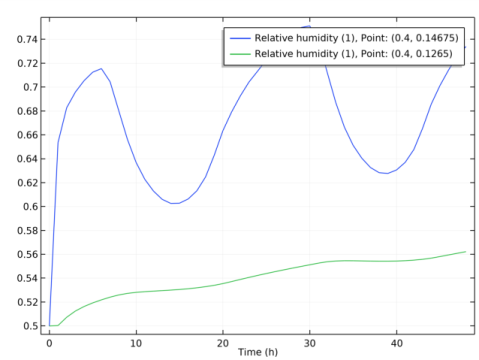
Finally, use typical weather data for the temperature and relative humidity on exterior side, and set a new time-dependent study to check the evolution of the relative humidity in the bracing and in the isolation over two days.
Definitions
Ambient Thermal Properties 1 (amth1)
1
In the Model Builder window, under Component 1 (comp1)>Definitions click Ambient Thermal Properties 1 (amth1).
2
In the Settings window for Ambient Thermal Properties, locate the Ambient Settings section.
3
From the Ambient data list, choose Meteorological data (ASHRAE 2013).
4
Locate the Location section. Click Set Weather Station.
5
In the Weather Station dialog box, select Europe>Ireland>Dublin Airport (039690) in the tree.
6
7
In the Settings window for Ambient Thermal Properties, locate the Time section.
8
Find the Date subsection. In the table, enter the following settings:
9
Find the Local time subsection. In the table, enter the following settings:
Add Study
1
In the Home toolbar, click Add Study to open the Add Study window.
2
Go to the Add Study window.
3
Find the Studies subsection. In the Select Study tree, select General Studies>Time Dependent.
4
Click Add Study in the window toolbar.
5
In the Home toolbar, click Add Study to close the Add Study window.
Study 4
In the Settings window for Study, type Study 4 (Time dependent, with vapor barrier) in the Label text field.
Study 4 (Time dependent, with vapor barrier)
Step 1: Time Dependent
1
In the Model Builder window, under Study 4 (Time dependent, with vapor barrier) click Step 1: Time Dependent.
2
In the Settings window for Time Dependent, locate the Physics and Variables Selection section.
3
4
Locate the Study Settings section. From the Time unit list, choose h.
5
In the Times text field, type range(0,1,48).
6
In the Home toolbar, click Compute.
You can visualize the ambient data used as exterior conditions as in Figure 2 by following the instructions below.
1D Plot Group 15
In the Home toolbar, click Add Plot Group and choose 1D Plot Group.
Results
1D Plot Group 15
1
In the Settings window for 1D Plot Group, type Ambient data in the Label text field.
2
Locate the Data section. From the Data set list, choose Study 4 (Time dependent, with vapor barrier)/Solution 4 (sol4).
Point Graph 1
1
Right-click Results>Ambient data and choose Point Graph.
2
3
In the Settings window for Point Graph, locate the y-Axis Data section.
4
In the Expression text field, type amth1.T_amb.
5
Click to expand the Legends section. Select the Show legends check box.
6
From the Legends list, choose Manual.
7
Point Graph 2
1
Right-click Ambient data and choose Point Graph.
2
3
In the Settings window for Point Graph, locate the y-Axis Data section.
4
In the Expression text field, type amth1.phi_amb.
5
Locate the Legends section. Select the Show legends check box.
6
From the Legends list, choose Manual.
7
Ambient data
1
In the Model Builder window, under Results click Ambient data.
2
In the Settings window for 1D Plot Group, locate the Plot Settings section.
3
Select the Two y-axes check box.
4
5
Locate the Title section. From the Title type list, choose None.
6
Click the Zoom Extents button in the Graphics toolbar.
7
In the Ambient data toolbar, click Plot.
Finally, define probes to plot the relative humidity in the bracing and in the isolation over time.
8
In the Definitions toolbar, click Probes and choose Domain Point Probe.
Definitions
1
In the Model Builder window, under Component 1 (comp1)>Definitions click Domain Point Probe 1.
2
In the Settings window for Domain Point Probe, type Domain Point Probe: Relative humidity (bracing) in the Label text field.
3
Locate the Point Selection section. In row Coordinates, set x to L/2.
4
In row Coordinates, set y to t_il+t_i+t_b*0.95.
5
In the Model Builder window, expand the Component 1 (comp1)>Definitions>Domain Point Probe: Relative humidity (bracing) node, then click Point Probe Expression 1 (ppb1).
6
In the Settings window for Point Probe Expression, locate the Expression section.
7
In the Expression text field, type mt.phi.
8
Click Update Results.
9
In the Model Builder window, under Component 1 (comp1)>Definitions right-click Domain Point Probe: Relative humidity (bracing) and choose Duplicate.
10
In the Settings window for Domain Point Probe, type Domain Point Probe: Relative humidity (isolation) in the Label text field.
11
Locate the Point Selection section. In row Coordinates, set y to t_il+t_i*0.95.
12
In the Model Builder window, expand the Component 1 (comp1)>Definitions>Domain Point Probe: Relative humidity (bracing) 1 node, then click Component 1 (comp1)>Definitions>Domain Point Probe: Relative humidity (isolation)>Point Probe Expression 1 (ppb2).
13
In the Settings window for Point Probe Expression, click to expand the Table and Window Settings section.
14
From the Output table list, choose New table.
15
Click Update Results.
Results
Probe Plot Group 16
1
In the Model Builder window, under Results click Probe Plot Group 16.
2
In the Settings window for 1D Plot Group, type Relative humidity over two days in the Label text field.
3
In the Relative humidity over two days toolbar, click Plot.